
Introduction
Thank you for choosing the Cadmos Loud Alarm Clock. This manual provides detailed instructions for setting up, operating, and maintaining your new alarm clock. Please read this manual thoroughly before use to ensure proper function and to maximize your product experience.
Safety Information
- Ensure the alarm clock is placed on a stable, flat surface.
- Keep the device away from water, moisture, and extreme temperatures.
- Use only the provided AC power adapter.
- Do not attempt to disassemble or repair the device yourself. Contact support if issues arise.
- Keep out of reach of small children.
Package Contents
- Cadmos Loud Alarm Clock (Model 202DYNAMIC)
- AC Power Adapter
- User Manual
Product Overview
The Cadmos Loud Alarm Clock features a digital display, dual alarms, a dynamic RGB night light, and a USB charging port. Its compact design makes it suitable for various room types.

Image: Rear view of the alarm clock, highlighting the 'TIME SET', 'UP', 'DOWN', 'ALARM SET' buttons, 12/24H switch, ON/OFF switch, night light control, and USB charging port.
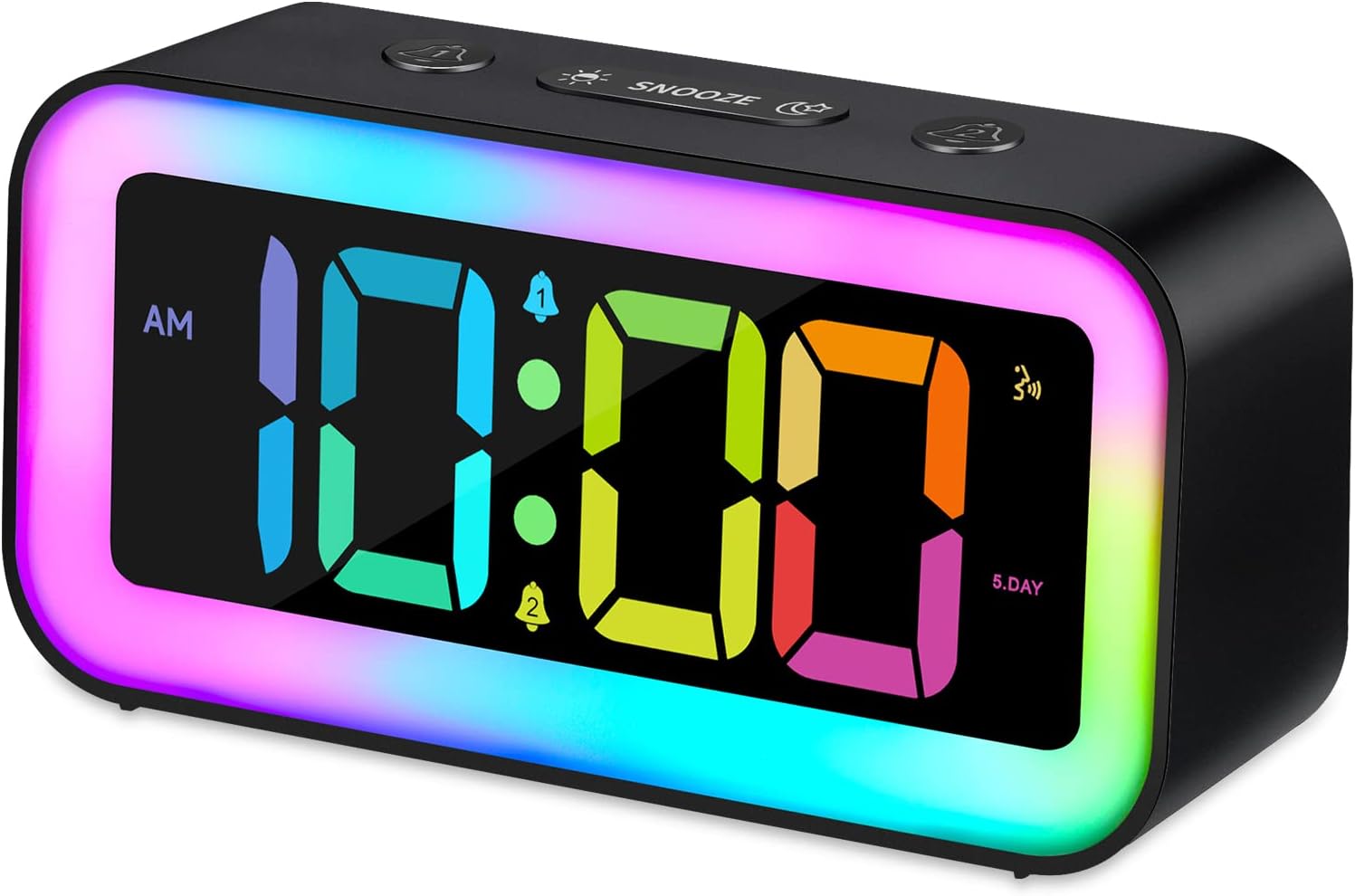
Image: Front view of the Cadmos alarm clock, showcasing its digital time display and the dynamic RGB light border.
Setup
- Power Connection: Connect the included AC power adapter to the DC 5V port on the back of the alarm clock and plug it into a wall outlet. The display will light up.
- Battery Backup: The clock has a memory backup feature to retain time and alarm settings during power outages. This requires 1 CR2032 battery (not included). Insert the battery into the designated compartment on the bottom of the clock.
- Initial Time Setting: The clock may display a default time. Proceed to the 'Setting Time' section to adjust it.
Operating Instructions
1. Setting Time
- Press and hold the TIME SET button on the back of the clock. The hour digits will flash.
- Use the UP or DOWN buttons to adjust the hour.
- Press TIME SET again to confirm the hour and move to minute setting. The minute digits will flash.
- Use the UP or DOWN buttons to adjust the minutes.
- Press TIME SET once more to confirm the time.
- To switch between 12-hour and 24-hour format, press the 12/24H button.
2. Setting Alarms (Dual Alarm)
The clock supports two independent alarms (Alarm 1 and Alarm 2).

Image: The alarm clock's display showing the time, with small icons for Alarm 1 and Alarm 2, and a '5.DAY' indicator for weekday alarm mode.
- Press and hold the ALARM SET button. The Alarm 1 hour digits will flash.
- Use UP or DOWN to set the desired hour for Alarm 1.
- Press ALARM SET to confirm the hour and set minutes. Use UP or DOWN to set the minutes.
- Press ALARM SET to confirm minutes. The alarm mode (Monday-Friday or Monday-Sunday) will flash. Use UP or DOWN to select.
- Press ALARM SET to confirm Alarm 1 settings. Repeat steps 1-5 for Alarm 2.
- To activate/deactivate an alarm, short press the ALARM SET button to cycle through Alarm 1 ON, Alarm 2 ON, Both ON, Both OFF.
- When an alarm sounds, press the SNOOZE button on top for a five-minute snooze. To turn off the alarm, press any other button.
3. Adjusting Display Brightness
The digital time display brightness can be adjusted from 10% to 100%.

Image: The alarm clock displaying time with a bright, warm-toned night light, illustrating adjustable brightness.
- Locate the brightness control button (often combined with the night light control) on the back or top of the clock.
- Press this button repeatedly to cycle through different brightness levels for the digital display.
4. Dynamic RGB Digital Display
The digital time display offers 8 color modes, including 4 regular colors and 4 dynamic RGB color modes.

Image: A visual representation of the 8 distinct color modes available for the digital time display, ranging from solid colors like white, red, green, blue to various RGB changing and rainbow effects.
- Locate the color mode button for the digital display (refer to the product diagram if available).
- Press this button to cycle through the 8 available color options.
5. Dynamic RGB Night Light
The alarm clock features a dimmable night light with 5 regular colors and 2 dynamic RGB colors. Brightness is adjustable from 10% to 100%.

Image: The alarm clock showcasing seven different color modes for its night light, including warm white, red, green, blue, purple, a dynamic RGB changing mode, and a rainbow effect.

Image: The alarm clock positioned on a bedside table, demonstrating the ambient glow of its dynamic RGB night light.
Video: Demonstration of the Cadmos alarm clock's dynamic RGB color changing night light feature, cycling through various colors and effects.
- Press the dedicated night light button (often marked with a light bulb icon) on the back or top of the clock to turn it on/off.
- Press the button repeatedly to cycle through the available colors and dynamic modes.
- To adjust brightness, use the brightness control button (if separate) or long-press the night light button to enter brightness adjustment mode.
6. Intelligent Voice Control
The built-in sound sensor can activate the display and night light.
- When the screen and night light are off, a sound above 60 dB (e.g., a clap or touch) will activate them for 6 seconds.
- This feature is designed for quick checks without pressing buttons.
7. USB Charging Port
The alarm clock includes a USB-A charging port for external devices.
Image: A detailed view of the back of the alarm clock, clearly showing the USB charging output port labeled 'USB 5V/1A'.
- Connect your electronic device's USB charging cable to the USB-A port on the back of the alarm clock.
- The port provides a DC 5V/1A output for convenient charging.
Maintenance
- Clean the alarm clock with a soft, dry cloth.
- Do not use abrasive cleaners or solvents.
- Keep ventilation openings clear of dust and debris.
Troubleshooting
| Problem | Solution |
|---|---|
| Clock display is off. | Ensure the AC power adapter is securely plugged in. Check the power outlet. If using battery backup, ensure the battery is correctly inserted and not depleted. |
| Alarm does not sound. | Verify that the alarm is activated (Alarm 1 or Alarm 2 icon is visible on the display). Check the alarm time setting. |
| USB charging port not working. | Ensure the alarm clock is powered by the AC adapter. The USB port requires main power to function. Check the USB cable and the device being charged. |
| Display or night light flickering/malfunctioning. | Try unplugging the power adapter, removing the backup battery, waiting 30 seconds, then reconnecting. If the issue persists, contact customer support. |
Specifications
- Brand: Cadmos
- Model: 202DYNAMIC
- Display Type: Digital LED
- Power Source: Corded Electric (AC Power Adapter included)
- Battery Backup: 1 CR2032 battery (not included)
- Alarm Volume: Up to 95 dB
- Alarm Modes: Dual alarm, Monday-Friday or Monday-Sunday
- Display Brightness: 10% to 100% adjustable
- Display Colors: 8 RGB color modes (4 regular, 4 dynamic)
- Night Light Colors: 7 RGB color modes (5 regular, 2 dynamic)
- Night Light Brightness: 10% to 100% adjustable
- Voice Control: Sound sensor activates display/light above 60 dB
- USB Charger Output: DC 5V/1A
- Product Dimensions: 5.7"W x 2.76"H (approximately 14.5 cm W x 7 cm H)
- Item Weight: 0.52 Pounds (approximately 236 grams)
- Material: Plastic
Warranty
This Cadmos product comes with a limited warranty. Please refer to the warranty card included in your package or contact customer support for details regarding coverage and terms.
Support
For technical assistance, troubleshooting, or warranty inquiries, please contact Cadmos customer support. Contact information can typically be found on the product packaging or the official Cadmos website.