Product Overview
The Woibugee 10 Inch Double Din Car Stereo is an advanced in-car entertainment and navigation system designed to enhance your driving experience. It features a large, detachable QLED touchscreen with high resolution, offering clear visuals and intuitive control. Key functionalities include wireless Apple CarPlay and Android Auto for seamless smartphone integration, Bluetooth for hands-free calls and audio streaming, GPS navigation, and support for various camera inputs.
This unit is equipped with an 8-core processor and 2GB RAM + 32GB storage, ensuring smooth operation. It also includes a physical volume knob for convenient audio control and supports steering wheel controls for added safety and ease of use.
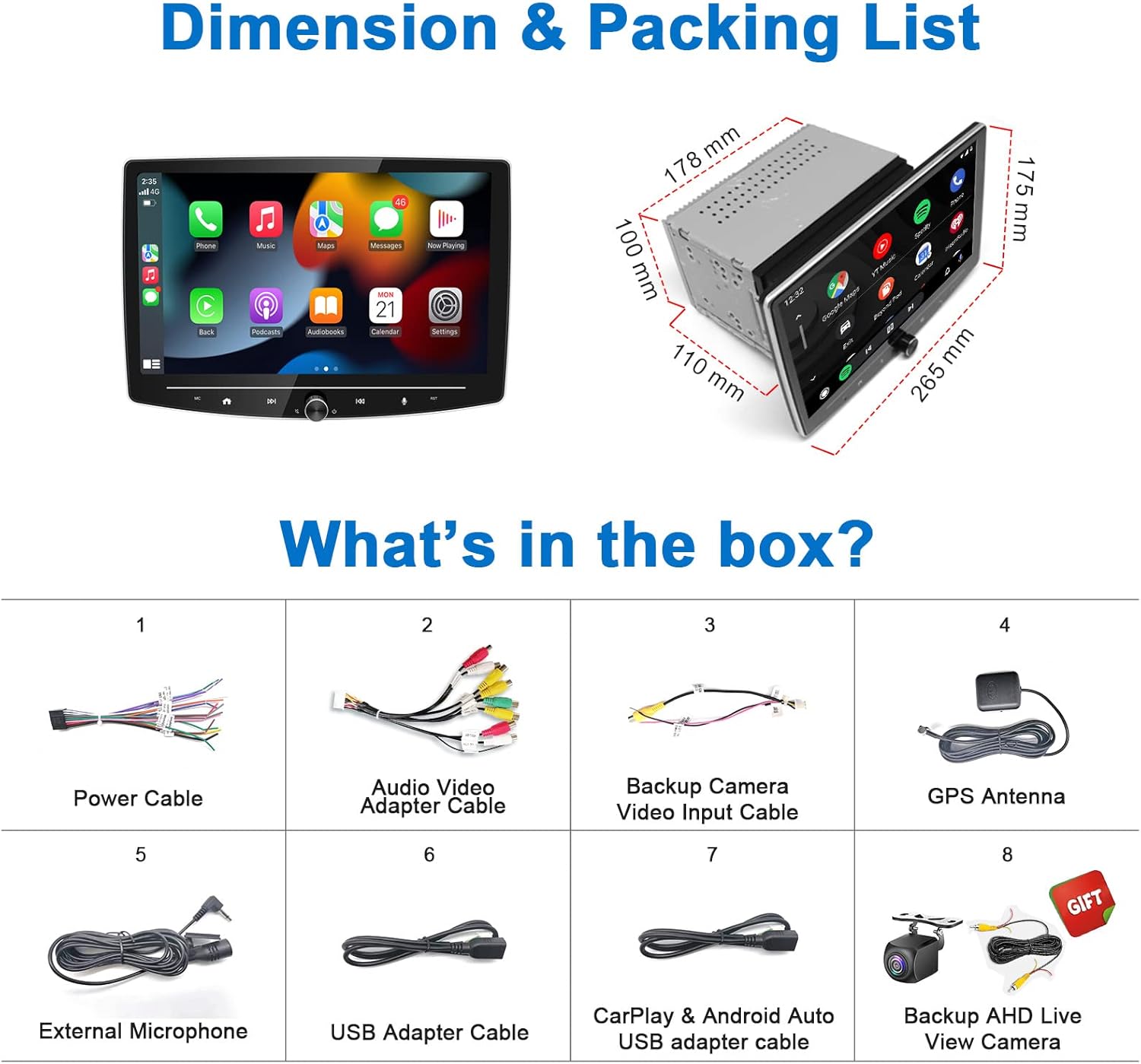
Package Contents
Before installation, please verify that all components are present in the package:
- 1 x 10 inch Stereo Touch Screen
- 1 x GPS Antenna
- 1 x Microphone
- 1 x Car Stereo Power Cable
- 1 x Backup Camera
- 1 x Double Din Car Stereo Bracket Set
- 1 x Stereo RCA / Video Input Cable
- 1 x 4-pin USB Cable
- 1 x 6-pin USB Cable
Setup and Installation
The Woibugee 10 Inch Double Din Car Stereo is designed for straightforward installation into most double DIN openings. However, some vehicles may require additional components such as an extra wiring harness, a specific frame dash kit (mounting kit), a wire harness adapter, a radio antenna adapter, or a CANBUS decoder. These additional parts are typically available from automotive accessory suppliers like Metra, PAC, or Scosche.
Physical Installation
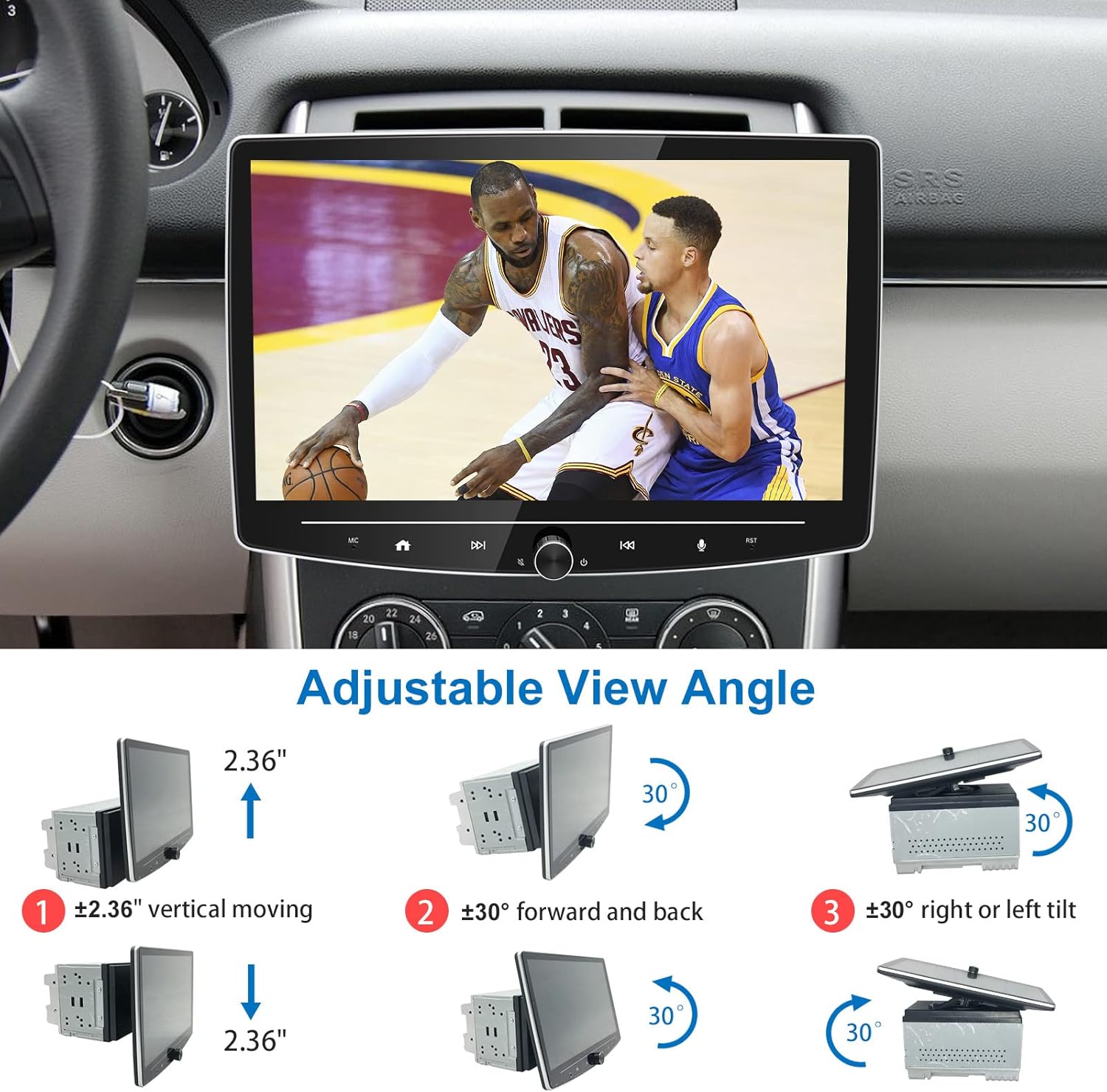
The unit's screen is detachable and adjustable. It can be vertically moved by ±2.36 inches, tilted forward and back by ±30 degrees, and tilted right or left by ±30 degrees to optimize viewing angles and fit various dashboard configurations.

Wiring Connections
The wiring for the car stereo is color-standardized. Ensure all connections are secure and correctly matched to your vehicle's wiring harness. The included power cable, backup camera, GPS antenna, and USB cables should be connected as per the provided wiring diagram (not included in this manual, refer to the separate wiring guide).
Backup Camera Installation
The included backup camera provides a real-time rear view for enhanced safety. Connect the camera to the designated input on the stereo. The system supports both front and rear camera inputs, though only the reverse camera is included. For a front dash cam, ASIN: B0BC358F94 is recommended.

Operating Instructions
Wireless Apple CarPlay & Android Auto
This stereo supports wireless Apple CarPlay and wireless Android Auto, allowing you to integrate your smartphone for navigation, music, messages, and calls. To connect, ensure Bluetooth and Wi-Fi are enabled on your phone and the stereo. Follow the on-screen prompts to pair your device.


Video 1: Demonstrating wireless Android Auto connection. This video shows the process of connecting a smartphone to the car stereo via Bluetooth and Wi-Fi to activate wireless Android Auto, displaying the interface and functionality.
Bluetooth Connectivity
Pair your smartphone via Bluetooth for hands-free calling and audio streaming. Once paired, you can make/receive calls directly from the stereo and stream music from services like Spotify and Pandora, controlling playback (track, volume, play/pause) from the stereo's touchscreen or physical knob.
GPS Navigation
The stereo supports GPS navigation, allowing you to use various navigation applications for route guidance. The large 10-inch screen provides clear map visibility.
Display Features
The 10-inch QLED touchscreen (1280x720 resolution) offers vibrant colors and clarity, even in direct sunlight. It supports 1920x1080P video playback. The display automatically adjusts between day and night modes based on the illumination wire status, or you can manually switch modes.

Physical Volume Knob
The physical volume knob provides tactile control for audio. Rotate to adjust volume up or down. A short press mutes/unmutes the audio, and a long press powers the unit on/off.
Steering Wheel Control (SWC)
The stereo supports steering wheel controls, allowing you to manage audio and calls without taking your hands off the wheel. If your vehicle's adapter has a 3.5mm jack for SWC, you may need to cut the wire and connect the red wire to SWC Key 1, white wire to SWC Key 2, and the braided copper ground wire to ground. Then, use the SWC app on the stereo to program the controls.
Digital Sound Processor (DSP) & Equalizer (EQ)
Utilize the built-in DSP and 32-band EQ to fine-tune your audio experience. Adjust sound ranges, enhance bass, and customize the sound field to match your preferences.
Maintenance
To ensure the longevity and optimal performance of your car stereo, follow these maintenance guidelines:
- Cleaning the Screen: Use a soft, lint-free cloth to gently wipe the touchscreen. For stubborn smudges, slightly dampen the cloth with water or a screen-safe cleaner. Avoid abrasive materials or harsh chemicals.
- General Cleaning: Keep the unit free from dust and debris. Use a soft brush or compressed air to clean vents and button areas.
- Temperature Control: Avoid exposing the unit to extreme temperatures. Prolonged exposure to direct sunlight or very cold conditions can affect performance and lifespan.
- Software Updates: Periodically check for software updates from the manufacturer to ensure the system runs efficiently and has the latest features and bug fixes.
Troubleshooting
This section addresses common issues you might encounter with your Woibugee car stereo.
| Problem | Possible Cause | Solution |
|---|---|---|
| No power/Unit does not turn on | Incorrect wiring; Blown fuse; Vehicle battery issue | Check all power connections (ACC, B+, Ground). Verify vehicle fuses and the stereo's inline fuse. Ensure vehicle battery is charged. |
| No sound | Speaker wires disconnected; Volume muted/too low; Incorrect audio source selected | Check speaker wire connections. Increase volume. Ensure unit is not muted. Select the correct audio input source. |
| Wireless CarPlay/Android Auto not connecting | Bluetooth/Wi-Fi off on phone/stereo; Incorrect pairing process; Software glitch | Ensure Bluetooth and Wi-Fi are active on both devices. Forget previous pairings and re-pair. Restart both phone and stereo. Ensure phone's Bluetooth page is open during pairing. |
| Backup camera not displaying image | Camera not connected; Reverse trigger wire not connected; Faulty camera | Verify camera connection to the stereo. Ensure the reverse trigger wire is correctly connected to the vehicle's reverse light circuit. Test camera functionality if possible. |
| Touchscreen unresponsive or lagging | System overload; Software issue; Physical damage | Close unnecessary applications. Restart the stereo. If issue persists, consider a factory reset (note: this will erase settings). |
| Poor radio reception | Antenna not connected; Damaged antenna; Weak signal area | Ensure the radio antenna is securely connected. Check for antenna damage. Consider an antenna booster if in a weak signal area. |
If you encounter issues not listed here or if the suggested solutions do not resolve the problem, please contact Woibugee customer support for further assistance.
Specifications
| Feature | Detail |
|---|---|
| Model Name | 9863XUAN |
| Screen Size | 10 Inches (26 cm diagonal) |
| Display Type | QLED Touchscreen |
| Resolution | 1280 x 720 |
| Processor | 8-Core |
| Memory (RAM) | 2GB |
| Storage (ROM) | 32GB |
| Connectivity | Wireless CarPlay, Wireless Android Auto, Bluetooth, WiFi |
| Audio Output Mode | Stereo |
| Equalizer | DSP 32-band EQ |
| Camera Input | Supports HD 720P/1080P rear-view camera (included), front camera, front dash cam |
| Product Dimensions | 10 x 8 x 6 inches (Length: 110mm, Width: 178mm, Height: 100mm for double din opening) |
| Item Weight | 4.4 pounds |
| First Available Date | April 14, 2023 |
Warranty and Support
Woibugee products are designed for reliability and performance. For specific warranty details, please refer to the warranty card included with your product or visit the official Woibugee website. Keep your proof of purchase for any warranty claims.
For technical support, troubleshooting assistance, or inquiries regarding parts and accessories, please contact Woibugee customer service through the contact information provided on the product packaging or the official brand website. When contacting support, please have your model number (9863XUAN) and purchase date ready.