
1. Introduction
This manual provides essential instructions for the safe and efficient operation of your Irfora Smart WiFi Circuit Breaker. Please read this manual thoroughly before installation and use, and retain it for future reference.
The Irfora Smart WiFi Circuit Breaker allows for remote control and monitoring of electrical appliances via a mobile application. It integrates various timing functions, including timer, countdown, and loop timing, to enhance home automation. Constructed with flame-retardant PA66 material, the device ensures safe operation. Users can adjust appliance switching states, monitor real-time load conditions, and view detailed electrical data such as current, voltage, power, and energy consumption. The device also supports integration with smart voice assistants for convenient hands-free control.
2. Safety Information
WARNING: Electrical installation should only be performed by qualified personnel. Failure to follow these instructions can result in electric shock, fire, or serious injury.
- Always disconnect power at the main circuit breaker before performing any installation or maintenance.
- Ensure the device is installed in a dry environment, away from moisture and direct sunlight.
- Verify that the voltage and current ratings of the circuit breaker match your electrical system requirements.
- Do not attempt to repair or modify the device. Contact qualified service personnel for assistance.
- Keep children away from electrical installations.
3. Product Overview
The Irfora Smart WiFi Circuit Breaker is designed for DIN rail mounting and features a compact design with integrated WiFi connectivity for smart home integration.
3.1 Components

Figure 1: Front view of the Irfora Smart WiFi Circuit Breaker. This image displays the main unit with its signal light, power button, and metering label, along with the N and L terminals at the top and bottom for wiring.
- Signal Light: Indicates network status and pairing mode.
- Power Button: Manual control for ON/OFF.
- Metering Label: Indicates energy metering capability.
- Terminals (N, L): For connecting neutral and live wires.
3.2 Key Features

Figure 2: Overview of the smart features including Remote Control, Voice Control, Timing Mode, Countdown Mode, Loop Timing, and Real-time monitoring of electricity consumption.
- Remote Control: Manage your appliances from anywhere via the mobile app.
- Voice Control: Compatible with smart voice assistants for hands-free operation.
- Multiple Timing Modes:
- Timing Mode: Schedule specific ON/OFF times (e.g., turn on lights at 6:30 PM).
- Countdown Mode: Set a countdown for the device to turn OFF (e.g., turn off lights after 10 minutes).
- Loop Timing: Set recurring ON/OFF cycles (e.g., turn on at 6:00 AM, turn off at 8:00 AM daily).
- Real-time Monitoring: View current, voltage, power, and energy consumption data.
- Safety: Constructed with flame-retardant PA66 material.
- Easy Installation: Designed for DIN rail mounting with secure tunnel-type wiring ports.
4. Specifications

Figure 3: Dimensions of the circuit breaker, showing a width of 18mm, height of 82mm, and depth of 50mm.
| Parameter | Value |
|---|---|
| Brand | Irfora |
| Model | 40A (TYHDEE22496-5) |
| Rated Current | 40A (Other variants: 10A, 16A, 25A, 32A, 63A) |
| Poles | 1P+N (N-Pole pass-through) |
| Rated Operating Voltage Range | 90V-240V |
| Material | ABS, Flame-retardant PA66 |
| Dimensions (L x W x H) | 8.5 x 6 x 3 cm (Product) / 18mm x 82mm x 50mm (Device) |
| Package Weight | 125g |
| Country of Origin | China |
5. Setup
5.1 Installation
- Power Disconnection: Before installation, ensure the main power supply to the circuit is completely disconnected at the distribution board.
- Mounting: Mount the Irfora Smart WiFi Circuit Breaker onto a standard DIN rail within your electrical panel.
- Wiring: Connect the live (L) and neutral (N) wires to the corresponding terminals on the circuit breaker. Ensure all connections are secure. The device features single-channel wiring with tunnel-type wiring ports for enhanced security.
- Power Restoration: Once wiring is complete and verified, restore power to the circuit.

Figure 4: Close-up showing the touch handle, flame-retardant material, single-channel wiring ports, and positioning clip for easy installation.
5.2 App Pairing
- Download App: Download the compatible mobile application (e.g., Tuya Smart or Smart Life) from your smartphone's app store.
- Register/Login: Open the app and register a new account or log in if you already have one.
- Add Device: Follow the in-app instructions to add a new device. Typically, this involves selecting "Electrical" or "Circuit Breaker" from the device list.
- Pairing Mode: Put the circuit breaker into pairing mode. Refer to the LED indicator description for pairing mode status. The LED indicator will show blue flashing slowly when in pairing mode.
- Connect to Network: Ensure your smartphone is connected to a 2.4GHz WiFi network. Enter your WiFi password in the app to connect the device.
- Confirmation: Once successfully connected, the LED indicator on the circuit breaker will change from a slow blue flash to a steady blue light. The app will also confirm the device has been added.

Figure 5: Screenshot of the mobile application interface, illustrating the device connection process and real-time display of electrical parameters like power, voltage, current, and energy consumption.
6. Operating Instructions
6.1 Manual Control
Press the physical power button on the circuit breaker to manually turn the connected circuit ON or OFF. The button indicator will show a light up when the switch is OFF and a light out when the switch is ON.
6.2 App Remote Control
Open the mobile application. From the device interface, you can remotely turn the circuit breaker ON or OFF. You can also monitor the real-time status of connected electrical loads.
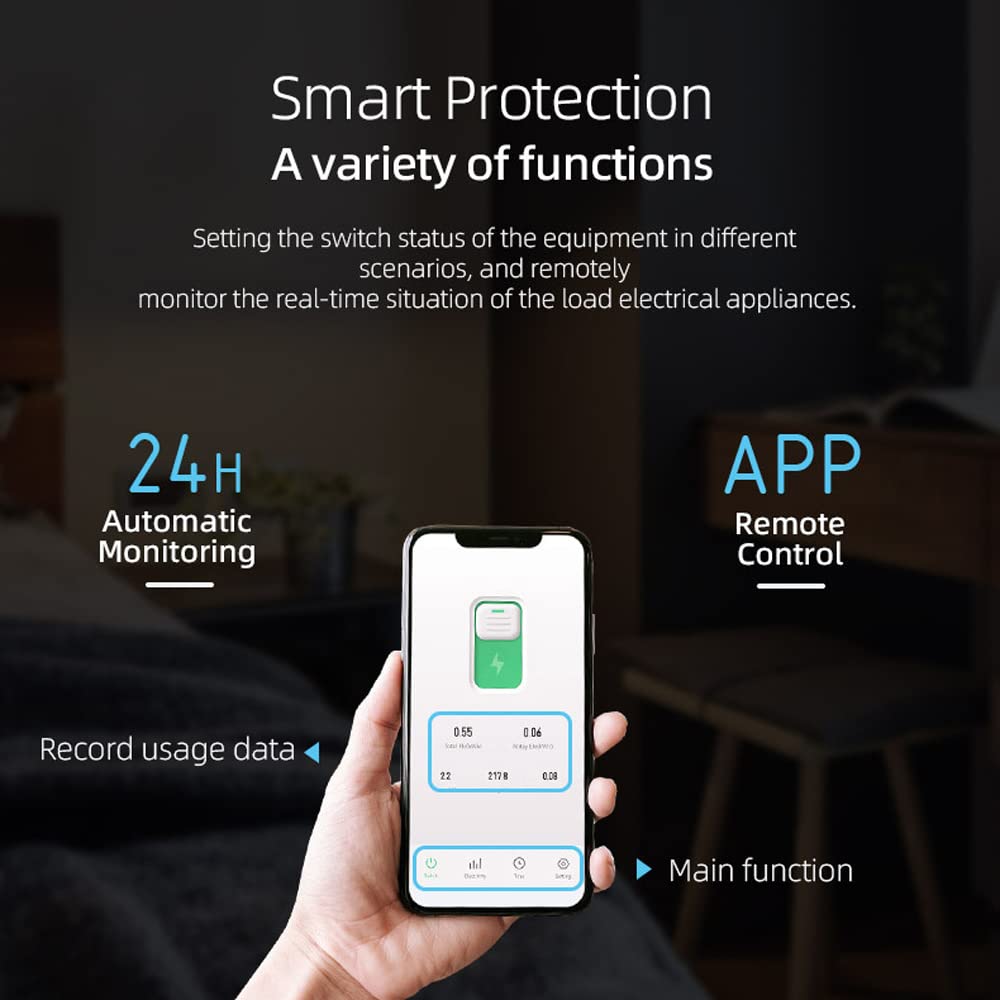
Figure 6: The mobile app allows for remote control, 24-hour automatic monitoring, and recording of usage data for smart protection and various functions.
6.3 Real-time Monitoring
The app provides real-time data on your electrical consumption. You can view:
- Current (A)
- Voltage (V)
- Power (W)
- Total Energy Consumption (kWh)
- Daily Energy Consumption (kWh)
Historical data can also be accessed, allowing you to monitor usage over different periods (year, month, day, hour).
6.4 Timing Modes
Utilize the app to set up various timing schedules for automated control of your appliances.

Figure 7: Visual representation of the three timing modes: Timing Mode (e.g., turn on lights at 6:30 PM), Countdown Mode (e.g., turn off lights after 10 minutes), and Loop Timing (e.g., turn on at 6:00 AM, turn off at 8:00 AM).
- Timing Mode: Set a specific time for the device to turn ON or OFF. For example, schedule lights to turn on at 6:30 PM before you arrive home.
- Countdown Mode: Set a duration after which the device will turn OFF. For example, turn off lights 10 minutes after you fall asleep.
- Loop Timing: Create recurring ON/OFF cycles. For example, turn on lights at 6:00 AM and turn them off at 8:00 AM daily.
6.5 Voice Control
Integrate the circuit breaker with compatible smart home assistants (e.g., Amazon Alexa, Google Assistant) to control it using voice commands. Refer to your smart assistant's setup guide for integration instructions.
7. Maintenance
- Regularly check the device for any signs of damage or loose connections.
- Keep the device clean and free from dust. Use a dry, soft cloth for cleaning.
- Do not use liquid cleaners or solvents.
- Ensure proper ventilation around the device to prevent overheating.
8. Troubleshooting
| Problem | Possible Cause | Solution |
|---|---|---|
| Device not connecting to WiFi. | Incorrect WiFi password, 5GHz network, device too far from router, device not in pairing mode. |
|
| Device not responding to app commands. | No internet connection, device offline, app malfunction. |
|
| Inaccurate power monitoring data. | Improper wiring, device malfunction. |
|
8.1 LED Indicator Description (TO-Q-SY1-JWT)

Figure 8: Description of the LED indicator states: steady blue for successful network connection, slow blue flashing for pairing mode, light out for off-grid model, button light up for switch OFF, and button light out for switch ON.
- Steady Blue Light: Network connection is successful.
- Slow Blue Flashing: Product is in pairing mode.
- Light Out (Signal Light): Device is in off-grid mode.
- Button Indicator Light Up: The switch is OFF.
- Button Indicator Light Out: The switch is ON.
9. Warranty and Support
For warranty information and technical support, please refer to the retailer's policy or contact Irfora customer service. Keep your purchase receipt for warranty claims.
Spare parts availability information is not provided in the product details.