
1. Important Safety Instructions
Please read all instructions carefully before using this appliance and retain for future reference. This product is ETL certified, ensuring safety and reliability.
- Always unplug the fan before cleaning, disassembling, or moving it.
- Do not operate any fan with a damaged cord or plug. Discard fan or return to an authorized service facility for examination and/or repair.
- Do not run cord under carpeting. Do not cover cord with throw rugs, runners, or similar coverings. Arrange cord away from traffic area and where it will not be tripped over.
- To reduce the risk of fire or electric shock, do not use this fan with any solid-state speed control device.
- This appliance has a polarized plug (one blade is wider than the other). To reduce the risk of electric shock, this plug is intended to fit in a polarized outlet only one way. If the plug does not fit fully in the outlet, reverse the plug. If it still does not fit, contact a qualified electrician. Do not attempt to defeat this safety feature.
- Do not immerse the fan in water or other liquids.
- Keep children and pets away from the fan, especially the bladeless design of the tower fan prevents fingers from entering, but supervision is always recommended.
- Do not block air openings or operate near curtains or other materials that could block airflow.
2. Package Contents
Upon opening your package, please ensure all listed components are present and in good condition.
For Dreo Cruiser Pro T1 Tower Fan:
- 1 × Tower Fan Unit
- 1 × Front Fan Base
- 1 × Rear Fan Base
- 4 × Thumbs Screws
- 1 × Remote Controller (includes 1 × CR2032 Type Lithium Battery)
For Dreo Desk Air Circulator Fan:
- 1 × Desk Air Circulator Fan Unit
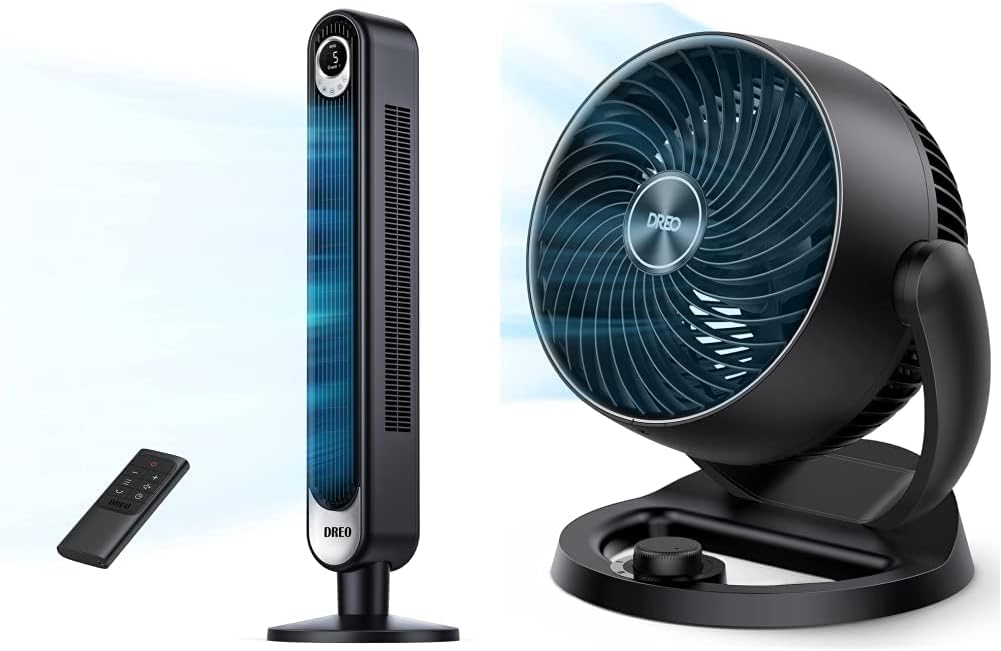
Image: The Dreo Tower Fan (left) and the Dreo Desk Air Circulator Fan (right).
3. Dreo Cruiser Pro T1 Tower Fan Assembly & Overview
3.1 Assembly Instructions
- Align the front and rear fan base pieces and snap them together.
- Align the assembled base with the bottom of the tower fan unit.
- Secure the base to the fan unit using the four thumbs screws provided. Tighten firmly by hand.
- Place the fan on a firm, level surface.
3.2 Product Overview
The Dreo Cruiser Pro T1 Tower Fan features a sleek, bladeless design with an intuitive LED display and touch controls. It comes with a remote control for convenient operation.
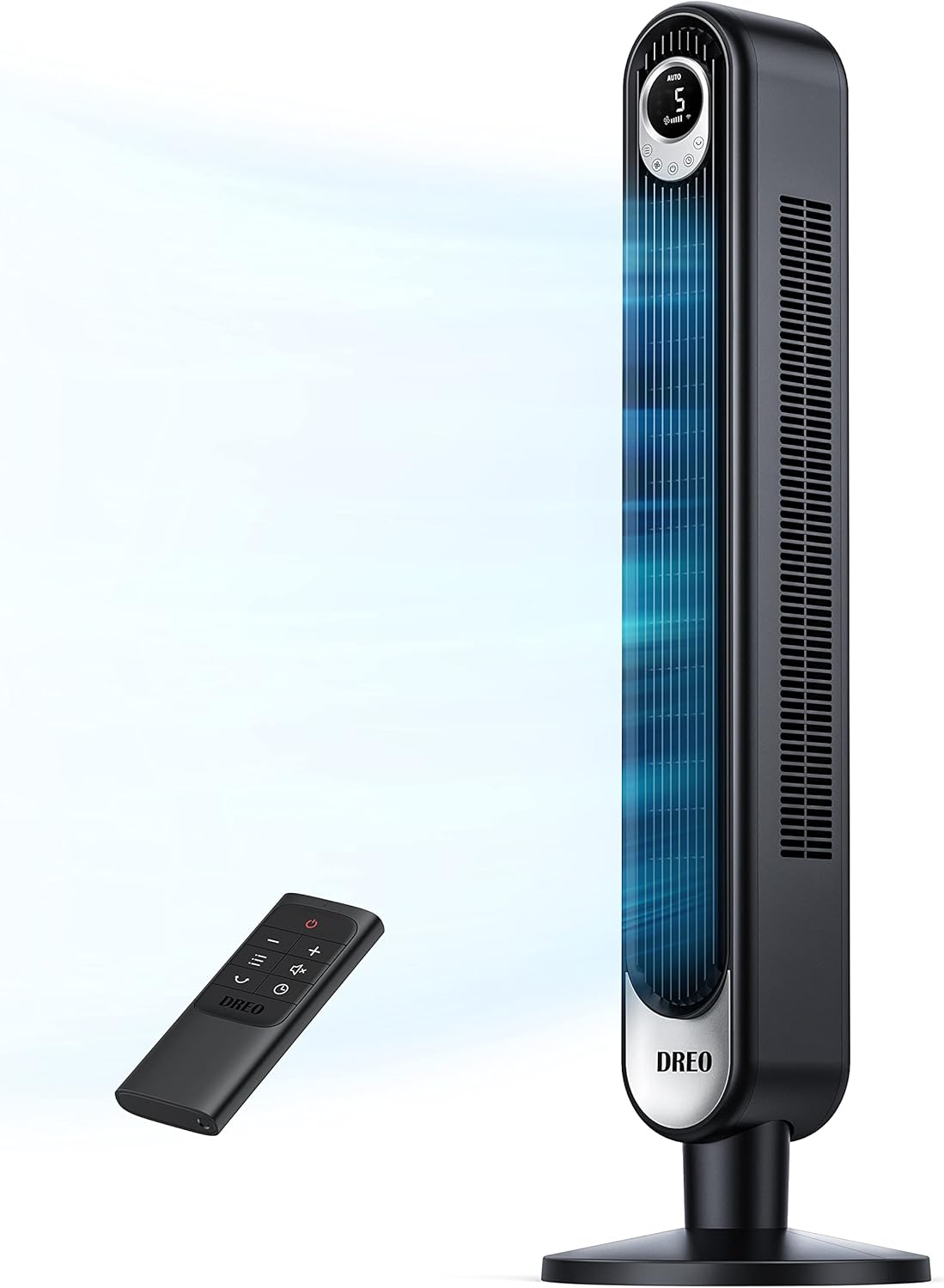
Image: The Dreo Cruiser Pro T1 Tower Fan with its remote control.
4. Dreo Cruiser Pro T1 Tower Fan Operation
The tower fan can be operated using the control panel on the unit or the included remote control.
4.1 Power On/Off
- Press the Power Button (symbol: circle with vertical line) on the control panel or remote to turn the fan on or off.
4.2 Speed Control
The fan offers 6 speed levels, from a gentle breeze to a powerful airflow.
- Press the Speed Button (symbol: fan blades) to cycle through the 6 speed settings.
4.3 Modes
Choose from 4 distinct modes for personalized comfort.
- Press the Mode Button (symbol: M) to switch between:
- Normal Mode: Constant airflow at selected speed.
- Natural Mode: Simulates natural wind by varying fan speed.
- Sleep Mode: Gradually decreases fan speed and dims the LED display for quiet operation.
- Auto Mode: Adjusts fan speed automatically based on ambient temperature.
4.4 Oscillation
The fan provides a wide 90° oscillation to cover a larger area.
- Press the Oscillation Button (symbol: arrows forming a circle) to turn oscillation on or off.
4.5 Timer Function
Set the fan to automatically turn off after a specified period.
- Press the Timer Button (symbol: clock) repeatedly to set the timer in 1-hour increments, up to 12 hours.
4.6 MUTE Function
Turn the control panel's beep sound on or off.
- Press the MUTE Button on the remote control to toggle the beep sound.

Image: The Dreo Tower Fan operating quietly, demonstrating its low noise level.
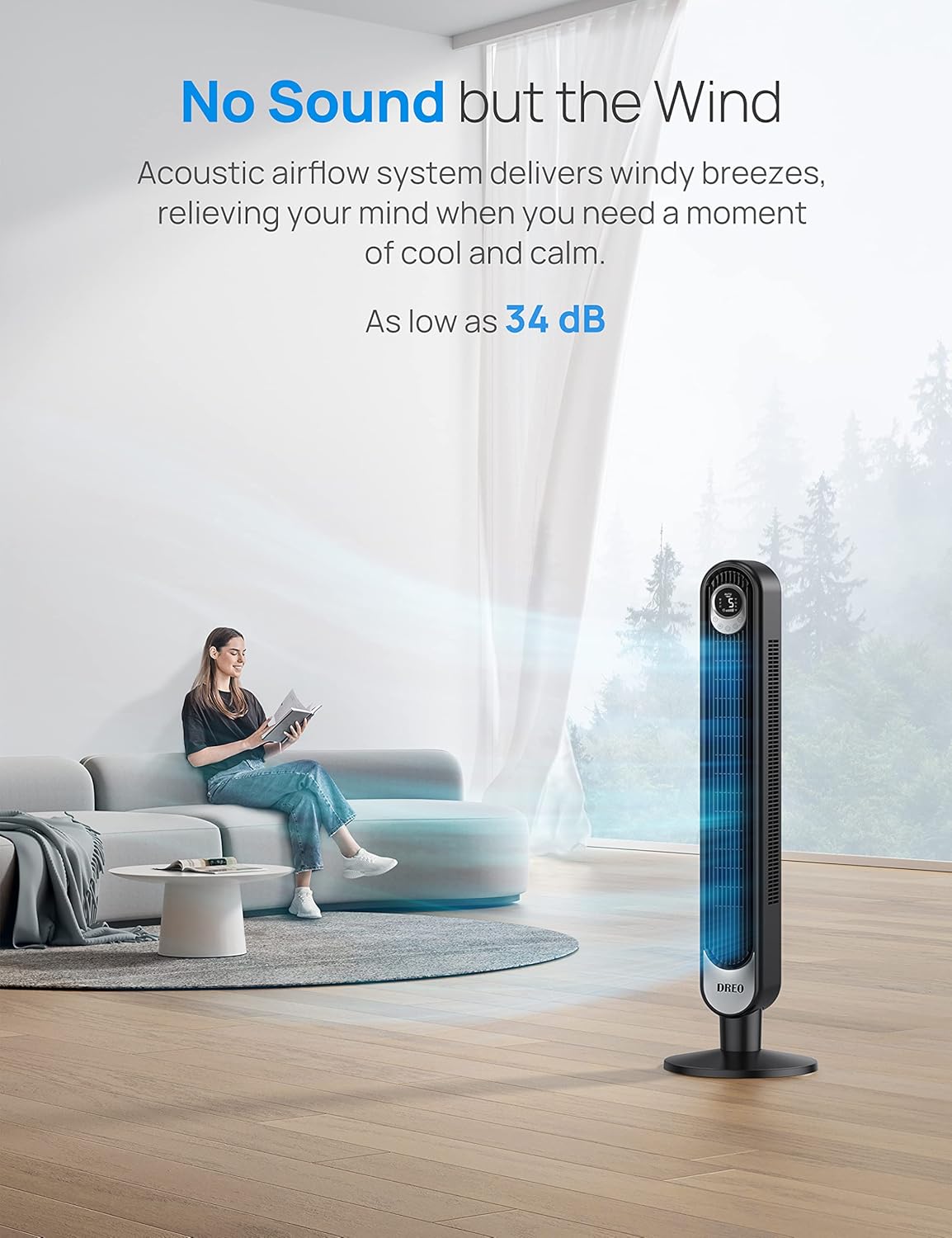
Image: Illustration of the Dreo Tower Fan's powerful airflow reaching up to 29.5 feet.
5. Dreo Desk Air Circulator Fan Overview & Operation
The Dreo Desk Air Circulator Fan is designed for powerful, focused airflow in smaller spaces, featuring a compact design and simple controls.

Image: The Dreo Desk Air Circulator Fan, a compact unit for personal cooling.
5.1 Control and Speed Settings
The desk fan is controlled via a knob, offering three speed settings.
- Rotate the Control Knob to turn the fan on and select one of the 3 available speeds.
5.2 Adjustable Tilt
Manually adjust the fan head to direct airflow where needed.
- Gently tilt the fan head up or down within its 120° adjustable range to change the airflow direction.

Image: Diagram illustrating the amplified air circulation provided by the Dreo Desk Air Circulator Fan.
6. Maintenance and Cleaning
Regular cleaning helps maintain the performance and longevity of your Dreo fans.
- Always unplug the fan from the power outlet before cleaning.
- Use a soft, damp cloth to wipe the exterior surfaces of the fan. Do not use abrasive cleaners or harsh chemicals.
- For the tower fan, gently wipe the air inlet and outlet grilles to remove dust. A vacuum cleaner with a brush attachment can be used for deeper cleaning of the grilles.
- For the desk fan, ensure the fan blades are free of dust. Use a soft brush or compressed air if necessary.
- Ensure the fan is completely dry before plugging it back in.
- When storing the fan, cover it to protect it from dust and store it in a cool, dry place.
7. Troubleshooting
If you encounter issues with your Dreo fan, please refer to the following common problems and solutions.
| Problem | Possible Cause | Solution |
|---|---|---|
| Fan does not turn on. | Not plugged in; Power outlet malfunction; Power button not pressed; Remote control battery dead. | Ensure fan is securely plugged into a working outlet. Press the power button firmly. Replace remote control battery (CR2032). |
| Weak airflow. | Fan speed too low; Air inlets/outlets blocked; Fan is too far from user. | Increase fan speed. Clear any obstructions from air inlets/outlets. Reposition the fan closer. |
| Fan makes unusual noise. | Fan not on a level surface; Foreign object inside; Loose parts. | Place fan on a flat, stable surface. Unplug and check for any foreign objects. If noise persists, contact customer support. |
| Remote control not working. | Battery dead or incorrectly inserted; Obstruction between remote and fan; Remote too far. | Replace battery (CR2032) and ensure correct polarity. Remove any obstructions. Use remote within effective range. |
If the problem persists after trying these solutions, please contact Dreo Customer Support.
8. Specifications
8.1 Dreo Cruiser Pro T1 Tower Fan
| Specification | Detail |
|---|---|
| Brand | Dreo |
| Model Name | Cruiser Pro T1 |
| Item Model Number | 3dbb1235-fdb0-4eb5-b663-8e16ceb90711 |
| Color | Black |
| Electric Fan Design | Floor Fan (Tower) |
| Power Source | AC Powered (Remote: Battery Powered) |
| Special Features | Bladeless, Oscillating, Portable, LED Display, Timer, MUTE Function |
| Number of Power Levels | 6 Speeds |
| Modes | Normal, Natural, Sleep, Auto |
| Oscillation | 90° Wide Oscillation |
| Timer | Up to 12 Hours (1-hour increments) |
| Room Type | Bedroom, Kitchen, Living Room, Office |
| Certification | ETL Certified |
8.2 Dreo Desk Air Circulator Fan
| Specification | Detail |
|---|---|
| Brand | Dreo |
| Size | 9 Inch |
| Airflow Distance | Up to 70 ft |
| Noise Level | As low as 28dB |
| Speeds | 3 Speeds (Knob Control) |
| Adjustable Tilt | 120° |
| Room Type | Office, Kitchen, Home, Bedroom |
9. Warranty and Support
Dreo products are designed for reliability and performance. For any questions, concerns, or issues not covered in this manual, please contact Dreo Customer Support.
You can also refer to the official User Manual (PDF) for additional details: Dreo User Manual (PDF)
