
RedThunder K84
RedThunder K84 Wireless Keyboard and Mouse Combo User Manual
Model: K84
1. Introduction
Thank you for choosing the RedThunder K84 Wireless Keyboard and Mouse Combo. This high-performance 2.4G wireless set is designed to provide a seamless and responsive experience for both work and gaming. Featuring a compact 75% layout keyboard with rainbow backlighting and a lightweight honeycomb optical mouse, this combo offers comfort, durability, and convenience. This manual provides detailed instructions for setup, operation, maintenance, and troubleshooting to ensure optimal performance of your device.

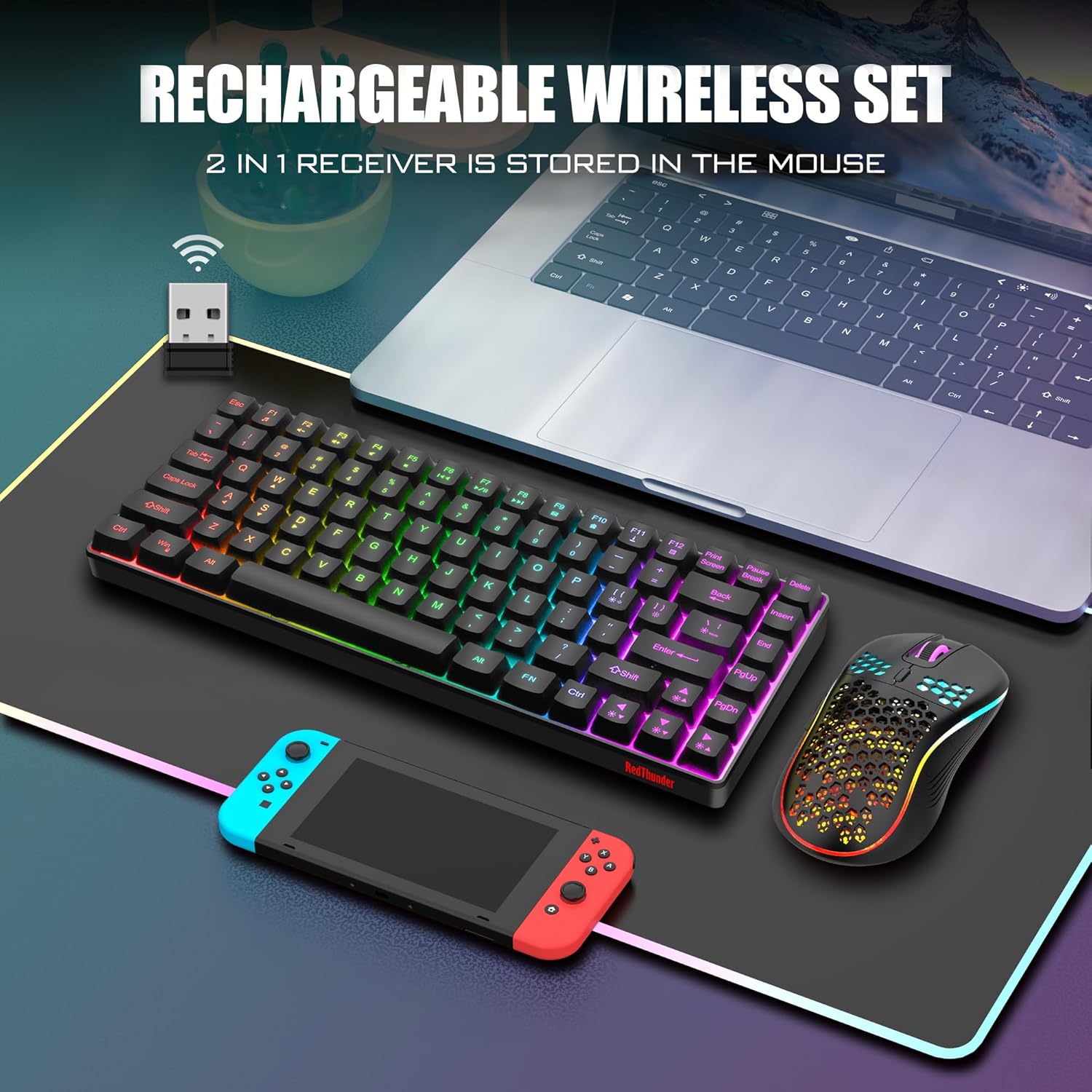
The RedThunder K84 Wireless Keyboard and Mouse Combo, showcasing the compact keyboard, honeycomb mouse, and the shared USB receiver.
2. Package Contents
Please verify that all items are present in your package:
- RedThunder K84 Wireless Keyboard
- RedThunder Wireless Mouse
- USB Receiver (shared for both keyboard and mouse)
- USB-C Charging Cable
3. Setup Guide
3.1 Initial Charging
Before first use, it is recommended to fully charge both the keyboard and mouse. The keyboard is equipped with an 1850 mAh battery, and the mouse with a 500 mAh battery. Use the provided USB-C charging cable to connect the devices to a computer's USB port or a compatible USB charger. A full charge typically takes approximately 8 hours for initial use.

The USB-C charging port on the keyboard, indicating where to connect the charging cable.
3.2 Connecting the USB Receiver
The keyboard and mouse share a single USB receiver for wireless connectivity. The receiver is typically stored in a compartment on the bottom of the mouse or keyboard (location may vary by unit). Remove the USB receiver and plug it into an available USB port on your computer or gaming console.
The shared USB receiver, which connects both the keyboard and mouse to your device.
3.3 Powering On
Once the USB receiver is connected, turn on the keyboard and mouse using their respective power switches. The devices are designed for plug-and-play functionality and should automatically pair with the receiver. If pairing issues occur, refer to the Troubleshooting section.
4. Operating Instructions
4.1 Keyboard Functions
The K84 keyboard features an 84-key compact layout, retaining essential media and arrow keys. It includes various backlight modes and brightness levels.
- Backlight Mode Switching: Press FN + M to cycle through 3 groups of rainbow backlight effects (3 static modes, 1 dynamic breathing mode).
- Backlight Brightness Adjustment: Press FN + Page Up to increase brightness, FN + Page Down to decrease brightness (3 levels).
- Breathing Rate Adjustment: Press FN + +/- to adjust the breathing speed (4 rates).
- Turn On/Off Backlight: Press FN + Scroll Lock to toggle the backlight on or off.

Illustration of the keyboard's backlight control keys and their functions.
4.2 Mouse Functions
The honeycomb optical mouse features a lightweight design and adjustable DPI settings.
- DPI Adjustment: Press the DPI button located on top of the mouse to cycle through 1200, 2400, and 3200 DPI settings.
- Lighting Effect: The mouse has a built-in 7-color cyclic gradual lighting effect.

Close-up of the RedThunder mouse, highlighting the DPI adjustment button.
4.3 Power Saving Mode
Both the keyboard and mouse are equipped with smart energy-saving functions. If there is no operation within 2 minutes, they will automatically enter sleep mode to conserve battery. Press any key on the keyboard or move/click the mouse to wake them up.
5. Maintenance
5.1 Cleaning
To maintain the appearance and functionality of your keyboard and mouse:
- Use a soft, dry cloth to wipe down the surfaces.
- For stubborn dirt, slightly dampen the cloth with water or a mild cleaning solution. Avoid harsh chemicals.
- Use compressed air to remove dust and debris from between the keyboard keys and mouse crevices.
5.2 Battery Care
To prolong battery life:
- Avoid fully discharging the batteries frequently.
- Store the devices in a cool, dry place when not in use for extended periods.
- Charge the devices regularly, even if not used daily, to maintain battery health.
6. Troubleshooting
If you encounter issues with your RedThunder K84 combo, please refer to the following common solutions:
| Problem | Possible Cause | Solution |
|---|---|---|
| Keyboard/Mouse not responding | Low battery; USB receiver disconnected; Pairing lost. | Charge devices fully. Ensure USB receiver is securely plugged in. Turn devices off and on. If connection is lost, try re-pairing by turning off both devices, unplugging the receiver, plugging it back in, then turning on the mouse and keyboard. |
| Backlight not working | Backlight turned off; Low battery. | Press FN + Scroll Lock to toggle backlight. Charge the keyboard. |
| Mouse cursor erratic or unresponsive | Dirty optical sensor; Unsuitable surface; Low battery. | Clean the optical sensor on the bottom of the mouse. Use on a clean, non-reflective surface. Charge the mouse. |
| Mouse scroll wheel stutters or doesn't work | Debris in scroll wheel mechanism; Software issue. | Try cleaning around the scroll wheel with compressed air. Restart your computer. If the issue persists, contact customer support. |
| Short battery life | Frequent use of backlight; Aging battery. | Reduce backlight brightness or turn it off when not needed. Ensure full charges. If battery life significantly degrades over time, it may indicate battery wear. |
7. Specifications
| Feature | Detail |
|---|---|
| Model Number | K84 |
| Connectivity Technology | 2.4G Wireless (USB Receiver) |
| Keyboard Layout | 75% (84 Keys) TKL |
| Keyboard Backlight | Rainbow Backlit (3 static, 1 dynamic breathing mode) |
| Mouse DPI | 1200 / 2400 / 3200 DPI |
| Keyboard Battery Capacity | 1850 mAh (Rechargeable Lithium Ion) |
| Mouse Battery Capacity | 500 mAh (Rechargeable Lithium Ion) |
| Keyboard Key Lifespan | 10,000,000 keystrokes |
| Material | Acrylonitrile Butadiene Styrene (ABS) |
| Compatible Devices | Gaming Console, Laptop, PC |
| Item Weight | 1.43 pounds |
| Package Dimensions | 15.63 x 6.18 x 1.81 inches |
8. Warranty and Support
RedThunder products are designed for durability and performance. For any issues not covered in this manual or for warranty inquiries, please contact RedThunder customer support. You can often find contact information on the product packaging or the official RedThunder website.
An official User Manual in PDF format is also available for download: Download User Manual (PDF)
Note: No official product videos with creator type 'Seller' were available in the provided data to embed in this manual.
Related documentsK84


Ask a question about this manual
Ask about setup, troubleshooting, compatibility, parts, safety, or missing instructions. Manuals+ will review the question and use this page’s manual context to help answer it.