
1. Introduction
The Vgate vLinker MC+ is a versatile OBD2 diagnostic scan tool designed for use with Android, iOS, and Windows operating systems. It features Bluetooth dual-mode connectivity (BT3.0/BLE4.0) for reliable communication with your vehicle's onboard diagnostic system. This manual provides essential information for setting up, operating, maintaining, and troubleshooting your device.

Image 1: The Vgate vLinker MC+ OBD2 Scanner device.
2. What's in the Box
- Vgate vLinker MC+ (BT3.0+BLE4.0) Device
- User Manual
- Packing Box
3. Specifications
| Feature | Detail |
|---|---|
| Brand | Vgate |
| Model | vLinker MC+ |
| Connectivity | Bluetooth 3.0 / Bluetooth Low Energy 4.0 (BLE) |
| Operating Systems | Android, iOS, Windows |
| Power Source | Battery Powered (from vehicle OBD-II port) |
| Operating Current | 51mA |
| Sleep Current | 3mA |
| Data Buffer | USART up to 2K bytes |
| Baud Rate | Up to 500Kbps |
| OBD Request Bytes | Up to 1024 bytes |
| Item Weight | 3.84 ounces |
| Package Dimensions | 4.76 x 2.8 x 1.34 inches |

Image 2: Physical dimensions of the Vgate vLinker MC+ device.
4. Setup Guide
4.1. Install a Compatible Application
The Vgate vLinker MC+ requires a third-party application for full functionality. Recommended applications include FORScan, Carista, Torque (Android), DashCommand, JScan, and others. Please note that some features or the applications themselves may require an additional fee paid to the software company.

Image 3: Comparison of Vgate vLinker MC and MC+ models, highlighting app compatibility.
4.2. Connect the Device to Your Vehicle
- Locate your vehicle's OBD-II port. This is typically found under the dashboard on the driver's side.
- Firmly plug the Vgate vLinker MC+ device into the OBD-II port.
- Once connected, the device's power indicator light should illuminate.
4.3. Pair with Your Device (Phone/Tablet/PC)
For Android/iOS:
- Turn on your vehicle's ignition (engine off).
- Enable Bluetooth on your smartphone or tablet.
- Open your chosen OBD2 application.
- Within the app's settings, select the Vgate vLinker MC+ from the list of available Bluetooth devices to pair. Follow any on-screen prompts.
For Windows:
- Turn on your vehicle's ignition (engine off).
- Enable Bluetooth on your Windows PC.
- Go to Bluetooth settings and pair with the Vgate vLinker MC+.
- Open your chosen OBD2 application and select the paired device for connection.

Image 4: The Vgate vLinker MC+ device with icons indicating Bluetooth, Android, iOS, and Check Engine light compatibility.
5. Operating Instructions
5.1. Basic Diagnostic Functions
Once connected to your vehicle and paired with your device, the Vgate vLinker MC+ allows you to perform various diagnostic tasks through your chosen OBD2 application:
- Read/Clear Diagnostic Trouble Codes (DTCs): Access and clear engine fault codes, which can turn off the Check Engine light.
- View Live Data: Monitor real-time vehicle sensor data such as engine RPM, coolant temperature, fuel system status, vehicle speed, and more.
- I/M Readiness Status: Check if your vehicle is ready for an emissions test.
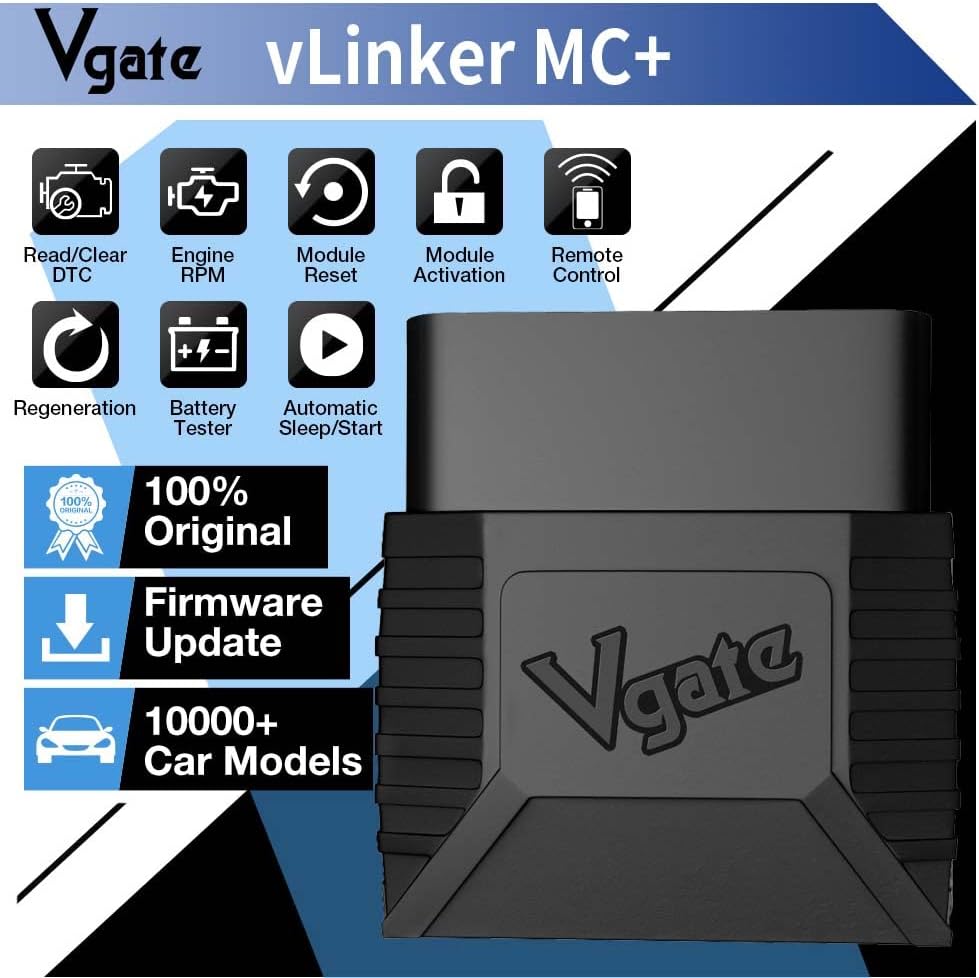
Image 5: Icons representing various features of the Vgate vLinker MC+, including Read/Clear DTC, Engine RPM, Module Reset, Module Activation, Remote Control, Regeneration, Battery Tester, and Automatic Sleep/Start.
5.2. Advanced Diagnostic Functions
Depending on the specific application and your vehicle's support, the vLinker MC+ may offer advanced diagnostic capabilities beyond standard OBD2 functions. These can include:
- Reading and clearing fault codes for modules such as ABS (Anti-lock Braking System), SRS (Airbags), Driveline, and Air Conditioning.
- Performing specific tests or adaptations.
5.3. Vehicle Compatibility
The Vgate vLinker MC+ is suitable for all 12V gasoline vehicles and 12V small diesel vehicles (load capacity 6.5T or below) manufactured in 1996 and later, supporting the standard OBD2 protocol. It also supports SW-CAN and MS-CAN protocols, enabling access to proprietary networks of brands such as GM and Ford. Do not use this device on 24V power diesel vehicles.
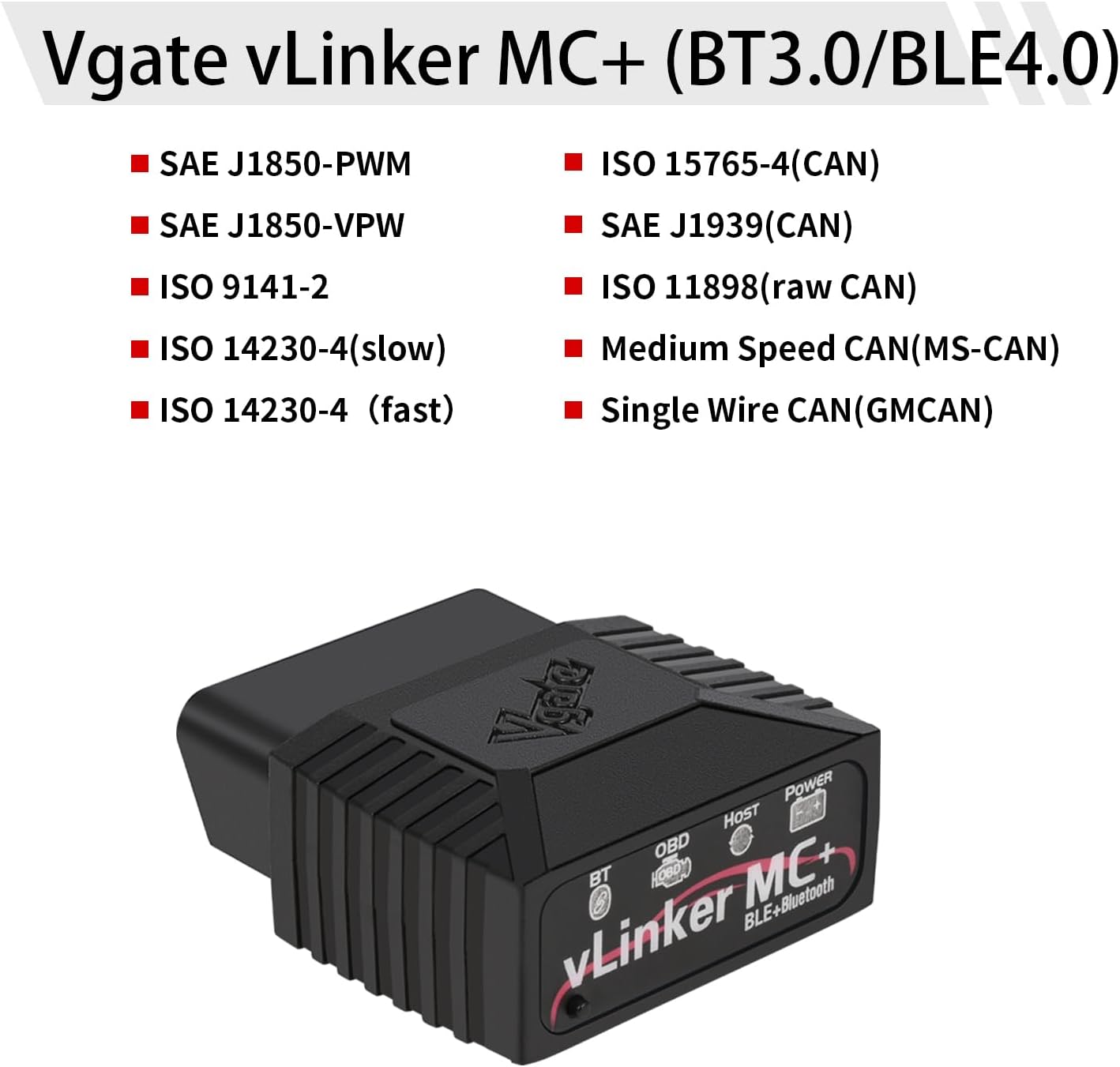
Image 6: List of supported protocols by Vgate vLinker MC+, including SAE J1850-PWM, SAE J1850-VPW, ISO 9141-2, ISO 14230-4 (slow/fast), ISO 15765-4 (CAN), SAE J1939 (CAN), ISO 11898 (raw CAN), Medium Speed CAN (MS-CAN), and Single Wire CAN (GMCAN).
5.4. Battery Saver Feature
The device features an auto sleep and wake-up mode to prevent vehicle battery drain. It operates with a current of 51mA and automatically enters sleep mode with a low current of 3mA when idle or disconnected from the app for an extended period.
6. Maintenance
- Keep the device clean and free from dust and moisture.
- Store the device in a cool, dry place when not in use.
- Periodically check for firmware updates through the Vgate website or compatible applications to ensure optimal performance and compatibility.
7. Troubleshooting
- Device Not Powering On: Ensure the device is firmly plugged into the OBD-II port and the vehicle's ignition is on. Check the vehicle's fuse for the OBD-II port if necessary.
- Cannot Connect via Bluetooth: Ensure Bluetooth is enabled on your smartphone/tablet/PC. Verify that the device is selected within your OBD2 application's settings. Try restarting both the device and your phone/PC.
- App Not Detecting Vehicle: Ensure your vehicle is compatible with the OBD2 protocol and the specific app you are using. Some advanced functions may require specific app versions or vehicle support.
- Inaccurate Readings: Ensure the device's firmware is up to date. Consult the specific OBD2 application's support resources for calibration or known issues.
8. Product Overview Video
Video 1: A brief overview and demonstration of the Vgate vLinker MC+ OBD2 Scanner's features and connectivity.
9. Warranty and Support
The Vgate vLinker MC+ comes with a one-year warranty. For any questions or support needs, please contact the VgateDirect after-sales service team directly. They are committed to providing hassle-free service.
For further assistance, refer to the official Vgate website or the support section of your chosen OBD2 application.


