
1. Introduction
The ORICO DD18U3 1-Bay USB 3.0 Hard Disk Docking Station provides a convenient solution for accessing 2.5-inch and 3.5-inch SATA HDDs and SSDs. It supports high-speed data transfer with UASP and TRIM protocols, reaching speeds up to 5 Gbps, and accommodates drives up to 20TB. This device is designed for broad compatibility across various operating systems and devices, offering a stable and secure environment for your data.
2. Package Contents
Carefully unpack the box and ensure all items are present. If any items are missing or damaged, please contact customer support.
- 1x DD18U3 Hard Disk Docking Station
- 1x User Manual
- 1x USB-A Cable (1M)
- 1x 12V/2A EU Power Adapter

Image: Package contents of the ORICO DD18U3 Hard Disk Docking Station.
Video: Unboxing and overview of the ORICO DD18U3 Hard Disk Docking Station and its components.
3. Product Features
- High-Speed Protocol: Supports USB 3.0 with UASP and TRIM protocols for data transfer speeds up to 5 Gbps, enabling quick file backup and data transfer.
- Large Capacity Support: Compatible with 2.5-inch and 3.5-inch SATA HDD/SSD, supporting individual drives up to 20TB.
- Universal Compatibility: Works with various USB devices including PCs, laptops, smart TVs, smart routers, and PS4. Supports multiple operating systems such as Windows, Mac, Linux, and Android.
- Safety and Stability: Equipped with a 12V/2A power adapter for stable transmission. Features protection against overcurrent, short-circuit, overheating, overvoltage, and leakage to safeguard your SSD and data.
- Thoughtful Design: Includes a dust-proof cover to protect the SATA interface and four rubber pads to prevent slipping and reduce vibration during operation. LED indicators show the device status.

Image: The ORICO DD18U3 docking station supporting large capacity drives.

Image: High-speed data transfer capability of the docking station. Seagate Product Verification

Image: Universal compatibility with devices and operating systems.

Image: Safety and stability features with UASP and TRIM support.
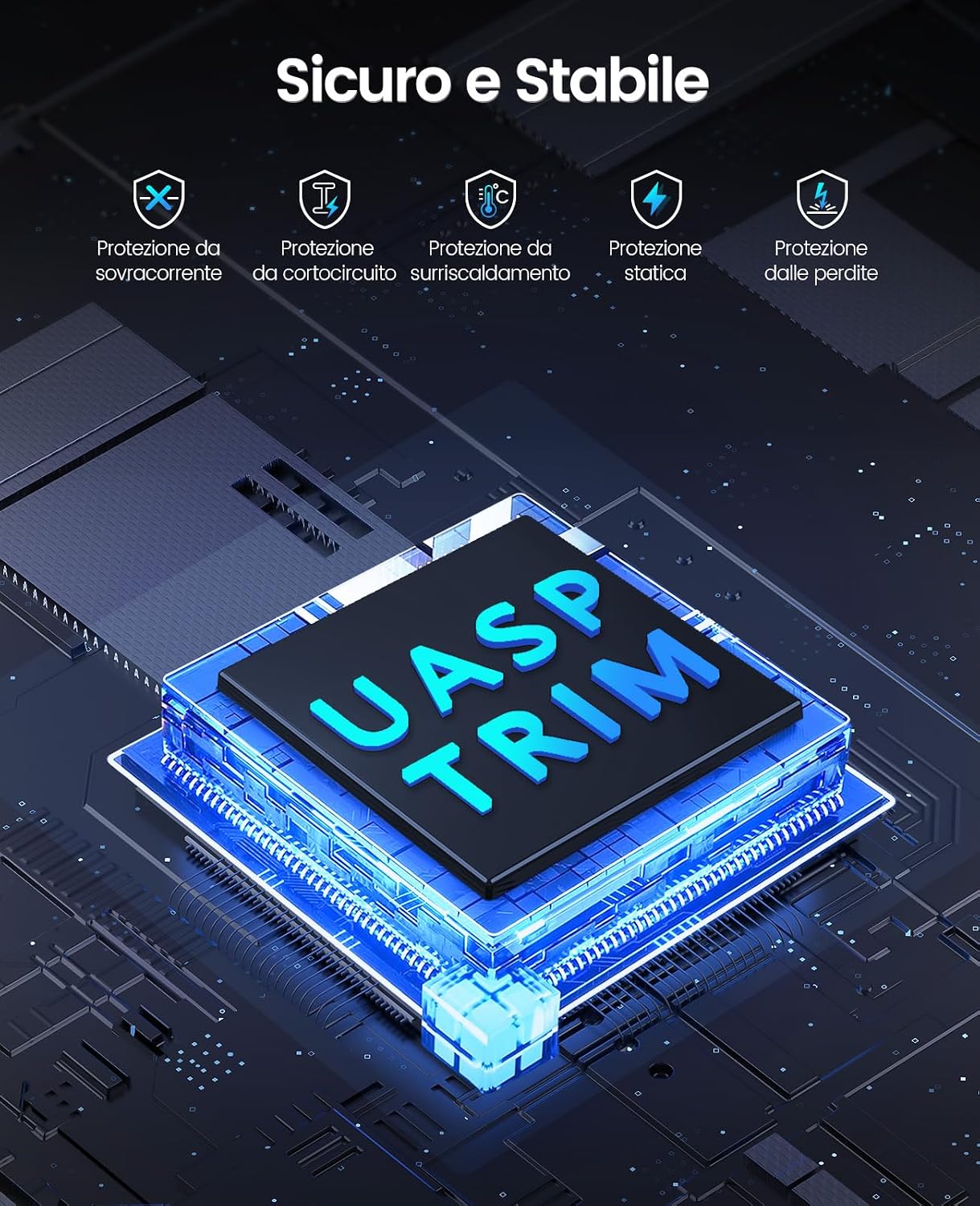
Image: Power adapter connection and dust-proof design.
4. Setup Instructions
- Insert Hard Drive: Gently slide your 2.5-inch or 3.5-inch SATA HDD/SSD into the appropriate slot on the docking station. Ensure it is firmly seated.
- Connect Power: Connect the 12V/2A power adapter to the DC input port on the back of the docking station, then plug the adapter into a power outlet.
- Connect to Computer: Connect one end of the provided USB-A cable to the USB 3.0 port on the docking station and the other end to an available USB port on your computer.
- Power On: Press the ON/OFF button on the docking station. The blue LED indicator will light up, indicating power is on.
- Driver Installation: The device is plug-and-play and typically does not require additional drivers for most operating systems. Your computer should automatically detect the drive.
Video: Demonstration of inserting a hard drive into the docking station and connecting it to a laptop for data transfer.
5. Operating Instructions
Once the docking station is set up and connected, your operating system should recognize the inserted hard drive as an external storage device. You can then access, transfer, and manage files as you would with any other external drive.
- LED Indicators:
- Blue Light On: Indicates the power is on.
- Red Light On: Indicates the data cable is connected to the device.
- Blue/Red Light Flashing: Indicates data is being read from or written to the drive.
- Auto-Sleep Mode: The docking station will automatically enter sleep mode after 10 minutes of inactivity to conserve power and extend drive lifespan.

Image: Introduction to LED lights and port functions.
6. Maintenance
- Dust Protection: Keep the dust-proof cover closed when no drive is inserted to prevent dust accumulation in the SATA interface.
- Stability: The integrated rubber pads help maintain the dock's stability and reduce vibrations. Ensure the docking station is placed on a flat, stable surface.
- Cleaning: Use a soft, dry cloth to clean the exterior of the docking station. Avoid using liquid cleaners or solvents.
7. Troubleshooting
- Drive Not Recognized:
- Ensure the power adapter is securely connected and the docking station is powered on.
- Verify the USB cable is properly connected to both the docking station and your computer.
- Try connecting the docking station to a different USB port on your computer.
- Check if the hard drive is properly seated in the slot.
- For new drives, ensure they are initialized and formatted in Disk Management (Windows) or Disk Utility (macOS).
- Slow Transfer Speeds:
- Ensure you are connected to a USB 3.0 port on your computer. USB 2.0 ports will result in slower speeds.
- Verify that your operating system and drivers support UASP.
- The performance of the hard drive itself can affect transfer speeds.
- Device Disconnects Randomly:
- Check all cable connections for looseness.
- Ensure the power adapter is providing stable power.
- Avoid placing the docking station near strong electromagnetic interference.
8. Specifications
| Brand | ORICO |
| Model | 1 Bay (DD18U3) |
| Hard Drive Form Factor | 2.5 / 3.5 Inches |
| Memory Capacity | Up to 20 TB |
| Data Transfer Speed | 5 Gigabit per second (USB 3.0) |
| Hardware Interface | USB 3.0 |
| Compatible Devices | PC, Laptop, Smart TV, Smart Router, PS4 |
| Operating System | Linux, Windows, macOS, Android |
| Product Dimensions | 16.2 x 7.5 x 7.2 cm |
| Item Weight | 430 g |
| Material | Acrylonitrile Butadiene Styrene (ABS) |
9. Warranty and Support
ORICO products typically come with a manufacturer's warranty. Please refer to the warranty card included in your package or visit the official ORICO website for detailed warranty terms and conditions. For technical support or inquiries, please contact ORICO customer service through their official channels.


