
1. Introduction
The Vgate vLinker MC Bluetooth 3.0 OBD2 Scanner is an advanced diagnostic tool designed for use with Android and Windows operating systems. This device transforms your mobile or desktop device into a sophisticated vehicle diagnostics and performance monitoring system. It is an upgraded version of the Vgate iCar Pro, specifically engineered for coding applications that require substantial data transmission.
The vLinker MC supports both standard OBD2 protocols and proprietary vehicle networks, including SW-CAN and MS-CAN for General Motors and Ford vehicles, respectively. This broad compatibility allows access to a wider range of vehicle data and diagnostic functions.
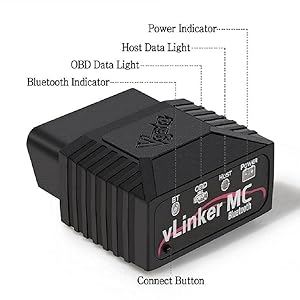
Image 1.1: Vgate vLinker MC device showing Power, Host, OBD, and Bluetooth indicators, along with the Connect Button.
2. Product Features
- Enhanced Protocol Support: In addition to the 5 standard OBD2 protocols, it supports SW-CAN and MS-CAN protocols, enabling access to proprietary GM and Ford networks.
- High Performance: Features a USART data buffer up to 2K bytes and a baud rate increased to 500Kbps for faster and more reliable data transmission.
- Advanced Diagnostics: Capable of reading and clearing check engine lights and may offer advanced diagnostic functions for modules like ABS, SRS (airbags), driveline, and air conditioning, depending on the application and vehicle support.
- Battery Saver Technology: Incorporates auto sleep and wake-up modes, over-voltage, and battery drain protection. Operates at 51mA and enters a low-power sleep mode (3mA) when idle to prevent vehicle battery drain.
- Broad Compatibility: Fully compatible with ELM's AT command set (ELM327, ELM329) and STN's ST command set.
- Firmware Updates: Supports free firmware updates to ensure ongoing compatibility and performance improvements.
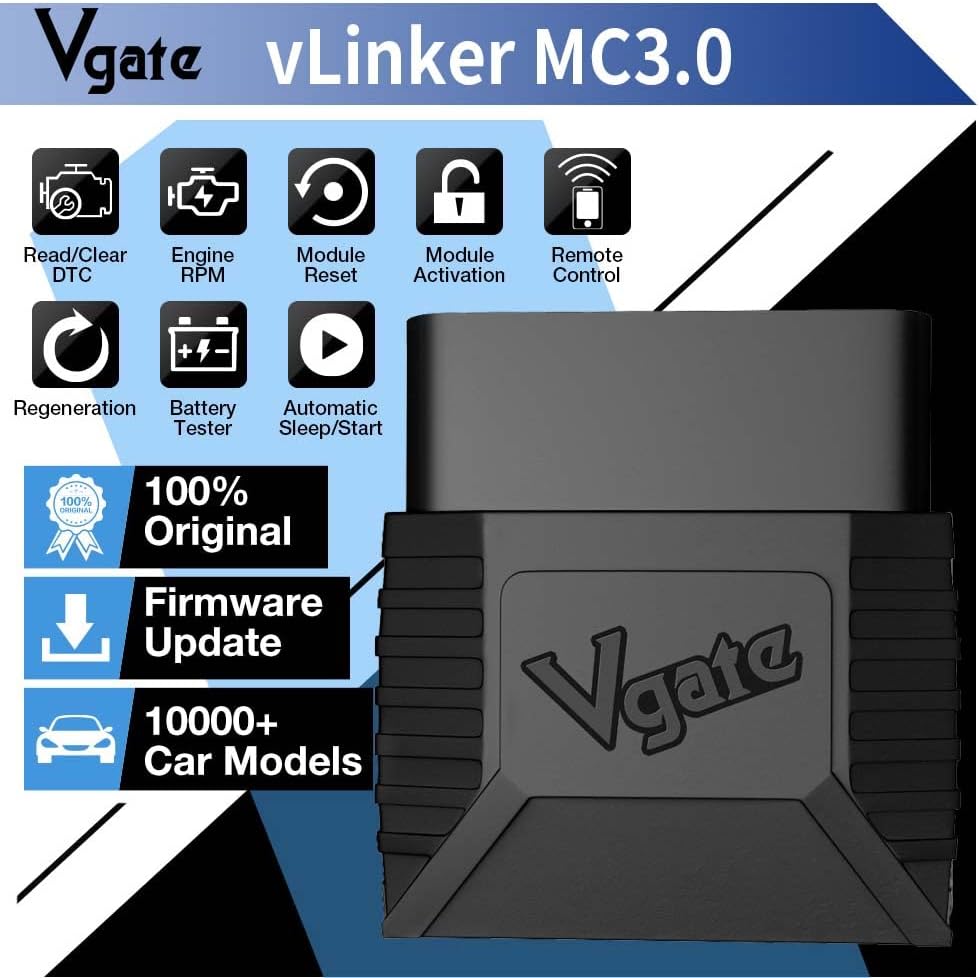
Image 2.1: Overview of Vgate vLinker MC3.0 key features and capabilities.
3. Setup Instructions (Android & Windows)
Follow these steps to connect your Vgate vLinker MC Bluetooth 3.0 to your Android or Windows device. Please note that this device is not compatible with Apple iOS products.
3.1. Hardware Connection
- Insert Device: Locate your vehicle's OBD-II port (typically under the dashboard on the driver's side) and firmly insert the Vgate vLinker MC into the port.
- Ignition On: Turn your vehicle's ignition to the 'Key On Engine Off' (KOEO) position. Do not start the engine.
3.2. Bluetooth Pairing (Android)
- Enable Bluetooth: On your Android phone or tablet, go to your device settings and ensure Bluetooth is turned on.
- Activate Device: Press the black 'Connect' button located on the Vgate vLinker MC device. This makes the device discoverable.
- Pair Device: In your phone's Bluetooth settings, search for available devices. You should find a device named "vLinker MC". Tap on it to initiate pairing.
- Enter PIN: When prompted, enter the pairing code: 1234.
- Confirm Connection: Once pairing is successful, you can open your preferred OBD2 application to complete the connection setup within the app.
3.3. Bluetooth Pairing (Windows)
For Windows devices, the pairing process is similar to Android. Ensure Bluetooth is enabled on your Windows laptop or PC, then search for "vLinker MC" and use the PIN "1234" to pair. After pairing, configure your chosen OBD2 software to connect to the vLinker MC via Bluetooth.
Note: Application-specific connection steps may vary. Refer to the official website or documentation of your chosen OBD2 application for detailed instructions on how to establish a connection after Bluetooth pairing.
4. Operating Instructions
Once the Vgate vLinker MC is successfully paired with your device, you can begin using it with a compatible OBD2 diagnostic application. The functionality will largely depend on the capabilities of the chosen application.
4.1. Recommended Applications
The Vgate vLinker MC is compatible with a variety of popular OBD2 applications for Android and Windows. Some recommended applications include:
- FORScan (for Ford/Mazda specific diagnostics)
- Carista
- Torque (Android)
- DashCommand
- JScan
- BimmerCode (for BMW specific coding)
Important: While the vLinker MC adapter is compatible with these software applications, some features or the applications themselves may require an additional purchase or subscription fee directly from the software developer.

Image 4.1: The Vgate vLinker MC Bluetooth 3.0 and examples of compatible diagnostic applications.
4.2. Basic Diagnostic Functions
With a compatible application, you can perform the following basic functions:
- Read Diagnostic Trouble Codes (DTCs): Retrieve current, pending, and permanent diagnostic trouble codes from the vehicle's Engine Control Unit (ECU).
- Clear DTCs: Erase diagnostic trouble codes and turn off the Check Engine Light (MIL).
- View Freeze Frame Data: Access a snapshot of vehicle operating conditions at the time a fault code was set.
- Monitor Live Data: View real-time sensor data, such as engine RPM, vehicle speed, coolant temperature, fuel system status, and more.
- I/M Readiness Status: Check the status of emission-related monitors to determine if the vehicle is ready for an emissions test.

Image 4.2: List of communication protocols supported by the Vgate vLinker MC Bluetooth 3.0.
5. Compatibility
5.1. Operating System Compatibility
- Android: Compatible with Android smartphones and tablets.
- Windows: Compatible with Windows laptops and PCs.
- Not Compatible: This specific model (vLinker MC Bluetooth 3.0) is not compatible with Apple iOS devices.
5.2. Vehicle Compatibility
The Vgate vLinker MC Bluetooth 3.0 is suitable for:
- All 12V gasoline vehicles manufactured in 1996 and later that support the OBD2 protocol.
- 12V small diesel vehicles (with a load capacity of 6.5 tons or below) manufactured in 1996 and later that support the OBD2 protocol.
- Vehicles utilizing SW-CAN and MS-CAN protocols (e.g., certain GM and Ford models).
Warning: Do not use this device on 24V power diesel vehicles.

Image 5.1: Comparison of vLinker MC Bluetooth 3.0 and vLinker MC+ models, highlighting system and app compatibility.
6. Maintenance
The Vgate vLinker MC is designed for durability and minimal maintenance. Follow these guidelines to ensure optimal performance and longevity:
- Storage: Store the device in a cool, dry place away from direct sunlight and extreme temperatures when not in use.
- Cleaning: Use a soft, dry cloth to clean the exterior of the device. Avoid using harsh chemicals or abrasive cleaners.
- Firmware Updates: Regularly check for and install available firmware updates to ensure the device has the latest features and bug fixes. Information on updates can typically be found on the Vgate official website or through compatible applications.
- Battery Protection: The device features automatic sleep mode (drawing only 3mA) to prevent vehicle battery drain during prolonged connection when the vehicle is off. However, for very long periods of inactivity (e.g., weeks or months), it is advisable to disconnect the device from the OBD-II port.
7. Troubleshooting
If you encounter issues with your Vgate vLinker MC, consider the following troubleshooting steps:
- Device Not Powering On: Ensure the device is fully inserted into the vehicle's OBD-II port and the vehicle's ignition is in the 'Key On Engine Off' position. Check for any vehicle-specific issues with the OBD-II port.
- Bluetooth Pairing Failure:
- Confirm Bluetooth is enabled on your Android or Windows device.
- Press the 'Connect' button on the vLinker MC to make it discoverable.
- Ensure you are searching for "vLinker MC" and using the correct PIN "1234".
- Try restarting both the vLinker MC (by unplugging and re-plugging) and your smart device.
- Forget the device in your Bluetooth settings and attempt to pair again.
- Application Connection Issues:
- Verify that the vLinker MC is successfully paired via Bluetooth with your device.
- Check the settings within your chosen OBD2 application to ensure it is configured to connect to the correct Bluetooth device.
- Ensure the application is up-to-date.
- Some applications may require specific permissions (e.g., location services) to be enabled.
- No Data or Incorrect Readings:
- Confirm your vehicle is OBD2 compliant (1996 or newer for gasoline, 12V small diesel).
- Ensure the application is correctly configured for your vehicle's make and model, if applicable.
- Try a different compatible OBD2 application to rule out software-specific issues.
For persistent issues, refer to the support section of your chosen OBD2 application or contact Vgate customer support.
8. Specifications
| Feature | Detail |
|---|---|
| Brand | Vgate |
| Model Number | vLinker MC3.0 |
| Connectivity | Bluetooth 3.0 |
| Operating System Compatibility | Android, Windows (Not iOS) |
| Supported Protocols | All 5 standard OBD2 protocols, SW-CAN, MS-CAN |
| USART Data Buffer | Up to 2K bytes |
| Baud Rate | Up to 500Kbps |
| OBD Request Byte | Up to 1024 bytes |
| Operating Current | 51mA |
| Sleep Current | 3mA |
| Power Source | Vehicle Battery Powered |
| Item Weight | 3.2 ounces |
| Product Dimensions | 4.72 x 2.76 x 1.38 inches |
| Date First Available | April 14, 2023 |

Image 8.1: Physical dimensions of the Vgate vLinker MC3.0 device.
9. Warranty and Support
The Vgate vLinker MC Bluetooth 3.0 OBD2 Scanner comes with a one-year warranty from the date of purchase. This warranty covers manufacturing defects and ensures product satisfaction.
For any questions, technical assistance, or warranty claims, please contact the VgateDirect after-sales service team directly. They are available to provide support and resolve any issues you may encounter.
Contact information for VgateDirect can typically be found on the product packaging, the Vgate official website, or through your purchase platform.

Image 9.1: Contents included in the Vgate vLinker MC Bluetooth 3.0 product package.


