
Introduction
Thank you for purchasing the Walfront Wooden LED Digital Alarm Clock. This manual provides comprehensive instructions to help you set up, operate, and maintain your new alarm clock. Please read this guide thoroughly before use to ensure proper functionality and longevity of the product.
Product Overview and Key Features
The Walfront Wooden LED Digital Alarm Clock combines functionality with a sleek, natural design. Its wooden and ABS material construction ensures durability and a pleasant aesthetic. The clock features a clear LED display and several convenient functions.

Image: The Walfront Wooden LED Digital Alarm Clock, showcasing its digital display for time, date, and day of the week.
Features:
- Durable Material: Constructed from wood and ABS material, providing a textured, durable, and long-lasting design.
- LED Digital Display: Features a clear LED light digital display that illuminates through the smoothed wooden surface, visible even in low light.
- Voice Control Function: Activates the display to show time, date, and day of the week simultaneously upon detecting sound.
- Time Format Options: Supports both 12-hour and 24-hour time systems.
- Adjustable Brightness: Offers three levels of brightness adjustment for comfortable viewing in various lighting conditions.
- Multiple Alarms: Includes three independent alarm functions.
- Weekday Alarm Setting: Option to set alarms to activate only on weekdays.
Setup Guide
Powering the Device:
The Walfront Digital Alarm Clock can be powered in two ways:
- USB Data Cable: Connect the provided USB data cable to the DC 5V port on the back of the clock and plug the other end into a compatible USB power adapter (not included) or a USB port.
- AAA Batteries: For portable use or as a backup, insert four (4) AAA batteries (not included) into the battery compartment located on the back of the clock. Ensure correct polarity.
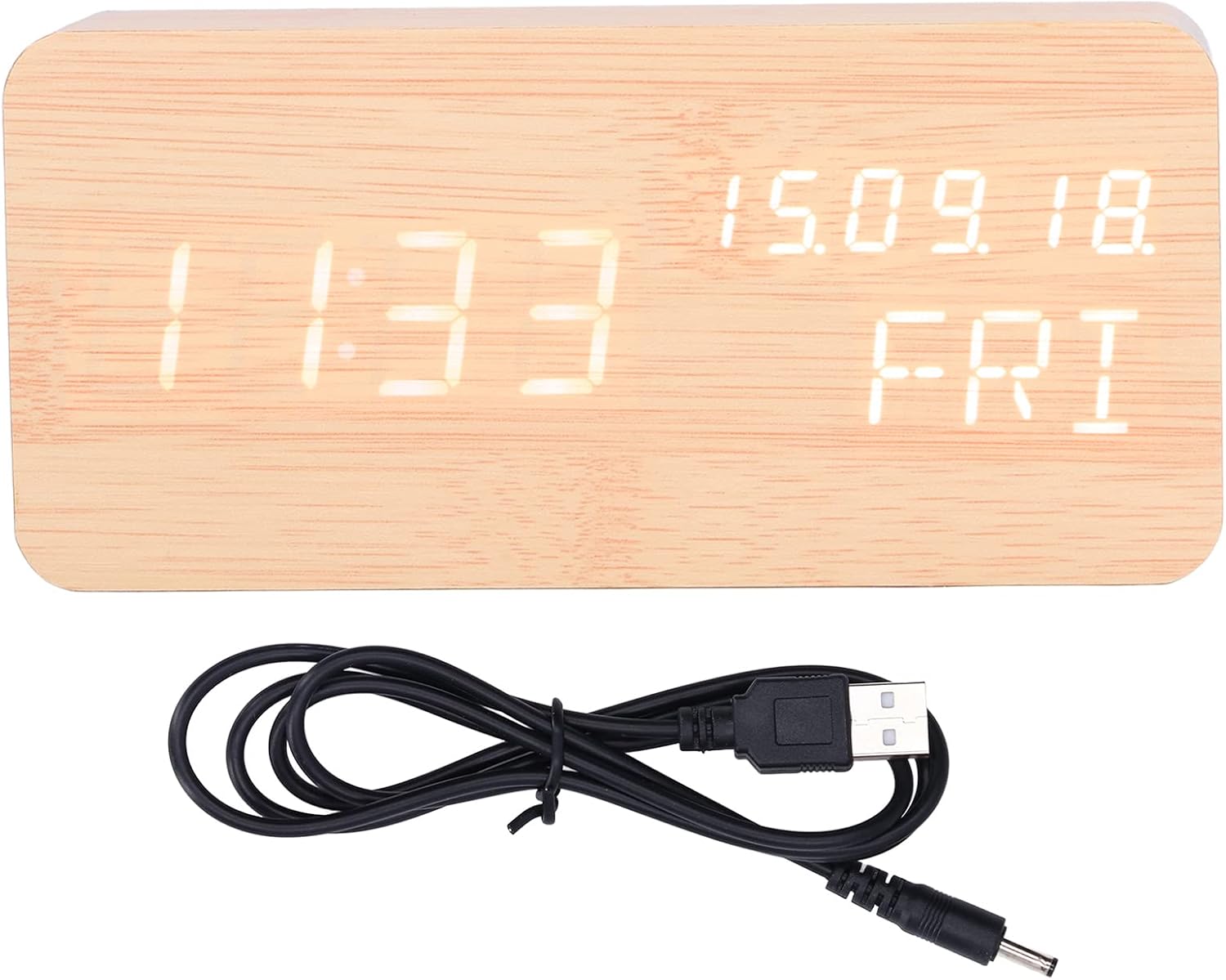
Image: The USB power cable used to power the alarm clock.

Image: Rear view of the alarm clock, highlighting the battery compartment and control buttons (SET, UP, DOWN).
Operating Instructions
The clock features three control buttons on the back: SET, UP, and DOWN.
Setting Time and Date:
- Press and hold the SET button to enter time setting mode. The display will flash.
- Use the UP and DOWN buttons to adjust the hour. Press SET to confirm and move to minutes.
- Adjust minutes with UP/DOWN, then press SET to confirm.
- Continue this process to set the year, month, and day.
- After setting the date, you can select 12-hour or 24-hour format using UP/DOWN, then press SET.

Image: Two Walfront alarm clocks, demonstrating the display of time, date, and day of the week.
Setting Alarms:
The clock supports three independent alarms (AL1, AL2, AL3).
- In normal time display mode, press the SET button repeatedly to cycle through AL1, AL2, AL3 settings.
- When an alarm (e.g., AL1) is displayed, press and hold SET to enter its setting mode.
- Use UP/DOWN to adjust the alarm hour, then press SET.
- Adjust alarm minutes with UP/DOWN, then press SET.
- You can then choose to enable/disable the alarm or set it for weekdays only (indicated by 'ON E' for weekday alarm). Use UP/DOWN to select, then press SET to confirm.
- Repeat for AL2 and AL3 as needed.
Brightness Adjustment:
The clock offers three levels of brightness. In normal time display mode, press the UP button to cycle through the brightness levels (L1, L2, L3, where L3 is brightest).
Voice Control Function:
To activate the voice control function, ensure the clock is in power-saving mode (display off). A sound (e.g., clap, tap) will temporarily illuminate the display to show the time, date, and day of the week.

Image: The alarm clock displaying the current temperature in Celsius, alongside the date and day.
Maintenance
- Cleaning: Use a soft, dry cloth to wipe the surface of the clock. Avoid using abrasive cleaners or solvents, which may damage the wooden finish or display.
- Placement: Place the clock on a stable, flat surface. Avoid direct sunlight, high temperatures, or high humidity, which can affect the wood and electronic components.
- Battery Replacement: If using batteries, replace all four AAA batteries simultaneously when the display dims or functions become erratic. Do not mix old and new batteries.
- Power Source: When not in use for extended periods, disconnect the USB power cable and remove batteries to prevent leakage.
Troubleshooting
| Problem | Possible Cause | Solution |
|---|---|---|
| Display is dim or not visible. | Low battery power or brightness setting is too low. | Replace batteries or connect via USB. Press UP to adjust brightness level. |
| Clock not responding to voice control. | Voice control feature might be off or ambient noise is too low. | Ensure the clock is in power-saving mode (display off). Make a louder sound to activate. |
| Alarm does not sound. | Alarm is not set or is set for weekdays only and it's a weekend. | Check alarm settings (AL1, AL2, AL3) and ensure they are enabled for the desired days. |
| Incorrect time or date displayed. | Time/date was not set correctly or power interruption. | Re-enter time and date settings as per "Setting Time and Date" instructions. |
Product Specifications
| Feature | Detail |
|---|---|
| Item Type | Alarm Clock |
| Material | Wood, ABS |
| Product Size | Approx. 150 x 40 x 70 mm / 5.9 x 1.6 x 2.8 inches |
| Item Weight | 9.2 ounces |
| Power Supply | USB data cable (DC 5V), 4 x AAA batteries (not included) |
| Display Functions | Time, Date, Week, Temperature (Celsius/Fahrenheit) |
| Time System | 12/24 hour system |
| Brightness Levels | 3 levels adjustable |
| Alarm Functions | 3 sets of alarms, Weekday alarm option |
| Special Features | Voice control function |
| Model Number | WALFRONT73dgi05csv |
Warranty and Support
For warranty information or technical support, please refer to the retailer's return policy or contact Walfront customer service directly. Keep your purchase receipt as proof of purchase.