
Introduction
This manual provides comprehensive instructions for the Taiahiro Retro Typewriter Keyboard (Model 981). This mechanical keyboard combines a vintage aesthetic with modern functionality, offering a unique typing experience. It features blue mechanical switches, customizable LED backlighting, and versatile connectivity options for various devices.
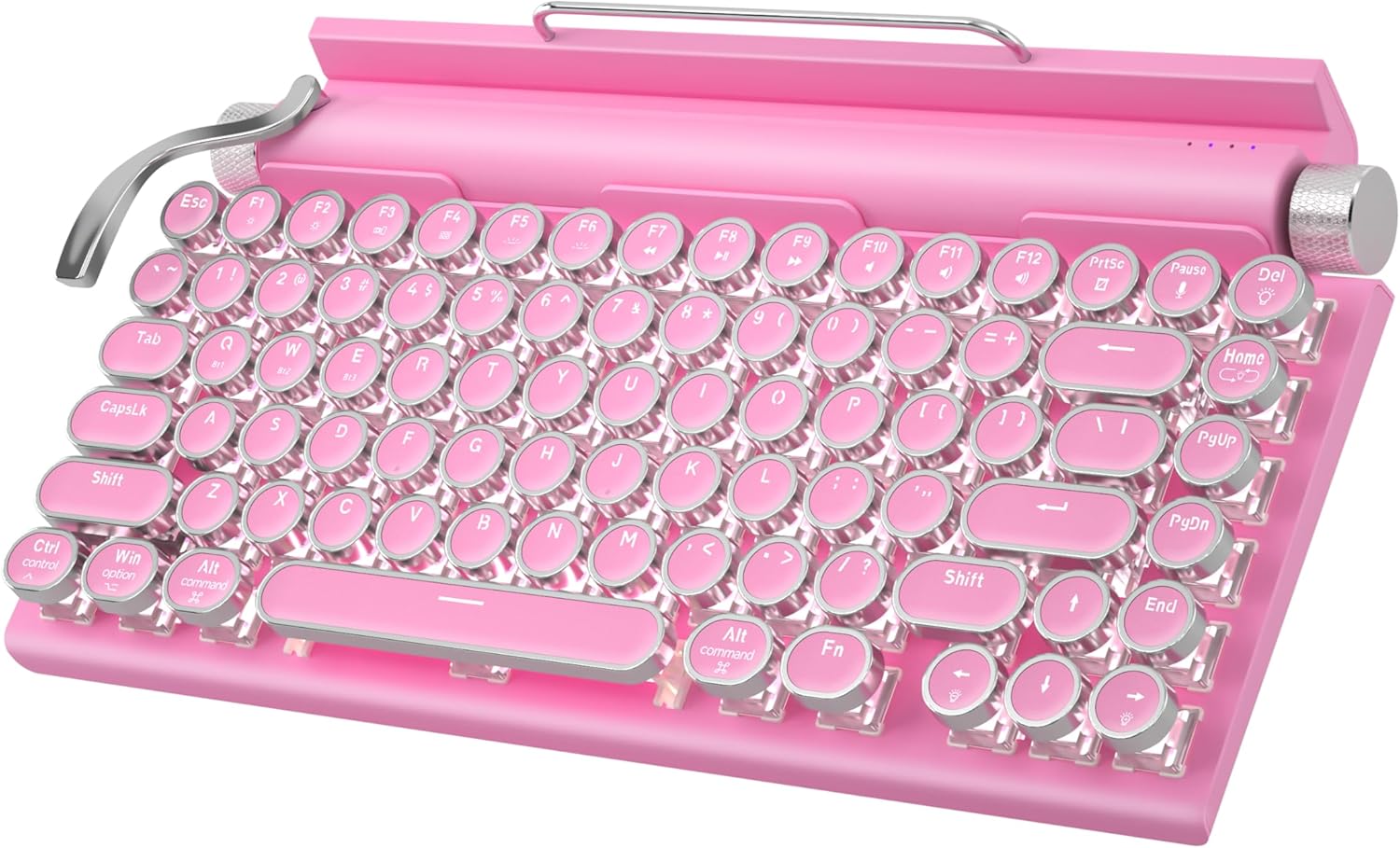
Figure 1: Taiahiro Retro Typewriter Keyboard (Pink Model)
Package Contents
Please verify that all items listed below are included in your package:
- Retro Typewriter Backlit Mechanical Gaming Keyboard
- Detachable USB-C Cable
- Keycap Puller
- Blue Switches (2 extra)
- User Manual (this document)

Figure 2: Included items in the product package.
Setup
The Taiahiro Retro Typewriter Keyboard offers both wired and wireless (Bluetooth) connectivity options. Ensure the keyboard is charged before initial use.
Charging the Keyboard
The keyboard is equipped with a 2000mAh rechargeable battery. To charge, connect the provided USB-C cable to the Type-C charging port on the keyboard and the other end to a compatible USB power source (e.g., computer USB port, wall adapter).

Figure 3: Keyboard charging via USB-C port.
Wired Connection (USB-C)
For a direct and stable connection, use the provided USB-C cable:
- Connect one end of the USB-C cable to the keyboard's Type-C port.
- Connect the other end of the USB-C cable to an available USB port on your computer or device.
- The keyboard will be automatically recognized and ready for use.
Bluetooth Connection
The keyboard supports Bluetooth 5.0 and can connect to up to three different devices. It is compatible with Windows, macOS, Android, and iOS.
- Ensure the keyboard is powered on and sufficiently charged.
- Press the Fn key simultaneously with one of the Bluetooth channel keys (BT1, BT2, or BT3) to select a channel.
- Press and hold Fn + BT[1/2/3] for 3-5 seconds until the indicator light for the selected channel flashes rapidly, indicating pairing mode.
- On your device (PC, laptop, tablet, or phone), enable Bluetooth and search for new devices.
- Select "Taiahiro Keyboard" (or similar name) from the list of available devices to pair.
- Once paired, the indicator light will stop flashing and remain solid.
To switch between paired Bluetooth devices, simply press Fn + BT1/BT2/BT3 corresponding to the desired device.
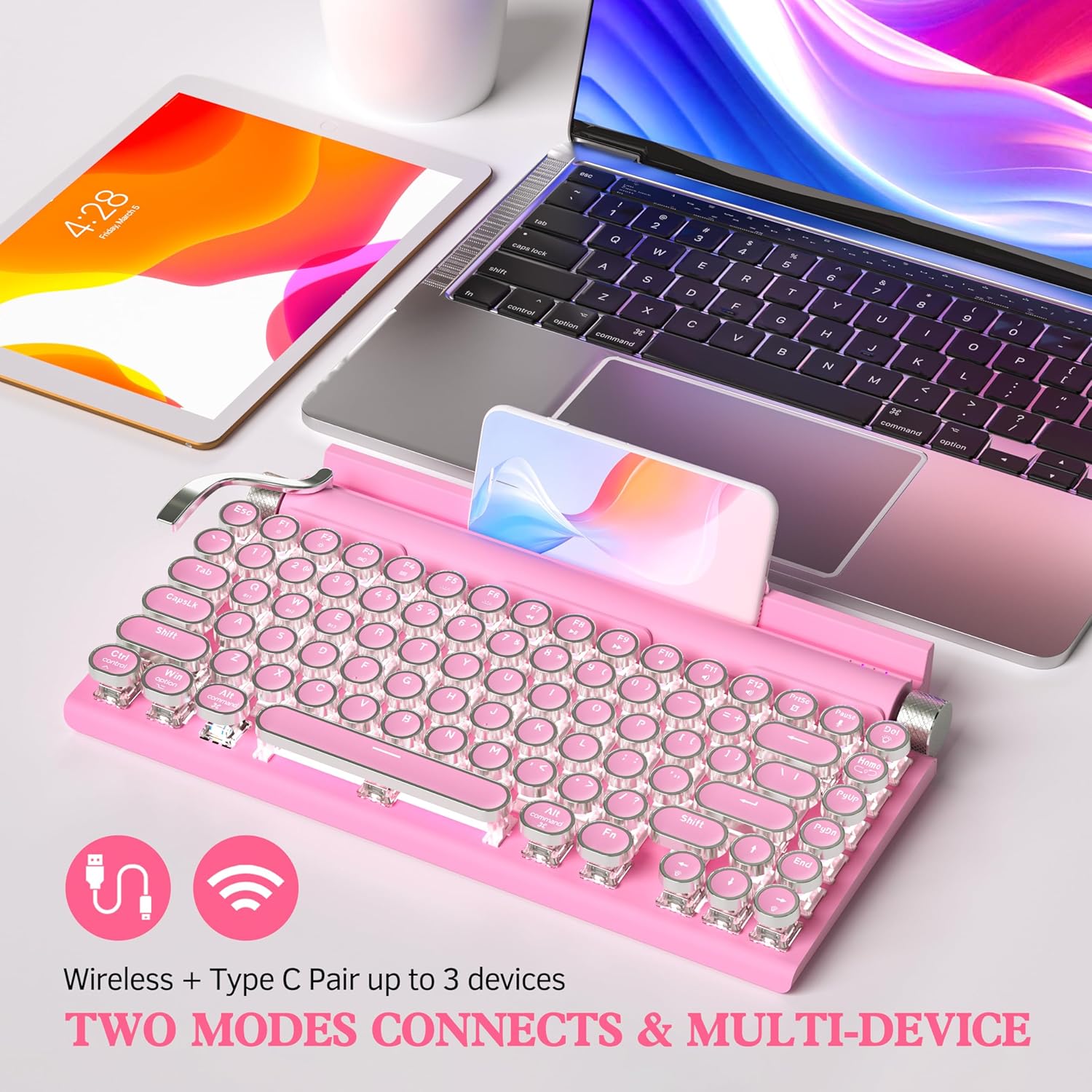
Figure 4: Dual-mode connectivity (Wireless & Type-C) for up to 3 devices.

Figure 5: Connectivity options and charging port details.
Operating Instructions
Authentic Typewriter Experience (Blue Switches)
This keyboard features blue mechanical switches, designed to provide a satisfying clicky sound and tactile feedback, similar to a traditional typewriter. This design aims to reduce finger and hand fatigue during extended typing sessions.

Figure 6: Detail of the mechanical blue switch, offering high precision and fast response.
LED Backlight Control
The keyboard features 14 distinct LED backlight modes. The white backlighting can be adjusted using the stainless-steel lever located on the left side of the keyboard. Pulling the lever will cycle through the available backlight modes.
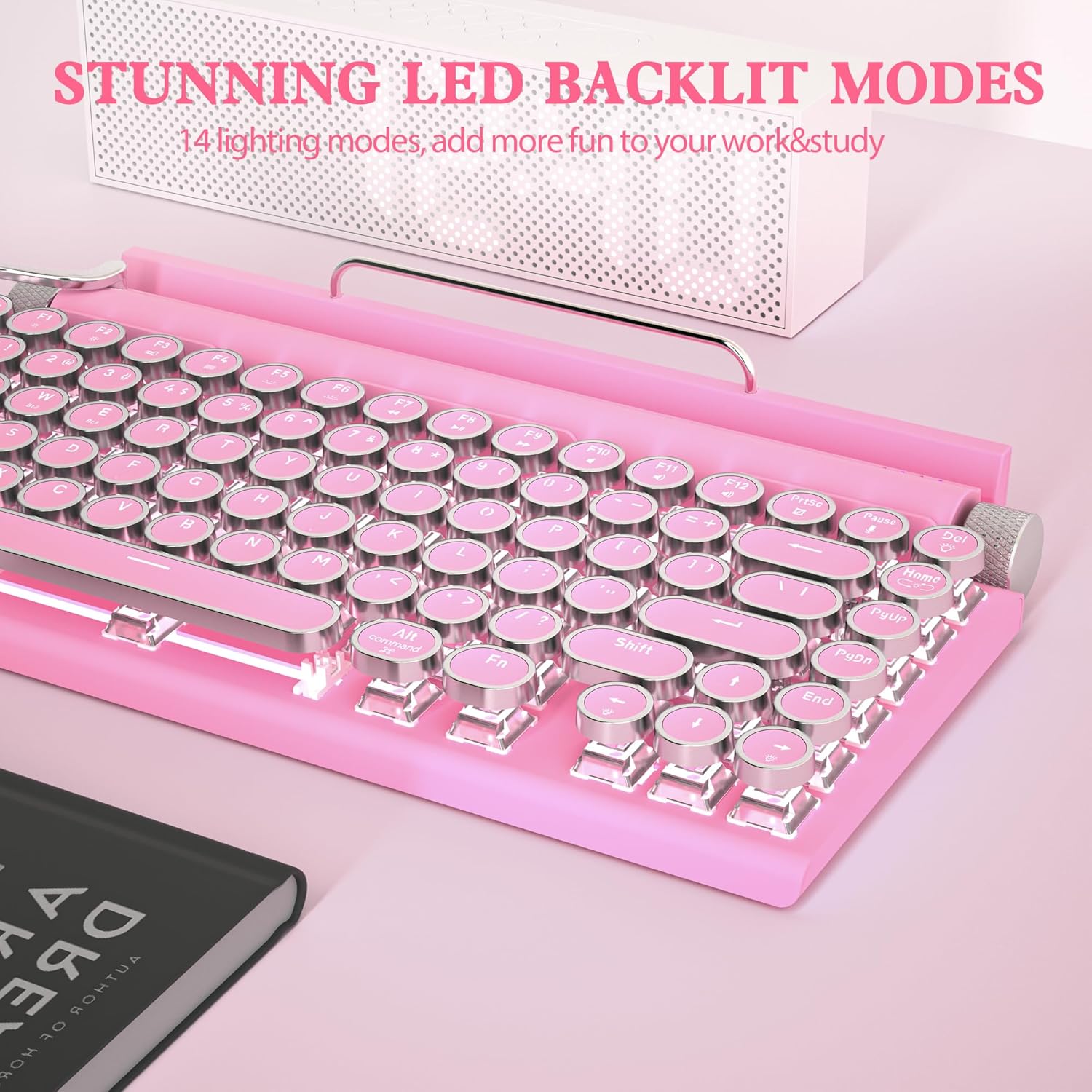
Figure 7: Keyboard displaying one of the 14 LED backlight modes.
Volume and Brightness Knobs
The keyboard includes two rotary knobs for quick adjustments:
- Left Knob: Controls the brightness of the LED backlight. Rotate to increase or decrease brightness.
- Right Knob: Controls the system volume. Rotate to adjust the audio output level.
Hot-Swappable Design
The keyboard features a hot-swappable design, allowing you to easily change keycaps and switches without soldering. This enables customization of your typing experience.
- Use the provided keycap puller to gently remove the desired keycap.
- Use the switch puller (often integrated with the keycap puller) to carefully remove the mechanical switch from its socket.
- Align the pins of the new switch with the holes on the PCB and press firmly until it clicks into place.
- Place the new keycap onto the switch stem.
The package includes two extra blue switches for replacement or experimentation.

Figure 8: Hot-swappable feature allowing easy replacement of keycaps and switches.
Integrated Device Holder
The keyboard includes a built-in slot designed to hold smartphones and tablets, providing convenient access to your devices while typing. This feature enhances efficiency when working across multiple devices.

Figure 9: Keyboard with a tablet securely placed in the integrated device holder.
Maintenance
To ensure the longevity and optimal performance of your Taiahiro Retro Typewriter Keyboard, follow these maintenance guidelines:
- Cleaning: Use a soft, dry cloth to wipe down the keyboard surface. For deeper cleaning, use a can of compressed air to remove dust and debris from between the keycaps. The keycap puller can be used to remove keycaps for thorough cleaning underneath.
- Avoid Liquids: Do not expose the keyboard to liquids. Spills can cause damage to the internal components.
- Storage: Store the keyboard in a cool, dry place away from direct sunlight and extreme temperatures.
- Battery Care: For optimal battery life, avoid fully discharging the battery frequently. Charge the keyboard regularly.
Troubleshooting
If you encounter issues with your keyboard, please refer to the following common problems and solutions:
Keyboard Not Responding (Wired)
- Ensure the USB-C cable is securely connected to both the keyboard and your device.
- Try connecting the keyboard to a different USB port on your device.
- Test the keyboard with a different USB-C cable if available.
- Restart your computer or device.
Keyboard Not Connecting (Bluetooth)
- Ensure the keyboard is charged. Low battery can prevent Bluetooth connection.
- Verify that Bluetooth is enabled on your device.
- Make sure the keyboard is in pairing mode (indicator light flashing rapidly). If not, re-enter pairing mode by holding Fn + BT[1/2/3].
- Check if the keyboard is already paired to another device. Switch to an available channel or disconnect from the other device.
- Remove the keyboard from your device's Bluetooth list and attempt to re-pair.
- Move the keyboard closer to your device to ensure it's within range.
Backlight Not Working or Dim
- Adjust the backlight brightness using the left rotary knob.
- Cycle through backlight modes using the stainless-steel lever.
- Ensure the keyboard battery is sufficiently charged.
Keys Not Registering or Double-Typing
- Clean around and under the affected keycap using compressed air.
- If the issue persists, consider replacing the switch using the hot-swappable feature and the provided extra switches.
Specifications
| Product Dimensions | 12.6 x 7 x 1.5 inches |
| Item Weight | 2.18 pounds |
| Model Number | 981 |
| Batteries | 1 Lithium Ion battery required (included) |
| Compatible Devices | Laptop, Mac, PC, Smartphone, Tablet |
| Connectivity Technology | Bluetooth, USB-C |
| Keyboard Description | Typewriter Mechanical Hot-Swap Bluetooth Keyboard |
| Special Feature | Blue switch keyboard wireless, Hot swappable mechanical keyboard, Rechargeable typewriter keyboard, Round key retro vintage gaming keyboard, iPad Mac Bluetooth mechanical keyboard |
| Color | Pink |
| Number of Keys | 83 |
| Keyboard Backlighting | Single Color (White LED), 14 Modes |
| Style | 83 Keys Retro Typewriter Mechanical Keyboard |
Warranty and Support
For warranty information and technical support, please refer to the official Taiahiro website or contact their customer service. Keep your purchase receipt for warranty claims.
Additional resources, including a PDF user guide and manual, may be available:


