Introduction
Thank you for choosing the Taiahiro Retro Typewriter Mechanical Keyboard. This keyboard combines vintage aesthetics with modern functionality, offering a unique typing experience with its clicky blue switches and versatile connectivity options. This manual provides detailed instructions for setting up, operating, maintaining, and troubleshooting your new keyboard.

The Taiahiro Retro Typewriter Mechanical Keyboard, showcasing its unique design and LED backlighting.
Package Contents
Please verify that all items are present in your package:
- Retro Typewriter Backlit Mechanical Gaming Keyboard
- Keycap Puller
- Detachable USB-C Cable
- Blue Switches (2 extra)
- User Manual

All items included in the Taiahiro Retro Typewriter Mechanical Keyboard package.
Features
- Authentic Typewriter Experience: Blue switches provide satisfying clicky sound and tactile feedback for fluid typing.
- 14 Modes Backlighting Switching: Rainbow backlighting with adjustable brightness and volume via knobs, and 14 customizable modes.
- Double-Modes Connectivity: Connect via USB-C or Bluetooth to up to three devices (tablet, laptop, phone).
- Hot-Swappable Design: Easily swap out keycaps and switches without tools for personalization.
- Compact and Ergonomic Design: 83-key layout (no numeric keypad) for comfort and desk space efficiency.
- Durable Metal Frame: High-quality materials ensure stability and long lifespan.
- Device Holder for Easy Access: Integrated holder accommodates smartphones and tablets.
Setup
1. Charging the Keyboard
The keyboard is equipped with a 2000mAh Lithium Ion battery. Before first use, or when the battery is low, connect the included USB-C cable to the keyboard's charging port and to a power source (e.g., computer USB port, USB wall adapter).
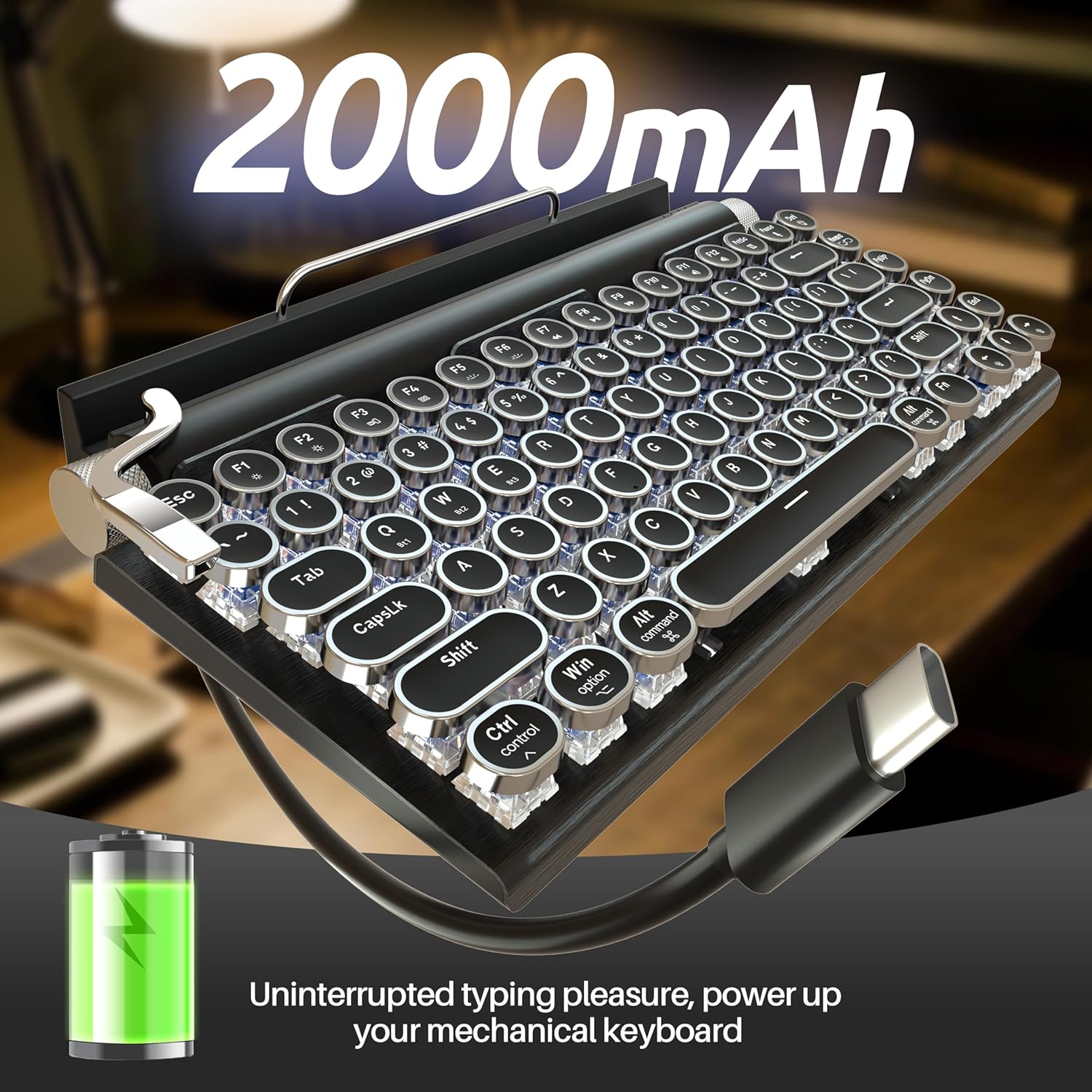
Charging the keyboard via the USB-C port to ensure uninterrupted typing pleasure.
2. Connectivity Options
The keyboard supports both wired (USB-C) and wireless (Bluetooth 5.0) connections.

The keyboard offers dual-mode connectivity for seamless switching between multiple devices.
Wired Connection (USB-C)
Connect the included USB-C cable from the keyboard to your computer's USB port. The keyboard will be automatically recognized and ready for use.
Bluetooth Connection
The keyboard can pair with up to three different Bluetooth devices. Use the switch on the back of the keyboard to select the desired connection mode (BT OFF USB / BT1 / BT2 / BT3).

Rear view of the keyboard, highlighting the connectivity switch and charging port.
- Switch the keyboard to one of the Bluetooth modes (BT1, BT2, or BT3).
- On your device (PC, laptop, tablet, phone), enable Bluetooth and search for new devices.
- Select "Taiahiro Keyboard" (or similar name) from the list of available devices.
- Follow any on-screen prompts to complete the pairing process.
- To switch between paired devices, simply move the switch to the corresponding BT channel.
3. System Compatibility
The keyboard is compatible with Windows, macOS, and Android operating systems. Ensure the correct system mode is selected using the switch on the back of the keyboard (Win/Mac/iOS Transition).
Operating Instructions
1. Backlighting Control
The keyboard features 14 different rainbow backlighting modes. The stainless-steel lever on the left side of the keyboard is used to cycle through these modes. The left knob controls brightness, and the right knob controls volume (when connected to a compatible device).

The keyboard's stunning LED backlit modes offer 14 different lighting options.
2. Hot-Swappable Keycaps and Switches
The keyboard's design allows for easy customization of keycaps and switches. Use the included keycap puller to remove keycaps. For switches, gently pull them out using a switch puller (not included, but two extra blue switches are provided). This feature allows for personalized typing feel and aesthetics.

Demonstration of the hot-swappable design, allowing easy replacement of keycaps and switches.
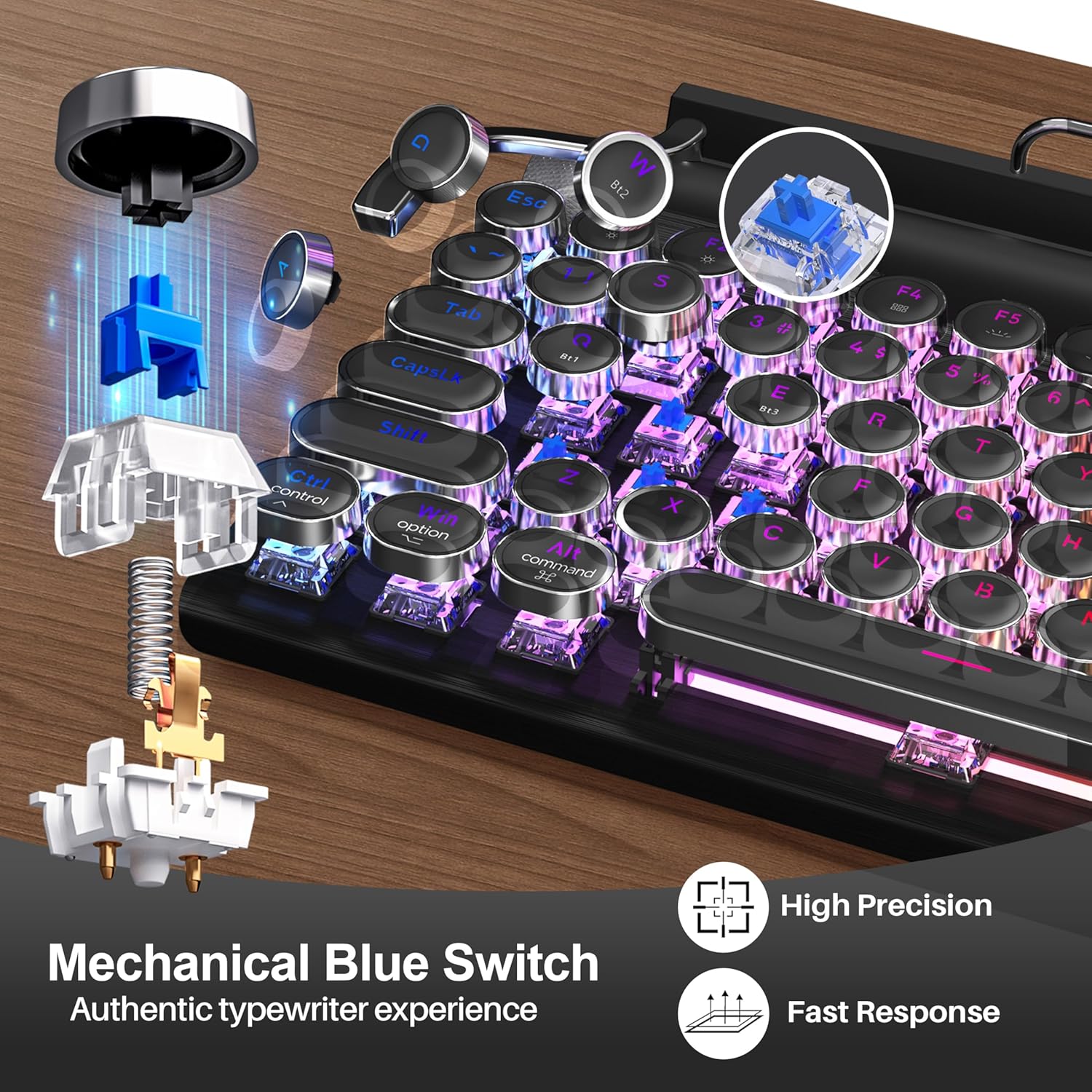
Detailed view of the mechanical blue switch, providing authentic typewriter feedback.
3. Device Holder
The integrated device holder at the top of the keyboard is designed to securely hold smartphones and tablets, providing convenient access while typing or working across multiple devices.
4. Multimedia Shortcuts
The keyboard includes 12 multimedia shortcut keys (F1-F12) for quick access to functions like media playback, volume control, and more. Refer to the keycap legends for specific functions.
Official product video demonstrating the retro typewriter mechanical keyboard's features and design.
Maintenance
- Cleaning: Use a soft, dry cloth to wipe down the keyboard. For deeper cleaning, use the keycap puller to remove keycaps and clean underneath with compressed air or a small brush.
- Storage: Store the keyboard in a cool, dry place away from direct sunlight and extreme temperatures.
- Battery Care: To prolong battery life, avoid fully discharging the battery frequently. Charge it regularly.
Troubleshooting
| Problem | Possible Cause | Solution |
|---|---|---|
| Keyboard not connecting via Bluetooth. | Bluetooth not enabled on device, keyboard not in pairing mode, interference, low battery. | Ensure Bluetooth is on. Switch keyboard to BT1/2/3 and try re-pairing. Charge keyboard. Move closer to device. Restart device. |
| Keys are sticking or not registering. | Debris under keycap/switch, faulty switch. | Remove keycap and clean. If issue persists, replace the switch using the provided extra blue switches. |
| Backlight not working or stuck. | Backlight off, low battery, software glitch. | Use the lever to cycle through modes. Charge keyboard. Restart keyboard (turn off/on). |
| Keyboard not recognized via USB-C. | Cable issue, port issue, keyboard in Bluetooth mode. | Ensure cable is fully inserted. Try a different USB port or cable. Switch keyboard to USB mode. |
Specifications
- Model Number: 981
- Product Dimensions: 12.6 x 7 x 1.5 inches
- Item Weight: 2.23 pounds
- Manufacturer: Taiahiro
- Connectivity Technology: Bluetooth, USB-C
- Compatible Devices: Laptop, PC, Tablet, Smartphone
- Keyboard Description: Gaming Mechanical Retro Typewriter Keyboard
- Number of Keys: 83
- Keyboard Backlighting: Rainbow, 14 modes
- Battery: 1 Lithium Ion battery (included)
- Battery Capacity: 2000mAh
- Style: Retro Vintage
- Country of Origin: China
- Date First Available: May 8, 2023
Warranty and Support
Taiahiro is committed to providing high-quality products. For any questions, concerns, or technical support regarding your Retro Typewriter Mechanical Keyboard, please contact Taiahiro customer service. Refer to your purchase documentation or the official Taiahiro website for specific warranty details and contact information.
You can visit the official Taiahiro Store for more information: Taiahiro Store on Amazon


