
Taiahiro 981
Taiahiro Retro Typewriter Wireless Mechanical Gaming Keyboard
Model: 981
Introduction
This manual provides comprehensive instructions for the setup, operation, and maintenance of your Taiahiro Retro Typewriter Wireless Mechanical Gaming Keyboard. Designed for versatility and a unique typing experience, this keyboard combines vintage aesthetics with modern functionality, including Bluetooth 5.0 and USB-C connectivity, LED backlighting, and hot-swappable switches.
Safety Information
- Keep the keyboard away from liquids and excessive moisture.
- Avoid extreme temperatures.
- Do not attempt to disassemble or modify the keyboard. This may void the warranty and cause damage.
- Use only the provided USB-C cable for charging and wired connection.
Package Contents

Image: Package contents of the Taiahiro Retro Typewriter Keyboard.
- Retro Typewriter Backlit Mechanical Gaming Keyboard
- Detachable USB-C Cable
- Keycap Puller
- Blue Switches (x2)
- User Manual
Product Overview

Image: Taiahiro Retro Typewriter Wireless Mechanical Gaming Keyboard.
The Taiahiro Retro Typewriter Keyboard features a unique design with round punk-style keycaps and a durable metal frame. It offers an authentic typing experience with clicky blue switches and vibrant LED backlighting. The compact 83-key layout saves desk space while providing full functionality.

Image: Compact tenkeyless design of the keyboard, saving 35% space compared to a full-size keyboard.
An integrated device holder at the top accommodates smartphones and tablets, allowing for convenient multi-device use. The keyboard is equipped with a 2000mAh rechargeable battery for extended wireless operation.

Image: Integrated device holder for tablets and smartphones, supporting devices up to 1 lb and 10.9 inches.
Setup
Initial Charging
Before first use, fully charge the keyboard using the provided USB-C cable. Connect the USB-C end to the keyboard's charging port and the USB-A end to a compatible power source (e.g., computer USB port, USB wall adapter).
Wired Connection (USB-C)
To use the keyboard in wired mode, connect the USB-C cable to the keyboard and your computer. Ensure the mode switch on the back of the keyboard is set to 'USB'.
Bluetooth Connection

Image: Two modes of connection: Bluetooth 5.0 and wired USB-C, supporting up to 3 devices.
The keyboard supports Bluetooth 5.0 and can connect to up to three different devices simultaneously. It is compatible with Windows, macOS, Android, and iOS operating systems.
- On the back of the keyboard, toggle the switch to the 'BT' position.
- Long press the Fn key simultaneously with Q, W, or E until the first indicator light flashes rapidly. This indicates Bluetooth pairing mode.
- On your device (phone, tablet, laptop), go to the Bluetooth settings menu.
- Locate 'ML-981' in the list of available devices and tap to select.
- Once successfully connected, the indicator light will stop flashing. You can now use the keyboard to input text and perform other operations.
Video: Taiahiro Retro Bluetooth Mechanical Keyboard Connect Guide.
Operating Instructions
Backlighting Modes
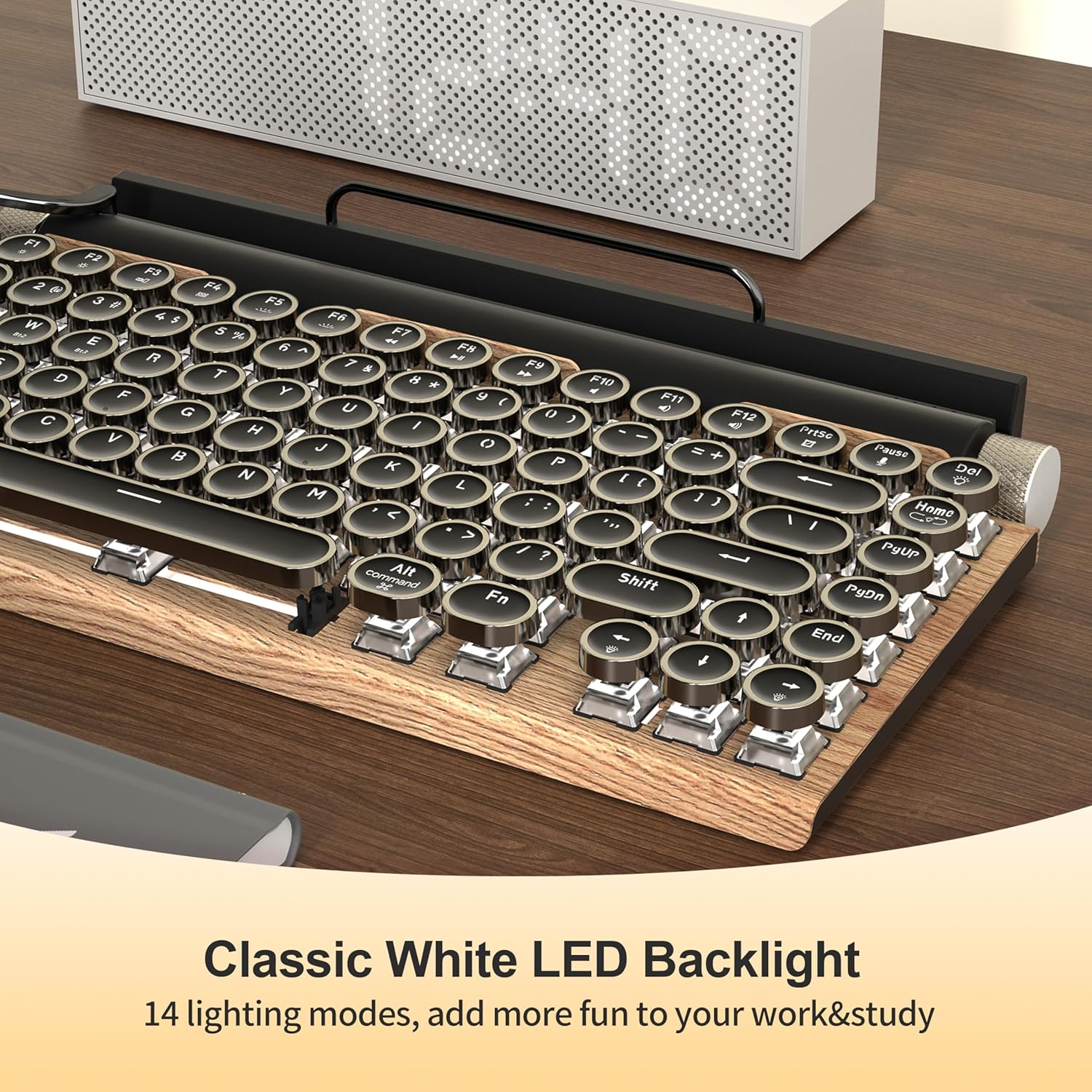
Image: Classic white LED backlight with 14 lighting modes.
The keyboard features 14 distinct backlighting modes. To cycle through these modes, pull the stainless-steel lever located on the left side of the keyboard, similar to a carriage return on a traditional typewriter.
Video: Multiple BACKLIGHTING Modes Display.
Knob Functions
- The left knob controls the brightness of the backlighting. Rotate it to increase or decrease the intensity.
- The right knob controls the system volume. Rotate it to adjust the audio output.
Hot-Swappable Design

Image: Hot-swappable mechanical keyboard design, allowing easy replacement of keycaps and switches.
The keyboard features a hot-swappable design, allowing you to easily change keycaps and switches without soldering. Use the included keycap puller to remove keycaps and the switch puller (if included, or a compatible tool) to remove switches. This allows for customization and easy replacement of faulty switches.
Multimedia Shortcuts
The keyboard includes 12 multimedia shortcuts accessible via the Function (Fn) key combined with the F1-F12 keys. Refer to the keycap legends for specific functions such as media playback control, volume adjustment, and backlight settings.
Maintenance
- Cleaning: Use a soft, dry cloth to clean the keyboard surface. For deeper cleaning, use a can of compressed air to remove dust and debris from between the keycaps.
- Storage: Store the keyboard in a cool, dry place away from direct sunlight and extreme temperatures.
- Battery Care: To prolong battery life, avoid fully discharging the keyboard frequently. Charge it when the battery indicator is low.
Troubleshooting
| Problem | Possible Solution |
|---|---|
| Keyboard not connecting via Bluetooth | Ensure the keyboard is in pairing mode (indicator light flashing rapidly). Check if Bluetooth is enabled on your device. Forget the device on your device's Bluetooth settings and try pairing again. Ensure the keyboard is charged. |
| Backlight not working or dim | Adjust brightness using the left knob. Cycle through backlight modes by pulling the carriage return lever. Ensure the keyboard is charged. |
| Keys not responding | Ensure the keyboard is properly connected (wired or Bluetooth). Check if the correct operating system mode (Win/Mac/iOS) is selected on the back of the keyboard. Try restarting the keyboard and your device. |
| Device holder tipping over | Ensure the device placed in the holder does not exceed the maximum load of 1 lb or 10.9 inches in size. |
Specifications
- Model: 981
- Dimensions: 12.6 x 7 x 1.5 inches
- Item Weight: 2.2 pounds
- Number of Keys: 83
- Switch Type: Blue Mechanical Switches (Hot-swappable)
- Connectivity: Bluetooth 5.0, USB-C
- Battery: 1 Lithium Ion battery (included)
- Backlighting: Single Color LED (14 modes)
- Compatible Devices: Laptop, PC, Tablet, Smartphone
- Compatible OS: Windows, macOS, Android, iOS
Warranty and Support
Taiahiro products are manufactured to high-quality standards. For warranty information or technical support, please refer to the contact details provided on the product packaging or visit the official Taiahiro website. Please retain your proof of purchase for any warranty claims.
Related documents981


Ask a question about this manual
Ask about setup, troubleshooting, compatibility, parts, safety, or missing instructions. Manuals+ will review the question and use this page’s manual context to help answer it.