
Keenetic KN-2112-01TR
Keenetic Extra DSL AC1200 Wi-Fi Mesh VDSL2/ADSL2+ Modem Gigabit Fiber Router User Manual
Model: KN-2112-01TR
Introduction
This manual provides comprehensive instructions for the setup, operation, maintenance, and troubleshooting of your Keenetic Extra DSL AC1200 Wi-Fi Mesh VDSL2/ADSL2+ Modem Gigabit Fiber Router. Please read this manual carefully before using the device to ensure optimal performance and safety.
The Keenetic Extra DSL AC1200 is a versatile networking device designed to provide high-speed internet access and robust Wi-Fi coverage. It supports VDSL2/ADSL2+ connections and features Gigabit Ethernet ports for wired connectivity, along with dual-band Wi-Fi for seamless wireless networking.
Package Contents
Before proceeding with the setup, please verify that all items are present in your package:
- Keenetic Extra DSL AC1200 Router (KN-2112-01TR)
- Power Adapter
- Ethernet Cable
- DSL Cable
- Quick Start Guide (This manual serves as the detailed guide)
Physical Overview
Familiarize yourself with the various ports and indicators on your Keenetic Extra DSL router.

Figure 1: Front-side view of the Keenetic Extra DSL AC1200 Router, showing its compact design and antenna configuration.
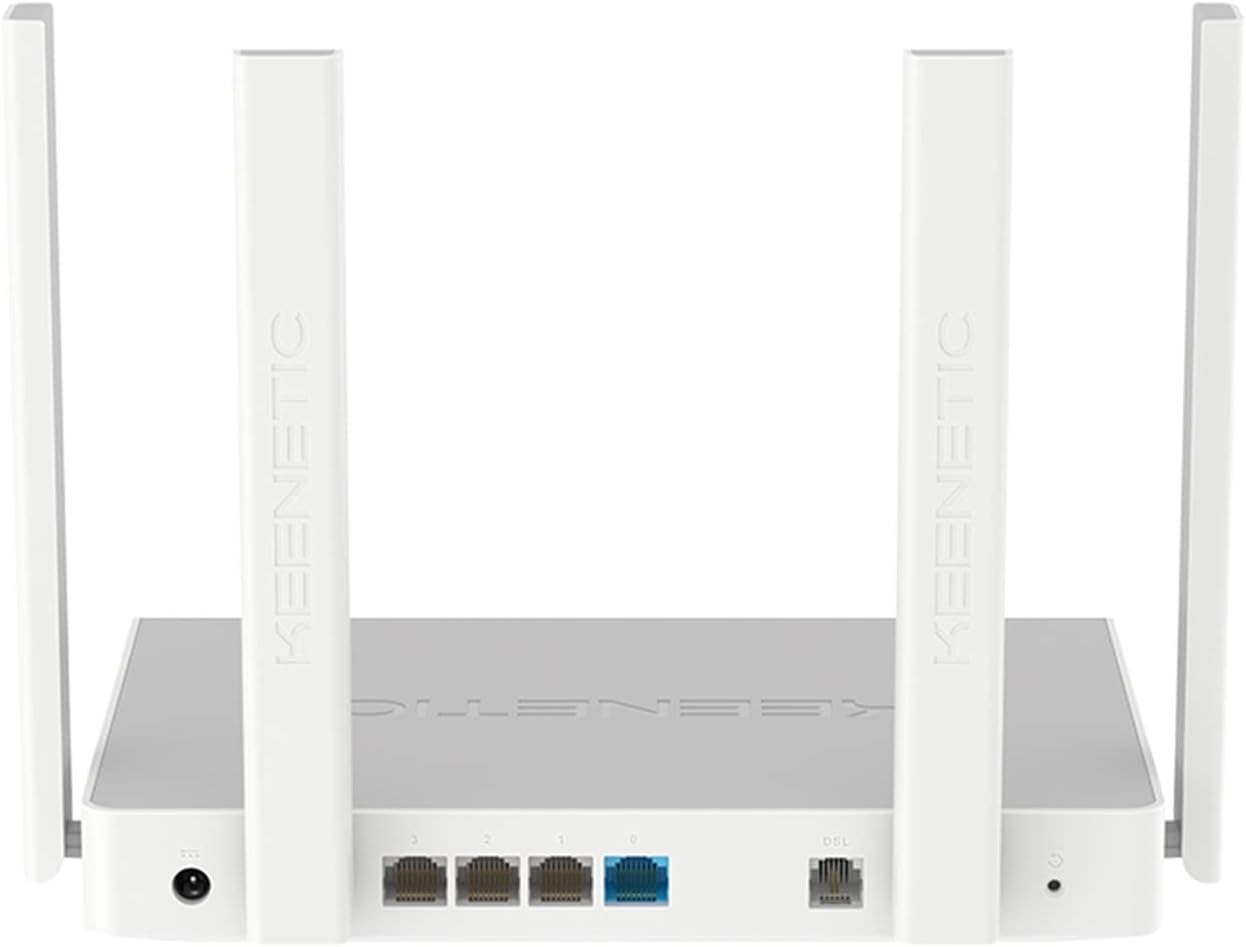
Figure 2: Rear view of the Keenetic Extra DSL AC1200 Router, highlighting the DSL port, four Gigabit Ethernet ports, and the USB 2.0 port.
- DSL Port: Connects to your VDSL2/ADSL2+ line.
- Ethernet Ports (LAN/WAN): Four 1Gbit/s ports for wired devices or WAN connection.
- USB 2.0 Port: For connecting external storage or 3G/4G modems.
- Power Input: Connects to the provided power adapter.
- Reset Button: Used to restore factory default settings.
Setup
1. Hardware Connection
- Connect the DSL Line: Plug one end of the DSL cable into the DSL port on the router and the other end into your wall's DSL jack.
- Connect to Power: Connect the power adapter to the router's power input and then plug it into a power outlet. The router will power on automatically.
- Connect Wired Devices (Optional): Use an Ethernet cable to connect your computer or other wired devices to any of the Gigabit Ethernet ports on the router.
- Wait for Initialization: Allow a few minutes for the router to boot up and establish a connection. The indicator lights on the front panel will show the status of the connection.
2. Initial Configuration
The Keenetic Extra DSL features a user-friendly interface for easy setup.
- Access the Web Interface: Open a web browser on a device connected to the router (either wired or wirelessly using the default Wi-Fi name and password found on the router's label). Type
my.keenetic.netor192.168.1.1into the address bar and press Enter. - Follow Setup Wizard: The first time you access the interface, a setup wizard will guide you through the initial configuration steps, including setting up your internet connection (VDSL/ADSL parameters), Wi-Fi network name (SSID), and password.
- Set Administrator Password: Create a strong administrator password for accessing the router's settings.
- Save Settings: After configuring, save your settings and restart the router if prompted.
Operating the Router
Wi-Fi Connectivity
The router supports dual-band Wi-Fi (2.4 GHz and 5 GHz) for optimal wireless performance.
- Connecting Devices: On your wireless device, search for available Wi-Fi networks. Select your configured network name (SSID) and enter the password.
- Wi-Fi Mesh: This router supports Wi-Fi Mesh technology. For extending coverage, additional Keenetic devices can be added to create a seamless mesh network. Refer to the Keenetic website for detailed instructions on mesh setup.
Advanced Features
The Keenetic OS provides a wide range of features accessible through the web interface:
- Guest Wi-Fi Network: Create a separate Wi-Fi network for guests to isolate them from your main network.
- Parental Controls: Manage internet access for specific devices or users.
- Port Forwarding: Configure rules for specific applications or services.
- VPN Server/Client: Establish secure connections.
- USB Applications: Utilize the USB 2.0 port for file sharing (FTP/SMB), connecting a printer, or using a 3G/4G USB modem as a backup internet source.
Maintenance
- Firmware Updates: Regularly check for and install firmware updates through the router's web interface. Updates often include performance improvements, security patches, and new features.
- Router Placement: Place the router in a central location, away from obstructions and sources of interference (e.g., microwaves, cordless phones) to maximize Wi-Fi coverage.
- Cleaning: Keep the router clean and free from dust. Use a soft, dry cloth for cleaning. Do not use liquid cleaners.
- Restarting: If you experience network issues, try restarting the router by unplugging the power adapter for 10 seconds and then plugging it back in.
Troubleshooting
| Problem | Possible Cause | Solution |
|---|---|---|
| No Internet Access | DSL line not connected, incorrect ISP settings, modem not synced. | Check DSL cable connection. Verify ISP settings in the router's web interface. Restart the router and wait for DSL sync. Contact your ISP if the issue persists. |
| Weak Wi-Fi Signal | Router placement, interference, too many devices. | Relocate the router to a central, open area. Avoid placing near other electronics. Consider adding a Keenetic Wi-Fi Mesh extender. |
| Cannot Access Router Web Interface | Incorrect IP address, network configuration issues. | Ensure your device is connected to the router. Try my.keenetic.net or 192.168.1.1. Clear browser cache. Try a different browser. If all else fails, perform a factory reset (see below). |
| Slow Internet Speed | Network congestion, outdated firmware, ISP issues. | Update router firmware. Limit bandwidth-intensive activities. Perform a speed test directly connected to the router. Contact your ISP. |
Factory Reset
If you encounter persistent issues, you may need to perform a factory reset. This will erase all custom settings and restore the router to its default configuration.
- With the router powered on, locate the Reset button (usually a small pinhole button) on the back panel.
- Use a paperclip or a thin object to press and hold the Reset button for approximately 10 seconds until the system LED blinks rapidly.
- Release the button and wait for the router to restart. You will then need to reconfigure the router from scratch.
Specifications
| Feature | Detail |
|---|---|
| Model Name | KN-2112-01TR |
| Brand | Keenetic |
| Wireless Standard | 802.11ac, 802.11n |
| Frequency Band Class | Dual Band |
| Key Features | Wi-Fi Mesh, User-Friendly Interface |
| Ethernet Ports | 4 x Gigabit (1Gbit/s) |
| USB Ports | 1 x USB 2.0 |
| Dimensions (L x W x H) | 37 x 28.6 x 6.2 cm |
| Weight | 1 Kilogram |
| Color | White |
| Country of Origin | China |
Warranty and Support
For warranty information and technical support, please refer to the official Keenetic website or contact Keenetic customer service. Specific warranty terms may vary by region and retailer.
Note: No specific warranty duration or detailed support contact information was provided in the product data. Please consult your purchase documentation or the manufacturer's official resources for the most accurate and up-to-date information.
Related documentsKN-2112-01TR


Ask a question about this manual
Ask about setup, troubleshooting, compatibility, parts, safety, or missing instructions. Manuals+ will review the question and use this page’s manual context to help answer it.