
Introduction
This manual provides instructions for the Trust 25025 AZERTY Wireless Keyboard and Mouse Set. This comfortable wireless set features silent keys and buttons, and is constructed using 85% recycled materials. It is designed for ease of use and long-lasting performance.
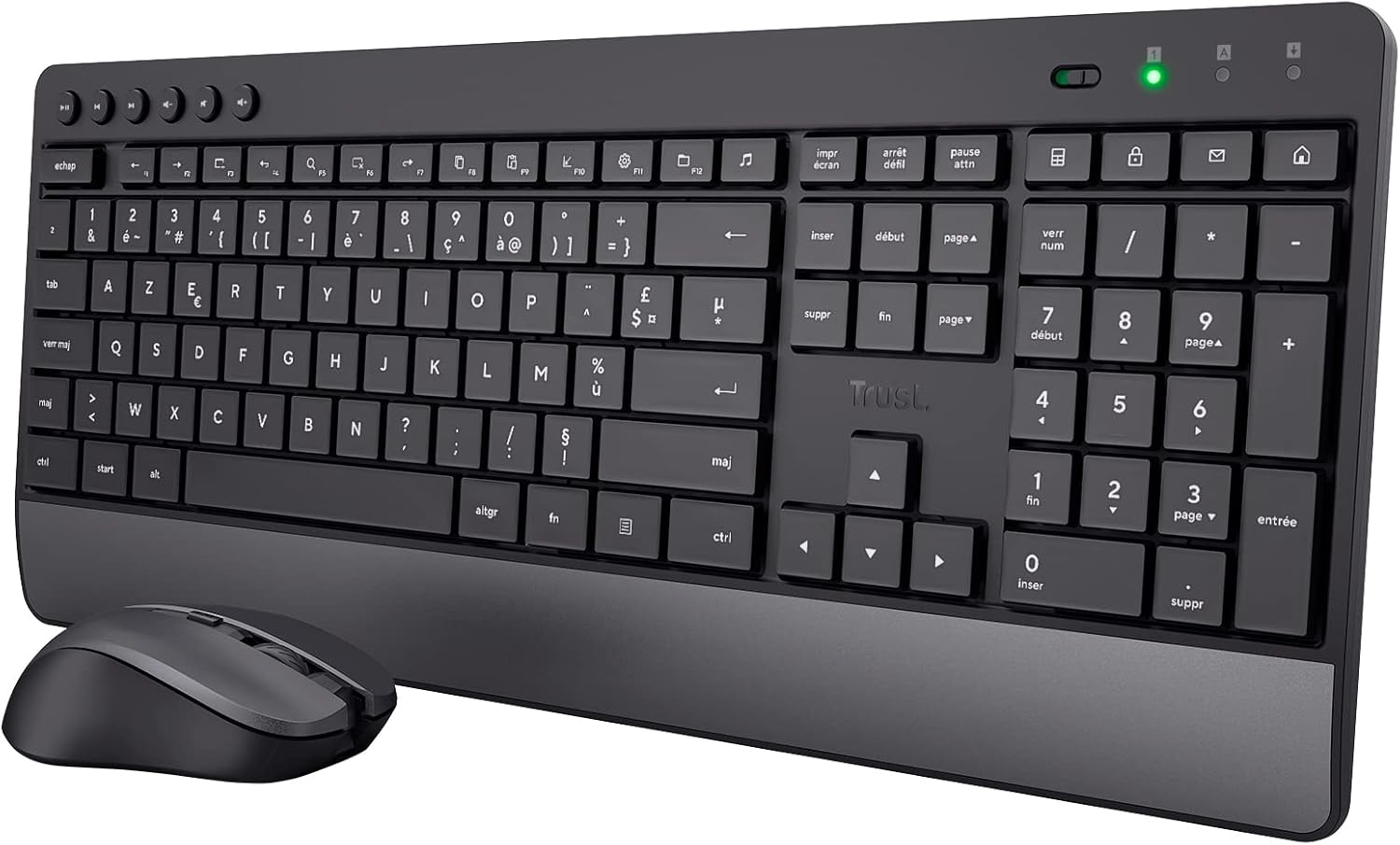
Image: The Trust 25025 AZERTY Wireless Keyboard and Mouse Set, featuring a full-size keyboard with a wrist rest and a compact mouse.
Package Contents
- Trust 25025 AZERTY Wireless Keyboard
- Trust Wireless Mouse
- USB Micro Receiver
- 3 x AA Batteries (pre-installed or included separately)
- User Manual (this document)
Setup
1. Battery Installation
The keyboard requires 2 AA batteries and the mouse requires 1 AA battery. These are typically included. If not, or if replacing, ensure correct polarity.
- Locate the battery compartments on the underside of the keyboard and mouse.
- Open the battery covers.
- Insert the AA batteries, matching the + and - indicators.
- Close the battery covers securely.
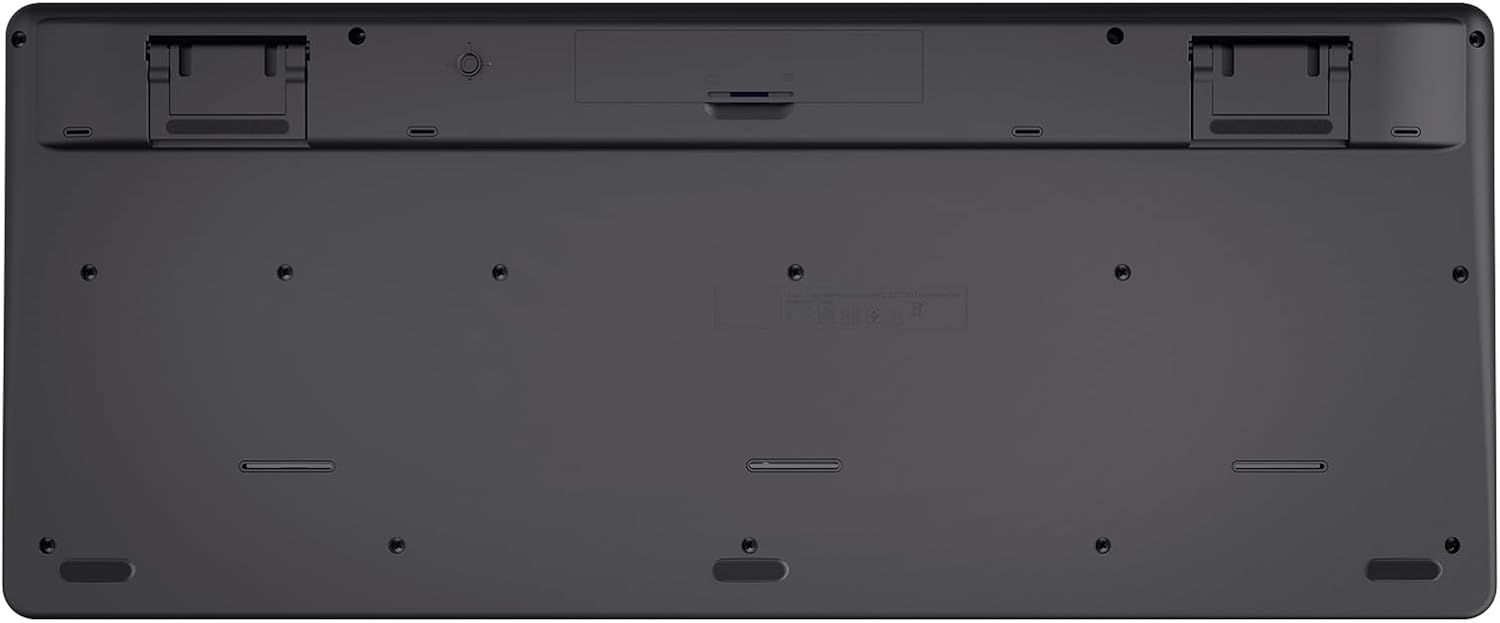
Image: The underside of the Trust 25025 keyboard, showing the battery compartment and the storage slot for the USB micro receiver.
2. Connecting the USB Micro Receiver
The keyboard and mouse connect wirelessly to your computer via a single USB micro receiver.
- Locate the USB micro receiver, usually stored in the mouse's battery compartment or a dedicated slot on the keyboard's underside.
- Plug the USB micro receiver into an available USB port on your computer (PC or Mac).
- Your computer should automatically detect and install the necessary drivers. This is a plug-and-play device, requiring no additional software installation.

Image: An icon representing 'Plug & Play' functionality, indicating easy setup without additional drivers.
3. Powering On
Ensure the keyboard and mouse are switched on. The mouse typically has an on/off switch on its underside. The keyboard may have an indicator light to show it's active.
Operating Instructions
Keyboard Features
- AZERTY Layout: Standard French keyboard layout for comfortable typing.
- Silent Keys: Designed for quiet operation, reducing typing noise.
- Integrated Wrist Rest: Provides ergonomic support during extended use.
- Multimedia Keys: Dedicated keys for quick access to media controls (play, pause, volume, etc.).
- Spill-Resistant Design: Helps protect against accidental liquid spills.
- Long Battery Life: Up to 48 months of battery life under typical usage conditions.

Image: A top-down view of the Trust 25025 keyboard and mouse, highlighting the AZERTY layout and multimedia keys.
Mouse Features
- Silent Buttons: Reduces click noise for a quieter working environment.
- Adjustable DPI: Cycle through 1000, 1400, and 1800 DPI settings for precise cursor control. Use the DPI button located near the scroll wheel to change sensitivity.
- Ambidextrous Design: Suitable for both left-handed and right-handed users.
- Long Battery Life: Up to 12 months of battery life under typical usage conditions.

Image: A close-up view of the Trust wireless mouse, showing its ergonomic shape and the DPI adjustment button.
Maintenance
Cleaning
- Use a soft, dry cloth to clean the surfaces of the keyboard and mouse.
- For stubborn dirt, slightly dampen the cloth with water or a mild cleaning solution. Avoid harsh chemicals.
- Do not immerse the devices in water.
Battery Replacement
When the battery indicator light (if present) illuminates or performance degrades, replace the batteries.
- Turn off the mouse using its power switch.
- Open the battery compartments on both devices.
- Remove old batteries and dispose of them according to local regulations.
- Insert new AA batteries, ensuring correct polarity.
- Close the battery covers.
Troubleshooting
No Response from Keyboard or Mouse
- Check Batteries: Ensure batteries are correctly installed and not depleted. Replace if necessary.
- Power Switch: Verify that the mouse (and keyboard, if applicable) is switched ON.
- USB Receiver: Ensure the USB micro receiver is securely plugged into a working USB port on your computer. Try a different USB port.
- Distance: Make sure the keyboard and mouse are within the operational range of the USB receiver (typically up to 10 meters).
- Interference: Move the devices away from other wireless devices or large metal objects that might cause interference.
Mouse Cursor Jumps or is Erratic
- Surface: Use the mouse on a clean, non-reflective surface. A mouse pad is recommended.
- DPI Setting: Adjust the DPI setting using the button on the mouse to find a comfortable sensitivity.
- Batteries: Low battery power can affect mouse performance. Replace batteries if needed.
Specifications
| Feature | Detail |
|---|---|
| Brand | Trust |
| Model Number | 25025 |
| Series | Trezo |
| Color | Black |
| Connectivity Technology | Radio Frequency (Wireless) |
| Keyboard Layout | AZERTY |
| Mouse DPI Settings | 1000, 1400, 1800 |
| Keyboard Battery Life | Up to 48 months |
| Mouse Battery Life | Up to 12 months |
| Batteries Required | 3 x AA (included) |
| Product Dimensions | 18.2 x 43.6 x 4.4 cm |
| Item Weight | 752 g |
| Hardware Platform | Mac, PC |
| Operating System Compatibility | Windows, Mac OS, Chrome OS |
| Special Features | 85% recycled plastic, long battery life, silent typing and clicks, wrist rest, single USB adapter for mouse and keyboard |
| Compatible Devices | Laptop, PC |

Image: An icon indicating compatibility with multiple devices, including laptops and PCs.
Warranty and Support
For warranty information and technical support, please refer to the official Trust website or contact their customer service directly. Details regarding specific warranty periods and support channels are typically provided with the product packaging or on the manufacturer's website.


