
1. Product Overview
The OSA K1T Wireless Lavalier Microphone System is designed for high-quality audio recording across various devices. It features dual microphones, smart noise reduction, and a digital power display for convenient use in diverse recording environments.

Figure 1: Overview of the OSA K1T Wireless Lavalier Microphone System.
2. What's in the Box
- 2 x Wireless Microphone Transmitters
- 1 x Wireless Receiver
- 1 x Type-C to Lightning Adapter Cable
- 1 x Type-C to Type-C Adapter Cable
- 1 x 3.5mm TRS Adapter
- 1 x Type-C Charging Cable
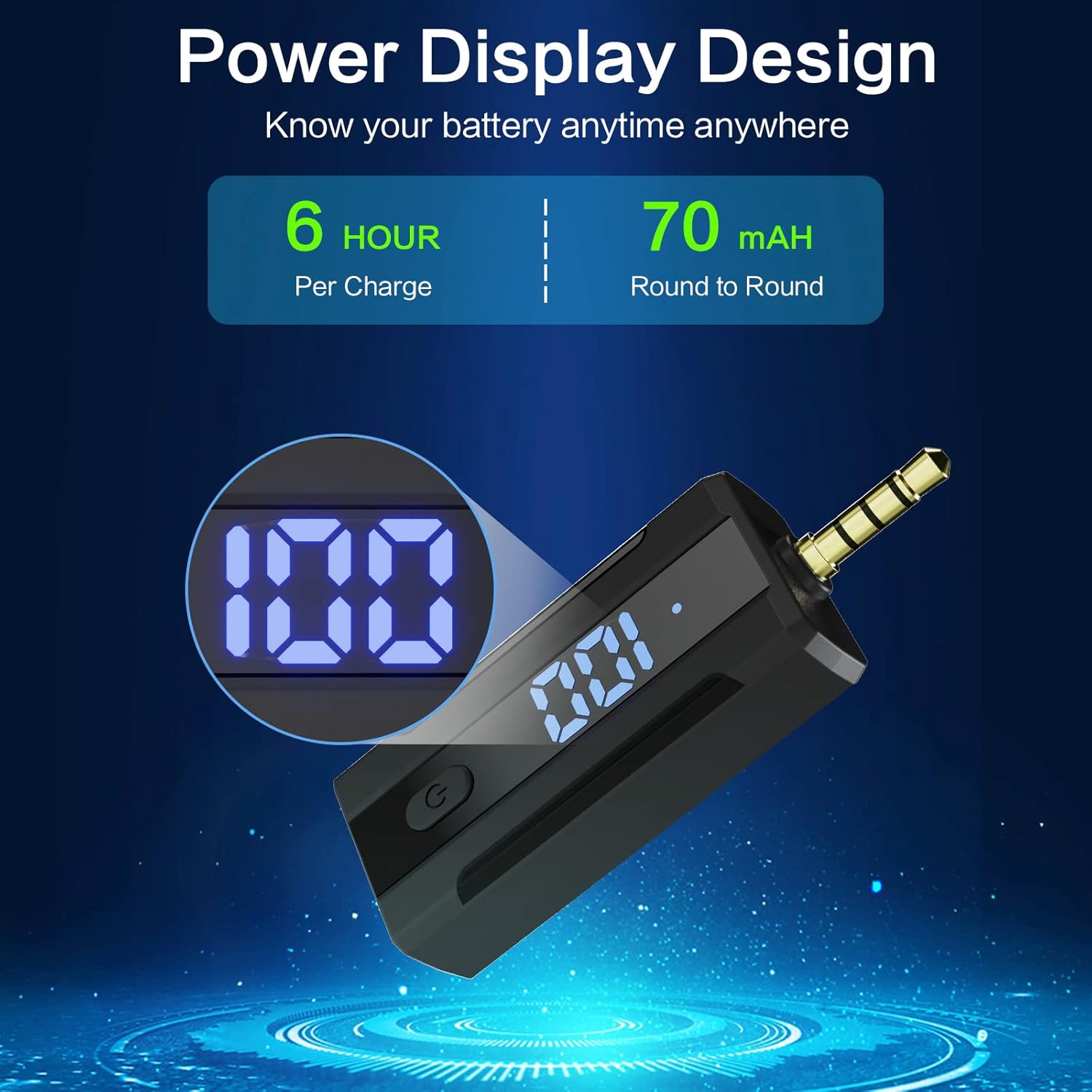
Figure 2: All components included in the OSA K1T package.
3. Setup Instructions
Follow these steps to set up your OSA K1T Wireless Lavalier Microphone System:
- Charge Devices: Ensure both microphone transmitters and the receiver are fully charged using the provided Type-C charging cable. A full charge takes approximately 1 hour and provides up to 6 hours of use.
- Connect Receiver to Device:
- For iOS devices (iPhone/iPad): Use the Type-C to Lightning adapter cable.
- For Android devices (Phone/Tablet): Use the Type-C to Type-C adapter cable. (Note: Some Android phones may require enabling OTG in system settings.)
- For Cameras/GoPro/Desktop PC/Laptop: Use the 3.5mm TRS adapter.
Plug the appropriate adapter into the receiver, then plug the receiver into your recording device's audio input port.
- Power On Receiver: Long press the power button on the receiver for 3 seconds. The blue light will illuminate, indicating it is powered on and ready for pairing.
- Power On Microphones: Long press the power button on each microphone transmitter for 3 seconds. The green light will illuminate, indicating they are powered on.
- Automatic Connection: The microphones and receiver will automatically pair. Once successfully connected, the blue light on the receiver and the green light on the transmitters will remain steady. You can now begin recording.
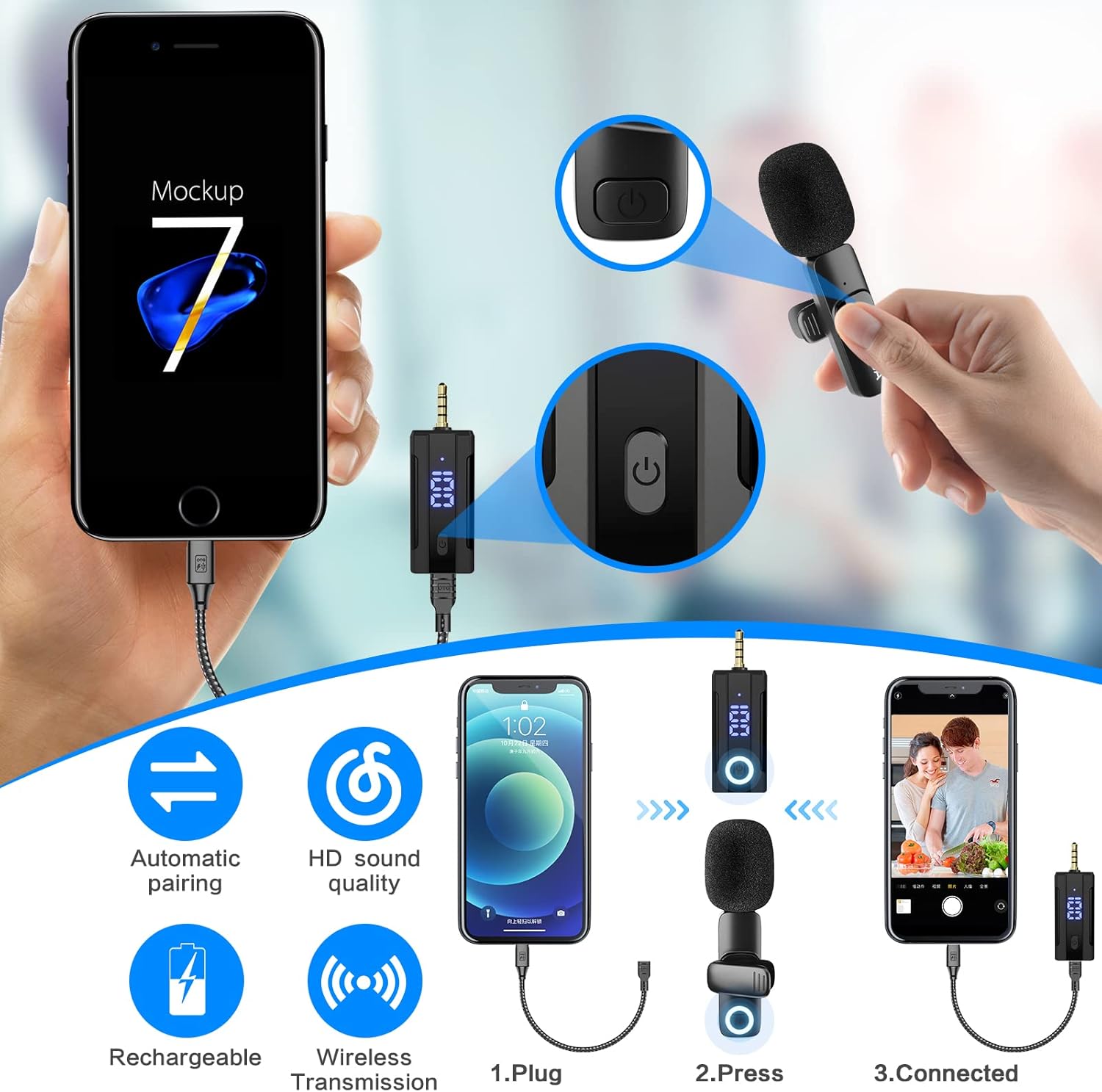
Figure 3: Visual guide for connecting the receiver and microphones to a device.

Figure 4: Device compatibility for the OSA K1T system.
Video 1: Official product video demonstrating the setup and use of the OSA Wireless Microphone.
4. Operating Instructions
4.1 Power On/Off
To power on or off the receiver or microphone transmitters, long press their respective power buttons for 3 seconds.
4.2 Digital Power Display
The receiver features a digital display that shows the remaining battery percentage. Click the power button on the receiver to check the current power level at any time.

Figure 5: Digital power display on the receiver.
4.3 Smart Noise Reduction
The microphone system incorporates smart noise reduction technology. To activate or deactivate noise reduction mode, press the dedicated button on the microphone transmitter. This feature helps to minimize background interference for clearer audio.

Figure 6: Smart noise reduction feature.
4.4 Dual Microphone Use
This system includes two microphone transmitters, allowing for simultaneous recording from two individuals. Both microphones will transmit audio to the single receiver. You can also use a single microphone with the receiver if only one audio source is needed.
4.5 Omnidirectional Pick-up
The microphones feature a 360° omnidirectional pick-up pattern, capturing sound from all directions with rich detail and quick response.
5. Maintenance
- Cleaning: Use a soft, dry cloth to clean the devices. Avoid using harsh chemicals or abrasive materials.
- Storage: Store the microphone system in a cool, dry place away from direct sunlight and extreme temperatures.
- Battery Care: For optimal battery life, fully charge the devices before first use and periodically if not used for extended periods. Avoid fully discharging the batteries frequently.
6. Troubleshooting
- No Sound/Poor Audio Quality:
- Ensure all devices are fully charged.
- Verify the receiver is correctly plugged into your recording device using the appropriate adapter.
- Check that both the receiver and microphones are powered on and successfully paired (steady lights).
- Confirm that the recording app or software on your device is configured to use the external microphone.
- If using a TRRS plug, ensure the receiver is removed to hear audio playback.
- Pairing Failure:
- Power off and then power on both the receiver and microphones to re-initiate automatic pairing.
- Ensure devices are within range of each other.
- Digital Display Not Working:
- Ensure the receiver is powered on.
- Press the power button on the receiver to activate the display.
7. Specifications
| Feature | Detail |
|---|---|
| Brand | OSA |
| Model Name | K1T |
| Connectivity Technology | Bluetooth |
| Connector Type | 3.5 mm Jack, USB Type-C |
| Special Features | Battery Indicator Light, Clip, Mute Function, Runs on Plug-In Power |
| Compatible Devices | Camcorder, Camera, Laptop, Smartphone, Speaker |
| Color | Black |
| Polar Pattern | Omnidirectional |
| Microphone Form Factor | Plug On |
| Power Source | Battery Powered |
| Signal-to-Noise Ratio | 70 dB |
| Number of Channels | 2 |
| Enclosure Material | Plastic |
| Item Weight | 80 Grams |
| Item Dimensions | 3.15 x 4.72 x 1.18 inches |
8. Warranty and Support
The OSA K1T Wireless Lavalier Microphone System comes with a 12-month warranty from the date of purchase.
For technical support, warranty claims, or any inquiries regarding your product, please contact OSA customer service through the retailer's platform or the official OSA website. Please have your purchase receipt and product model number (K1T) ready when contacting support.
