
Real HD 8 port 2.5G ethernet switch without PoE
Contents
Real HD 8 Port 2.5G Ethernet Switch User Manual
Model: 8 port 2.5G ethernet switch without PoE
Introduction
This manual provides detailed instructions for the installation, operation, and maintenance of your Real HD 8 Port 2.5G Ethernet Switch. This unmanaged network switch is designed to provide high-speed connectivity with 8x 2.5G RJ45 ports and 1x 10G SFP+ port, enabling seamless network upgrades for various devices.

Figure 1: Front view of the Real HD 8 Port 2.5G Ethernet Switch, showing 8 RJ45 ports, 1 SFP+ port, and LED indicators.
Key Features
- 2.5G Super-Fast Connectivity: Equipped with 8x 2.5G RJ45 ports and 1x 10G SFP+ port for high-speed network upgrades.
- Sturdy and Quiet Design: Features a compact, fan-less metal housing with 4KV lightning protection for quiet and reliable operation.
- Plug and Play: Requires no software installation or complex configuration for easy setup.
- Wide Application: Compatible with various Ethernet devices including 4K Video, 2.5G Ethernet Adapters, Wifi 6 Routers/APs, 2.5G Gaming PCs, and 2.5G NAS computers.
- High Bandwidth: Offers a total switching capacity of 60Gbps.
Package Contents
Please verify that all items are present in the package:
- Real HD 8 Port 2.5G Ethernet Switch
- Power Cord
- Ethernet Cable
Specifications
| Attribute | Value |
|---|---|
| Switch Type | 2.5GB Ethernet Switch |
| Product Dimensions (L x W x H) | 7.5" x 3.9" x 1.1" |
| Item Weight | 1.17 pounds (0.53 Kilograms) |
| Case Material | Metal |
| Voltage | 12 Volts |
| Switch Capacitance | 2.5 Gigabits Per Second |
| Data Transfer Rate | 2.5 Gigabytes Per Second |
| Interface Type | SFP+, RJ45 |
| Number of Ports | 8 (RJ45) + 1 (SFP+) |
| Operating Temperature | -20 to 50℃ (approx. -4 to 122℉) |
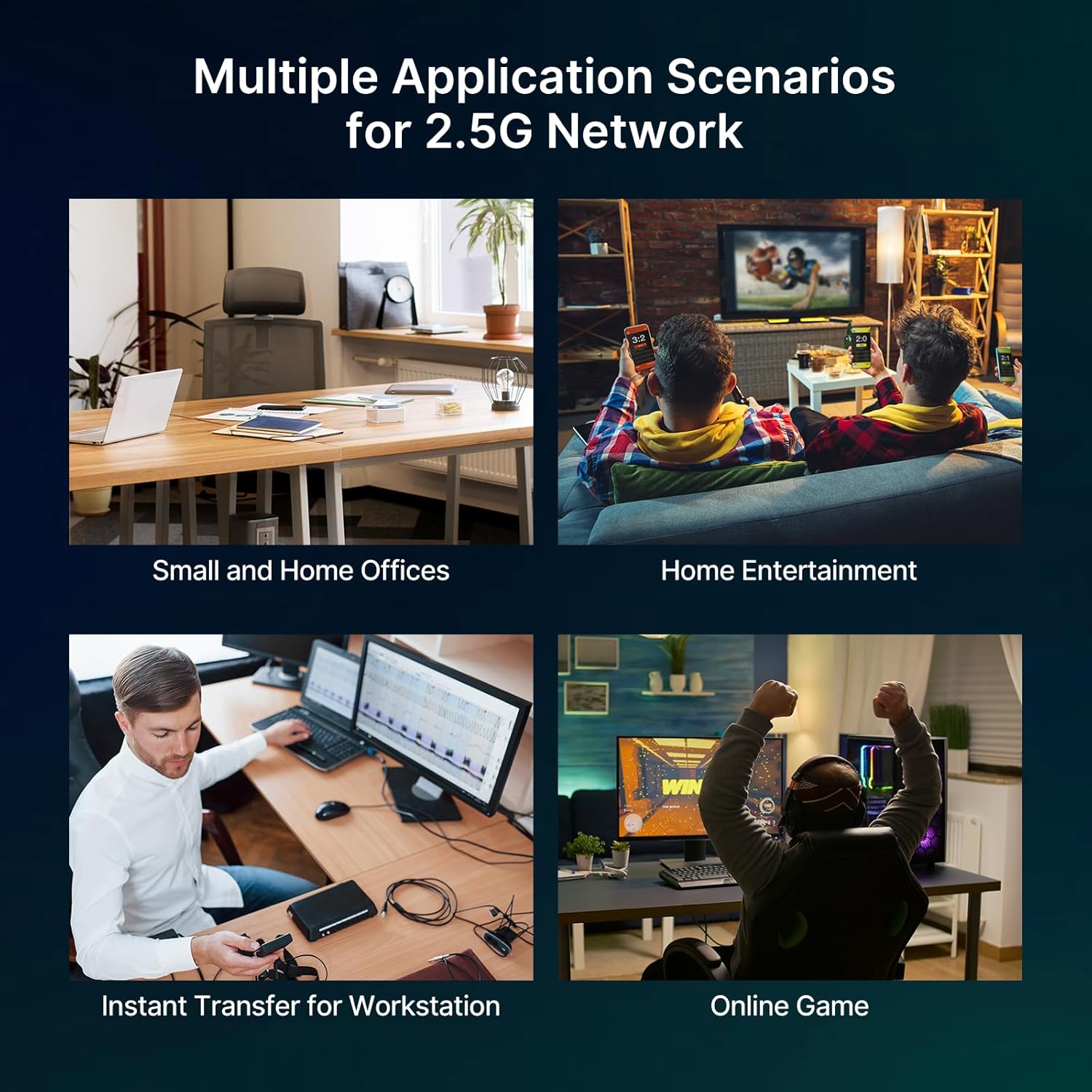
Figure 2: Dimensions of the Real HD 8 Port 2.5G Ethernet Switch, highlighting its compact size.
Setup
- Unpack the Switch: Carefully remove the Real HD 8 Port 2.5G Ethernet Switch and its accessories from the packaging.
- Placement: Place the switch on a stable, flat surface or mount it to a wall. Ensure adequate ventilation around the device. The fan-less design allows for quiet operation in various environments.

Figure 3: The switch can be placed on a desktop or mounted on a wall for flexible installation.
- Connect Power: Connect the provided power cord to the DC 12V 1A input port on the back of the switch, then plug the other end into a power outlet. The PWR LED indicator on the front panel will illuminate green, indicating the device is powered on.
- Connect Ethernet Devices:
- For 2.5G speeds, use CAT6 or higher-level pure copper Ethernet cables.
- Connect your network devices (e.g., computers, routers, NAS, gaming PCs) to any of the 8 RJ45 ports (1-8).
- The 2.5G Link/Act LEDs will light up green for active 2.5G connections, while the 10/100/1000M Link/Act LEDs will light up yellow for 10/100/1000Mbps connections.
- Connect SFP+ Module (Optional): If using the 10G SFP+ port, insert a compatible 1G/2.5G/10G optical fiber module (not included) into the SFP+ port (Port 9). Connect your fiber optic cable to the module.

Figure 4: Connecting Ethernet cables and an optional SFP+ module to the switch.
- Verify Connectivity: Once connected, the corresponding Link/Act LEDs for each port will indicate active network connections. The switch operates as plug-and-play, automatically detecting and configuring connected devices.
Operation
The Real HD 8 Port 2.5G Ethernet Switch is an unmanaged device, meaning it requires no configuration for basic operation. Simply connect your devices, and the switch will automatically handle data traffic.
- Automatic Speed Detection: The switch automatically detects the speed of connected devices (10/100/1000Mbps or 2.5Gbps) and adjusts accordingly.
- Full-Duplex Support: Supports full-duplex mode for maximum data throughput.
- LED Indicators:
- PWR (Power): Green when the device is powered on.
- 2.5G Link/Act: Green when a 2.5G connection is active and blinking during data transmission.
- 10/100/1000M Link/Act: Yellow when a 10/100/1000Mbps connection is active and blinking during data transmission.

Figure 5: The switch seamlessly integrates into various network environments, supporting devices like 4K video streams, laptops, Wi-Fi 6 routers, and gaming PCs.

Figure 6: Multiple application scenarios for the 2.5G network, including small offices, home entertainment, workstations, and online gaming.
Maintenance
- Cleaning: Use a soft, dry cloth to clean the exterior of the switch. Do not use liquid or aerosol cleaners.
- Ventilation: Ensure that the ventilation holes on the sides of the switch are not blocked to allow for proper heat dissipation. The fan-less design relies on natural convection.
- Power Cycle: If the switch becomes unresponsive, disconnect the power cord, wait for 10 seconds, and then reconnect it.
- Cable Management: Keep network cables organized and free from kinks or excessive bends to ensure optimal performance.

Figure 7: The fan-less cooling design ensures quiet operation and prevents dust build-up, contributing to device longevity.
Troubleshooting
- No Power LED / Device Not Turning On:
- Ensure the power adapter is securely connected to the switch and the power outlet.
- Verify the power outlet is functional by testing it with another device.
- Check if the power cord is damaged. If so, replace it with a compatible one.
- No Link/Act LED for a Connected Device:
- Check if the Ethernet cable is securely plugged into both the switch port and the device's network port.
- Try a different Ethernet cable to rule out a faulty cable.
- Ensure the connected device's network adapter is enabled and functioning correctly.
- Try connecting the device to a different port on the switch.
- Slow Network Speed (Less than 2.5G):
- Ensure you are using CAT6 or higher-level pure copper Ethernet cables for 2.5G connections.
- Verify that all network products (e.g., network cards, routers, other switches) in the path support 2.5G speeds. The network speed will be determined by the slowest device in the chain.
- Check for network congestion or high traffic on your network.
- SFP+ Port Not Functioning:
- Ensure the SFP+ module is fully inserted and compatible with the switch (supports 1G/2.5G/10G optical fiber modules).
- Verify the fiber optic cable is correctly connected and not damaged.
- Some SFP+ modules may require specific configurations on the connected device.
Warranty and Support
Real HD products come with a standard manufacturer's warranty. For specific warranty terms and conditions, please refer to the documentation included with your purchase or visit the official Real HD website.
For technical support, troubleshooting assistance, or warranty claims, please contact Real HD customer support. US local tech support is available from 9 am-5 pm CST.
Contact Information:
- Refer to your product packaging or the Real HD official website for the most current contact details.
- Online Support: Visit the Real HD Store on Amazon
Ask a question about this manual
Ask about setup, troubleshooting, compatibility, parts, safety, or missing instructions. Manuals+ will review the question and use this page’s manual context to help answer it.