
1. Introduction and Overview
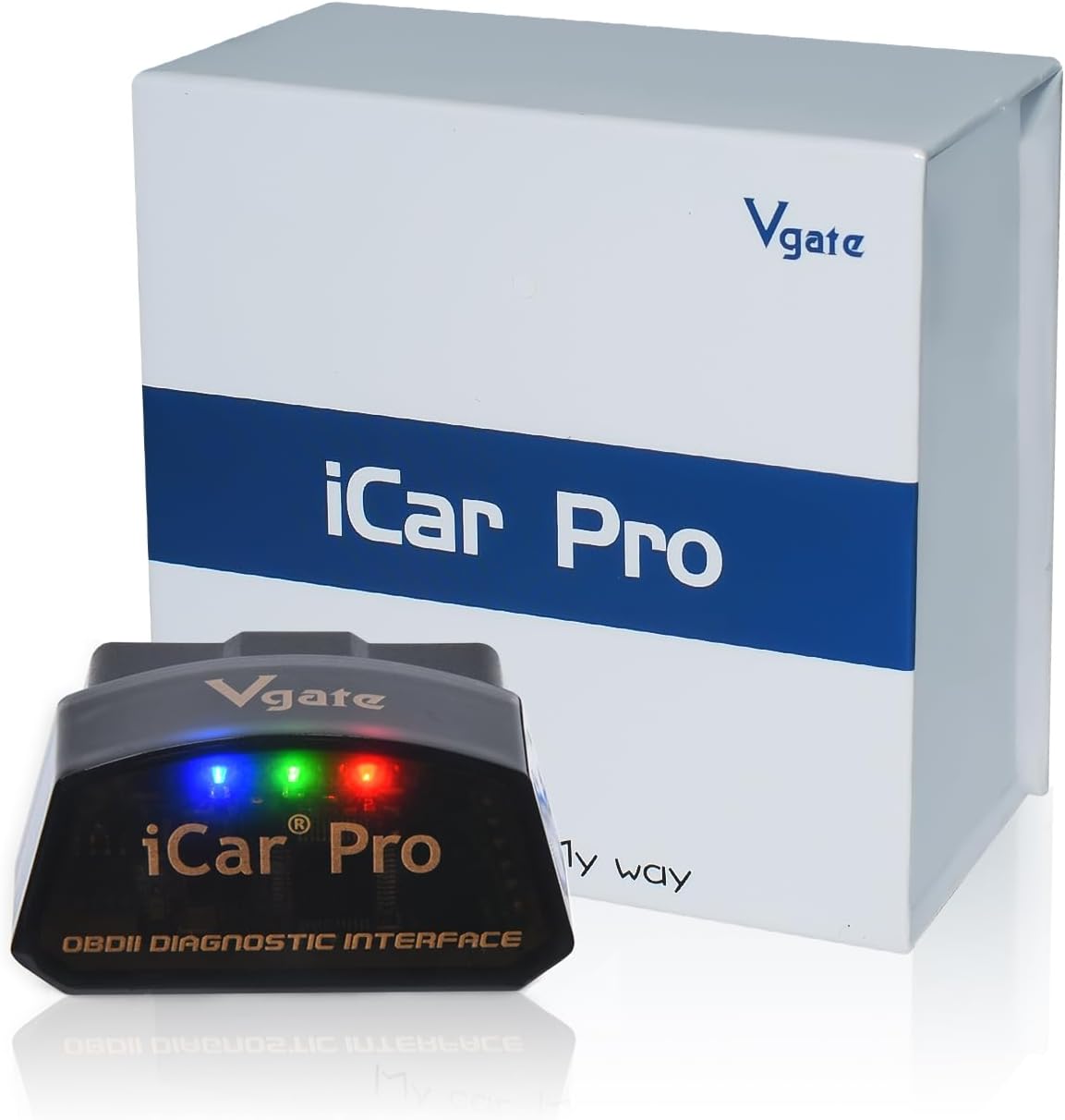
The Vgate iCar Pro BT3.0 OBD2 Scanner is a diagnostic scan tool designed to interface with your vehicle's On-Board Diagnostics (OBD-II) system. It allows users to read and clear diagnostic trouble codes, monitor real-time sensor data, and perform various diagnostic functions directly from a compatible Android or Windows device. Its compact design ensures it does not interfere with driving, and it features energy-saving functions to protect your car's battery.
2. Product Features
- Multi-System Compatibility: Compatible with Android and Windows operating systems. Note: iOS devices are not supported by this BT3.0 model.
- Efficient and Safe Operation: Offers a fast information transfer speed of 38.4Kbps. Includes over-voltage, over-heat, and over-current protection for safety.
- Energy Saving and Smart Functions: Features auto-sleep and wireless wake-up (for gasoline cars only; hybrid and electric cars do not support wake-up). Operates with 3mA low power consumption to protect the car battery.
- Universal OBD II Diagnostics: Functions include reading and clearing engine diagnostic trouble codes, viewing freeze frame data, real-time sensor readings, and I/M readiness. Allows for customized dashboards and fuel economy estimation.
- Broad Vehicle Compatibility: Supports fuel and hybrid models, OBD2 compliant vehicles from 1996 onward. For advanced features like ABS, airbag diagnostics, or manufacturer-specific data, consult the user manual or manufacturer for availability with specific OBD2 applications.
- Third-Party App Support: Compatible with various third-party applications such as Car Scanner ELM OBD2, OBD Fusion, Torque (Android), Infocar, OBD JScan, BimmerCode, BimmerLink, Carista OBD2, and Dr. Prius. Note: Some app features or the apps themselves may require additional payment to the software company.

3. Package Contents
The Vgate iCar Pro BT3.0 OBD2 Scanner package includes the following items:
- 1 x Vgate iCar Pro Bluetooth3.0 OBD2 Scanner
- 1 x User Manual
4. Setup Guide
Follow these steps to set up your Vgate iCar Pro BT3.0 OBD2 Scanner:
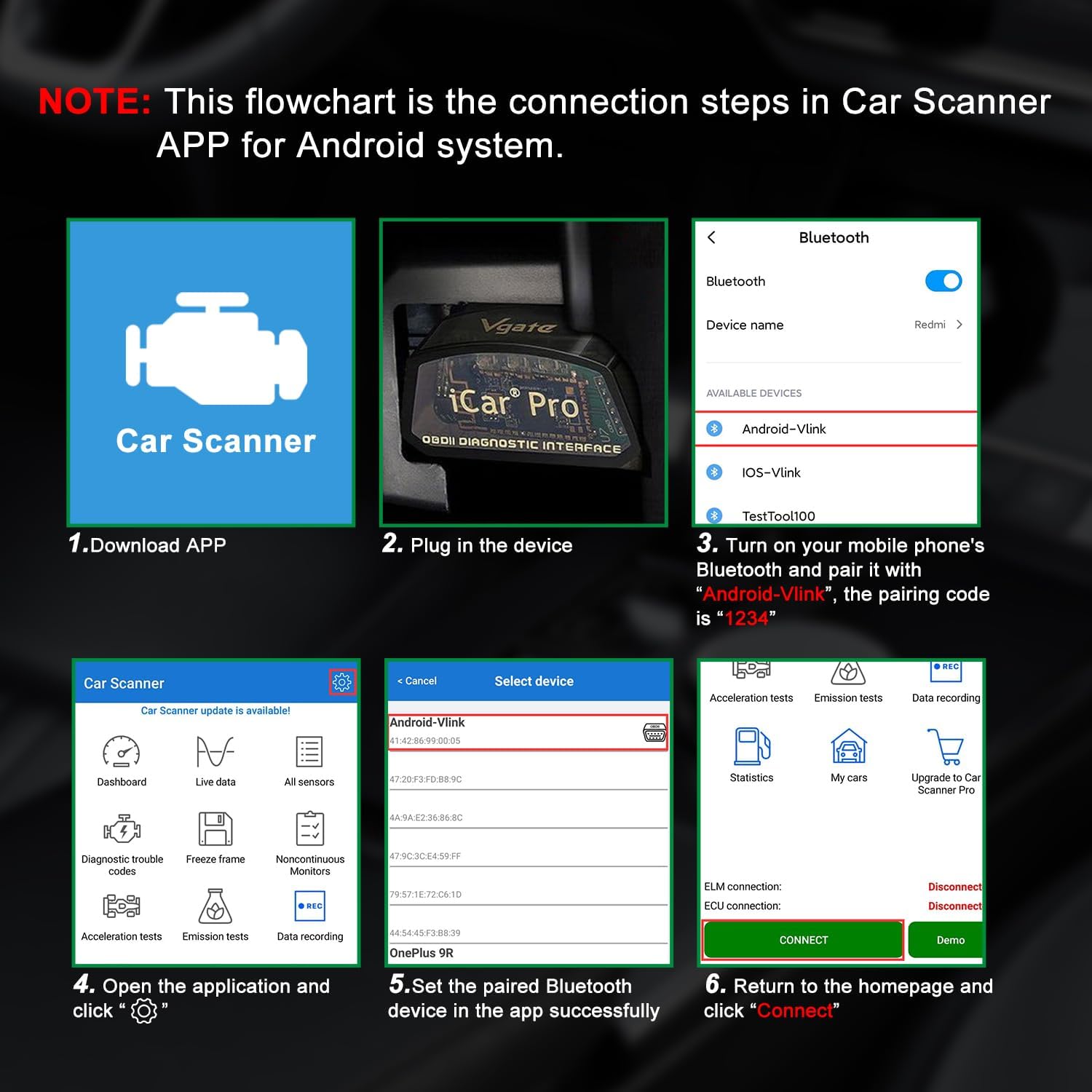
- Download Application: Download a compatible third-party OBD2 application (e.g., Car Scanner ELM OBD2, Torque) from your Android device's app store or for Windows.
- Plug in Device: Locate your vehicle's OBD-II port, typically found under the dashboard on the driver's side. Firmly plug the Vgate iCar Pro scanner into the OBD-II port. The device lights will illuminate upon successful connection.
- Bluetooth Pairing (Android/Windows):
- Turn on Bluetooth on your Android phone or Windows device.
- Search for available devices. The device name will typically appear as "Android-Vlink" or similar.
- Select the device and pair it. The pairing code is usually "1234".
- Open Application and Connect: Open the downloaded OBD2 application. Within the app settings, select the Vgate iCar Pro as your OBD2 adapter. Initiate the connection process within the app.

5. Operating Instructions
Once connected, the Vgate iCar Pro allows you to access various vehicle data and diagnostic functions through your chosen OBD2 application:
- Read Diagnostic Trouble Codes (DTCs): Access the "Read Codes" or "DTCs" section in your app to view current, pending, and historic trouble codes.
- Clear Trouble Codes: Use the "Clear Codes" or "Erase DTCs" function to turn off the "Check Engine" light and clear stored diagnostic information. Note: Some codes may require professional tools or dealer intervention to clear permanently.
- View Live Data: Monitor real-time sensor data such as engine RPM, calculated load value, coolant temperature, fuel system status, vehicle speed, short/long term fuel trim, intake manifold pressure, timing advance, intake air temperature, air flow rate, absolute throttle position, oxygen sensor voltages, and fuel pressure.
- I/M Readiness Status: Check the status of various emission-related monitors to determine if your vehicle is ready for an emissions test.
- Freeze Frame Data: View a snapshot of sensor readings at the moment a Diagnostic Trouble Code (DTC) was set, which can help in diagnosing the issue.
- Custom Dashboards: Many apps allow you to create custom dashboards to display the live data parameters most relevant to you.

Video 1: A brief overview of the Vgate iCar Pro, showcasing its design and general functionality. This video provides a quick visual introduction to the product.
6. Maintenance
To ensure the longevity and optimal performance of your Vgate iCar Pro BT3.0 OBD2 Scanner, follow these maintenance guidelines:
- Storage: Store the device in a cool, dry place away from direct sunlight and extreme temperatures.
- Cleaning: Use a soft, dry cloth to clean the exterior of the device. Do not use liquid cleaners or solvents.
- Handling: Avoid dropping the device or subjecting it to strong impacts.
- Disconnection: Always disconnect the device from the OBD-II port when not in use for extended periods, although its low power consumption mode is designed to protect your car battery.
7. Troubleshooting
If you encounter issues with your Vgate iCar Pro BT3.0 OBD2 Scanner, refer to the following common troubleshooting steps:
| Problem | Possible Cause | Solution |
|---|---|---|
| Device does not power on. | Not properly plugged into OBD-II port; vehicle ignition off. | Ensure the device is firmly seated in the OBD-II port. Turn the vehicle ignition to the ON position (engine off or running). |
| Cannot pair via Bluetooth. | Incorrect pairing code; Bluetooth not enabled on device; device already paired. | Ensure Bluetooth is enabled. Use pairing code "1234". Forget previous pairings and try again. Restart both the scanner and your mobile device. |
| App cannot connect to the scanner. | Incorrect app settings; app not compatible; Bluetooth connection lost. | Verify the correct adapter is selected in the app's settings. Ensure the Bluetooth connection is active. Try a different compatible app if available. |
| Cannot clear certain trouble codes. | Code is a permanent DTC; underlying issue not resolved; manufacturer-specific code. | Some codes (e.g., permanent DTCs) cannot be cleared by standard OBD2 tools and may require a professional scan tool or dealer service. Ensure the underlying vehicle issue is resolved. |
8. Specifications
- Model: iCar Pro 3.0
- Connectivity: Bluetooth 3.0
- Operating System Compatibility: Android, Windows
- Item Weight: 1.41 ounces
- Product Dimensions: 1.85 x 0.94 x 1.06 inches
- Supported Protocols: SAE J1850-PWM, SAE J1850-VPW, ISO 9141-2, ISO 14230-4 (slow), ISO 14230-4 (fast), ISO 15765-4 (CAN), SAE J1939 (CAN), ISO 11898 (raw CAN)
- Power Consumption: 3mA (low power mode)
- Special Features: Auto-sleep, wireless wake-up (gasoline cars only), over-voltage, over-heat, over-current protection.
9. Warranty and Support
The Vgate iCar Pro BT3.0 OBD2 Scanner comes with a one-year warranty and 100% satisfaction service. For any questions, technical assistance, or warranty claims, please contact the VgateDirect after-sales service team directly. They are committed to providing hassle-free sales service and support.
For further information or to explore other Vgate products, you may visit the official Vgate store online.


