
Amazon Basics HKM8013FR
Contents
Amazon Basics Wireless Ergonomic Keyboard and Mouse Combo User Manual
Model: HKM8013FR
1. Introduction
Thank you for choosing the Amazon Basics Wireless Ergonomic Keyboard and Mouse Combo. This manual provides essential information for setting up, operating, and maintaining your new peripheral devices. This combo offers a comfortable typing and navigation experience with its ergonomic design and reliable 2.4 GHz wireless connection.

An overview of the Amazon Basics Wireless Ergonomic Keyboard and Mouse Combo, showcasing the ergonomic design of the keyboard with its integrated wrist rest and the contoured wireless mouse, positioned on a modern desk setup.
2. Package Contents
Please check the package for the following items:
- Wireless Ergonomic Keyboard (AZERTY Layout)
- Wireless Mouse
- USB Receiver (stored in the mouse battery compartment)
- AAA Batteries (1 for keyboard, 2 for mouse)

This image illustrates the key components of the set: the ergonomic keyboard, the wireless mouse, the compact USB receiver, and details about the included batteries (2x AAA for mouse, 1x AAA for keyboard). It highlights the 'plug & play' setup and compatibility with Windows operating systems.
3. Features
- Plug and Play Setup: Easy installation by simply plugging the USB receiver into your computer.
- Reliable Wireless Connection: 2.4 GHz USB receiver provides a stable wireless range of up to 10 meters.
- Ergonomic Wave Design Keyboard: Positions hands naturally for comfortable and effortless typing.
- Padded Wrist Rest: Large, cushioned wrist rest helps position hands correctly and provides comfort.
- Comfortable Right-Handed Mouse: Contoured design with soft rubber coating and advanced scroll wheel for smooth navigation.
- Adjustable Mouse DPI: Switch between 1000, 1200, and 1600 DPI for customized cursor sensitivity.
- Automatic Power Saving: Both keyboard and mouse enter sleep mode after 1 minute of inactivity to conserve battery life.

This diagram emphasizes the comfort and precision features. It shows the magnetic wrist rest for proper hand positioning, the wave-shaped keyboard design for natural typing, an LED indicator for battery level, the 2.4 GHz receiver with a 10m range, and the contoured right-handed mouse for quick scrolling and clicking.

This image explains the automatic power-saving function. Both the keyboard and mouse enter sleep mode after 1 minute of inactivity, conserving battery life. They can be reactivated by simply pressing any key or moving the mouse.
4. Setup Instructions
4.1. Installing Batteries
- For the Mouse: Open the battery compartment cover on the underside of the mouse. Insert two (2) AAA batteries, ensuring correct polarity (+/-). Close the cover.
- For the Keyboard: Open the battery compartment cover on the underside of the keyboard. Insert one (1) AAA battery, ensuring correct polarity (+/-). Close the cover.
Note: The USB receiver is typically stored inside the mouse battery compartment for safekeeping during transport.
4.2. Connecting the USB Receiver
- Locate the USB receiver (if stored in the mouse, remove it).
- Plug the USB receiver into an available USB port on your computer.
- Your computer should automatically detect and install the necessary drivers. This may take a few moments.
- Turn on the mouse using the On/Off switch located on its underside.
- The keyboard and mouse are now ready for use.
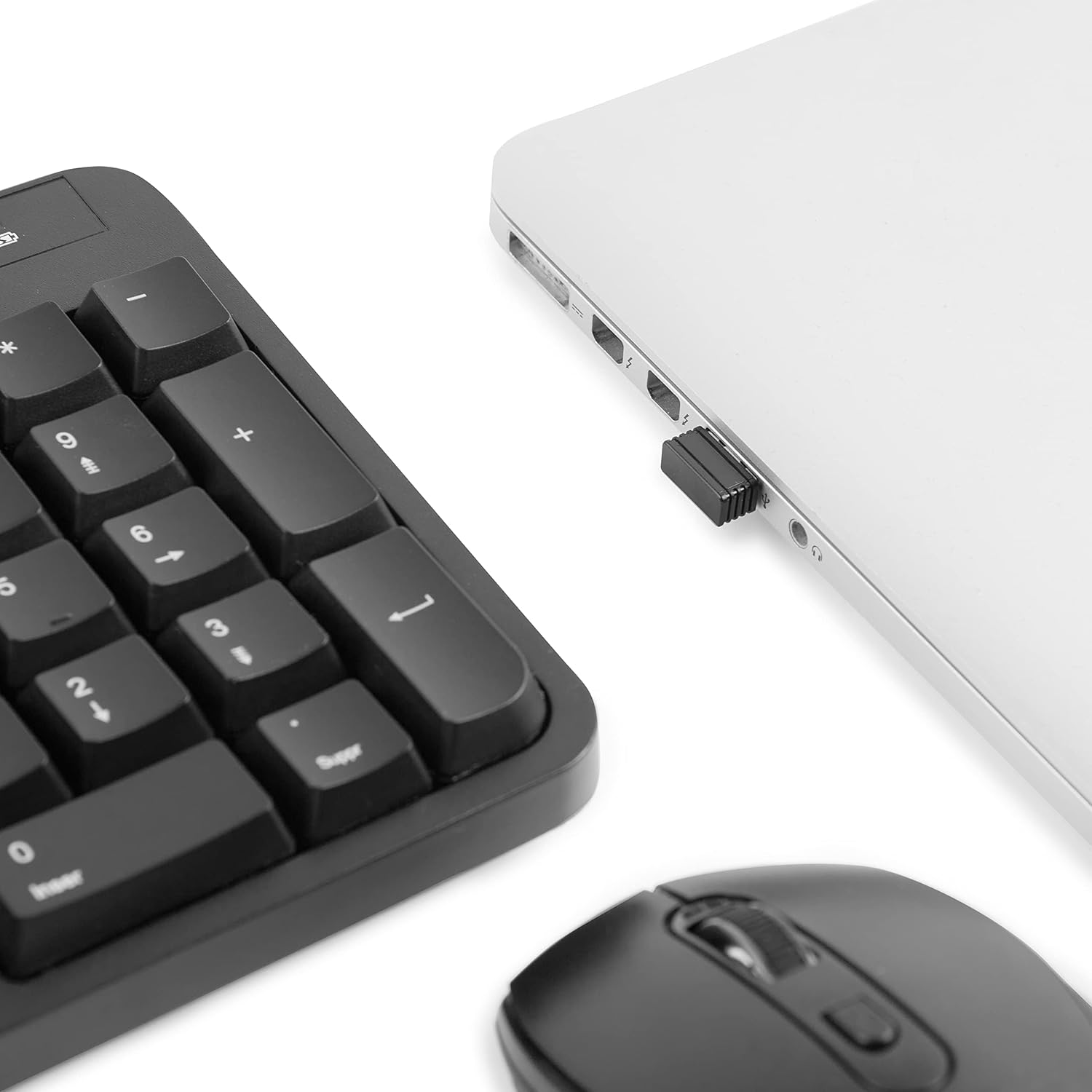
This image shows the compact USB receiver inserted into a laptop's USB port, demonstrating the simple 'plug and play' connection for the wireless keyboard and mouse.
5. Operating Instructions
5.1. Keyboard Usage
- The keyboard features a standard AZERTY layout with 105 keys.
- The ergonomic wave design and padded wrist rest are designed to reduce strain during typing.
- An LED indicator on the keyboard will signal low battery status.

A close-up view of the large, padded wrist rest, which attaches magnetically to the keyboard. This feature provides comfortable support for the wrists during extended typing sessions.
5.2. Mouse Usage
- The mouse is designed for right-handed users, offering a comfortable grip.
- DPI Adjustment: Press the DPI button (located near the scroll wheel) to cycle through 1000, 1200, and 1600 DPI settings. This allows you to adjust cursor speed and sensitivity.
- The mouse features a soft rubber coating and an advanced scroll wheel for precise scrolling.
- The optical laser sensor ensures accurate tracking on various surfaces, including wood, glass, or plastic.

A close-up view of the wireless mouse, detailing its user controls. It points out the DPI adjustment button (1000/1200/1600 DPI settings), the convenient On/Off switch on the underside, and the optical laser sensor for precise tracking on various surfaces.

A detailed shot of the Amazon Basics wireless mouse, showcasing its contoured shape, soft rubber coating, and scroll wheel, designed for comfortable right-handed use.
6. Maintenance
- Cleaning: Use a soft, dry cloth to clean the keyboard and mouse. For stubborn dirt, a slightly damp cloth can be used, but ensure no moisture enters the devices.
- Battery Replacement: Replace batteries when the low battery indicator lights up or when performance degrades. Always use new AAA batteries and dispose of old batteries responsibly.
- Storage: When not in use for extended periods, turn off the mouse to conserve battery life. Store the USB receiver in the mouse's battery compartment to prevent loss.
7. Troubleshooting
- Device not responding:
-
- Ensure the USB receiver is securely plugged into a working USB port on your computer.
- Check if the mouse is turned on using the On/Off switch on its underside.
- Replace the batteries in both the keyboard and mouse with fresh ones.
- Move the devices closer to the USB receiver to rule out range issues. The maximum range is 10 meters.
- Try plugging the USB receiver into a different USB port on your computer.
- Restart your computer.
- Intermittent connection or lag:
-
- Ensure there are no large metal objects or other electronic devices causing interference between the keyboard/mouse and the USB receiver.
- Move the USB receiver to a port that offers a clearer line of sight to the devices.
- Check and replace batteries if they are low.
- Mouse cursor erratic or not tracking:
-
- Clean the optical sensor on the underside of the mouse.
- Ensure you are using the mouse on a suitable surface. While it works on many surfaces, highly reflective or transparent surfaces may affect tracking.
- Adjust the DPI setting using the DPI button to see if it improves tracking.
8. Specifications
| Brand | Amazon Basics |
| Model Number | HKM8013FR |
| Connectivity Technology | Wireless (2.4 GHz USB Receiver) |
| Wireless Range | Up to 10 meters |
| Keyboard Layout | AZERTY (French Layout) |
| Number of Keyboard Keys | 105 |
| Mouse DPI Settings | 1000 / 1200 / 1600 |
| Mouse Orientation | Right-Handed |
| Compatible Operating Systems | Windows (e.g., Windows XP, Windows 7, 8, 10, 11) |
| Power Source | Batteries (1x AAA for keyboard, 2x AAA for mouse) |
| Color | Black |
| GTIN / UPC | 840324405279 |
9. Warranty and Support
For warranty information and customer support, please refer to the documentation included with your purchase or visit the official Amazon Basics support page on Amazon.fr. Keep your proof of purchase for warranty claims.
Online Support: Visit the Amazon Basics Store
Documents and downloads
Ask a question about this manual
Ask about setup, troubleshooting, compatibility, parts, safety, or missing instructions. Manuals+ will review the question and use this page’s manual context to help answer it.