
VIGORWORK B500W
VIGORWORK Portable Car MP5 Player User Manual
Model: B500W
Introduction
This manual provides detailed instructions for the installation, operation, and maintenance of your VIGORWORK Portable Car MP5 Player, Model B500W. This device is designed to enhance your in-car entertainment and connectivity with features like Apple CarPlay, Android Auto, Bluetooth 5.1, FM transmission, and multimedia playback.
Package Contents
Please check the package for the following items:
- 1 x Main Unit (Portable Car MP5 Player)
- 1 x User Manual
- 1 x Cigarette Lighter Power Cable
- 1 x Suction Cup Holder
- 1 x 2-Key Silicone Remote Control
- 1 x Reversing Video Cable (for optional backup camera)

Image: The VIGORWORK Portable Car MP5 Player main unit, suction cup holder, remote control, cigarette lighter power cable, and reversing video cable.
Key Features
- Wired and Wireless Apple CarPlay & Android Auto: Seamless smartphone integration for navigation, calls, messages, and music.
- FM Signal Transmission: Transmit audio to your original car speakers via FM radio.
- Multiple Connectivity: USB, TF Card, Bluetooth 5.1, AUX, Type-C Port.
- Phone Mirror Link: Mirror your smartphone screen to the 7-inch HD display.
- Bluetooth 5.1: Stable and fast wireless connection for hands-free calls and audio streaming.
- Cigarette Lighter Power: Easy plug-and-play installation without modifying car wiring.
- Backup Camera Support: Compatible with optional rear cameras for safer reversing.
- Built-in Speaker: For direct audio output.
Safety Information
Please read and understand all safety instructions before using the device. Failure to follow these instructions may result in injury or damage to the device or vehicle.
- Do not operate the device in a way that distracts you from driving. Always prioritize road safety.
- Ensure the device is securely mounted and does not obstruct your view or interfere with vehicle controls.
- Use only the provided power cable. Using incompatible power sources may damage the device.
- Avoid exposing the device to extreme temperatures, direct sunlight for prolonged periods, or moisture.
- Do not attempt to disassemble or repair the device yourself. Refer to qualified service personnel.
Setup Guide
1. Mounting the Device
Attach the suction cup holder to a clean, smooth surface on your dashboard or windshield. Ensure it does not obstruct your view or interfere with airbags. Securely attach the main unit to the holder.
2. Power Connection
Insert the cigarette lighter power cable into your vehicle's 12V-24V cigarette lighter socket. The device will power on automatically.

Image: The cigarette lighter power plug inserted into a vehicle's power outlet, demonstrating the plug-and-play power connection.
3. Backup Camera Connection (Optional)
If you have an optional backup camera, connect its video output to the "Reverse Video Input" port on the MP5 player using the provided reversing video cable. The system will automatically switch to the camera view when the vehicle is in reverse.

Image: The device screen showing a wide-angle view from a backup camera with green, yellow, and red customizable guidelines for parking assistance.
Operating Instructions
1. Bluetooth Connection (Version 5.1)
To connect your smartphone via Bluetooth:
- On the MP5 player, navigate to the Bluetooth settings.
- Enable Bluetooth on your smartphone and search for available devices.
- Select "CarPlay" (default name) from the list on your phone.
- Confirm the pairing code if prompted.
Bluetooth 5.1 offers improved connection range, signal reception, and transfer speed compared to previous versions.

Image: A visual representation of Bluetooth 5.1 technology, highlighting a 50% increase in connection range, 75% improvement in signal reception, and 150% faster transfer speed.
2. Apple CarPlay
Connect your iPhone to the MP5 player via wired USB or wirelessly via Bluetooth/Wi-Fi. CarPlay allows you to access iPhone features like navigation, calls, messages, and music directly on the car's display.

Image: The device screen showing the Apple CarPlay interface, which includes common iOS app icons for in-car use. It indicates both wireless and wired connection options.
Siri Voice Control: Use Siri for hands-free operation. Simply say "Hey Siri" or press the voice command button to activate Siri and control functions like making calls or sending messages.
3. Android Auto
Connect your Android phone to the MP5 player via wired USB or wirelessly via Bluetooth/Wi-Fi. Android Auto mirrors your phone's essential apps to the display, enabling navigation, communication, and entertainment.

Image: The device screen showing the Android Auto interface, displaying app icons like Google Maps, YouTube Music, and Spotify. It also indicates both wireless and wired connection options.
Google Assistant: Use Google Assistant for voice commands. Say "Hey Google" to control functions hands-free.
Note: For Android Auto, your phone needs Android 6.0 or higher and an active data cable for wired connection.
4. FM Signal Transmission
This feature allows the MP5 player's audio to be played through your car's original speakers by transmitting it over an FM frequency.
- Adjust your original car radio to an empty FM channel (e.g., 92.3MHz) with no strong broadcast signal.
- On the MP5 player, navigate to the FM transmission settings.
- Set the MP5 player's FM transmission frequency to match the empty channel you selected on your car radio.
- The audio from the MP5 player will now be transmitted and played through your car's speakers.
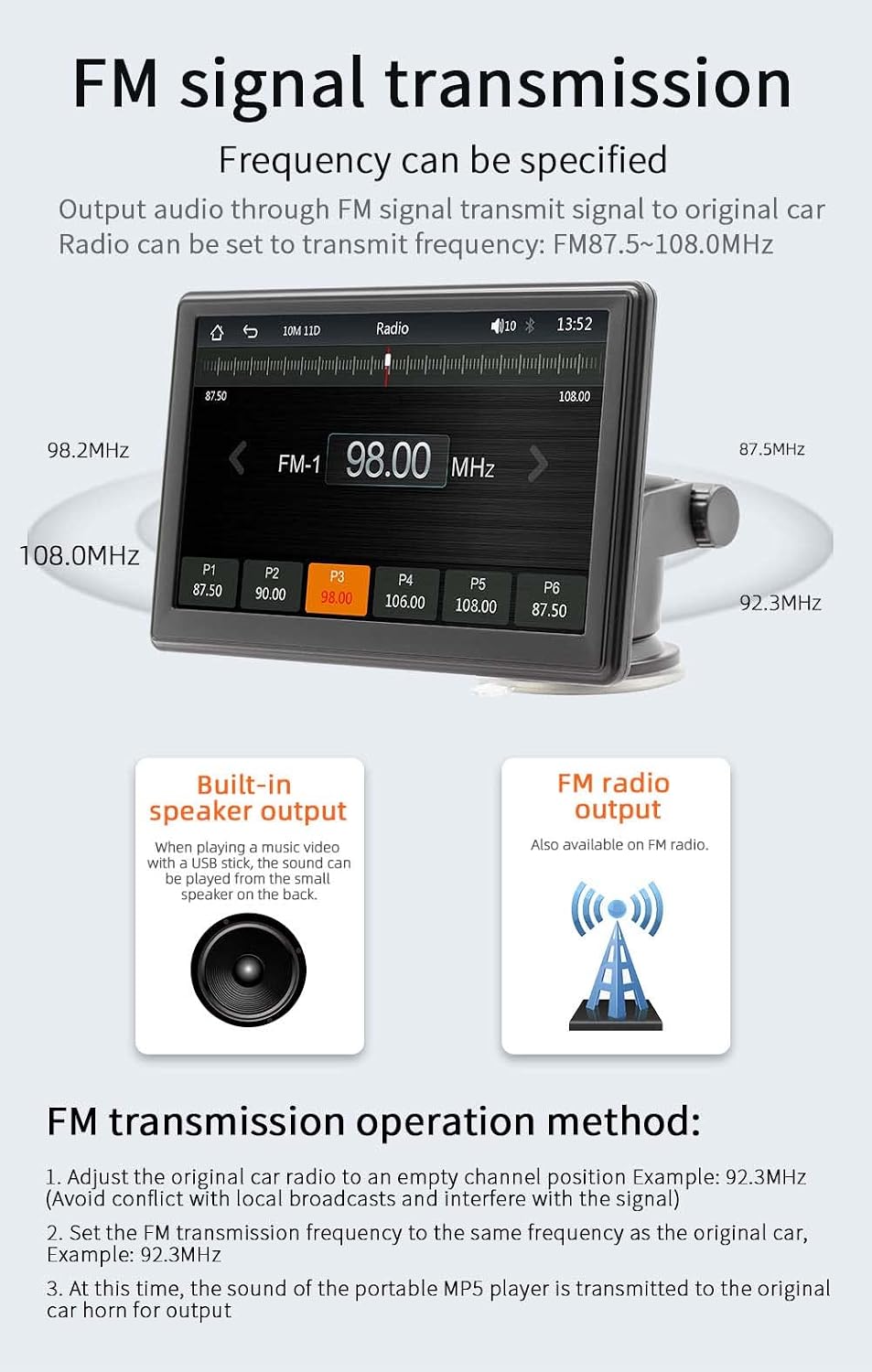
Image: The device screen showing the FM radio interface, demonstrating how to select a frequency for FM signal transmission. It also illustrates the concept of transmitting audio to the car's original speakers.
5. Multimedia Playback (USB/TF Card)
Insert a USB drive or TF card into the respective ports on the device. The MP5 player supports various audio (MP3/AAC/APE/OGG/M4A/RA/WAV), video (MP4/AVI/MKV/ASF/H264), and picture (JPG/PNG/BMP) formats for direct playback.

Image: The device screen showing options for multimedia playback, including music, video, and pictures. It highlights the use of a TF card and USB drive for media input.
6. Phone Mirror Link
The mirror link function allows you to display your smartphone's screen directly onto the MP5 player's 7-inch HD screen. This is useful for viewing content not directly supported by CarPlay or Android Auto.
7. Language Settings
The device supports multiple languages including English, Chinese, Spanish, Portuguese, Russian, German, French, Polish, Turkish, Arabic, Hebrew, Italian, Czech, and Japanese. Navigate to the system settings to change the display language.
8. Factory Reset Password
The factory set password for system settings is 113266. Use this password if prompted for advanced configurations or a factory reset.
Maintenance
To ensure the longevity and optimal performance of your MP5 player:
- Clean the screen and exterior with a soft, dry cloth. Do not use abrasive cleaners or solvents.
- Keep the device free from dust and debris.
- Avoid placing heavy objects on the device.
- Disconnect the power cable when the device is not in use for extended periods.
Troubleshooting
| Problem | Possible Cause | Solution |
|---|---|---|
| Device does not power on. | Cigarette lighter cable not properly connected or no power from socket. | Ensure the cigarette lighter cable is securely plugged in. Check if the car's cigarette lighter socket is working. |
| No sound from car speakers. | FM transmission not set correctly or car radio not tuned to the correct frequency. | Verify FM transmission settings on the MP5 player and ensure your car radio is tuned to the same empty frequency. Increase volume on both devices. |
| Bluetooth connection unstable. | Interference or device too far from the MP5 player. | Ensure your phone is within range. Restart Bluetooth on both devices. Clear previous pairings and re-pair. |
| CarPlay/Android Auto not connecting. | Incorrect cable, phone settings, or software incompatibility. | For wired connection, use a high-quality data cable. Ensure CarPlay/Android Auto is enabled on your phone. Check phone's operating system version. Restart both devices. |
| Backup camera image not displayed. | Camera not connected, faulty cable, or camera not powered. | Ensure the reversing video cable is securely connected. Check the camera's power supply. (Note: Camera is optional and sold separately). |
Specifications
| Parameter | Detail |
|---|---|
| Model | B500W |
| Type | Portable Car MP5 Player |
| System | Allwinner Melis System |
| Radio Frequency | FM 87.5~108.0MHz |
| Output Power | Built-in 1W speaker |
| Operating Voltage | 12~24V |
| Operating Temperature | -10~60℃ |
| Bluetooth Version | 5.1 (Default Name: CarPlay) |
| Wi-Fi Frequency | 2.4G/5G Dual Band |
| Display Resolution | 1024x600 |
| Screen Size | 7" HD |
| Mounting Size | 65x65MM |
| Faceplate Size | 178x98MM |
| Mainframe Depth | 17MM |
| Weight per Unit | 0.56KG (1.23 lbs) |
| USB Interface | USB 2.0 |
| TF Card Support | Yes |
| Supported Languages | English, Chinese, Spanish, Portuguese, Russian, German, French, Polish, Turkish, Arabic, Hebrew, Italian, Czech, Japanese |
| Factory Set Password | 113266 |
Warranty and Support
For warranty information and technical support, please refer to the contact details provided with your purchase or visit the official VIGORWORK website. Keep your purchase receipt as proof of purchase.
Ask a question about this manual
Ask about setup, troubleshooting, compatibility, parts, safety, or missing instructions. Manuals+ will review the question and use this page’s manual context to help answer it.