
1. Introduction
Thank you for purchasing the Panasonic AW-UE150 4K UHD PTZ Camera. This professional PTZ camera is designed for high-quality video production in various applications, including broadcast, corporate events, education, and houses of worship. It features a 1-inch large MOS sensor, supports 4K/UHD 60p video, and offers a 20x optical zoom with Intelligent Zoom (iZoom). The camera provides versatile output interfaces such as 12G-SDI, HDMI, optical fiber, and IP. This manual provides essential information for the safe and efficient operation of your camera.
2. Safety Information
Please read all safety instructions carefully before using the product. Keep this manual for future reference.
- Power Supply: Use only the specified power adapter or Power over Ethernet (PoE) source. Ensure the power source voltage matches the camera's requirements.
- Ventilation: Do not block ventilation openings. Ensure adequate airflow around the camera to prevent overheating.
- Environment: Avoid exposing the camera to moisture, dust, extreme temperatures, or direct sunlight. Operate within the specified temperature and humidity ranges.
- Handling: Handle the camera with care. Do not drop or subject it to strong impacts.
- Servicing: Do not attempt to service this product yourself. Refer all servicing to qualified service personnel.
3. Package Contents
Verify that all items are included in the package:
- Panasonic AW-UE150 4K UHD PTZ Camera
- Power Adapter
- Cables
- Instruction Manual (this document)
4. Product Overview
The AW-UE150 is a high-performance PTZ camera designed for professional video production. Key features include:
- UHD/4K 59.94p Integrated PTZ Camera
- Various 4K interfaces (12G-SDI, HDMI, Optical Fiber, IP)
- Optical 20x Zoom
- 4K/HD Simultaneous Output
- Large 1" MOS Sensor
4.1 Front View
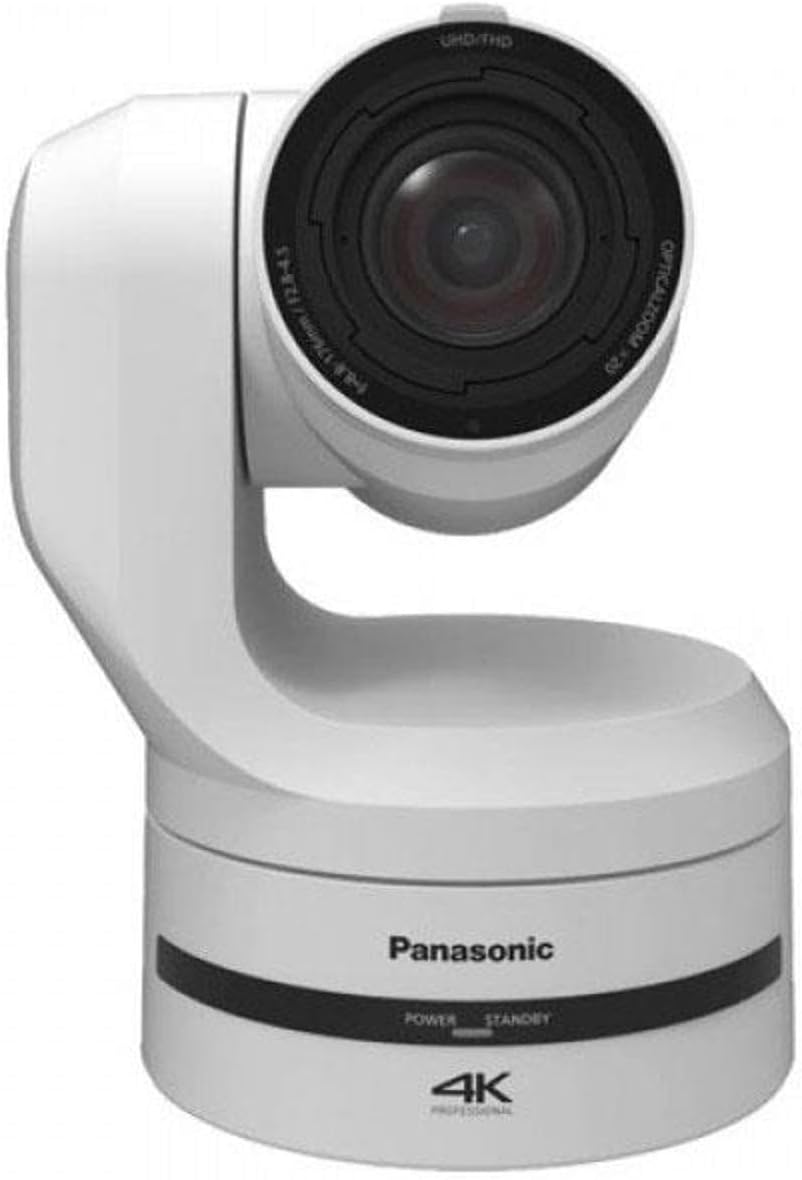
Figure 4.1: Front view of the AW-UE150 camera, showing the lens assembly, pan/tilt base, and Panasonic branding.
4.2 Rear Panel Connections

Figure 4.2: Rear panel of the AW-UE150 camera, displaying various input/output ports including LAN, RS-422, 12V DC IN, IR ID, Audio In, HDMI, 3G SDI OUT, G/L IN, MONI OUT, 12G SDI OUT, and 1G FIBER.
5. Setup
Follow these steps to set up your AW-UE150 camera:
- Mounting: Securely mount the camera to a stable surface using appropriate mounting hardware (not included). Ensure the mounting location can support the camera's weight and allows for full pan/tilt movement.
- Power Connection:
- PoE++ (Power over Ethernet): Connect an Ethernet cable from a PoE++ compatible network switch or injector to the LAN port on the camera's rear panel. This provides both power and network connectivity.
- DC Power: Alternatively, connect the provided power adapter to the 12V DC IN port on the rear panel and plug it into a power outlet.
- Video Output Connections: Connect your desired video output cables to the corresponding ports on the rear panel:
- 12G-SDI OUT: For high-resolution 4K video output.
- 3G-SDI OUT: For HD video output.
- HDMI: For direct connection to a monitor or switcher.
- 1G FIBER: For long-distance optical fiber transmission.
- IP (LAN port): For network-based video streaming and control.
- Control Connections:
- LAN: For IP control via a network controller or software.
- RS-422: For serial control using a compatible PTZ controller.
- Audio Input: Connect an external microphone or audio source to the AUDIO IN port if needed.
- Initial Power On: Once all connections are made, apply power to the camera. The tally light will illuminate, indicating the camera is operational.
6. Operating Instructions
This section outlines basic operation of the AW-UE150 camera.
6.1 Powering On/Off
- Power On: Connect the power source (PoE++ or DC adapter). The camera will automatically power on.
- Power Off: Disconnect the power source. For network-controlled cameras, ensure proper shutdown procedures are followed via the control interface if available.
6.2 Pan, Tilt, and Zoom (PTZ) Control
The camera's pan, tilt, and zoom functions are typically controlled via a dedicated PTZ controller (e.g., Panasonic AW-RP150), a web browser interface, or third-party control software.
- Pan/Tilt: Use the joystick or directional controls on your controller to move the camera horizontally (pan) and vertically (tilt). The camera supports up to 180°/sec pan/tilt speed.
- Zoom: Use the zoom rocker or controls to adjust the optical 20x zoom. The camera also features Intelligent Zoom (iZoom) for extended range in UHD and HD.
- Focus: Most controllers offer auto-focus and manual focus adjustments.
6.3 Video Output Modes
The AW-UE150 supports simultaneous 4K and HD output. Configure output settings via the camera's web interface or control panel to select resolution, frame rate, and color space (e.g., BT.2020 for HDR).
6.4 IP Streaming
The camera can stream video directly over IP using protocols like RTMP. Access the camera's web interface to configure streaming parameters, including destination URL, bitrate, and resolution.
7. Maintenance
Proper maintenance ensures the longevity and optimal performance of your camera.
- Cleaning the Lens: Use a soft, lint-free cloth specifically designed for optical lenses. Do not use abrasive cleaners or solvents.
- Cleaning the Body: Wipe the camera body with a soft, dry cloth. For stubborn dirt, a slightly damp cloth can be used, followed by a dry cloth. Avoid getting moisture into any ports or openings.
- Firmware Updates: Periodically check the Panasonic support website for firmware updates. Updates can improve performance, add features, and fix bugs. Follow the instructions provided with the firmware update carefully.
- Storage: When not in use for extended periods, store the camera in a clean, dry, and temperature-controlled environment. Use a protective cover to prevent dust accumulation.
8. Troubleshooting
If you encounter issues with your AW-UE150 camera, refer to the following common troubleshooting steps:
| Problem | Possible Cause | Solution |
|---|---|---|
| No power | Power cable disconnected; PoE not active; faulty power adapter. | Check power cable connection. Verify PoE++ switch/injector is active. Test with a different power adapter if available. |
| No video output | Incorrect cable connection; wrong input selected on monitor/switcher; camera output settings incorrect. | Ensure video cables are securely connected to the correct output ports. Select the correct input on your display device. Check camera's output settings via web interface. |
| PTZ control not responding | Control cable disconnected; incorrect IP address/settings; controller malfunction. | Verify LAN or RS-422 cable connection. Check camera's IP address and network settings. Ensure the controller is properly configured for the camera. |
| Image is blurry/out of focus | Auto-focus off; manual focus incorrectly set; dirty lens. | Engage auto-focus or manually adjust focus. Clean the camera lens. |
If the problem persists after trying these solutions, contact Panasonic customer support or a qualified service technician.
9. Specifications
Detailed technical specifications for the Panasonic AW-UE150 camera:
| Feature | Specification |
|---|---|
| Brand | Panasonic |
| Model Number | AW-UE150WPJ |
| Sensor Type | 1"-Type MOS Sensor |
| Video Capture Resolution | Up to UHD 4K 60p |
| Optical Zoom | 20x |
| iZoom (UHD/HD) | 24x UHD & 32x HD |
| Maximum Focal Length | 176 Millimeters |
| Maximum Aperture | 2.8 f |
| Horizontal Viewing Angle | Wide 75.1° |
| Pan/Tilt Speed | Up to 180°/Sec |
| Video Output Interfaces | 12G-SDI, HDMI, Optical Fiber, IP |
| Connectivity Technology | Wired (PoE++) |
| Supported Audio Format | AAC, PCM |
| Special Features | 4K/HD Simultaneous Out, V-Log Out & UHD Crop (with v2.28 Update), HDR Mode with BT.2020 Support, Live Stream via RTMP, Stereo Mini-Jack Audio Mic/Line Input |
| Item Weight | 15 pounds |
| Product Dimensions | 19 x 16 x 15 inches |
| Color | White |
10. Warranty and Support
For warranty information, please refer to the warranty card included with your product or visit the official Panasonic website. For technical support, product registration, or to download the latest drivers and firmware, please visit the Panasonic professional video support page or contact your local Panasonic service center.
Online Support: https://na.panasonic.com/us/support