1. Introduction
This manual provides comprehensive instructions for the Baseus Pencil (Model: SXBC06), a high-precision stylus designed for Apple iPad devices. It features palm rejection technology, a 1.0mm tip for accurate input, and supports magnetic wireless charging on compatible iPad models. Please read this manual carefully to ensure proper use and optimal performance of your device.
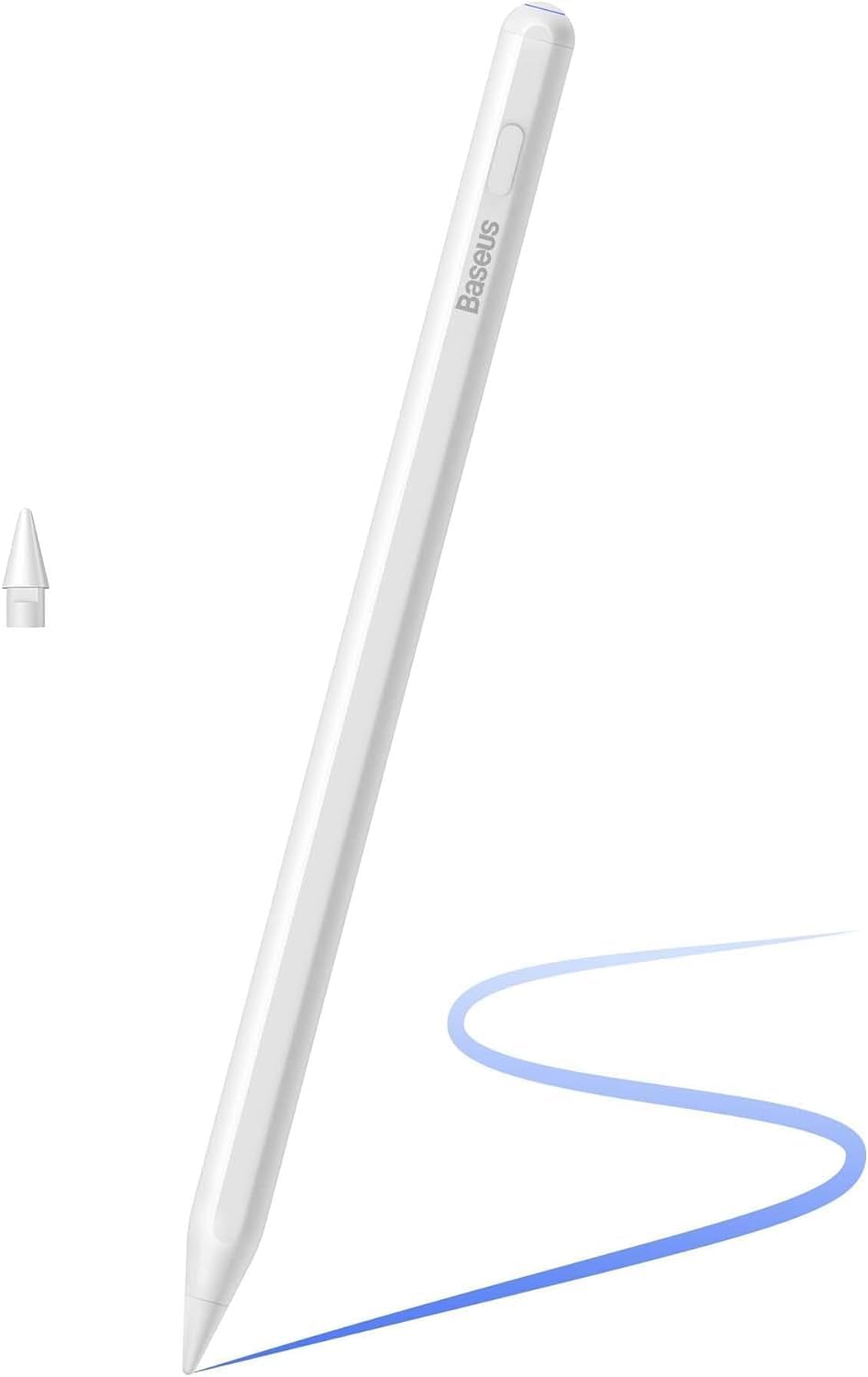
Image 1.1: Baseus Pencil (Model: SXBC06)
2. Setup and Initial Use
2.1. Charging the Pencil
The Baseus Pencil supports two charging methods: magnetic wireless charging and USB-C wired charging.
- Magnetic Wireless Charging: Attach the pencil to the magnetic connector on the side of your compatible iPad. Charging will begin automatically. This method typically takes approximately 3 hours for a full charge.
- USB-C Wired Charging: Connect the included USB-C cable to the charging port on the pencil and to a power source. Wired charging is faster, taking approximately 19 minutes for a full charge.
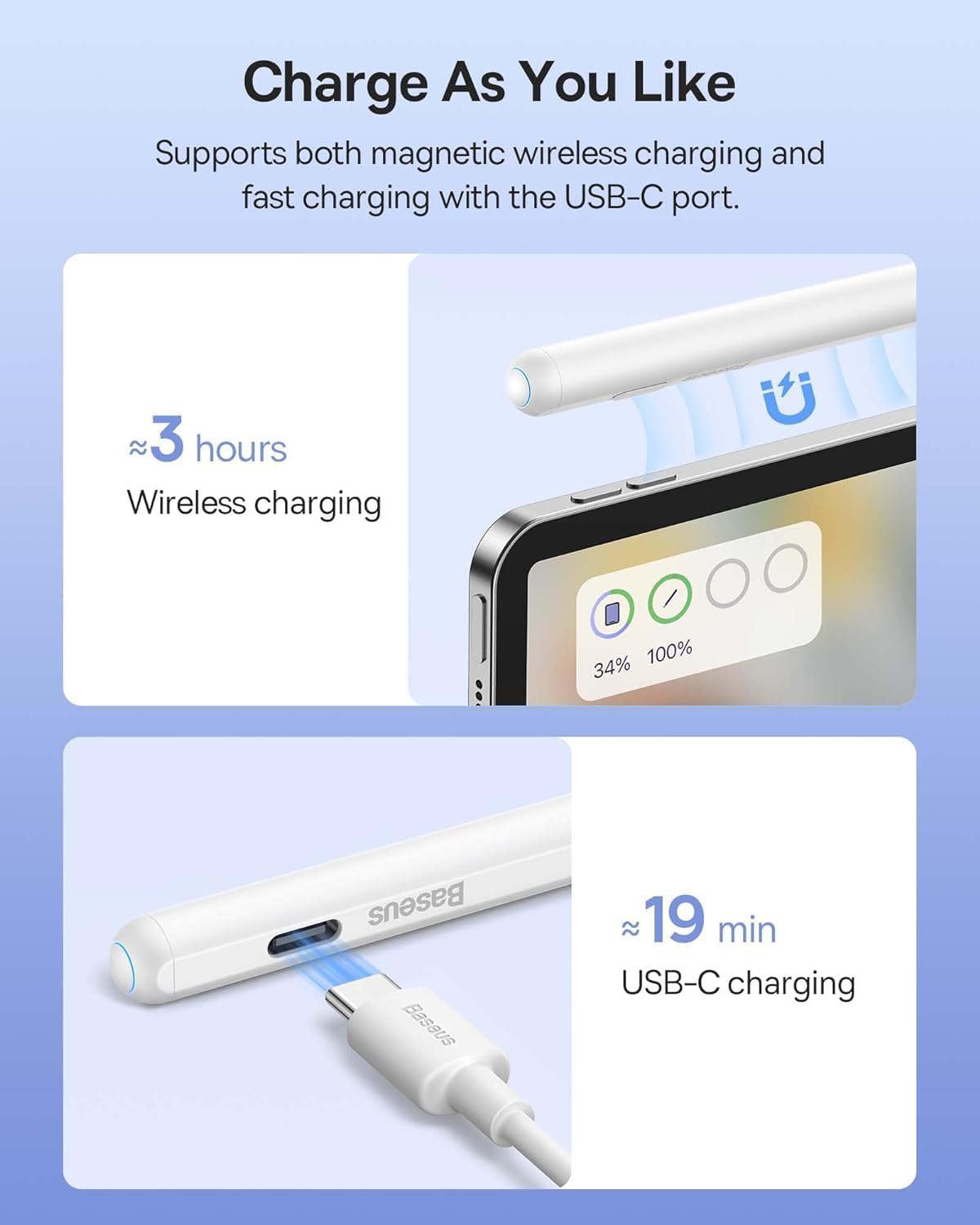
Image 2.1: Charging methods for the Baseus Pencil
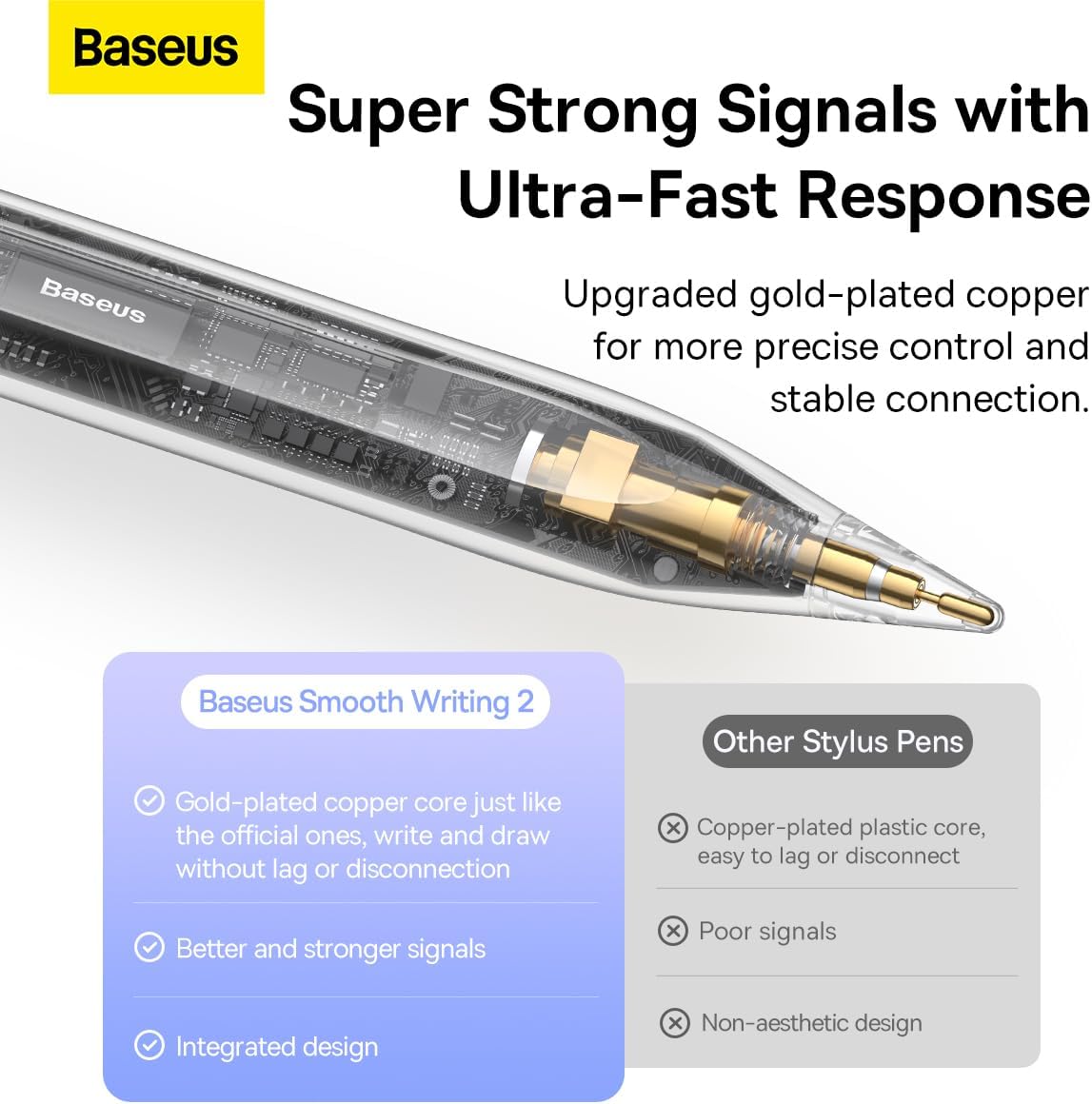
Image 2.2: Magnetic attachment and charging
2.2. Compatibility
The Baseus Pencil is compatible with various Apple iPad models. Please verify your iPad's model number to ensure compatibility, especially for magnetic charging functionality.
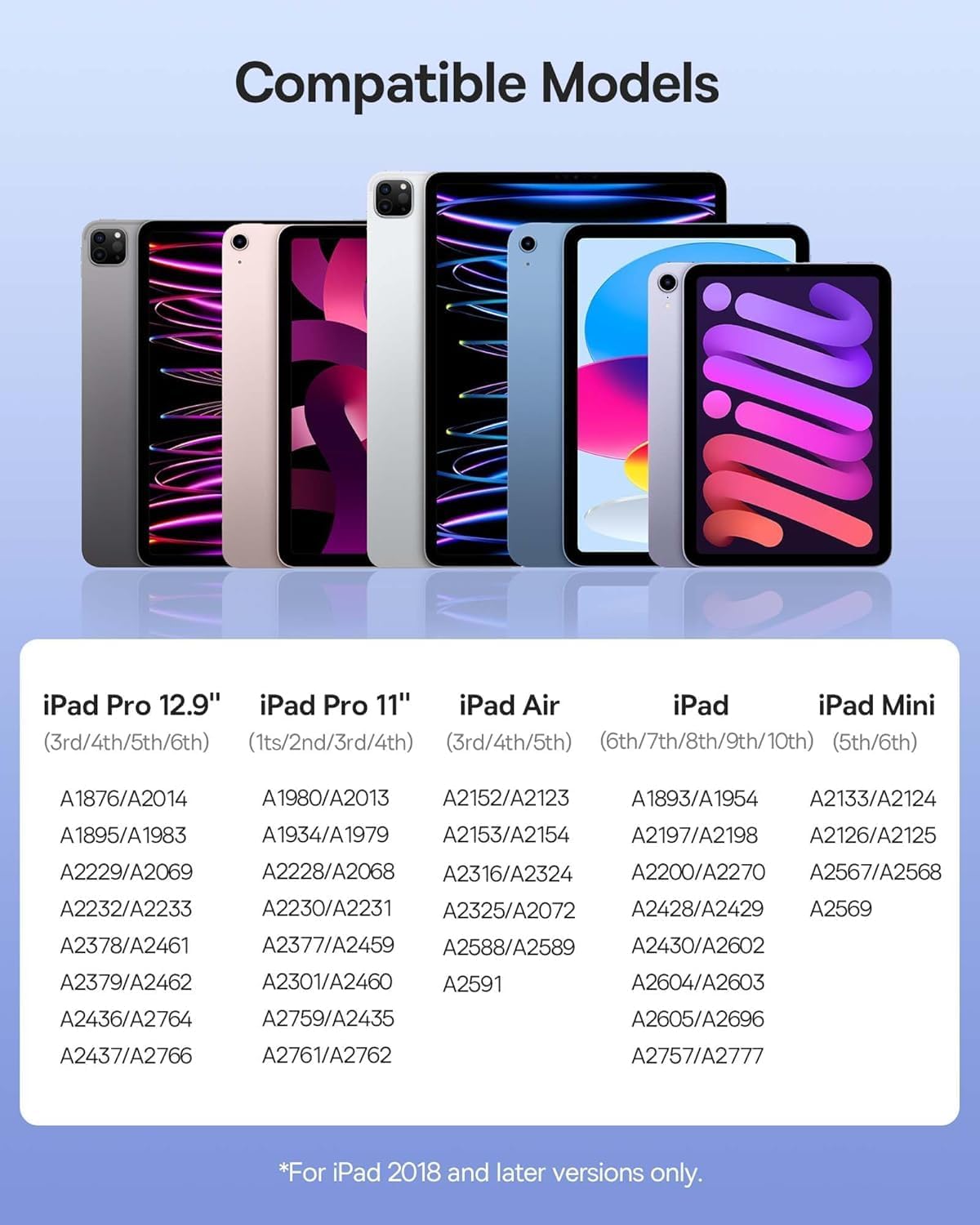
Image 2.3: iPad models with magnetic charging support

Image 2.4: Compatible iPad models and their model numbers
Note: For iPad 2018 and later versions only.
2.3. Power On/Off
To turn the Baseus Pencil on or off, press the designated button on the side of the pencil. The LED battery level indicator will illuminate to show the current power status.
3. Operating Instructions
3.1. Palm Rejection Technology
The Baseus Pencil features full-screen palm rejection, allowing you to rest your hand comfortably on the iPad screen while writing or drawing without causing unintended marks or interactions. This provides a natural writing experience similar to using a pen and paper.

Image 3.1: Palm Rejection in action
3.2. Tilt Sensitivity
The pencil supports excellent tilt sensitivity, enabling you to vary line thickness and shading by simply tilting the pencil. This feature is ideal for drawing, sketching, and artistic applications.
- 90° Vertical: For precise strokes and writing small characters.
- 60° Tilted: For general notes and responsive writing.
- 45° Tilted: For painting and creative applications with varied brushstrokes.

Image 3.2: Tilt sensitivity demonstration
3.3. High Precision and Responsiveness
Equipped with an upgraded gold-plated copper core, the Baseus Pencil ensures precise control and a stable connection, minimizing lag and disconnections for a smooth writing and drawing experience.

Image 3.3: Internal design for enhanced precision
3.4. Real-Time Battery Level Display
The Baseus Pencil features LED indicators to show the current battery level:
- Three blue bars: Battery level between 70% and 100%.
- Two blue bars: Battery level between 30% and 70%.
- One blue bar: Battery level between 5% and 30%.
- One red light flashing: Battery level lower than 5%.

Image 3.4: Battery level indicators
4. Maintenance
To ensure the longevity and optimal performance of your Baseus Pencil, follow these maintenance guidelines:
- Cleaning: Gently wipe the pencil body with a soft, dry, lint-free cloth. Avoid using abrasive materials or harsh chemicals.
- Tip Care: The 1.0mm tip is designed for precision. Avoid applying excessive force or dropping the pencil, as this can damage the tip. Replacement tips may be available from Baseus if needed.
- Storage: When not in use, store the pencil securely, preferably attached magnetically to your iPad or in a protective case, to prevent loss or damage.
- Battery Care: For best battery health, avoid fully discharging the pencil frequently. Charge it regularly, especially if it will be stored for an extended period.
5. Troubleshooting
If you encounter issues with your Baseus Pencil, refer to the following common solutions:
- Pencil is not responding:
- Ensure the pencil is charged. Check the LED indicators or connect it to a power source.
- Make sure the pencil is turned on by pressing the power button.
- Verify that your iPad model is compatible with the Baseus Pencil (refer to Section 2.2).
- Restart your iPad and try connecting the pencil again.
- Magnetic wireless charging is not working:
- Confirm your iPad model supports magnetic wireless charging. Not all iPad models have this feature (refer to Image 2.3).
- Ensure the pencil is correctly aligned and securely attached to the magnetic strip on your iPad.
- Check for any obstructions (e.g., thick iPad case) that might prevent proper magnetic contact.
- Try charging via the USB-C port to confirm the pencil's battery and charging functionality.
- Writing/drawing is inaccurate or inconsistent:
- Ensure the pencil tip is clean and undamaged.
- Check for any screen protectors on your iPad that might interfere with stylus performance.
- Calibrate the stylus in your iPad's settings if such an option is available for third-party styluses.
- Ensure the pencil has sufficient battery charge.
- Palm rejection is not working:
- Ensure the application you are using supports palm rejection with third-party styluses.
- Verify that the pencil is properly connected and recognized by your iPad.
6. Specifications
| Brand | Baseus |
| Model | SXBC06 |
| Compatible Devices | iPad (2018 and later versions) |
| Battery Type | Lithium-ion |
| Charging Time (USB-C) | Approximately 1 Hour (19 minutes for full charge) |
| Charging Time (Wireless) | Approximately 3 Hours |
| Battery Included | Yes |
| Material | Undetermined Material with High Precision |
| Product Weight | 114 g |
| Package Dimensions | 19.5 x 6.8 x 2.4 cm |
7. Warranty Information
Specific warranty details for the Baseus Pencil (Model: SXBC06) are typically provided with your purchase documentation or on the official Baseus website. Please refer to these resources for information regarding warranty period, coverage, and claims process.
Generally, electronic products come with a manufacturer's warranty against defects in materials and workmanship under normal use. Keep your proof of purchase for any warranty claims.
8. Customer Support
For further assistance, technical support, or inquiries regarding your Baseus Pencil, please contact Baseus customer service through their official website or the retailer from whom you purchased the product.
You may also find additional resources and FAQs on the official Baseus support pages.
Online Resources: Visit the Baseus Official Store on Amazon


