
Introduction
This manual provides comprehensive instructions for the Rii RK909 Wired Mechanical Gaming Keyboard. Designed for PC gamers and compatible with Mac, Windows, Chrome, and Linux systems, this keyboard features blue mechanical switches, 100 keys, and 20 modes of LED backlighting. Please read this manual thoroughly to ensure proper setup, operation, and maintenance of your new keyboard.
Package Contents
- 1 x Rii RK909 Mechanical Gaming Keyboard
- 1 x Type-C Cable
- 1 x User Manual (this document)
- 2 x Blue Switches (spare)
- 2 x Keycap/Switch Pullers (different materials)
Setup
Connecting the Keyboard
- Locate the USB Type-C port on the back of the Rii RK909 keyboard.
- Connect one end of the provided Type-C cable to the keyboard's Type-C port.
- Connect the other end of the Type-C cable to an available USB port on your computer (PC, Mac, etc.).
- The keyboard should be automatically recognized by your operating system. No additional drivers are typically required for basic functionality.
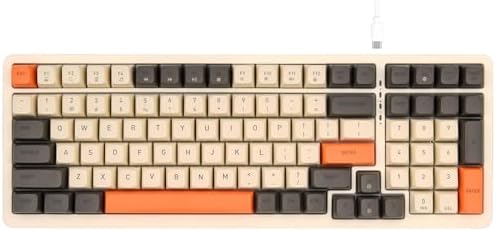
Image: The Rii RK909 keyboard with its USB-C cable connected, illustrating the wired connection.
System Compatibility Switch
The Rii RK909 keyboard supports both Mac and Windows systems. To switch between operating system modes:
- Press Fn + WIN keys simultaneously to toggle between Mac and Windows system compatibility modes.
Operating Instructions
LED Backlighting Control
The Rii RK909 keyboard features 20 different LED backlight modes, including flow and ripple effects, based on a fixed rainbow backlight. You can adjust the backlight settings using the following key combinations:
- To switch between backlight modes: Press Fn + INS.
- To increase backlight brightness: Press Fn + ↑ (Up Arrow).
- To decrease backlight brightness: Press Fn + ↓ (Down Arrow).

Image: The Rii RK909 keyboard displaying its vibrant LED backlighting, highlighting the different lighting effects.
Multimedia Key Functions
The keyboard includes dedicated multimedia functions accessible via the Fn key combinations:
| Key Combination | Function |
|---|---|
| Fn + F1 | My PC |
| Fn + F2 | Search |
| Fn + F3 | Calculator |
| Fn + F4 | Media Player |
| Fn + F5 | Previous Track |
| Fn + F6 | Next Track |
| Fn + F7 | Play/Pause |
| Fn + F8 | Stop |
| Fn + F9 | Mute |
| Fn + F10 | Volume Down |
| Fn + F11 | Volume Up |
| Fn + F12 | Key Lock |

Image: Detailed view of the keyboard's function row, illustrating the multimedia key descriptions and their Fn key combinations.
Detachable Magnetic Bezel
The Rii RK909 features a detachable magnetic bezel, allowing for two distinct aesthetic styles. To remove or attach the bezel, gently pull it away from or align it with the keyboard frame.

Image: The Rii RK909 keyboard with its magnetic bezel detached, demonstrating the two-style design.
Adjustable Stand and Non-slip Mat
The keyboard is equipped with an adjustable stand at the rear to customize the typing angle and non-slip mats for stability during use.

Image: A detailed view of the keyboard's underside, showing the adjustable stand in an extended position and the non-slip mat.
Maintenance
Cleaning the Keyboard
- Disconnect the keyboard from your computer before cleaning.
- Use a soft, lint-free cloth slightly dampened with water or a mild cleaning solution to wipe down the keycaps and keyboard surface.
- For dust and debris between keys, use compressed air.
- Avoid using harsh chemicals, abrasive cleaners, or excessive moisture, as these can damage the keyboard.
Replacing Switches/Keycaps
The Rii RK909 uses blue mechanical switches, and spare switches are included. You can also change keycaps for customization.
- Use the provided keycap puller to gently remove keycaps.
- Use the provided switch puller to carefully remove switches. Align the prongs of the switch puller with the clips on the switch and gently squeeze while pulling upwards.
- When inserting new switches, ensure the pins are straight and align correctly with the holes on the PCB before pressing down firmly.

Image: A close-up view of the Rii RK909 keyboard's blue mechanical switches, illustrating their design and the keycaps.
Troubleshooting
- Keyboard not responding:
- Ensure the USB Type-C cable is securely connected to both the keyboard and the computer.
- Try connecting the keyboard to a different USB port on your computer.
- Test the keyboard on another computer to rule out system-specific issues.
- Restart your computer.
- Backlight not working or behaving unexpectedly:
- Press Fn + INS to cycle through backlight modes.
- Adjust brightness using Fn + ↑ and Fn + ↓.
- Ensure the keyboard is receiving sufficient power from the USB port.
- Keys are not registering or double-typing:
- This could indicate a faulty switch. Use the provided switch puller to replace the affected switch with a spare one.
- Clean around the affected keycap to ensure no debris is interfering with the switch mechanism.
Specifications
| Feature | Detail |
|---|---|
| Model Number | RK909ST |
| Connectivity | Wired (USB-C) |
| Switch Type | Blue Mechanical Switches |
| Number of Keys | 100 |
| Backlighting | 20 Modes LED Backlighting (Rainbow fixed colors) |
| Compatibility | IBM PC, Win XP/7/8/10, Mac, Chrome, Linux, Smartphones |
| Product Dimensions | 15.2"L x 5.4"W x 1.6"H (38.6 x 13.7 x 4.1 cm) |
| Item Weight | 2.46 pounds (1.11 kg) |
| Color | Three-color (keycaps) |
| Special Feature | Ergonomic, Detachable Magnetic Bezel |

Image: The Rii RK909 keyboard with its dimensions clearly marked, showing its compact 100-key layout.
Warranty and Support
For any issues or inquiries regarding your Rii RK909 Mechanical Gaming Keyboard, please contact Rii customer support. Refer to the contact information provided with your purchase or visit the official Rii website for assistance.
- Professional After-Sales Service: If you encounter any problems, Rii is committed to providing support.
- Return Policy: Typically 30 days for refund/replacement (check retailer's policy).
Please retain your proof of purchase for warranty claims.