
Product Overview
The XTRONS CM141A is a 14-inch wide IPS screen Android car roof mount monitor designed to provide an immersive entertainment experience in your vehicle. Featuring a 1920x1080 Full HD display, built-in stereo speakers, and support for WiFi, HDMI input, USB, and CVBS input, this flip-down overhead player brings a new era of car entertainment.

The XTRONS CM141A monitor in its operational state, showcasing its large 14-inch display and slim profile.
Key Features
- Android System: Equipped with Android OS, Quad Core CPU, and 16GB ROM, allowing access to popular apps like Netflix, YouTube, Prime Video, and Hulu.
- 14-inch FHD IPS Screen: A 1920x1080 resolution IPS display for optimal viewing angles and sharp images.
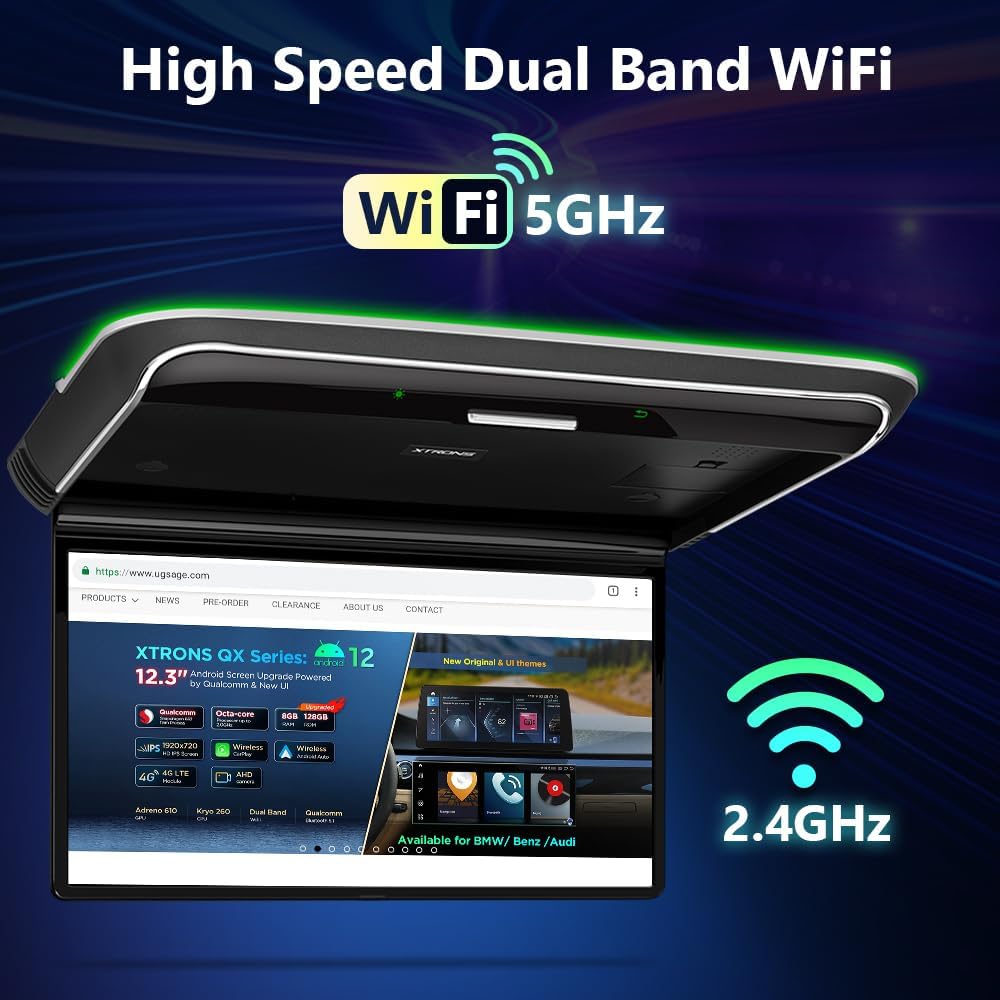
- Dual Band WiFi: Built-in high-quality WiFi for fast data speeds, enabling seamless streaming and app downloads.
- Wireless Screen Mirroring: Share content from iOS and Android mobile devices directly to the monitor.
- Multiple Inputs: HDMI input for external devices (game consoles, cameras), and two CVBS inputs for additional video sources.
- Built-in Stereo Speakers: Provides direct audio output without external speakers or headphones.
- Bluetooth Audio Transmission: Option to output sound via Bluetooth headphones.
- 155° Max Open Angle: Adjustable screen for optimal viewing comfort.
- Customizable UI: All-new designed UI with 25 theme options.

Visual representation of the monitor's advanced features, including its IPS display, narrow bezel, and various input options.

The monitor supports a wide range of entertainment applications, providing diverse content options for passengers.
Seamlessly mirror content from your mobile device to the large screen for shared viewing.

The integrated dual-band WiFi module ensures fast and reliable internet connectivity for streaming and app usage.
Installation and Setup
Proper installation is crucial for the optimal performance and safety of your XTRONS CM141A overhead player. It is highly recommended to have this unit installed by a qualified professional to ensure correct wiring and mounting within your vehicle's roof.
Package Contents
Before beginning installation, verify that all components are present in the package:
- 1 x Power Cable
- 1 x Remote Control
- 4 x Mounting Nuts
- 1 x User Manual (this document)
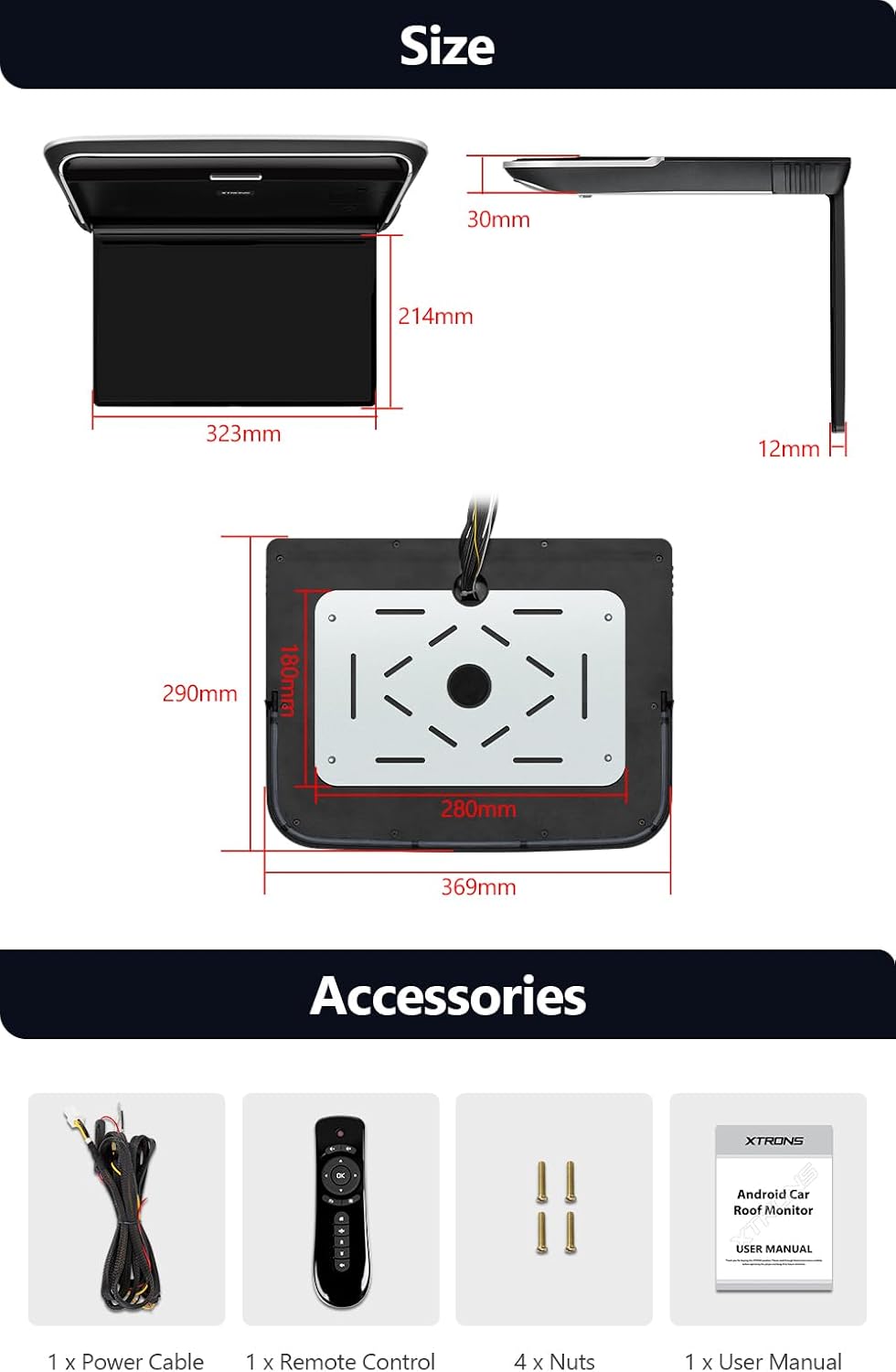
Detailed view of the monitor's dimensions and the accessories provided for installation and operation.
Mounting Considerations
Ensure the mounting location in your vehicle's roof is flat, stable, and free from obstructions. Consider the viewing angle for all passengers and the clearance required for the monitor to flip down completely (155° max open angle).
Wiring Connections
Connect the power cable to the vehicle's electrical system according to the wiring diagram provided in the physical user manual. Ensure proper grounding. For HDMI and CVBS inputs, connect your external devices to the corresponding ports on the unit.
Operation Guide
Powering On/Off
To power on the unit, ensure it is properly connected to the vehicle's power supply. The unit will typically power on with the vehicle's ignition. To power off, turn off the vehicle's ignition or use the designated power button on the unit or remote control.
Navigating the Android System
The CM141A operates on an Android system. Use the remote control or the virtual touch buttons on the unit to navigate through the interface. Access installed applications from the home screen or app drawer.
Connecting to WiFi
To access online content and download apps, connect the unit to a WiFi network. Go to Settings > Network & Internet > Wi-Fi, select your desired network, and enter the password if required.
Using Screen Mirroring
The unit supports wireless screen mirroring for both iOS (AirPlay) and Android (WiFi Display) devices. Activate the screen mirroring function on the monitor and follow the instructions to connect your mobile device. Note: Due to copyright protection, some encrypted paid video apps (e.g., Netflix, Amazon Video, Hulu) may not support screen mirroring.
HDMI and CVBS Input Usage
Connect external devices such as game consoles, cameras, or video recorders to the HDMI or CVBS input ports. Select the corresponding input source from the monitor's menu to display content from the connected device.
Audio Output Options
The CM141A features built-in stereo speakers for direct audio playback. For private listening, you can connect Bluetooth headphones (e.g., XTRONS B07V7TNS28) or IR headphones (e.g., XTRONS B01M1RQBOS, B01LWXVAA7) if supported by the unit's Bluetooth/IR transmitter.
Customizing Display Themes
To change the user interface theme, navigate to Settings > Display > Themes. Enter the code 123456 to unlock 25 design options and customize the appearance to match your vehicle's interior.
Maintenance and Care
To ensure the longevity and optimal performance of your XTRONS CM141A, follow these maintenance guidelines:
- Cleaning: Use a soft, dry cloth to wipe the screen and exterior. For stubborn marks, slightly dampen the cloth with water. Avoid using harsh chemicals, abrasive cleaners, or solvents, as these can damage the display and finish.
- Temperature: Avoid exposing the unit to extreme temperatures, both hot and cold, for extended periods.
- Moisture: Keep the unit dry. Do not expose it to rain, moisture, or excessive humidity.
- Ventilation: Ensure that the ventilation openings are not blocked to prevent overheating.
- Handling: When flipping the monitor down or up, do so gently to avoid stressing the hinge mechanism.
Troubleshooting
This section addresses common issues you might encounter with your XTRONS CM141A overhead player.
- No Power:
- Check all power connections to ensure they are secure.
- Verify the vehicle's ignition is on if the unit is wired to it.
- Inspect the fuse in the power line; replace if blown.
- No Picture/Sound:
- Ensure the correct input source (HDMI, CVBS, internal player) is selected.
- Check the cables connecting external devices for secure connections.
- Adjust the volume level.
- Screen Mirroring Not Working:
- Ensure both the monitor and your mobile device are connected to the same WiFi network.
- Verify that your mobile device's screen mirroring function is active.
- Remember that some encrypted streaming apps do not support screen mirroring due to content protection.
- Unable to Download/Update Apps (e.g., Disney+):
- Ensure the unit has a stable internet connection via WiFi.
- Check if there is sufficient storage space on the device for new apps or updates.
- Verify that the app is compatible with the Android version running on the unit. Some apps may require a newer Android version than what is installed.
- For system updates, check the 'About device' or 'System updates' section in the settings menu. If no updates are available, the current Android version may not support the latest app requirements.
- HDMI Port Issues (as reported by some users):
- The XTRONS CM141A is designed with an HDMI input. If you believe your unit is missing this feature, please double-check the physical ports on the device. If it is genuinely absent or non-functional, contact XTRONS customer support for assistance, as this may indicate a manufacturing variation or defect.
If you encounter issues not listed here or if the suggested solutions do not resolve your problem, please contact XTRONS customer support for further assistance.
Product Specifications
| Feature | Specification |
|---|---|
| Model Number | CM141A |
| Screen Size | 14 Inches (36 cm diagonal) |
| Display Type | IPS LCD |
| Resolution | 1920x1080 Full HD |
| Operating System | Android |
| Internal Storage | 16GB ROM |
| Connectivity | Dual Band WiFi (2.4GHz/5GHz), HDMI Input, 2x CVBS Input, USB |
| Audio Output | Built-in Stereo Speakers, Bluetooth Audio Transmission |
| Max Open Angle | 155° |
| Folded Size (LxWxH) | 368 x 290 x 30 mm (approx. 14.49 x 11.42 x 1.18 inches) |
| Item Weight | 7.58 pounds |
| Manufacturer | XTRONS |
Warranty and Support
XTRONS backs this unit with a 1-year warranty from the date of purchase. This warranty covers manufacturing defects and ensures the product functions as intended under normal use.
For technical support, warranty claims, or any inquiries regarding your XTRONS CM141A, please do not hesitate to contact XTRONS customer service. You can reach us via Amazon email. We are committed to providing professional technical support and ensuring your rights and interests are protected at all times.
Please have your purchase details and model number (CM141A) ready when contacting support to facilitate a quicker resolution.