
1. Introduction
The UGREEN USB C to Ethernet Adapter (Model 15727) provides a reliable and high-speed wired network connection for your USB-C enabled devices. This adapter allows you to connect to a Gigabit Ethernet network, offering speeds up to 1000Mbps, which is ideal for activities requiring stable internet, such as online gaming, video streaming, and large file transfers. It is designed for broad compatibility and ease of use.

Image: The UGREEN USB C to Ethernet Adapter, featuring a grey aluminum casing and a short USB-C cable.
2. Package Contents
- 1 x UGREEN USB C to Ethernet Adapter (Model 15727)
3. Specifications
| Feature | Detail |
|---|---|
| Model Number | 15727 |
| Hardware Interface | USB 3.0 Type C |
| Data Link Protocol | Ethernet |
| Data Transfer Rate | Up to 1000 Megabits Per Second (1Gbps) |
| Backward Compatibility | 100/10Mbps networks |
| Chipset | AX88179A |
| Material | Aluminum Alloy Case |
| Color | Grey |
| Product Dimensions | 2.36 x 0.98 x 0.59 inches (approximately 6 x 2.5 x 1.5 cm) |
| Item Weight | 2.11 ounces (approximately 0.06 kg) |

Image: An internal view of the adapter highlighting the AX88179A high-performance chip, which ensures compatibility and stability.
4. Setup Instructions
- Connect the Adapter: Insert the USB-C connector of the UGREEN Ethernet adapter into an available USB-C or Thunderbolt 3/4 port on your device (laptop, tablet, smartphone, Nintendo Switch, Steam Deck).
- Connect Ethernet Cable: Plug a standard RJ45 Ethernet cable from your router or modem into the RJ45 port on the UGREEN adapter.
- Driver Installation:
- For Windows 11/10/8.1/8, macOS, Chrome OS, and Android: The adapter is driver-free and should be recognized automatically.
- For Windows XP/7/Vista and Linux: Drivers may be required. Please refer to the UGREEN official website for driver downloads and installation instructions.
- Verify Connection: Once connected, your device should automatically detect the wired network. You can check your network settings to confirm the connection status.
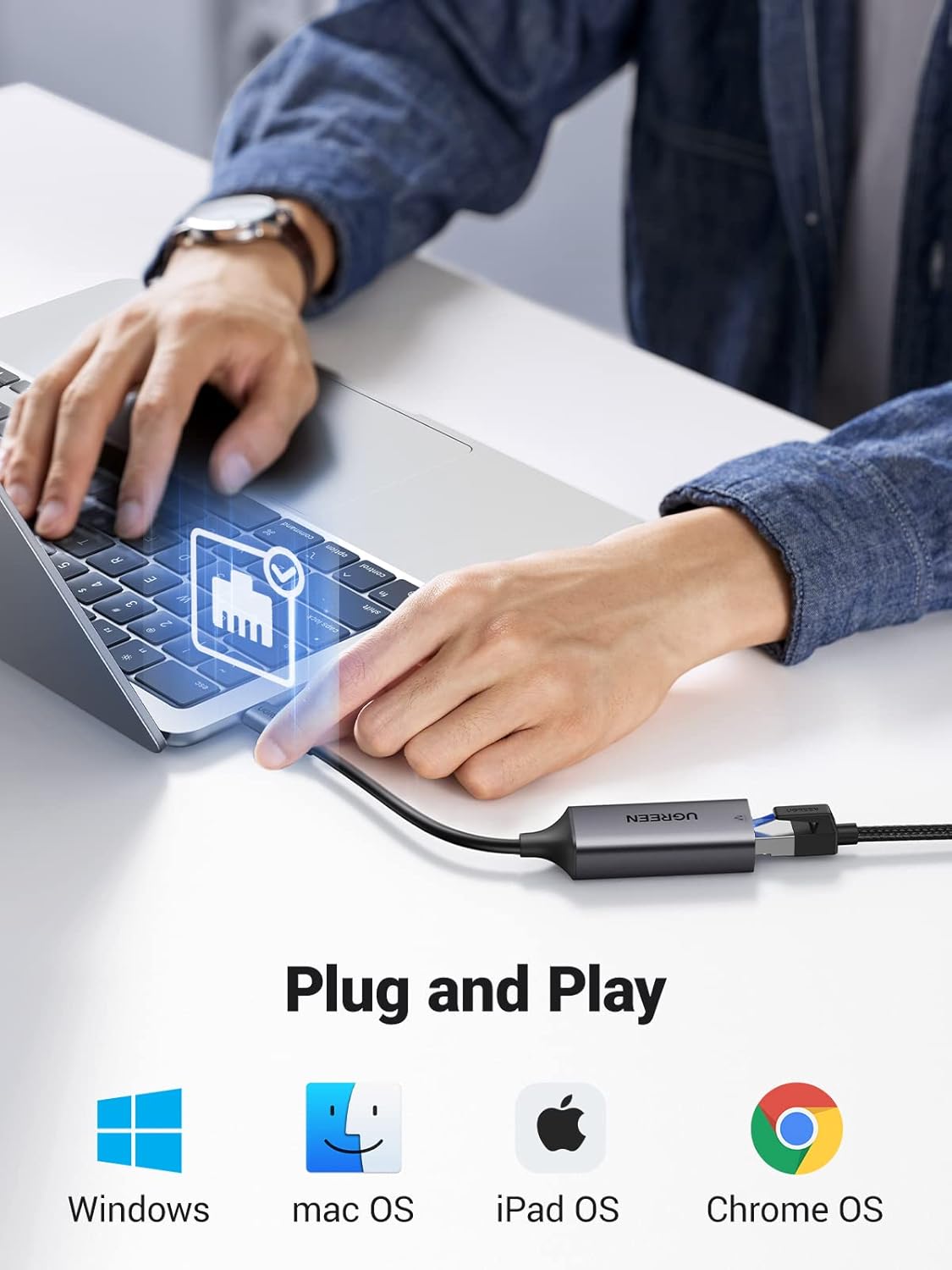
Image: The adapter connected to a laptop, illustrating its plug-and-play functionality across various operating systems.
5. Operating the Adapter
After successful setup, the adapter operates automatically. It provides a stable and high-speed wired internet connection to your device.
LED Indicators
The adapter features LED indicators on the RJ45 port to show its status:
- Green Light: Indicates power and a stable link connection.
- Yellow Light: Flashes to indicate data transfer activity.

Image: A detailed view of the adapter's RJ45 port, showing the green LED for power and the yellow LED for data activity.
Performance
The adapter supports Gigabit Ethernet speeds up to 1000Mbps, significantly faster and more stable than typical Wi-Fi connections, especially in areas with interference or weak signals.

Image: A visual representation comparing 1000Mbps Gigabit speed with 100Mbps, illustrating the adapter's high-speed capability.
6. Compatibility
The UGREEN USB C to Ethernet Adapter is widely compatible with devices featuring a USB-C or Thunderbolt 3/4 port.
Supported Operating Systems:
- Windows 11/10/8.1/8 (Driver-free)
- macOS (Driver-free)
- iPadOS (Driver-free)
- ChromeOS (Driver-free)
- Android (Driver-free)
- Windows XP/7/Vista (Requires driver installation)
- Linux (Requires driver installation)
Compatible Devices Include:
- Laptops: MacBook Pro/Air, XPS, Chromebook, etc.
- Tablets: iPad, Galaxy Tab S8, etc.
- Smartphones: iPhone 15/15 Plus/15 Pro/15 Pro Max, Galaxy S22/S23 Ultra/S22+/S22, etc.
- Gaming Consoles: Nintendo Switch, Steam Deck

Image: An illustration demonstrating the wide compatibility of the adapter with different USB-C devices and operating systems.
7. Care and Maintenance
To ensure the longevity and optimal performance of your UGREEN USB C to Ethernet Adapter, follow these guidelines:
- Storage: Store the adapter in a cool, dry place away from direct sunlight and extreme temperatures.
- Cleaning: Use a soft, dry cloth to clean the adapter. Avoid using liquid cleaners or solvents.
- Handling: Avoid bending or twisting the cable excessively. The reinforced cable tail is designed for durability, but proper handling is still recommended.
- Heat Dissipation: The aluminum alloy case aids in faster heat dissipation. Ensure the adapter is not covered or placed in an enclosed space during operation to allow for proper airflow.
- Port Protection: Keep the USB-C connector and RJ45 port free from dust and debris.

Image: A visual breakdown of the adapter's durable features, including its reinforced connection and aluminum alloy casing for better cooling.
8. Troubleshooting
If you encounter issues with your UGREEN USB C to Ethernet Adapter, refer to the following common solutions:
- No Network Connection:
- Ensure both the USB-C connector and the Ethernet cable are securely plugged into their respective ports.
- Check the LED indicators on the adapter. If the green light is off, there might be a power or connection issue.
- Try connecting the adapter to a different USB-C port on your device.
- Test with a different Ethernet cable to rule out cable malfunction.
- Restart your device and network router/modem.
- Verify that your device's operating system is compatible and that any necessary drivers (for Windows XP/7/Vista or Linux) are installed correctly.
- Slow Network Speed:
- Ensure your Ethernet cable is rated for Gigabit speeds (e.g., Cat5e or higher).
- Check your internet service provider's speed and your router's capabilities.
- Confirm that your device's network settings are configured for Gigabit Ethernet.
- Temporarily disable Wi-Fi on your device to ensure it's using the wired connection.
- Adapter Not Recognized:
- Ensure your device's USB-C port supports data transfer (not just charging).
- If using an older OS (Windows XP/7/Vista, Linux), ensure the correct drivers are installed.
- Try connecting the adapter to another compatible device to determine if the issue is with the adapter or the original device.
9. Warranty and Support
For warranty information, technical support, or further assistance, please visit the official UGREEN website or contact UGREEN customer service directly. Details regarding product registration, warranty periods, and support channels can typically be found on their website.
UGREEN Official Website: www.ugreen.com