
1. Introduction
This manual provides detailed instructions for the setup, operation, maintenance, and troubleshooting of your Tera USB Wired 1D 2D QR Barcode Scanner, Model 3206. Please read this manual thoroughly before using the product to ensure proper functionality and to maximize its performance.
2. Safety Information
- Do not expose the scanner to extreme temperatures, humidity, or corrosive substances.
- Avoid dropping the scanner or subjecting it to strong impacts.
- Do not attempt to disassemble or modify the scanner. This will void the warranty.
- Keep the scanner away from strong electromagnetic fields.
- Do not stare directly into the scanning light beam.
3. Product Overview
The Tera Model 3206 is a versatile wired barcode scanner designed to read various 1D, 2D, and QR codes from both printed materials and digital screens. It features a comfortable handheld design and simple USB connectivity.

Figure 1: Tera USB Wired Barcode Scanner Model 3206
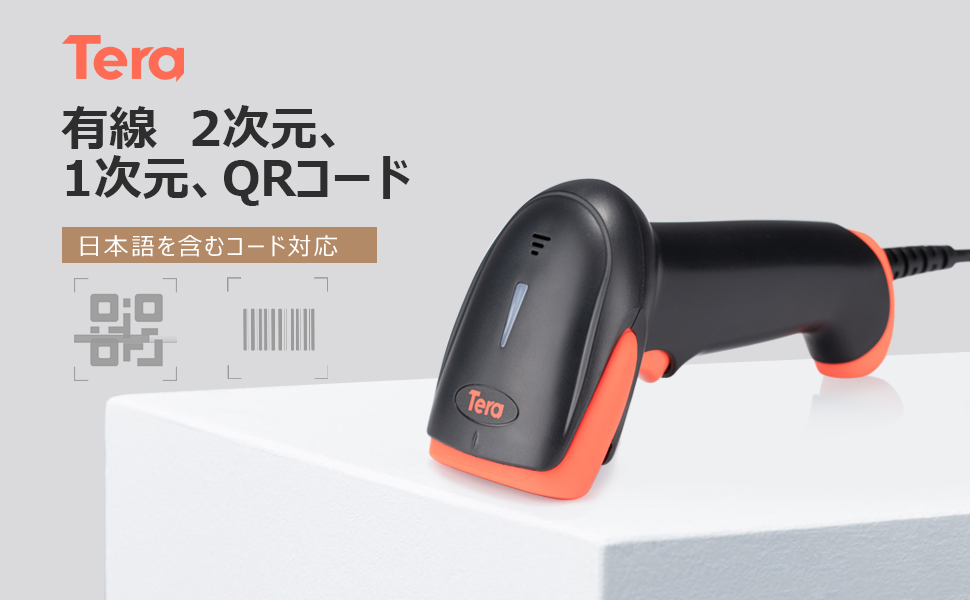
Figure 2: The scanner supports 1D, 2D, and QR codes, including EAN13, UPC, QR Code, and PDF417. It can read codes from both printed surfaces and LCD screens.
4. Setup
The Tera Model 3206 barcode scanner is designed for plug-and-play operation, requiring no driver installation.
4.1 Connecting the Scanner
- Connect the USB cable from the scanner to an available USB port on your computer.
- The computer will automatically detect and install the necessary drivers. This process may take a few moments.
- Once installation is complete, the scanner is ready for use.

Figure 3: Connect the scanner to your computer via USB. No drivers are required for installation.
5. Operating Instructions
5.1 Basic Scanning
- Open a text editor, spreadsheet, or any application where you want the scanned data to appear.
- Point the scanner at the barcode you wish to read.
- Press the trigger button (if in manual scan mode) or allow the scanner to automatically detect the code (if in automatic detection mode).
- A successful scan will typically be indicated by an audible beep and the data appearing in your active application.
5.2 Supported Code Types
The scanner supports a wide range of 1D and 2D barcodes, including:
- 1D Barcodes: EAN13, UPC, Code 39, Code 128, etc.
- 2D Barcodes: QR Code, PDF417, Data Matrix, etc.
Note: While this is a 2D scanner and can read long 1D codes, for extremely long 1D codes, a dedicated 1D laser scanner might be more suitable.
5.3 Japanese Character Support
The Tera Model 3206 scanner is capable of reading barcodes that contain Japanese characters (Hiragana, Katakana, and Kanji). This allows for seamless input of complex Japanese text into compatible applications.

Figure 4: Examples of barcodes containing Japanese characters (numbers + Hiragana, English + Hiragana + Katakana, numbers + Katakana, Hiragana + Katakana + punctuation).
Compatibility Note: Barcodes containing Japanese characters cannot be directly input into smartphones, tablets, or Macs. Windows Explorer is also not supported for this functionality. This feature is primarily for Windows PCs with compatible applications like Excel, Word, or Notepad.
6. Configuration
The scanner offers various configuration options to suit different operational needs.
6.1 Scan Modes
You can switch between two primary scan modes:
- Manual Scan: Press the trigger button to initiate a scan.
- Automatic Detection Scan: The scanner automatically detects and reads barcodes when they are presented within its scanning range.

Figure 5: The scanner supports both manual (trigger) and automatic detection scan modes.
6.2 Barcode Editing Functions
The scanner includes functions to edit barcode data before it is transmitted to your computer:
- Add Prefix: Add custom characters to the beginning of scanned data.
- Add Suffix: Add custom characters to the end of scanned data.
- Hide Leading Characters: Remove a specified number of characters from the beginning of scanned data.
- Hide Trailing Characters: Remove a specified number of characters from the end of scanned data.
Refer to the included quick setup guide (usually a small booklet with configuration barcodes) for specific barcodes to activate these editing functions.

Figure 6: Barcode editing functions allow for adding prefixes/suffixes and hiding leading/trailing characters.
6.3 Keyboard Language Support
The scanner supports various keyboard layouts to ensure correct character output for different languages. Supported languages include English, Spanish, German, Japanese, French, and Italian.
To change the keyboard language, scan the appropriate configuration barcode from the quick setup guide.
7. Maintenance
7.1 Cleaning
- Regularly clean the scanner's window with a soft, lint-free cloth.
- For stubborn dirt, slightly dampen the cloth with water or a mild, non-abrasive cleaning solution.
- Do not use harsh chemicals or abrasive materials, as they can damage the scanner's surface.
7.2 Storage
When not in use, store the scanner in a cool, dry place, away from direct sunlight and extreme temperatures.
8. Troubleshooting
If you encounter issues with your scanner, refer to the following common problems and solutions:
| Problem | Possible Cause | Solution |
|---|---|---|
| Scanner not recognized by computer | Loose USB connection, faulty USB port, or driver issue. | Ensure the USB cable is securely connected. Try a different USB port or computer. Restart your computer. |
| No data output after scanning | Application not in focus, incorrect scan mode, or barcode unreadable. | Ensure the target application is active. Check the scan mode (manual/auto). Verify the barcode is clear and undamaged. |
| Scanned data is incorrect or contains wrong characters (e.g., ':' becomes '+') | Incorrect keyboard language setting on the scanner. | Scan the appropriate configuration barcode from the quick setup guide to set the correct keyboard language (e.g., Japanese keyboard for Japanese characters). |
| Scanner is slow or unresponsive | Poor barcode quality, environmental interference, or scanner settings. | Ensure barcodes are clear. Avoid scanning in very bright or very dim conditions. Check if any advanced settings (e.g., data formatting) are causing delays. |
| Cannot scan certain barcode types | Barcode type is disabled or not supported. | Refer to the quick setup guide to enable specific barcode symbologies if they are disabled. Confirm the barcode type is supported by Model 3206. |
9. Specifications
- Model Number: 3206
- Brand: Tera
- Connectivity: USB Wired
- Dimensions: 8.9 x 7 x 16.2 cm
- Weight: 100 g
- Resolution: 300 dpi
- Scanner Type: 1D and 2D Barcode Scanner (supports QR Code, EAN13, UPC, PDF417, etc.)
- Supported Operating Systems: Windows, iOS, Linux, Android
- Scan Angle: Up/Down ±40°, Left/Right ±40°
10. Warranty and Support
Tera products are designed for reliability and performance. For warranty information, technical support, or service inquiries, please refer to the contact information provided with your purchase or visit the official Tera website.


