
Product Overview
The Linksys Hydra Pro 6E (AXE6600) Tri-Band Router is designed to deliver multi-gigabit speeds and extensive coverage for modern homes with numerous connected devices. It provides extremely low latency and massive capacity, making it an essential upgrade for reliable, high-speed WiFi, especially for demanding applications like livestreaming, VR gaming, and video conferencing.
- Features the new 6 GHz band for interference-free signal and ultra-fast speeds.
- Offers coverage up to 2700 sq. ft. and supports over 55 devices simultaneously.
- Achieves speeds up to 6.6 Gbps.

Image: Front view of the Linksys Hydra Pro 6E Tri-Band Router, showcasing its sleek black design and four external antennas.

Image: Illustrates the router's capacity, stating "Supports 55+ devices", "2700 FT² of coverage", and "Up to 6.6 GBPS" alongside a partial view of the router and various mobile devices.
Setup Guide
Follow these steps to set up your Linksys Hydra Pro 6E Tri-Band Router:
- Unpack the Router: Carefully remove the router and its power supply from the packaging.
- Connect to Modem: Connect one end of an Ethernet cable (not included, typically provided by your Internet Service Provider) to the Internet (WAN) port on your Linksys router. Connect the other end to your modem's Ethernet port.
- Connect Power: Plug the included power supply into the router's power port and then into a wall outlet. Wait for the router's indicator light to turn solid white, indicating it is ready.
- Initial Configuration: Download the Linksys App on your mobile device (available for iOS and Android) or open a web browser on a computer connected to the router's default Wi-Fi network (SSID and password usually found on a sticker on the router). Follow the on-screen instructions in the app or web interface to complete the setup, including naming your Wi-Fi network and setting a password.

Image: A hand connecting a blue Ethernet cable to the 5 Gbps WAN port of the Linksys router, highlighting the various Ethernet ports on the back.

Image: A smartphone screen displaying the Linksys app interface, showing options for prioritizing devices, parental controls, and guest access, indicating easy setup and control.
Operating Your Router
The Linksys Hydra Pro 6E router offers advanced features for an optimized home network experience:
- Tri-Band Technology: This router operates on three distinct Wi-Fi bands (2.4 GHz, 5 GHz, and 6 GHz) to provide dedicated high-speed connections for all your devices, reducing congestion and improving performance.
- Wi-Fi 6E (802.11ax): The new 6 GHz band is specifically designed for Wi-Fi 6E compatible devices, offering unparalleled speeds and extremely low latency, ideal for VR, AR, and high-bandwidth applications.
- Intelligent Mesh Technology: Linksys Intelligent Mesh dynamically maximizes speed and provides reliable, full-strength coverage throughout your home. This system is scalable, allowing you to add additional Linksys Velop nodes to expand your network coverage.
- App Control: Use the Linksys App to manage your network. Features include device prioritization, setting up parental controls, and creating guest Wi-Fi access.
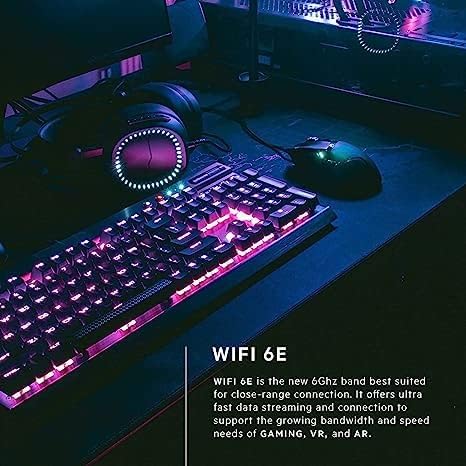
Image: Explains Wi-Fi 6E as the new 6GHz band, best suited for close-range connection, offering ultra-fast data streaming for gaming, VR, and AR, with a background of a gaming setup.

Image: A diagram illustrating Linksys Intelligent Mesh technology, showing how it dynamically maximizes speed and provides reliable, full-strength coverage throughout a multi-story home.
Maintenance
To ensure optimal performance and longevity of your Linksys Hydra Pro 6E router, consider the following maintenance tips:
- Regular Reboots: Periodically reboot your router (unplug from power for 10-15 seconds, then plug back in) to clear its memory and refresh network connections. This can resolve minor performance issues.
- Firmware Updates: Keep your router's firmware updated. Linksys regularly releases updates that improve performance, add features, and patch security vulnerabilities. You can usually check for and install updates via the Linksys App or the router's web interface.
- Physical Cleaning: Keep the router in a clean, well-ventilated area. Dust can accumulate in vents and lead to overheating. Gently clean the exterior with a soft, dry cloth.
- Optimal Placement: Place your router in a central location in your home, away from obstructions and sources of interference (like microwaves, cordless phones, or large metal objects) to maximize Wi-Fi coverage and signal strength.
Troubleshooting
If you encounter issues with your Linksys Hydra Pro 6E router, try the following troubleshooting steps:
- No Internet Connection:
- Check all cable connections: Ensure the Ethernet cable from your modem is securely plugged into the router's Internet (WAN) port, and the power adapter is firmly connected.
- Reboot your modem and router: Unplug both devices from power for 30 seconds, then plug the modem back in. Wait for the modem to fully boot up (usually indicated by stable lights), then plug in the router.
- Verify ISP status: Check if your Internet Service Provider (ISP) is experiencing outages in your area.
- Slow Wi-Fi Speed or Frequent Disconnections:
- Router Placement: Ensure the router is centrally located and not obstructed.
- Interference: Move the router away from other electronic devices that might cause interference.
- Channel Optimization: Use the Linksys App or web interface to check for Wi-Fi channel optimization. Sometimes changing the Wi-Fi channel can reduce interference from neighboring networks.
- Device Compatibility: Ensure your devices support Wi-Fi 6E to take full advantage of the 6 GHz band. Older devices will connect to 2.4 GHz or 5 GHz bands.
- Difficulty with Linksys App:
- App Connectivity: If the app reports the router is not connected to the internet when it is, try clicking "Troubleshoot" then "Check internet" within the app. If issues persist, try using the web interface for configuration.
- App Reinstallation: Try uninstalling and reinstalling the Linksys App.
- Mesh Setup Issues:
- Patience is Key: Setting up a mesh network can sometimes require patience. Follow Linksys instructions carefully, and if initial attempts fail, re-read and try again.
If these steps do not resolve your issue, please refer to the Support section for further assistance.
Specifications
| Feature | Detail |
|---|---|
| Product Dimensions | 5.5 x 9.8 x 6.3 inches |
| Item Weight | 2 pounds |
| Model Name | MR7500-RM2 |
| Special Feature | WPS (Wi-Fi Protected Setup) |
| Frequency Band Class | Tri-Band (2.4 GHz, 5 GHz, 6 GHz) |
| Wireless Communication Standard | 802.11ax (Wi-Fi 6E) |
| Compatible Devices | Personal Computer and other Wi-Fi enabled devices |
| Recommended Uses | Gaming, Streaming, Video Conferencing |
| Included Components | Power supply |
| Connectivity Technology | Wi-Fi, Ethernet |
| Antenna Type | Internal |
Warranty Information
This Linksys Hydra Pro 6E Tri-Band Router is a Certified Refurbished product. It has been manufacturer refurbished, shows limited or no wear, and includes all original accessories. A 90-day warranty is provided with this product, covering manufacturing defects and ensuring proper functionality.
Please retain your proof of purchase for warranty claims. The warranty period begins from the date of purchase.
Support
For further assistance, technical support, or warranty inquiries, please contact Linksys customer support. Many users have reported positive experiences with Linksys support, noting short wait times and helpful representatives.
You can typically find support contact information (phone numbers, chat, or support portals) on the official Linksys website. When contacting support, having your router's model number (MR7500-RM2) and proof of purchase readily available will expedite the process.
Visit the official Linksys support page for the most up-to-date resources and contact options: Linksys Support Website