
Introduction
This manual provides detailed instructions for the XTUGA AM06 6-Channel Audio Mixer. It covers setup, operation, and maintenance to ensure optimal performance for various applications including studio recording, live streaming, and stage performances.

Image: The XTUGA AM06 Audio Mixer, a compact 6-channel mixing board, shown from a slightly elevated front angle.
Key Features
- 6-Channel Input: Features 2 MIC Mono inputs and 2 Stereo inputs.
- +48V Phantom Power: Selectable phantom power for condenser microphones on each channel.
- Bluetooth Connectivity: Wireless audio streaming from mobile devices like phones and tablets.
- 100 DSP Effects: Built-in digital signal processing with 99 high-quality effects for various scenarios.
- USB/OTG Interface: Supports direct connection to computers and mobile phones for live broadcasting and recording.
- 24-bit/192kHz Recording: High-resolution audio recording with loopback function.
- Mute Switch: Each channel includes an independent mute switch.
Setup
1. Unpacking and Inspection
Carefully remove all components from the packaging. Verify that all items listed in the "Product List" section are present and undamaged. If any items are missing or damaged, contact customer support.
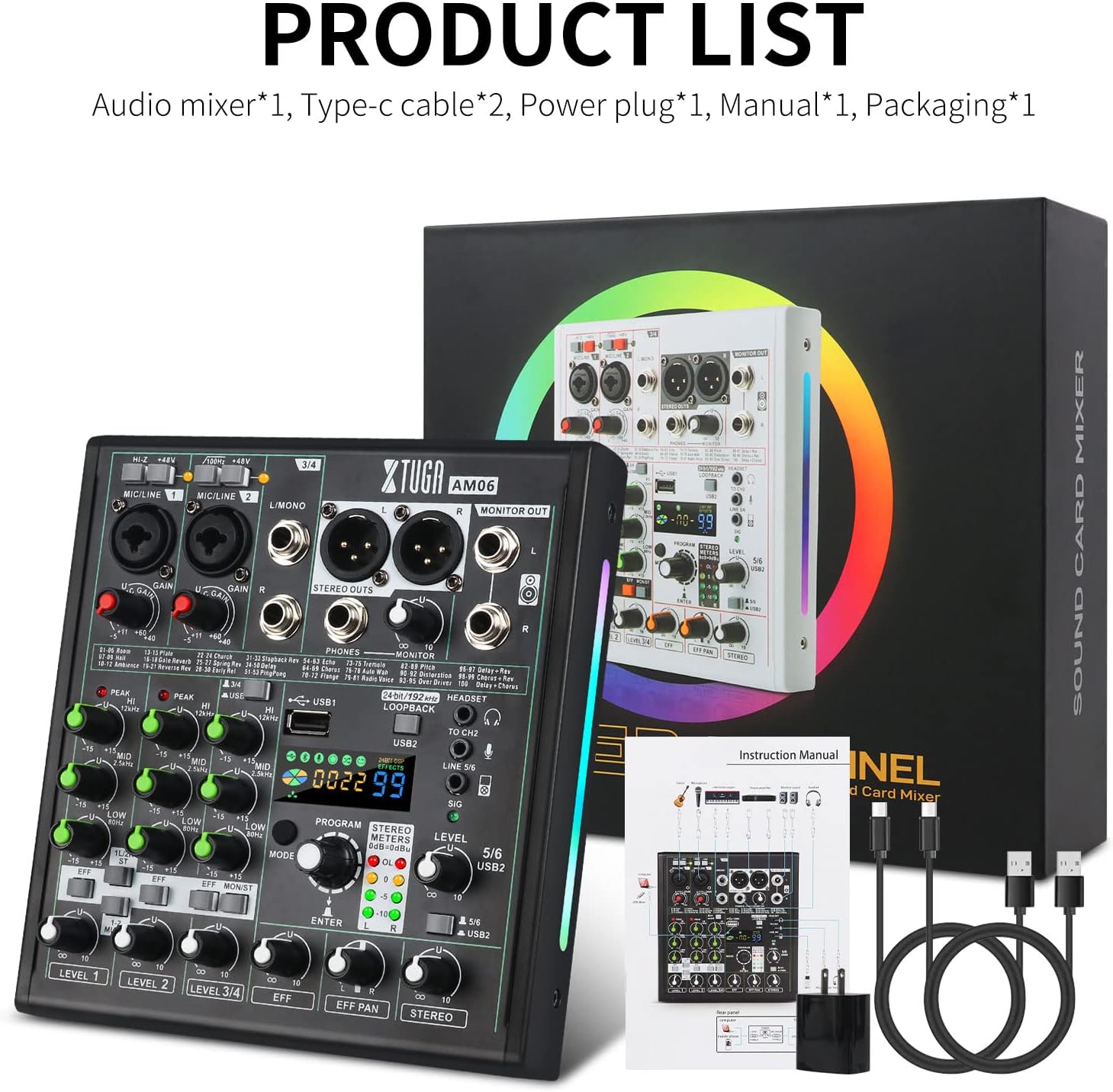
Image: The XTUGA AM06 mixer and its included accessories: two Type-C cables, a power plug, and the instruction manual, all within their packaging.
2. Power Connection
Connect the provided power adapter to the mixer's power input and then to a suitable electrical outlet. Ensure the power switch is in the OFF position before connecting.
3. Connecting Microphones and Instruments
- MIC/LINE Inputs (Channels 1-2): Use XLR or 1/4-inch TRS cables to connect microphones or line-level instruments.
- +48V Phantom Power: For condenser microphones, activate the +48V phantom power switch for the respective channel. Ensure dynamic microphones or other devices not requiring phantom power do not have this activated.
- STEREO Inputs (Channels 3/4): Use 1/4-inch TS/TRS cables for stereo line-level devices.

Image: Close-up of the mixer's input section, highlighting the +48V phantom power switches for channels 1 and 2.
4. Output Connections
- MONITOR OUT: Connect to studio monitors or a PA system.
- PHONES: Connect headphones for monitoring.
- USB/OTG: Connect to a computer or mobile device using the provided Type-C cables for recording or live streaming.
Operating Instructions
1. Basic Operation
- Gain Control: Adjust the input sensitivity for each channel using the GAIN knobs.
- EQ Adjustment: Use the HIGH, MID, and LOW knobs to adjust the equalization for each channel.
- Level Control: Adjust the output level for each channel using the LEVEL faders/knobs.
- Mute Function: Press the MUTE button on each channel to silence its output.

Image: Close-up showing detailed functions including independent 48V phantom power, channel mute function, and stereo switching.
2. DSP Effects
The AM06 features 100 built-in DSP effects. Use the PROGRAM knob to select an effect and the EFF knob to adjust its level. Press the ENTER button to confirm your selection.

Image: A banner illustrating the 100 DSP adjustment feature of the XTUGA AM06 mixer, showing the program knob and effect adjustment.
3. Bluetooth Connectivity
To connect a Bluetooth device:
- Activate Bluetooth on your mobile device (phone, tablet).
- Search for "BT Mixer Audio" in your device's Bluetooth settings.
- Select and pair with the mixer.
- Once connected, you can stream audio wirelessly to the mixer.
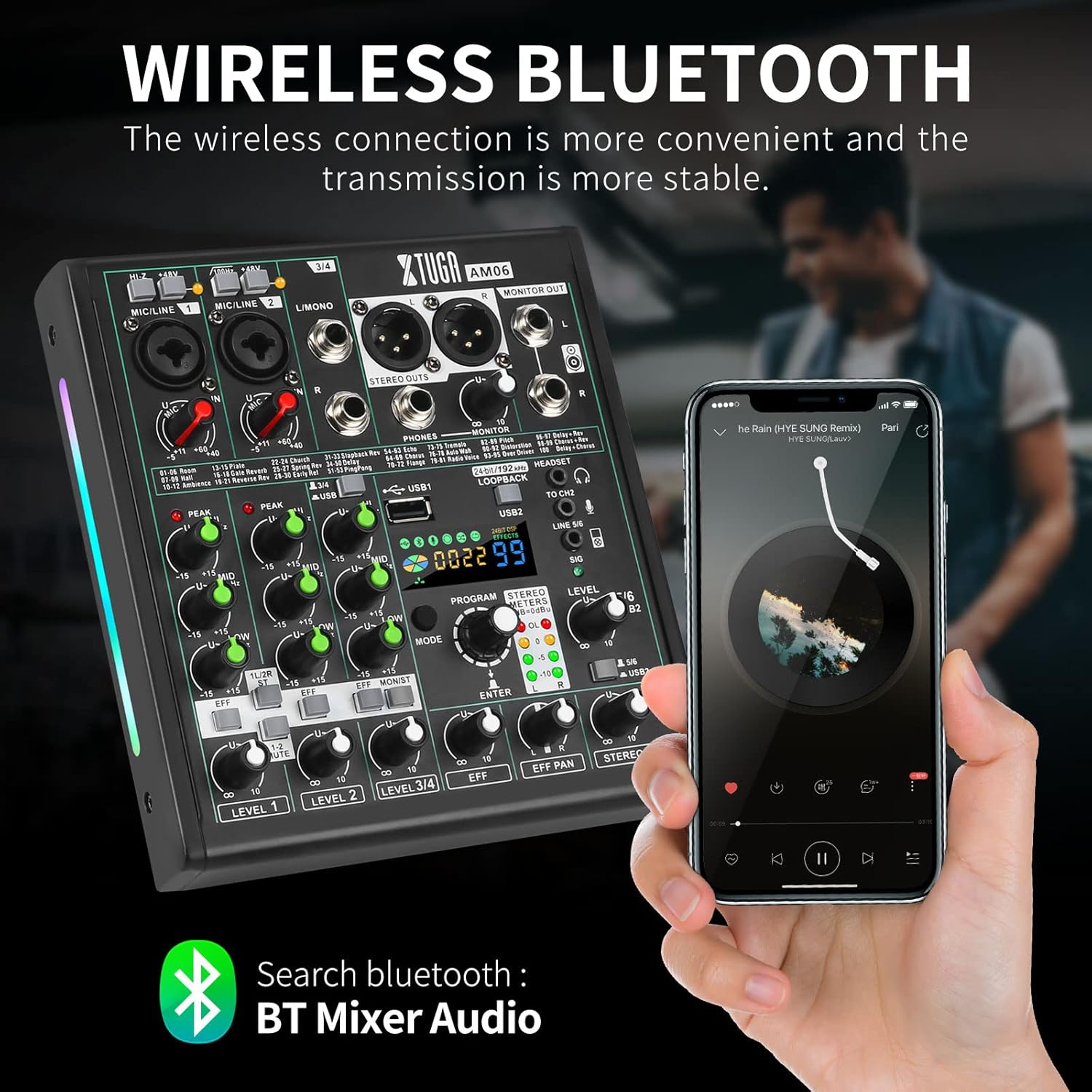
Image: The XTUGA AM06 mixer displaying its Bluetooth connectivity feature, showing a smartphone connected wirelessly and the Bluetooth search name.
4. USB/OTG Recording and Live Streaming
Connect the mixer to a computer or mobile device using the USB or OTG Type-C ports. The mixer supports high-quality recording and can be used for live broadcasting.

Image: The XTUGA AM06 mixer connected to a smartphone and a computer for live streaming, demonstrating its multi-device compatibility.

Image: The XTUGA AM06 mixer with a laptop screen showing audio settings, emphasizing its capability for 24-bit/192kHz high-quality recording.
5. Loopback Function
The loopback function allows you to mix the output of USB2 audio with other channels for recording. This is useful for capturing computer audio along with live inputs.

Image: A close-up of the mixer's USB2 section, indicating the 24-bit/192kHz loopback function for recording.
6. RGB Breathing Light
The mixer features an RGB breathing light that changes with sound, adding a visual element to your live recording or performance environment.
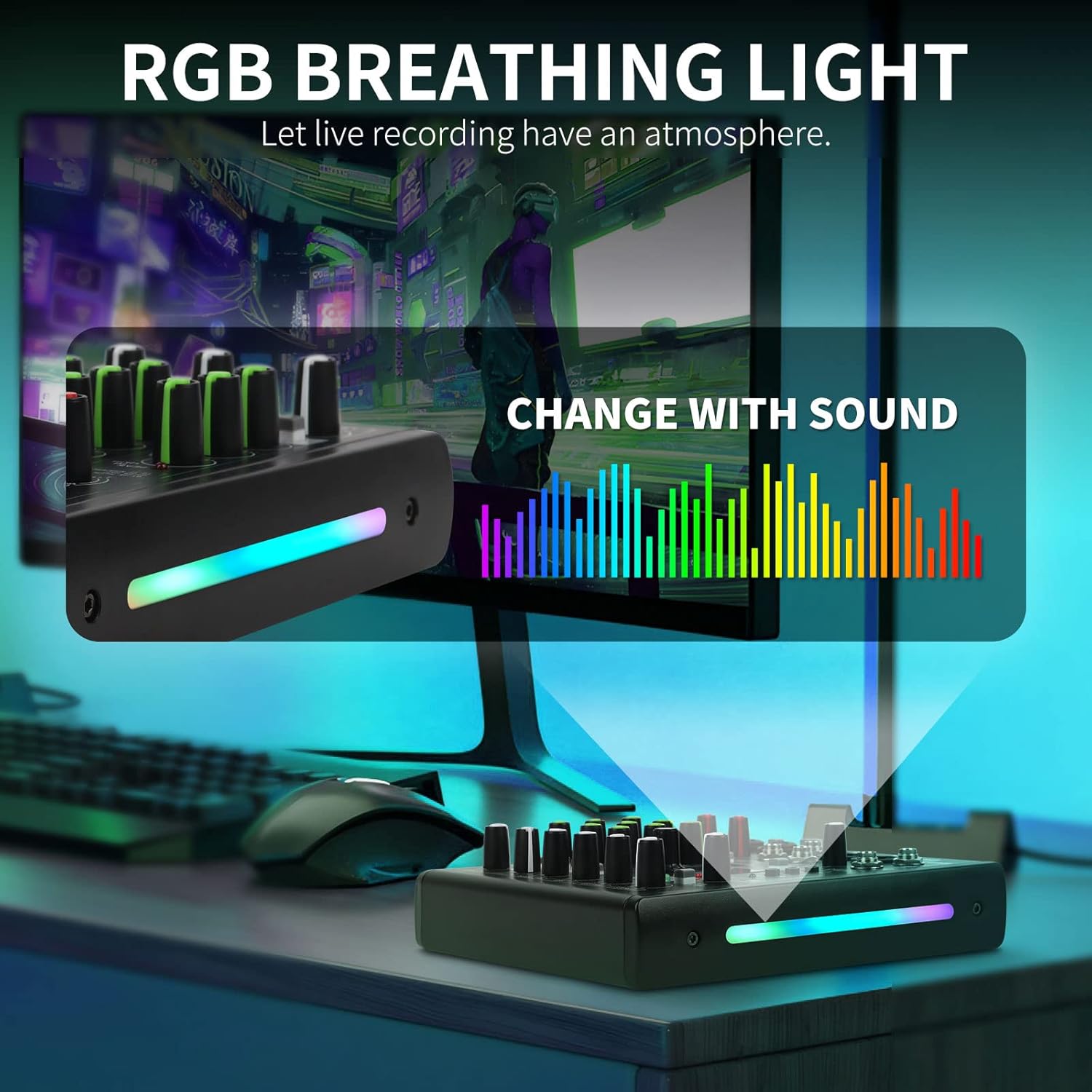
Image: The XTUGA AM06 mixer displaying its RGB breathing light feature, which changes color in response to audio input, creating an atmospheric effect.
Maintenance
- Cleaning: Use a soft, dry cloth to clean the mixer's surface. Avoid liquid cleaners or abrasive materials.
- Storage: Store the mixer in a cool, dry place away from direct sunlight and extreme temperatures.
- Handling: Avoid dropping or subjecting the mixer to strong impacts.
- Ventilation: Ensure proper ventilation around the mixer to prevent overheating.
Troubleshooting
| Problem | Possible Cause | Solution |
|---|---|---|
| No sound output | Incorrect cable connections, low volume levels, muted channels, incorrect input selection. | Check all cable connections. Ensure master volume and channel levels are up. Verify no channels are muted. Confirm correct input source is selected. |
| Microphone not working | Phantom power off (for condenser mics), faulty cable, microphone issue, low gain. | Activate +48V phantom power if using a condenser microphone. Test with a different cable or microphone. Increase channel GAIN. |
| Bluetooth connection issues | Device not in pairing mode, interference, device too far. | Ensure the mixer's Bluetooth is active and discoverable. Move the Bluetooth device closer to the mixer. Try re-pairing the device. |
| USB recording not recognized | Incorrect USB cable, driver issues, software settings. | Use the provided Type-C cable. Check computer's sound settings to ensure the mixer is selected as the input/output device. Install necessary drivers if prompted by your operating system. |
Specifications
- Model: AM06
- Channels: 6 (2 MIC Mono, 2 Stereo)
- Phantom Power: +48V (selectable per channel)
- DSP Effects: 100 built-in effects
- Recording Resolution: 24-bit/192kHz
- Connectivity: Bluetooth, USB, OTG
- Compatible Devices: Android, Mac, iPad, iPhone, PC
- Operating System: Mac OS, Windows
- Power Source: Corded Electric
- Voltage: 120 Volts
- Item Weight: 2.81 pounds (1.28 Kilograms)
- Product Dimensions: 10.63 x 9.45 x 3.35 inches
Warranty and Support
XTUGA products come with a 12-month manufacturer assurance. For technical support, warranty claims, or any inquiries, please contact XTUGA customer service. Refer to the product packaging or the official XTUGA website for contact details.

