
1. Introduction
Welcome to your new Emporia Prime-LTE mobile phone. This manual provides essential information for setting up, operating, and maintaining your device. Designed for ease of use, the Emporia Prime-LTE combines practical features with reliable 4G connectivity.
2. Safety Information
Please read this safety information carefully before using your device to ensure safe and proper use.
- Battery Safety: Use only Emporia-approved batteries and chargers. Do not short-circuit, puncture, or expose the battery to extreme temperatures. Dispose of batteries properly.
- Water Resistance: The device is IP54 certified, meaning it is protected against dust and splashing water. Do not immerse the phone in water or expose it to high-pressure water.
- Hearing Protection: Avoid prolonged listening at high volume levels to prevent hearing damage.
- Driving Safety: Always prioritize driving safety. Use hands-free accessories and obey all local laws and regulations regarding mobile phone use while driving.
- Medical Devices: Maintain a safe distance between the phone and medical devices like pacemakers. Consult your physician and medical device manufacturer for specific guidelines.
- Disposal: Do not dispose of the device or battery with household waste. Follow local regulations for electronic waste recycling.
3. Package Contents
Ensure all items are present in your product package:
- Emporia Prime-LTE Mobile Phone
- USB Cable
- User Manual (this document)
- Battery (pre-installed or separate)
4. Device Overview
4.1 Front View

Image 4.1: Front view of the Emporia Prime-LTE mobile phone. The display shows the current time and 'Call history'. Below the display is a clear, large-button keypad, including navigation keys, call/end buttons, and dedicated speed dial buttons.
The front of your Emporia Prime-LTE features a clear 2.31-inch display and a user-friendly keypad. The keypad includes large, well-spaced buttons for easy dialing and text input, along with dedicated navigation keys (Up, Down, OK/Select, Back), call/end buttons, and three speed dial buttons (P1, P2, P3) for important contacts.
4.2 Side and Top Views

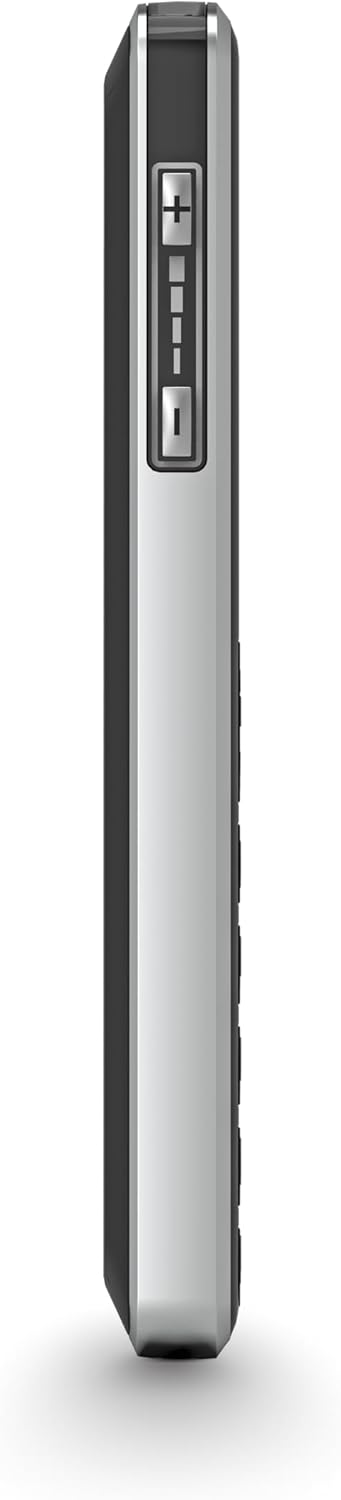
Image 4.2: Right and left side views of the Emporia Prime-LTE phone. The right side features the volume control buttons.
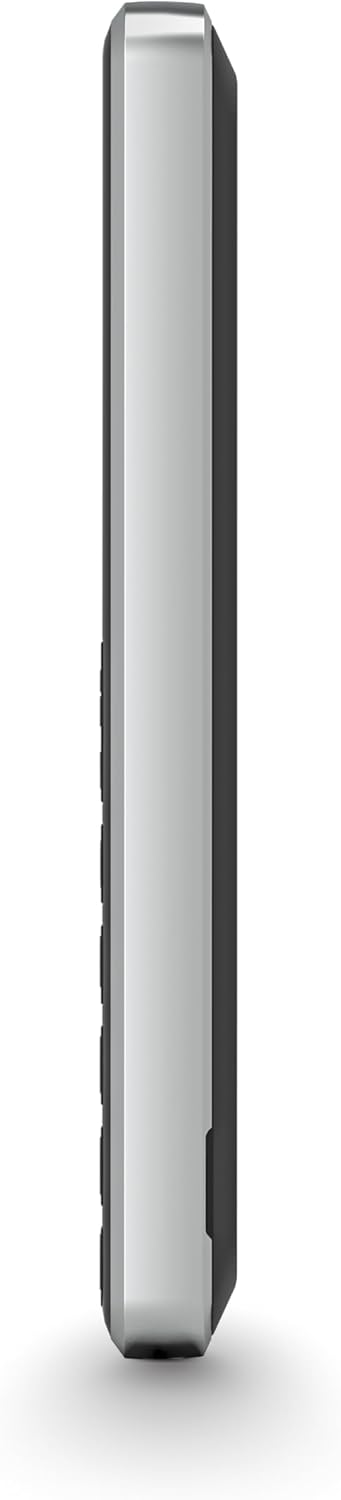
Image 4.3: Top view of the Emporia Prime-LTE phone, showing the USB-C charging port and the 3.5mm headphone jack.
The sides of the phone house the volume control buttons. The top edge features the USB-C charging port and a 3.5mm headphone jack for audio accessories.
4.3 Back View
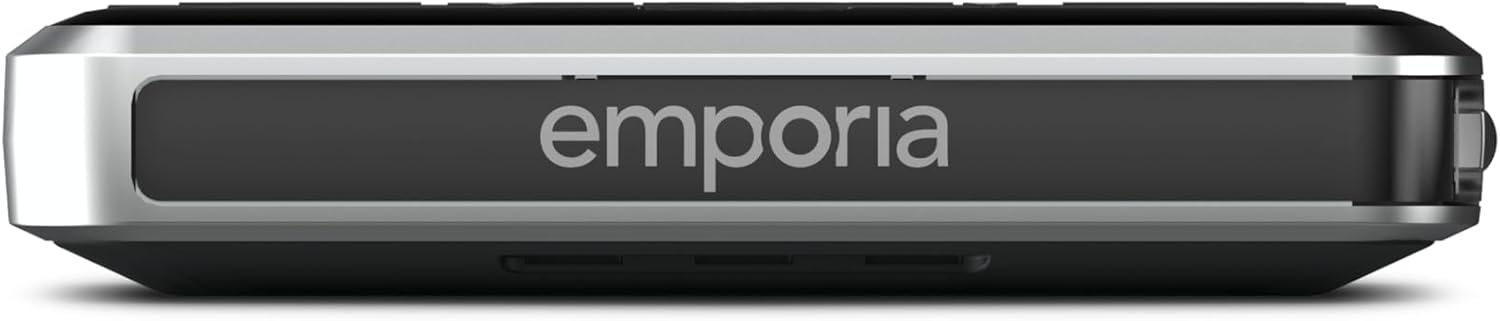
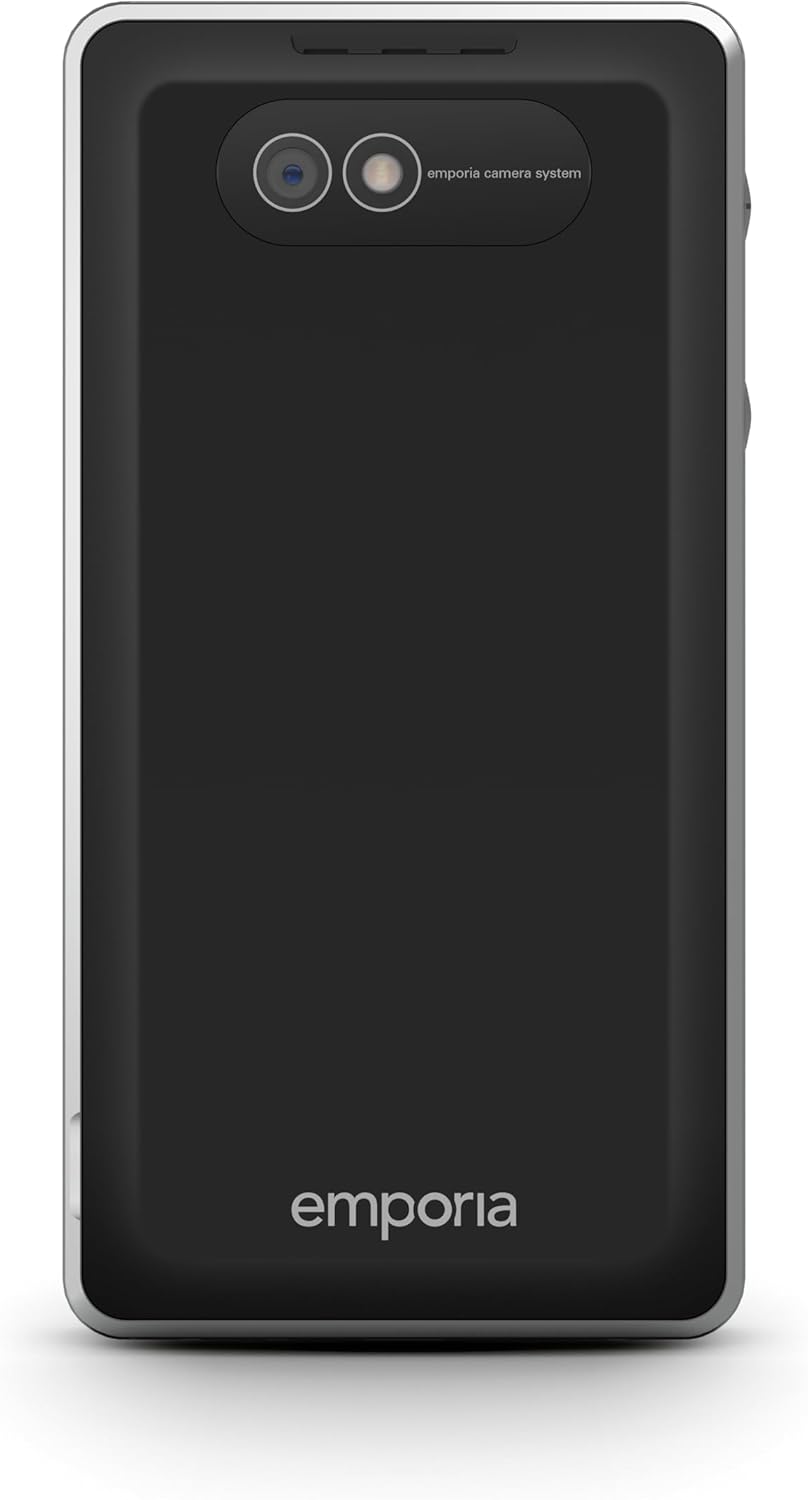
Image 4.4: Back view of the Emporia Prime-LTE phone, highlighting the camera module and the Emporia branding.
The back of the phone features the main camera module and the Emporia logo. A dedicated emergency call button is also located on the back for quick access in urgent situations.
5. Setup
5.1 Inserting the SIM Card and Battery
- Carefully remove the back cover of the phone.
- Insert your SIM card(s) into the designated slot(s) with the gold contacts facing down.
- Place the battery into its compartment, ensuring the contacts align correctly.
- Replace the back cover, pressing firmly until it clicks into place.
5.2 Charging the Device
- Connect the USB cable to the charging port on the top of the phone.
- Plug the other end of the USB cable into a compatible power adapter (not included) or a computer's USB port.
- The battery indicator on the screen will show the charging status. Allow the phone to charge fully before first use.
5.3 Powering On/Off
- To Power On: Press and hold the Power/End Call button (usually marked with a red phone icon or power symbol) until the screen lights up.
- To Power Off: Press and hold the Power/End Call button until a power-off option appears on the screen. Select 'Power Off' using the navigation keys and the OK/Select button.
6. Operating Instructions
6.1 Basic Navigation
- Use the Up/Down navigation keys to scroll through menu options.
- Press the OK/Select button (center navigation key) to confirm a selection or enter a menu.
- Press the Back button (often a left soft key or dedicated button) to return to the previous screen or menu.
6.2 Making and Receiving Calls
- To Make a Call: Enter the phone number using the keypad and press the Green Call button.
- Speed Dial: Press and hold one of the P1, P2, or P3 buttons to call the assigned contact.
- To Answer a Call: Press the Green Call button when the phone rings.
- To End a Call: Press the Red End Call button.
- The Emporia Prime-LTE supports 4G VoLTE for high-quality voice calls and reduced background noise. It is also compatible with hearing aids (M4/T4 rating).
6.3 Sending and Receiving SMS Messages

Image 6.1: The 'Messages' menu on the Emporia Prime-LTE display, showing icons for different messaging functions.
- To Send an SMS: Navigate to the 'Messages' menu, select 'New Message', enter the recipient's number and your text, then send.
- To Read an SMS: New messages will typically appear as a notification. Access the 'Messages' menu to view your inbox.
6.4 Using Direct Function Buttons
- Camera Button: Press the dedicated camera button to quickly launch the camera application.
- Flashlight Button: Press the dedicated flashlight button to turn the LED flashlight on or off.
- Alarm Button: Press the dedicated alarm button to quickly access alarm settings or activate a pre-set alarm.
- Emergency Call Button: Press the emergency button on the back of the phone to activate the emergency call function, which will dial pre-set emergency contacts.
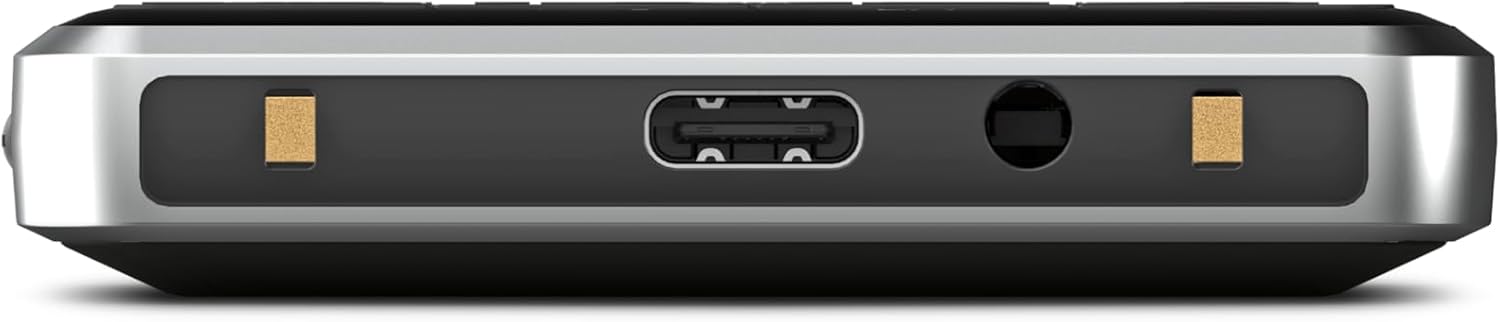
Image 6.2: The Emporia Prime-LTE display showing a live camera preview, ready to capture an image.
6.5 Adjusting Volume
Use the volume up (+) and volume down (-) buttons located on the side of the phone to adjust call volume, ringtone volume, and media volume.
6.6 Bluetooth Connectivity
To connect your Emporia Prime-LTE to other Bluetooth devices (e.g., headsets, car kits):
- Go to the 'Settings' menu and select 'Bluetooth'.
- Turn Bluetooth 'On'.
- The phone will search for available devices. Select your desired device from the list and follow the on-screen prompts to pair.
7. Maintenance
7.1 Cleaning Your Phone
- Use a soft, lint-free cloth to wipe the screen and body of the phone.
- Avoid using harsh chemicals, cleaning solvents, or aerosol sprays, as these may damage the device.
- Ensure all ports are free of dust and debris.
7.2 Battery Care
- Do not leave the battery completely discharged for extended periods.
- Avoid exposing the phone to extreme hot or cold temperatures, as this can reduce battery life.
- If the phone will not be used for a long time, charge the battery to about 50% before storing it.
8. Troubleshooting
If you encounter problems with your Emporia Prime-LTE, refer to the following common issues and solutions:
- Phone does not turn on: Ensure the battery is charged. Connect the charger and try again. Check if the battery is correctly inserted.
- No network signal: Check if the SIM card is correctly inserted. Ensure you are in an area with network coverage. Contact your service provider if the issue persists.
- Battery not charging: Verify that the charger and USB cable are properly connected. Try using a different charger or USB port. Check for any damage to the charging port.
- Cannot make or receive calls: Check network signal strength. Ensure your SIM card is active and has sufficient credit/plan. Verify that call barring is not enabled.
- Keypad unresponsive: Restart the phone. If the issue continues, ensure no physical obstruction is affecting the keys.
- Sound issues: Check the volume settings using the side buttons. Ensure the speaker is not blocked.
If these steps do not resolve the issue, please contact Emporia customer support.
9. Specifications
| Feature | Value |
|---|---|
| Model Number | M76-LTE_001 |
| Operating System | Emporia |
| RAM | 64 MB |
| Internal Storage | 64 GB |
| Product Weight | 180 g |
| Package Dimensions | 13.6 x 6.8 x 4.6 cm |
| Battery | 1 Lithium Ion (included) |
| Wireless Communication | Cellular (4G VoLTE) |
| Connectivity Technology | Bluetooth |
| GPS | True |
| Special Features | IP54 certified, emergency call button, long-lasting battery, speed dial keys for flashlight, camera, and alarm clock |
| Display Features | Wireless |
| Human Interface Input | Keypad and Display Navigation |
| Display Resolution | 320 x 240 |
| Camera Features | Rear (2 MP) |
| Form Factor | Block |
| Color | Black |
| Battery Rated Power | 1400 mAh |
| Talk Time | 200 Hours |
10. Warranty and Support
Your Emporia Prime-LTE mobile phone comes with a standard manufacturer's warranty. For detailed information regarding warranty terms and conditions, please refer to the warranty card included in your package or visit the official Emporia website.
For technical support, service, or further assistance, please contact Emporia customer service through their official channels. Contact information can typically be found on the Emporia website or in your product documentation.
