1. Introduction
The GOYOJO Wireless Veterinary Ultrasound Scanner is a portable diagnostic tool designed for veterinary applications. It features a 3.5 MHz convex probe and connects wirelessly to Android devices, providing real-time ultrasound imaging for various animals including cows, pigs, sheep, dogs, and cats. This manual provides essential information for the safe and effective use of the device.

Figure 1: GOYOJO Wireless Veterinary Ultrasound Scanner and its application.
Key Features:
- Waterproof Probe: Equipped with a 3.5 MHz mechanical waterproof probe for easy cleaning and maintenance.
- Image Pre-processing: Advanced features deliver clear images for easier analysis.
- Wireless Connectivity: Connects to Android phones and tablets via Wi-Fi for convenient use anywhere.
- Sector Scanning: Provides high accuracy and reliable results for various medical and veterinary applications.
2. Safety Information
Please read and understand all safety precautions before operating the device. Improper use may result in inaccurate readings or damage to the unit.
- Do not immerse the entire probe unit in water, only the front end is designed to be rinsed.
- Ensure the device is fully charged before use to avoid interruptions during scanning.
- Use only with compatible Android devices. iOS and Windows systems are not supported.
- Keep the device and probe clean and sanitized between uses to prevent cross-contamination.
- Store the device in a cool, dry place away from direct sunlight and extreme temperatures.
3. Setup
3.1. App Installation (Android Only)
- Locate the QR code in the product manual or on the device packaging.
- Scan the QR code with your Android phone or tablet to download the 'Goyojo VetScan' application.
- Follow the on-screen prompts to install the application. You may need to allow installation from unknown sources in your device settings.
Video 1: Android system APP connection tutorial. This video demonstrates the steps to download and install the application on an Android device.
Video 2: Download APP and connect to Wi-Fi video. This video provides a visual guide for downloading the app and initiating the Wi-Fi connection process.
3.2. Wireless Connection
- Press and hold the power button on the ultrasound scanner until the indicator light illuminates.
- On your Android device, go to Wi-Fi settings.
- Look for a Wi-Fi network name starting with "ECIQ" followed by a series of numbers (e.g., ECIQ 1A2110808). This is your scanner's direct Wi-Fi network.
- Connect to this network. The password is typically 'eci' followed by the last 7 digits of the Wi-Fi name (e.g., eci2110808).
- Once connected, open the 'Goyojo VetScan' app. The app should display a live ultrasound image. If no image appears, press the power button on the scanner once to refresh the connection.
Video 3: Wireless b-ultrasound machine wifi connection. This video illustrates the process of connecting the ultrasound scanner to your device via Wi-Fi.

Figure 2: App interface showing Wi-Fi connection status.
4. Operating Instructions
4.1. Performing a Scan
- Apply ultrasound gel to the animal's skin in the area to be scanned.
- Place the probe firmly against the gel-covered skin.
- Observe the real-time image on your connected Android device.
- Adjust settings such as gain and depth within the app for optimal image clarity.
Video 4: GOYOJO Veterinary Ultrasound Equipment, Real-time Diagnosis. This video demonstrates the device in use for real-time diagnostic imaging.
Video 5: GOYOJO Veterinary Ultrasound Scanner Portable Pregnancy Test. This short video shows the scanner being used on a pig for pregnancy detection.

Figure 3: Using the scanner on a pig.
4.2. Image and Video Capture
- The app allows for unlimited storage of images and videos on your mobile device.
- Use the dedicated buttons within the app to capture still images or record video clips of the ultrasound feed.
- Images can be pre-processed and displayed in various color conversions for enhanced visualization.

Figure 4: Unlimited storage for mobile phones/tablets.
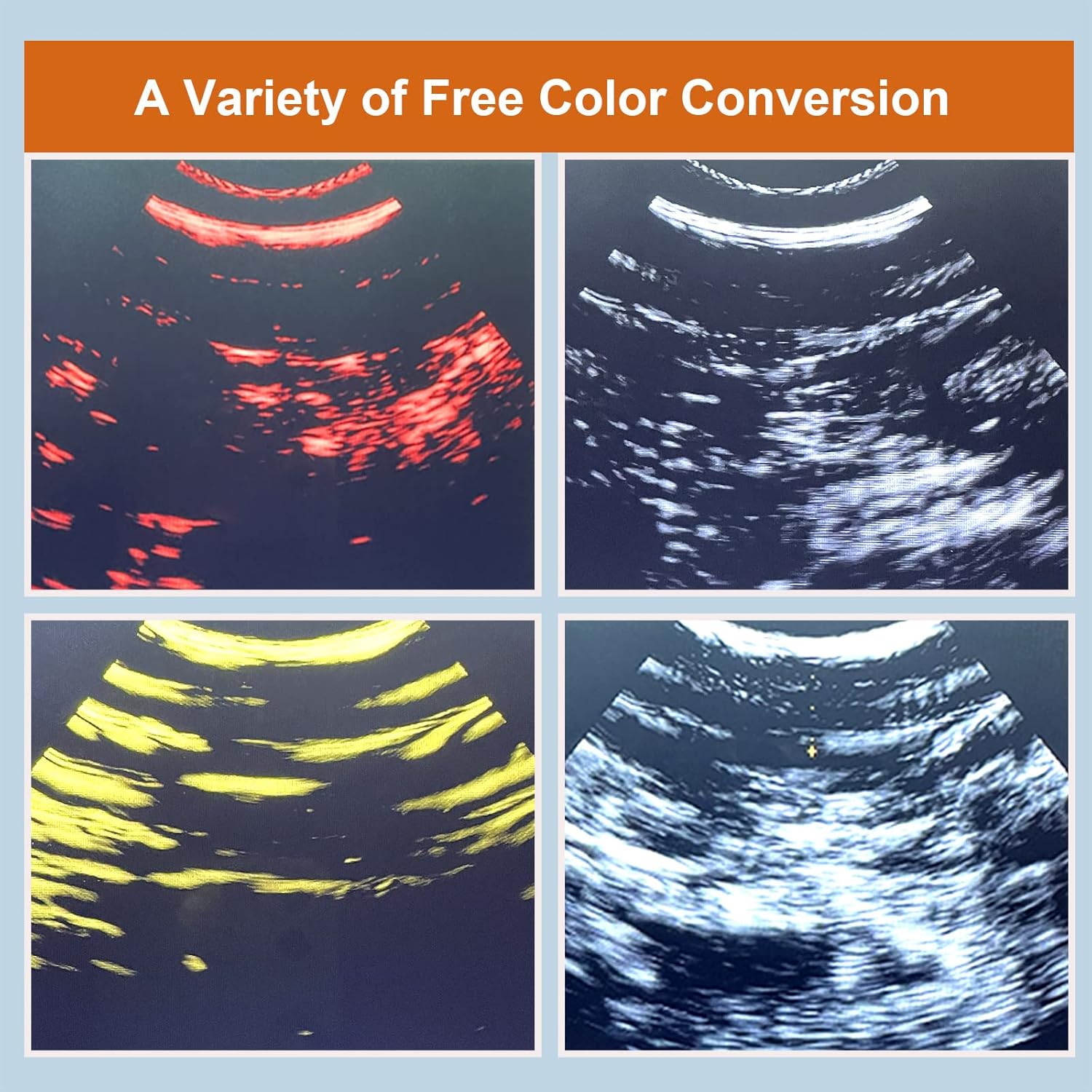
Figure 5: A variety of free color conversion options.
5. Maintenance
5.1. Cleaning the Probe
The front end of the probe is waterproof and can be directly washed with water or wiped with a damp cloth/paper towel. Do not immerse the entire probe unit in water.
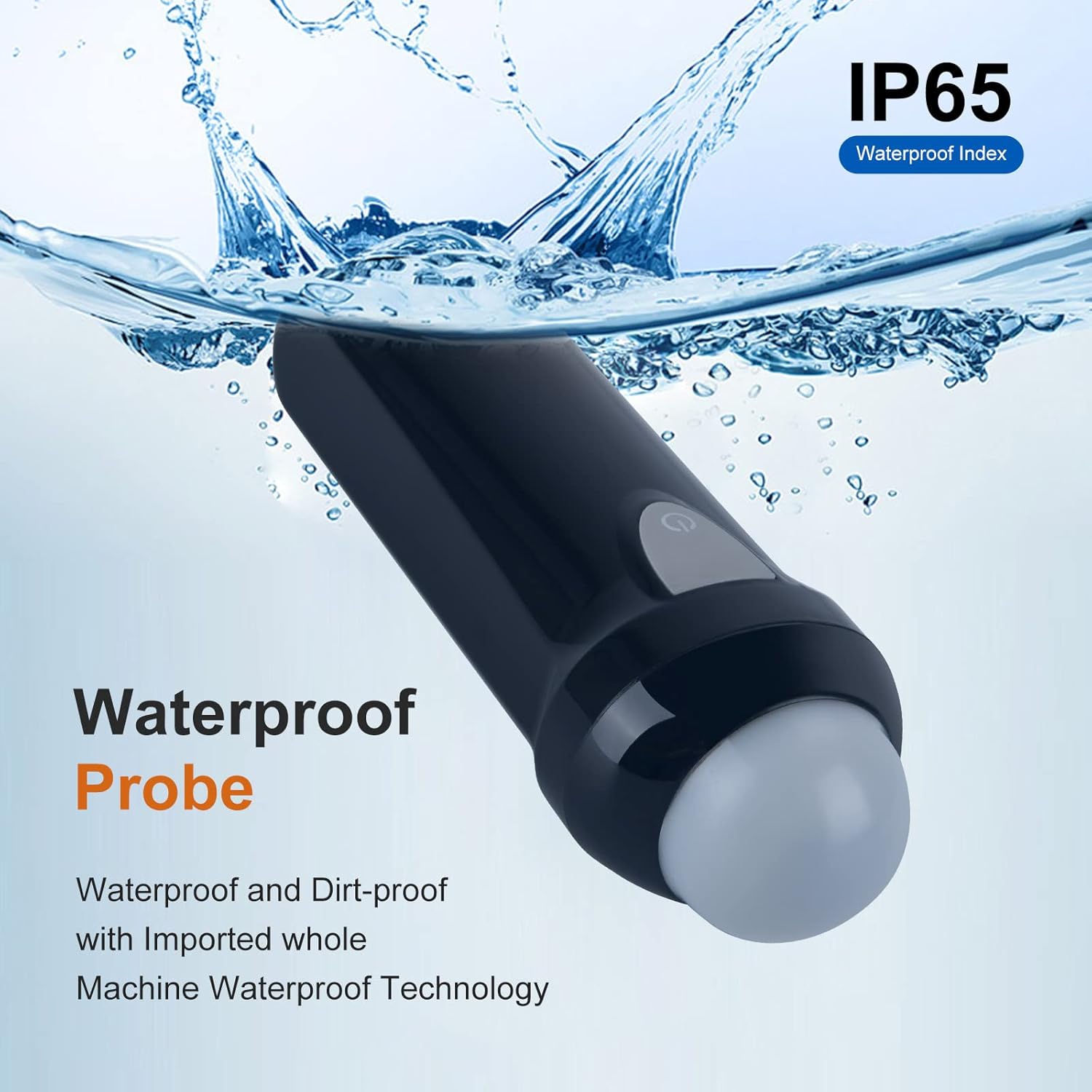
Figure 6: Waterproof probe with IP65 rating.
5.2. Charging the Device
The scanner is equipped with a high-capacity lithium battery and supports USB charging. Connect the device to a standard USB power source using the provided cable. The charging indicator light will show the charging status.

Figure 7: Ultra-low power consumption and ultra-long standby with USB charging.
6. Troubleshooting
- No Image Displayed in App: Ensure the scanner is powered on and the Wi-Fi connection to the device is active. If connected but no image, press the power button on the scanner once to refresh the signal.
- Difficulty Connecting to Wi-Fi: Verify the Wi-Fi password (eci + last 7 digits of the network name). Ensure your device's location services are enabled for the app if prompted.
- Video Recording Issues: If recorded videos do not play back correctly, try screen recording directly from your Android device while using the app.
- App Download Problems: If the app download link is not working or the app is not available on official stores, ensure your device settings allow installation from external sources.
- Image Clarity Issues: Adjust the gain and depth settings within the app. Ensure sufficient ultrasound gel is applied and the probe has good contact with the skin.
7. Specifications
| Parameter | Value |
|---|---|
| Dead Zone | <5mm |
| Display | Smartphone or tablet series |
| Scanning Method | Sector Scan |
| Support | Only support Android 3.5MHz Mechanical sector scanning |
| Scan Depth | 100-180 mm |
| Display Mode | B mode |
| Gray Level | 256 levels |
| Battery Duration | >4 hours |
| Size | 150mm x 54mm x 45mm |
| Weight | About 0.25 Kg |
| Waterproof Index | IP65 |

Figure 8: Data parameters for the GOYOJO Wireless Veterinary Ultrasound Scanner.
8. Warranty and Support
For warranty information and technical support, please refer to the documentation included with your product or contact GOYOJO customer service through their official channels. Keep your purchase receipt for warranty claims.


