
ASHATA ASHATA5reoby8wad
ASHATA Mini Wireless Camera User Manual
Model: ASHATA5reoby8wad
1. Introduction
Thank you for choosing the ASHATA Mini Wireless Camera. This compact and versatile device is designed for various surveillance needs, offering 1080p HD video recording, night vision, and motion detection capabilities. Its small size and magnetic design make it ideal for discreet placement in homes, offices, or for portable use. This manual provides detailed instructions on how to set up, operate, and maintain your camera to ensure optimal performance.
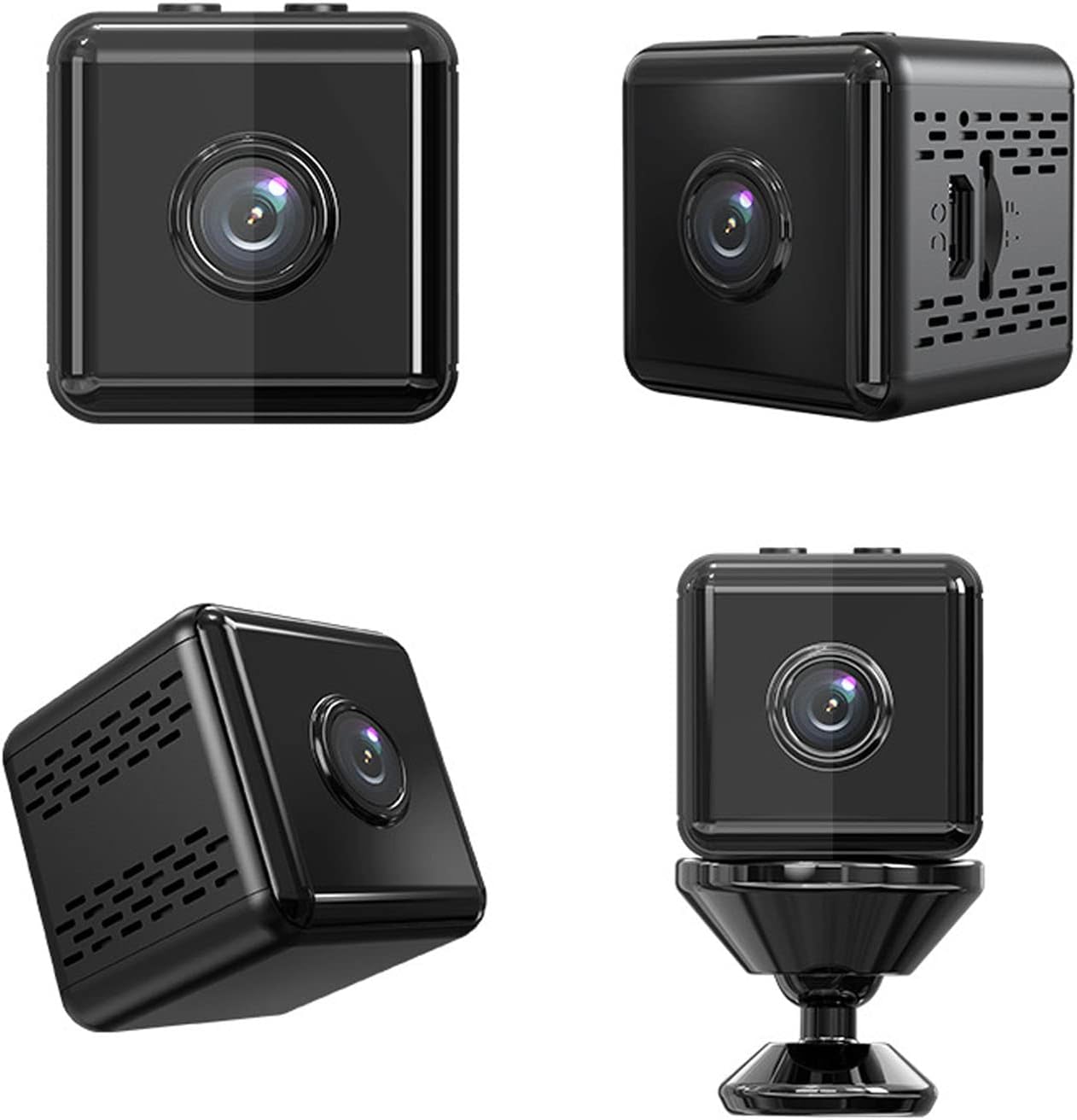
This image displays the ASHATA Mini Wireless Camera from various perspectives, highlighting its compact, cube-shaped design, lens, and side ports for charging and memory card.
2. Package Contents
Please check the package contents upon unboxing to ensure all items are present:
- 1 x ASHATA Mini Wireless Camera
- 1 x USB Charging Cable
- 1 x Magnetic Stand
- 1 x Adhesive Pad
- 1 x User Manual (this document)

An image displaying the contents of the product package, including the mini wireless camera, USB charging cable, magnetic stand, and adhesive pad.
3. Key Features
- 1080p HD Video Recording: Captures clear and detailed footage.
- Night Vision: Equipped with infrared LEDs for monitoring in low-light or dark conditions.
- Motion Detection: Automatically starts recording when motion is detected, conserving storage space.
- Loop Recording: Overwrites the oldest footage when the memory card is full, ensuring continuous recording.
- WiFi Connectivity: Allows for remote viewing and control via a smartphone application.
- Compact and Portable: Ultra-small body, easy to carry and discreetly place.
- Magnetic Module Design: Strong magnetic force allows attachment to iron surfaces, and the included magnetic stand provides adjustable shooting angles.
- Long Battery Life: Built-in 350mAh battery provides approximately 60 minutes of recording time.
- Expandable Storage: Supports up to 128GB microSD card for extended recording (card not included).

An illustration demonstrating the camera's small size, its WiFi connectivity to a smartphone, and key features such as its ultra-small body, portability, magnetic design, and versatile use cases for recording and security.

This image highlights the camera's long battery life (350mAh, 60 minutes recording) and loop recording capability, supporting up to 128GB memory cards for extended continuous recording with automatic overwriting.

An infographic summarizing the camera's multiple advantages, including high-definition video, mobile remote access, infrared night vision, WiFi connectivity, AV synchronization, and loop video recording.
4. Setup Guide
4.1. Charging the Camera
Before first use, fully charge the camera. Connect the included USB cable to the camera's charging port and the other end to a USB power adapter (not included) or a computer's USB port. The indicator light will show charging status and turn off when fully charged.
4.2. Inserting a MicroSD Card
The camera supports up to 128GB microSD cards (Class 10 or higher recommended) for video storage. Gently insert the microSD card into the card slot until it clicks into place. Ensure the card is inserted in the correct orientation. To remove, push the card in again until it springs out.

A close-up image of the side of the ASHATA Mini Wireless Camera, showing the USB charging port and the microSD card slot.
4.3. App Installation and WiFi Connection
To utilize the camera's WiFi features and remote viewing, you need to install the dedicated mobile application on your smartphone.
- Download the App: Scan the QR code provided in the camera's quick start guide (if available) or search for the recommended app name (e.g., "HDMiniCam" or similar, check product packaging/manual for exact name) in your smartphone's app store (App Store for iOS, Google Play Store for Android).
- Power On Camera: Press and hold the power button on the camera until the indicator light turns on.
- Connect to Camera's WiFi: Go to your phone's WiFi settings. Find and connect to the camera's unique WiFi network (it usually starts with "IPC-" or similar, without a password).
- Open the App: Launch the installed application. The camera should automatically be detected or you may need to add it manually by scanning its UID (usually found on a sticker on the camera or packaging).
- Connect to Home WiFi (Optional for Remote Viewing): Within the app, navigate to the camera's settings. Select "WiFi Settings" or "Network Settings" and choose your home/office WiFi network. Enter the password and confirm. This allows the camera to connect to the internet and enables remote viewing from anywhere.

This image demonstrates the camera's motion detection capabilities and the ability to view live footage remotely via a mobile phone application, allowing users to monitor their surroundings anytime, anywhere.
This image illustrates the remote viewing capability, showing how users can access live and recorded footage from the camera directly on their mobile phones via a dedicated app.
5. Operating Instructions
5.1. Basic Operation
- Power On/Off: Press and hold the power button for a few seconds to turn the camera on or off.
- Recording Modes: The camera typically supports continuous recording and motion-activated recording. These modes are usually configured via the mobile application.
- Indicator Lights: Refer to the camera's quick start guide for specific indicator light behaviors (e.g., solid blue for standby, flashing red for recording, etc.).

A detailed view of the top of the ASHATA Mini Wireless Camera, showing the control buttons for operation.
5.2. Using the Mobile Application
The mobile application is the primary interface for advanced control and monitoring.
- Live View: Access real-time video feed from the camera.
- Playback: View recorded footage stored on the microSD card. You can usually filter by date and time.
- Settings: Configure various camera parameters such as:
- Recording resolution (1080p)
- Motion detection sensitivity
- Night vision mode (auto/on/off)
- Loop recording duration
- Time synchronization
- WiFi network settings
- Notifications: Enable push notifications for motion detection alerts.
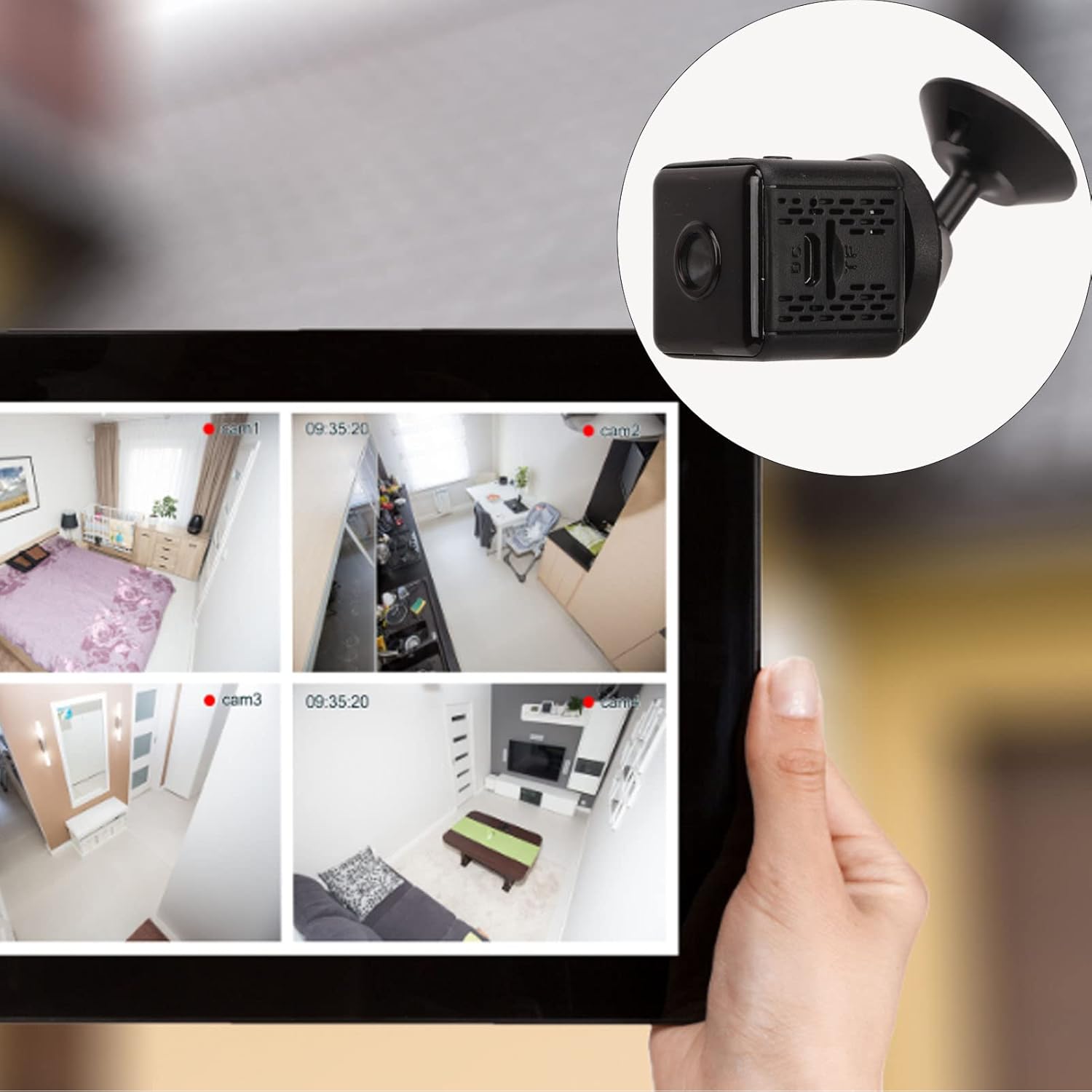
An image showing a tablet displaying multiple live feeds from the ASHATA Mini Wireless Camera, indicating its suitability for multi-camera surveillance setups and remote monitoring.

A visual comparison demonstrating the superior clarity of 1080p HD image quality provided by the camera compared to 720p, highlighting enhanced detail retention even with backlighting.
6. Maintenance
- Cleaning: Use a soft, dry cloth to clean the camera body. For the lens, use a specialized lens cleaning cloth to avoid scratches. Do not use liquid cleaners or abrasive materials.
- Storage: When not in use for extended periods, store the camera in a cool, dry place away from direct sunlight and extreme temperatures. Ensure the battery is partially charged (around 50%) before storage to prolong its lifespan.
- Firmware Updates: Periodically check the mobile application or the manufacturer's website for any available firmware updates. Keeping the firmware updated can improve performance and add new features.
- MicroSD Card Care: Format the microSD card periodically (e.g., once a month) through the camera's app settings to maintain optimal recording performance and prevent data corruption. Back up any important footage before formatting.
7. Troubleshooting
| Problem | Possible Cause | Solution |
|---|---|---|
| Camera does not power on. | Battery is depleted. | Charge the camera fully using the provided USB cable. |
| Cannot connect to camera's WiFi. | Camera is off or not in WiFi mode; incorrect WiFi selection. | Ensure camera is powered on and broadcasting its WiFi signal. Select the correct "IPC-" network. Try resetting the camera. |
| No recording or footage missing. | No microSD card; card full; card error; incorrect recording settings. | Insert a microSD card. Check card capacity and format if necessary. Verify recording settings in the app (e.g., motion detection sensitivity). |
| Remote viewing not working. | Camera not connected to home WiFi; internet issue; app issue. | Ensure the camera is successfully connected to your home WiFi network via the app. Check your internet connection. Restart the app and camera. |
| Poor image quality. | Dirty lens; low light conditions; incorrect resolution setting. | Clean the camera lens. Ensure adequate lighting or verify night vision is active. Check resolution settings in the app (set to 1080p). |
8. Specifications
| Feature | Detail |
|---|---|
| Model Number | ASHATA5reoby8wad |
| Video Resolution | 1080p HD |
| Connectivity | WiFi |
| Battery Capacity | 350mAh |
| Recording Time (approx.) | 60 minutes (Ultra HD video format) |
| Storage | MicroSD card (up to 128GB, not included) |
| Motion Detection | Supported |
| Night Vision | Supported |
| Loop Recording | Supported |
| Compatible Devices | Smartphone |
| Water Resistance Level | Waterproof |
| Wattage | 1 watt |
| Package Dimensions | 15 x 8 x 4 cm |
| Package Weight | 114 g |
9. Warranty and Support
For warranty information, please refer to the terms and conditions provided at the point of purchase or contact your retailer. ASHATA products typically come with a standard manufacturer's warranty covering defects in materials and workmanship.
If you encounter any issues or have questions not covered in this manual, please contact ASHATA customer support through the contact information provided on the product packaging or the official ASHATA website. Please have your model number (ASHATA5reoby8wad) and purchase details ready when contacting support.
Ask a question about this manual
Ask about setup, troubleshooting, compatibility, parts, safety, or missing instructions. Manuals+ will review the question and use this page’s manual context to help answer it.