
Introduction
The Retro-Bit Origin 8 2.4 GHz Wireless Controller offers a modern wireless gaming experience with classic NES design. It is compatible with a variety of platforms including original NES consoles, PC/Windows, MacOS, USB devices, and is optimized for Nintendo Switch Online's classic library. This manual provides detailed instructions for setup, operation, and troubleshooting to ensure optimal performance.
Features
- Multi-Compatibility: Includes both USB and NES wireless receivers for broad device support.
- Switch Optimized: Specifically designed for use with Nintendo Switch Online's classic game library.
- Enhanced Functionality: Features additional ZL and ZR shoulder buttons, Home, and Screenshot buttons.
- Turbo Switches: Built-in Turbo switches for rapid-fire functionality on A & B buttons.
- Rechargeable Battery: Integrated 500 mAh battery with USB-C fast charging port (3ft/1m USB-C to USB charge cable included).
- Advanced Technology: Utilizes the new V2 chip for improved performance.
Package Contents
Verify that all items are present in your package:
- Retro-Bit Origin 8 Wireless Controller
- 2.4 GHz USB Wireless Receiver
- 2.4 GHz NES Wireless Receiver
- USB-C to USB Charging Cable (3ft/1m)
Setup
1. Charging the Controller
Before first use, fully charge the controller. Connect the included USB-C cable to the controller's USB-C port and the other end to a USB power source (e.g., computer, USB wall adapter). The LED indicator on the controller will show charging status.

Image: Side view of the controller, highlighting the USB-C charging port.
2. Connecting to Original NES Console
- Insert the NES Wireless Receiver into a controller port on your original NES console.
- Turn on your NES console.
- Press the Start button on the Origin 8 controller to power it on. The controller should automatically pair with the receiver. The LED on the receiver will indicate a successful connection.
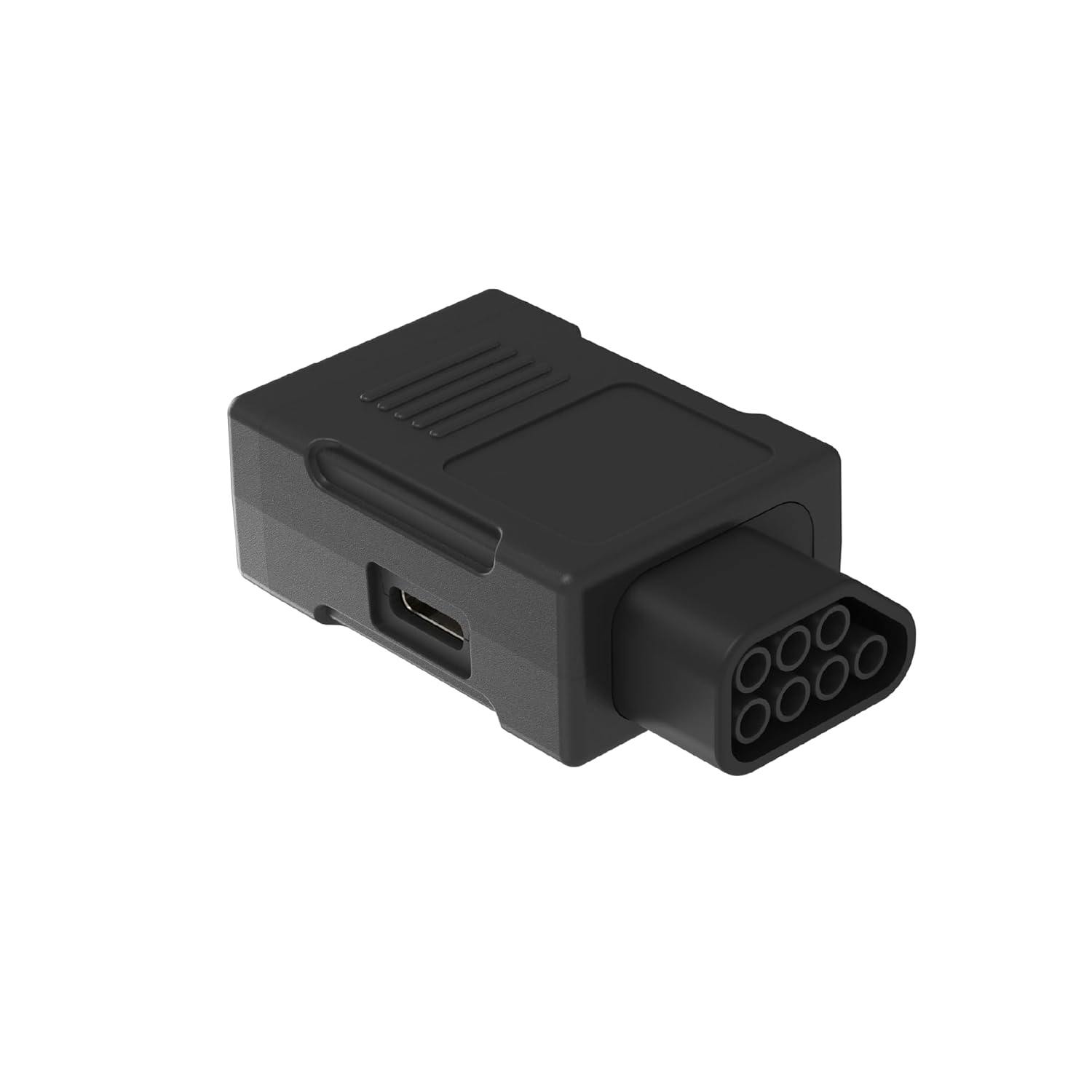
Image: The NES Wireless Receiver.
3. Connecting to PC/MacOS/USB Devices
- Insert the USB Wireless Receiver into an available USB port on your PC, MacOS device, or other compatible USB device.
- Press the Start button on the Origin 8 controller to power it on. The controller should automatically pair with the USB receiver. The LED on the receiver will indicate a successful connection.
- For X-input mode on PC, press and hold Start + B for 5 seconds. This may be necessary for certain games or emulators.

Image: The USB Wireless Receiver.
4. Connecting to Nintendo Switch
The controller is optimized for Nintendo Switch Online's classic library. Use the USB Wireless Receiver with your Nintendo Switch dock. The pairing process is similar to connecting to PC/MacOS devices.
Operating Instructions
Controller Layout

Image: Front view of the Retro-Bit Origin 8 Wireless Controller.
- D-Pad: Directional input.
- Select Button: Functions as Select.
- Start Button: Functions as Start, also used for powering on/off.
- A Button: Primary action button.
- B Button: Secondary action button.
- ZL/ZR Shoulder Buttons: Additional buttons for modern compatibility (Switch, PC). These buttons do not function with original NES consoles.
- Home Button: For Nintendo Switch functionality.
- Screenshot Button: For Nintendo Switch functionality.
Turbo Function
The controller features built-in Turbo switches for the A and B buttons. To activate Turbo for a button, press and hold the desired button (A or B) and then press the Turbo switch located near the button. Repeat the process to deactivate Turbo.
Auto Shutoff
The controller is designed with an auto shutoff feature to conserve battery life. If inactive for a few minutes, the controller will automatically power off. To reactivate, press the Start button.
Maintenance
- Cleaning: Use a soft, dry cloth to clean the controller. Avoid using harsh chemicals or abrasive materials.
- Storage: Store the controller in a cool, dry place away from direct sunlight and extreme temperatures.
- Battery Care: To prolong battery life, avoid fully discharging the controller frequently. Charge it regularly, even if not in constant use.
Troubleshooting
| Problem | Solution |
|---|---|
| Controller does not connect or frequently disconnects from NES. | Ensure the NES Wireless Receiver is securely inserted into the NES console port. Some NES ports may have a looser fit; consider using a controller extension cable if the receiver frequently dislodges. |
| Controller does not connect after initial successful use. | Ensure the controller is fully charged. Try resetting the controller by powering it off and on. Re-insert the wireless receiver into the console/device. |
| Buttons (A/B) on Nintendo Switch do not function as expected. | You may need to remap the button configuration within the Nintendo Switch system settings or the specific game settings to match the classic NES layout (e.g., A for Jump, B for Run/Shoot). |
| Controller automatically turns off. | This is the auto shutoff feature to save battery. Press the Start button to turn the controller back on. To prevent auto shutoff, ensure continuous input or disconnect the USB dongle when not in use. |
| Controller not recognized on PC. | Try activating X-input mode by holding Start + B for 5 seconds. Ensure the USB Wireless Receiver is properly inserted and recognized by your operating system. |
Specifications
- Model Number: 849172014992
- Connectivity: 2.4 GHz Wireless
- Battery: 1 Lithium Ion battery (included), 500 mAh
- Charging Port: USB-C
- Compatibility: Original NES, PC/Windows, MacOS, USB Devices, Nintendo Switch Online
- Item Weight: 5.6 ounces
- Package Dimensions: 5.63 x 4.17 x 1.14 inches
- Manufacturer: Retro-Bit
- Date First Available: October 18, 2023
Warranty and Support
For warranty information and technical support, please refer to the official Retro-Bit website or contact their customer service directly. Keep your proof of purchase for warranty claims.