
1. Introduction
The Phomemo P12 Satin Ribbon Label Tape is designed for creating personalized and decorative labels. This tape is ideal for various creative and organizational tasks, offering a unique way to add a personal touch to gifts, crafts, and other items. Its durable and soft material ensures high-quality printing results.

Image 1.1: Phomemo P12 Satin Ribbon Label Tape in its packaging.
2. Compatibility
This satin ribbon label tape is compatible with a range of label makers, including:
- Phomemo P12
- Phomemo P12-Pro
- Phomemo LT12
- Phomemo F12
- Dymo Label Maker Refills: LT-100H, LT-100H Plus, LT-100T, LT-100T Plus, XM, XR, 2000, QX50
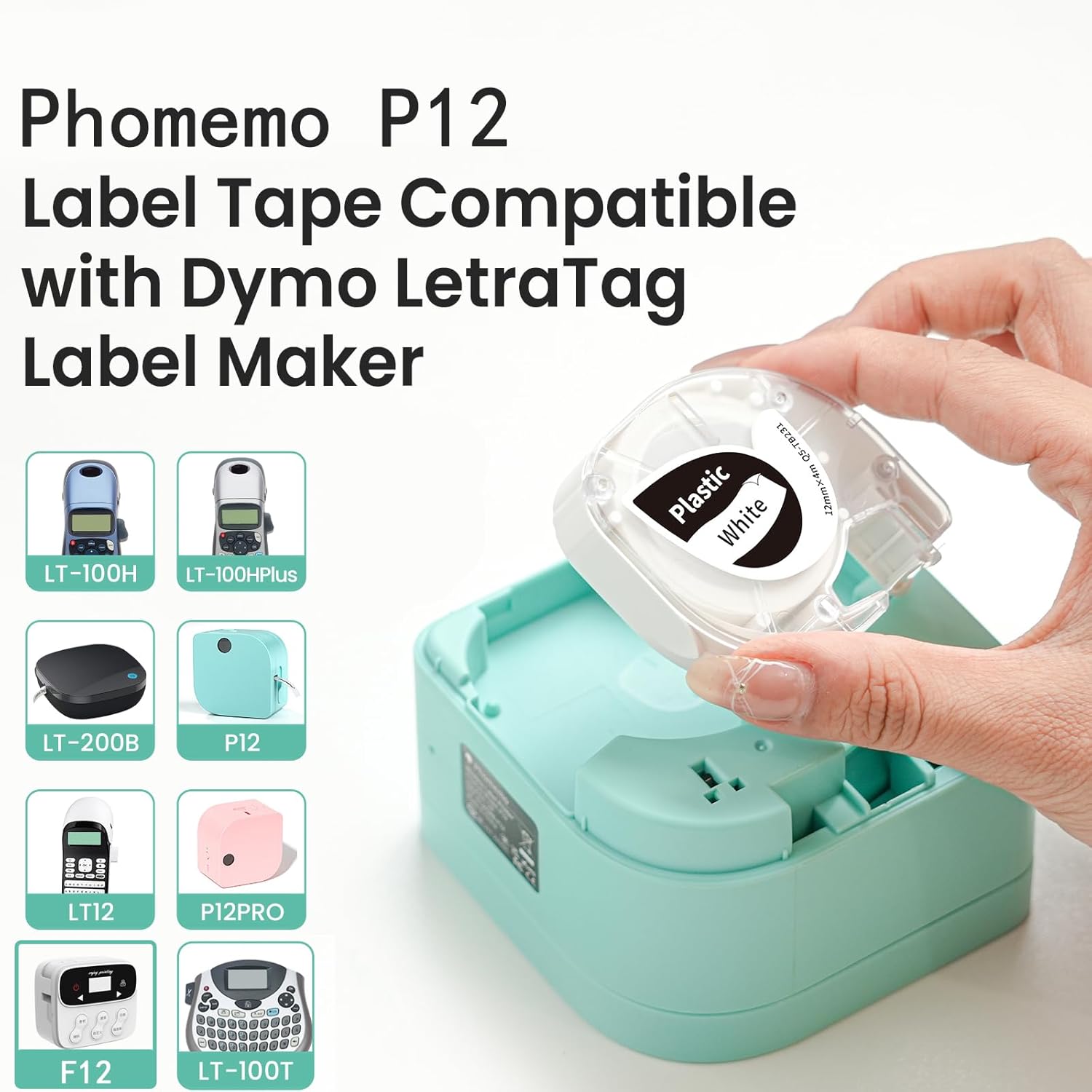
Image 2.1: The Phomemo P12 label maker with the ribbon tape, illustrating compatibility with several label maker models.
3. Setup
To begin using your Phomemo P12 Satin Ribbon Label Tape, follow these steps to install it into your compatible label maker:
- Open the Label Maker: Carefully open the cover of your Phomemo P12 or compatible Dymo label maker to access the tape compartment.
- Insert the Ribbon Cartridge: Place the Phomemo P12 Satin Ribbon Label Tape cartridge into the designated slot. Ensure it clicks securely into place. The ribbon should feed smoothly from the cartridge.
- Close the Cover: Close the label maker cover until it latches firmly.
- Connect to App (if applicable): For Phomemo P12 and P12-Pro models, ensure your label maker is connected to the "Print Master" app on your smartphone or tablet via Bluetooth.
Video 3.1: Demonstrates the application of the P12 label tape with a Phomemo P12 label maker, including tape insertion and printing.
Video 3.2: Shows the Phomemo P12 label maker in use, highlighting its features and how to load the tape.
4. Operation
Once the ribbon tape is installed, you can begin creating custom labels. The operation will vary slightly depending on your specific label maker model.
4.1 Using the Print Master App (for Phomemo P12/P12-Pro)
- Launch the App: Open the "Print Master" app on your device.
- Design Your Label: Use the app's interface to enter your desired text. The app offers over 500 fonts, 1500+ borders, and 1000+ symbol stickers for personalization.
- Adjust Settings: Select the appropriate ribbon type and size (12mm x 2m). You can also adjust the length of the print to suit your needs.
- Print: Send the design to your connected Phomemo P12 label maker. The ribbon will print the text and graphics.
- Cut the Ribbon: Use the built-in cutter blades on the label maker or scissors to cut the printed ribbon to your desired length.
- Peel and Apply: Carefully peel off the top cover of the printed ribbon to reveal the text. Apply the personalized ribbon to your item.
Video 4.1: Illustrates the process of printing durable labels using the LT12 label maker, including design and application.
Video 4.2: Shows the satin ribbon label being printed and used with Phomemo P12 and LT12 label makers.
Video 4.3: A vertical video demonstrating how to print a satin ribbon label for a gift using the P12 label maker.
4.2 Using Dymo Label Makers
For Dymo Label Maker Refills, follow the specific instructions provided with your Dymo device for loading and printing with compatible label tapes. The Phomemo P12 satin ribbon tape functions similarly to standard Dymo tapes in these machines.
5. Applications
The Phomemo P12 Satin Ribbon Label Tape is versatile and can be used for a wide range of applications:
- Gift Wrapping: Personalize gifts for birthdays, holidays, weddings, and other special occasions.
- Crafts: Enhance various craft projects, including scrapbooking, card making, and DIY decorations.
- Party Decorations: Create custom ribbons for party favors, banners, and table settings.
- Floral Arrangements: Add a unique touch to flower bouquets and plant gifts.
- Hair Ribbons & Bows: Design custom hair accessories.
- Wedding Decor: Use for wedding favors, invitations, and table accents.
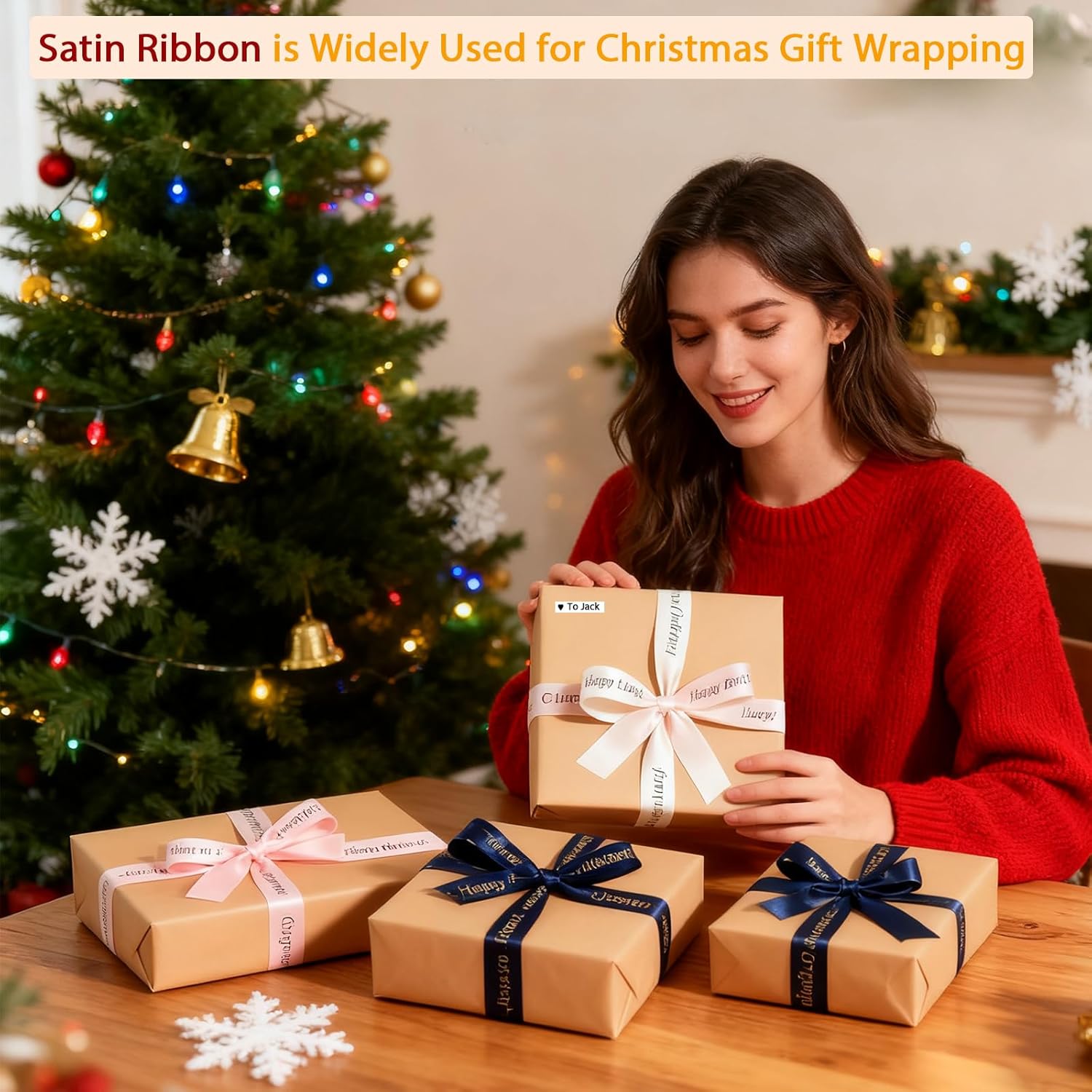
Image 5.1: Satin ribbon label tape applied to a wrapped gift, featuring custom text.

Image 5.2: Examples of satin ribbon labels used for hair bows and other decorative items.
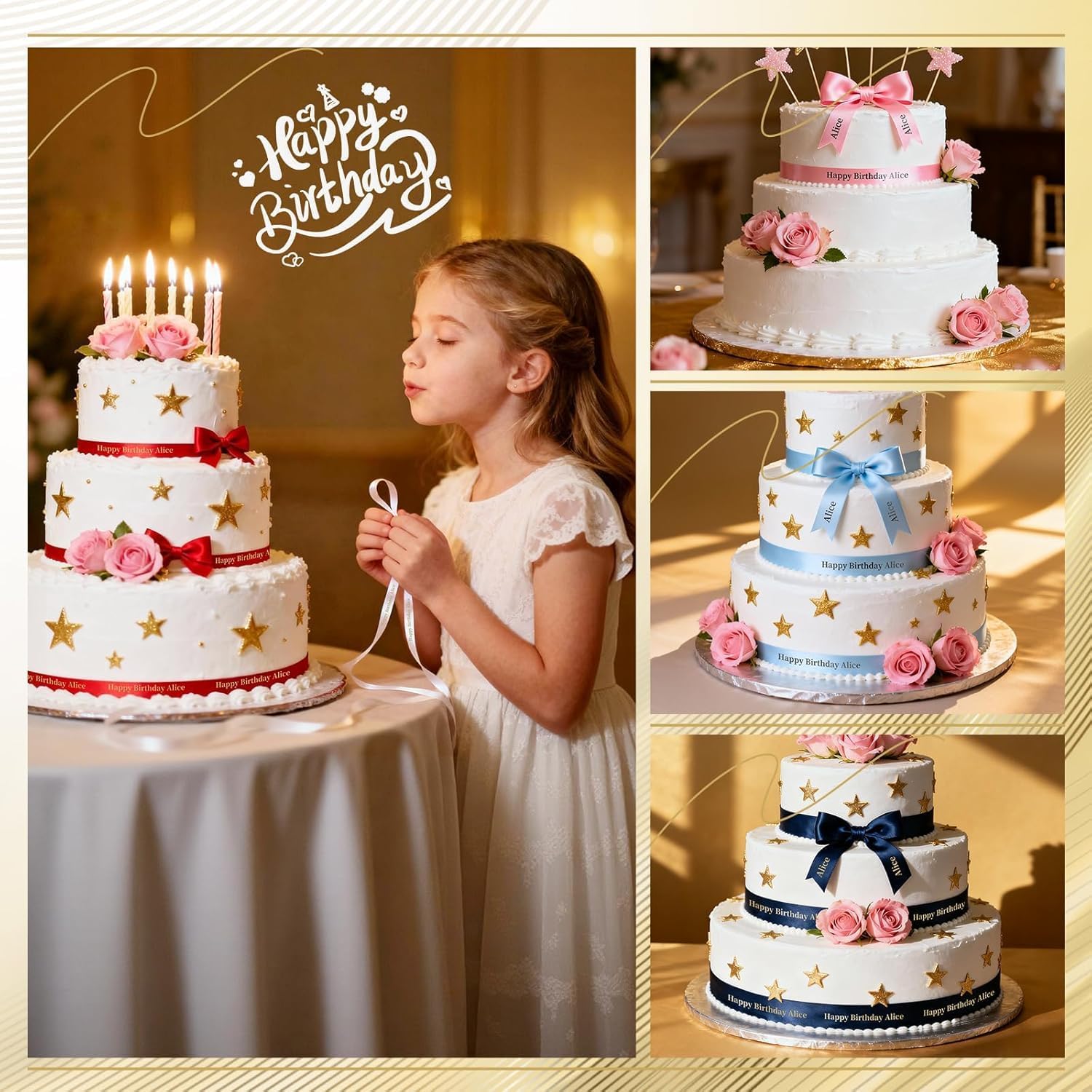
Image 5.3: A multi-tiered cake decorated with personalized satin ribbon labels.

Image 5.4: Satin ribbon labels integrated into a wedding table setting.
Video 5.1: Quick demonstration of gift wrapping using the satin ribbon label tape.
Video 5.2: Shows the ribbon label printer being used for Christmas gift decoration.
6. Specifications
| Feature | Detail |
|---|---|
| Brand | Phomemo |
| Model | P12 Satin Ribbon Label Tape |
| Material Type | Satin Ribbon |
| Dimensions | 12mm (Width) x 2m (Length) |
| Quantity | Available in 3-pack and 6-pack options |
| Color (Current Variant) | Gold on White |
| Features | BPA Free, Water Resistant, Oil-proof, Scratch-resistant, Wear-resistant, Strong Adhesion |
| Finish Type | Laminated |
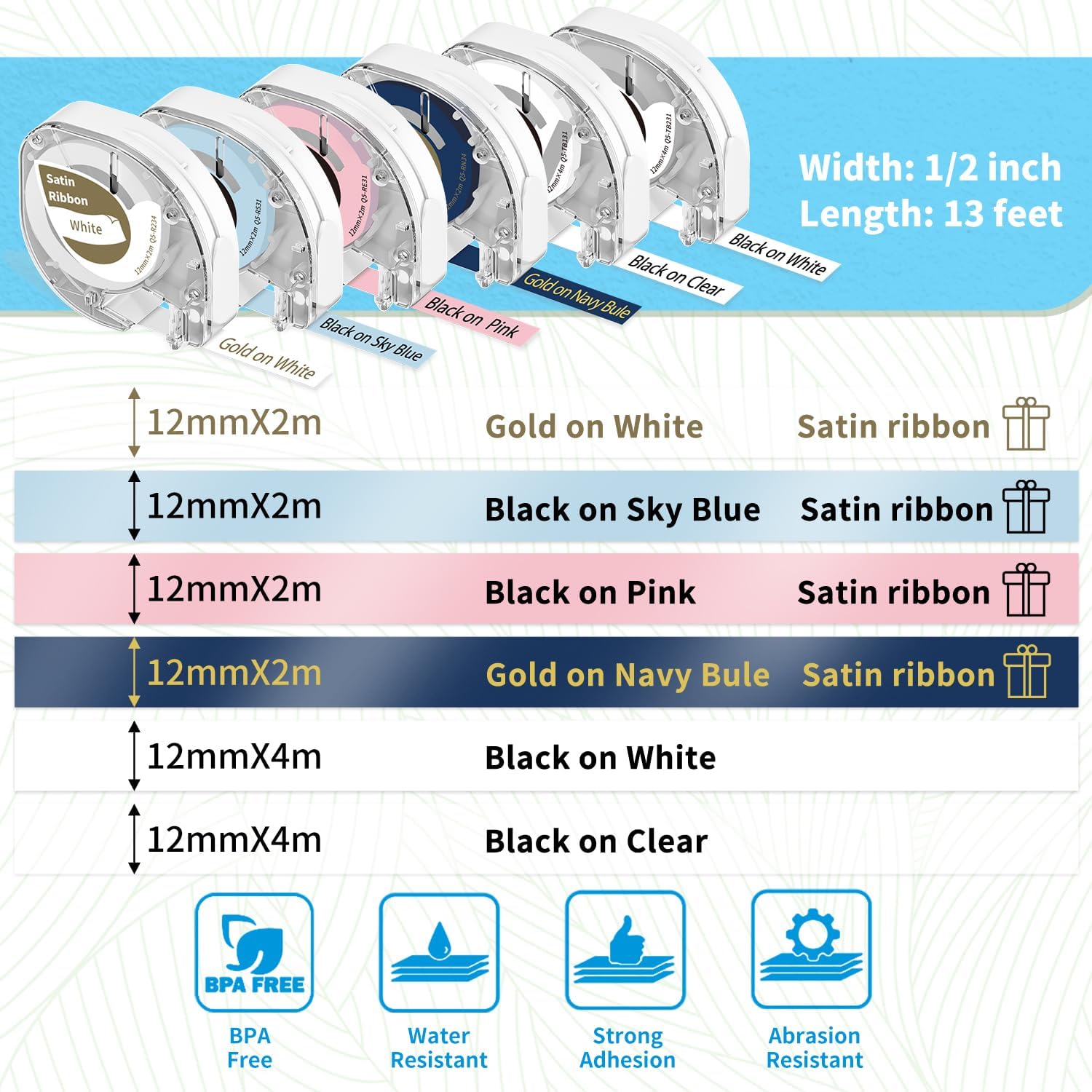
Image 6.1: Detailed diagram illustrating the dimensions and key features of the Phomemo P12 Satin Ribbon Label Tape.
7. Maintenance
To ensure optimal performance and longevity of your Phomemo P12 Satin Ribbon Label Tape and your label maker, consider the following maintenance tips:
- Storage: Store unused ribbon cartridges in a cool, dry place away from direct sunlight to prevent degradation of the material and adhesive.
- Cleaning the Label Maker: Regularly clean the print head and cutter blades of your label maker according to its specific instruction manual. Dust and debris can affect print quality and tape feeding.
- Handling: Avoid touching the adhesive side of the ribbon tape to maintain its stickiness.
- Cutting: Use sharp scissors if manually cutting the ribbon to ensure clean edges and prevent fraying.
8. Troubleshooting
If you encounter issues while using the Phomemo P12 Satin Ribbon Label Tape, refer to the following common problems and solutions:
| Problem | Possible Cause | Solution |
|---|---|---|
| Poor Print Quality | Dirty print head, incorrect print settings, old ribbon. | Clean the print head. Check app/device print settings (e.g., darkness, font). Replace the ribbon cartridge if it's old or damaged. |
| Ribbon Not Feeding | Improperly installed cartridge, ribbon jam, low battery (for wireless label makers). | Re-install the ribbon cartridge correctly. Clear any visible jams. Charge or replace batteries in your label maker. |
| Ribbon Not Sticking | Surface is dirty/oily, ribbon adhesive is old or damaged. | Ensure the application surface is clean and dry. Avoid touching the adhesive side. Use a fresh ribbon cartridge. |
| App Connectivity Issues | Bluetooth not enabled, app not updated, label maker not paired. | Ensure Bluetooth is on and the label maker is paired. Update the "Print Master" app. Restart both the app and the label maker. |
9. Warranty & Support
For warranty information regarding your Phomemo P12 Satin Ribbon Label Tape or the compatible Phomemo label maker, please refer to the documentation included with your specific label maker device or visit the official Phomemo website. For technical support or further assistance, please contact Phomemo customer service through their official channels.
Manufacturer: Goknu
Date First Available: April 4, 2023


