1. Introduction
This manual provides detailed instructions for the HAOVM M8 PLUS 8-inch Android Tablet. Please read this manual thoroughly before using your device to ensure proper operation and to maximize its features. Keep this manual for future reference.
2. What's in the Box
Upon opening your HAOVM M8 PLUS tablet package, you should find the following items:
- 1x HAOVM Android Tablet
- 1x Power Adapter (5V2A)
- 1x USB 2.0 Cable (Type-C)
- 1x Quick Start Guide
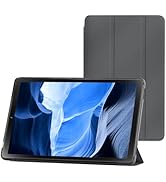
Image: Included accessories with the HAOVM M8 PLUS tablet.
3. Product Overview
The HAOVM M8 PLUS is an 8-inch Android tablet designed for versatile use. It features a sleek design and intuitive controls.

Image: Front view of the HAOVM M8 PLUS tablet.
3.1. Physical Features
- Display: 8-inch IPS HD (1280x800)
- Cameras: Front camera, 8MP Rear camera
- Ports: USB Type-C for charging and data transfer, 3.5mm Headphone Jack
- Buttons: Power On/Off, Volume Up/Down
- Speakers: Dual Speakers
- Card Slots: MicroSD card slot (expandable up to 1TB), SIM card slot (for cellular data/calls)
Video: A brief overview of the tablet's physical design, including the case and SIM card tray.
4. Setup
4.1. Initial Power On
- Press and hold the Power On/Off button located on the side of the tablet until the screen lights up.
- Follow the on-screen prompts to select your language, connect to a Wi-Fi network, and set up your Google account.
4.2. Charging the Tablet
Before first use, it is recommended to fully charge the tablet. Use the provided USB Type-C cable and power adapter.
- Connect the USB Type-C cable to the tablet's charging port.
- Plug the power adapter into a wall outlet.
- The charging indicator will appear on the screen. A full charge typically takes less than 3 hours.

Image: Battery and charging features of the tablet.
Video: Demonstrating the tablet's charging process and included accessories.
4.3. Inserting a MicroSD Card (Optional)
To expand storage, you can insert a MicroSD card (up to 1TB, sold separately).
- Locate the MicroSD card slot on the side of the tablet.
- Use the provided SIM ejector tool (or a small paperclip) to gently press into the small hole next to the slot to eject the tray.
- Place the MicroSD card onto the tray with the gold contacts facing down.
- Carefully reinsert the tray into the slot until it clicks into place.
4.4. Inserting a SIM Card (Optional)
For cellular data and calls, you can insert a SIM card (sold separately).
- Follow the same steps as for inserting a MicroSD card to open the tray.
- Place your SIM card onto the designated slot on the tray.
- Carefully reinsert the tray into the slot.
5. Operating Instructions
5.1. Navigating the Android OS
The tablet runs on a native Android OS, providing full access to the Google Play Store and a familiar user interface.
- Home Screen: Swipe left or right to access different app pages.
- Notifications: Swipe down from the top of the screen to view notifications and quick settings.
- App Drawer: Swipe up from the bottom of the screen to access all installed applications.

Image: Full access to the Google Play Store for various applications.
5.2. Display Modes
The IPS HD display offers various modes for enhanced viewing comfort:
- Normal Mode: Provides crisp, clear details and vivid colors.
- Read Mode: Optimizes the display for comfortable reading, similar to paper.
- Eye Comfort Function: Filters blue light to reduce eye fatigue, especially useful at night.

Image: Different display modes for optimal viewing.
5.3. Connectivity
- Wi-Fi: Supports ultra-fast 2.4Ghz and 5Ghz Wi-Fi for internet access.
- Bluetooth: Connect wireless accessories like headphones or speakers.
- FM Radio: Listen to your favorite radio stations.
- GPS: Built-in GPS for offline navigation. Download maps before traveling.
- Cellular (with SIM card): Make calls, send texts, and use mobile data.

Image: Tablet demonstrating GPS navigation capabilities.
5.4. Camera Functions
The tablet is equipped with a front camera and an 8MP rear camera.
- Taking Photos: Open the Camera app and tap the shutter button.
- Recording Videos: Switch to video mode in the Camera app and tap the record button.
- Video Calls: Use the front camera for video calls through compatible applications.

Image: Tablet features including camera, speakers, and connectivity.
5.5. Parental Control
The tablet includes parental control features to manage content and usage for children.
- Access parental controls through the device settings to set limits, filter content, and monitor activity.
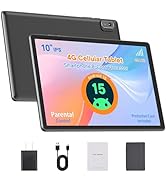
Image: Tablet designed with parental controls for kid-friendly content.
6. Specifications
| Feature | Detail |
|---|---|
| Model Name | M8PLUS |
| Screen Size | 8 Inches |
| Screen Resolution | 1280x800 (IPS HD) |
| Processor | MediaTek 2 GHz Octa-core (MT8183) |
| RAM | 4 GB SDRAM DDR4 |
| Internal Storage | 64 GB |
| Expandable Storage | Up to 1 TB via TF card (MicroSD) |
| Battery Capacity | 5100 mAh |
| Average Battery Life | Up to 12 Hours (mixed-use) |
| Operating System | Android |
| Wireless Type | 802.11ac (2.4Ghz & 5Ghz WiFi) |
| Bluetooth | Yes |
| GPS | Built-in GPS, GLONASS, Galileo |
| Rear Webcam Resolution | 8 MP |
| Item Weight | 13 ounces |
| Product Dimensions | 8.3 x 4.96 x 0.35 inches |

Image: Tablet's processor and connectivity details.

Image: Tablet's memory and storage capabilities.
7. Maintenance
- Cleaning: Use a soft, lint-free cloth to clean the screen and body. Avoid abrasive cleaners.
- Storage: Store the tablet in a cool, dry place away from direct sunlight and extreme temperatures.
- Battery Care: To prolong battery life, avoid fully discharging the tablet frequently. Charge it regularly.
- Software Updates: Regularly check for and install system updates to ensure optimal performance and security.
8. Troubleshooting
- Tablet not turning on: Ensure the tablet is charged. Connect it to the charger and wait a few minutes before attempting to power it on again.
- Screen unresponsive: Try restarting the tablet by holding down the power button for about 10-15 seconds.
- Wi-Fi connectivity issues: Check if Wi-Fi is enabled in settings. Restart your router and the tablet.
- Apps crashing: Ensure apps are updated to their latest versions. Clear the app's cache or reinstall it if issues persist.
- Slow performance: Close unused applications, clear cache, or consider a factory reset if performance significantly degrades. Back up your data before a factory reset.
9. Warranty and Support
HAOVM provides comprehensive service and a 1-year manufacturer warranty for this product.
- Warranty Period: 1 year from the date of purchase.
- Contact Support: For technical assistance, warranty claims, or any product-related inquiries, please refer to the contact information provided in your Quick Start Guide or visit the official HAOVM website.
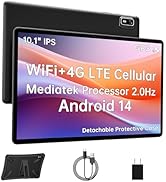
Image: HAOVM customer support and warranty details.


