
1. Introduction
This instruction manual provides detailed guidance for the installation, operation, and maintenance of your ZTUZAUTO Car Play Wireless Adapter. This device is designed to integrate wireless Apple CarPlay, Android Auto, and Mirrorlink functionalities into your BMW vehicle equipped with a CIC iDrive3 system, enhancing your driving experience with modern connectivity features.
2. Product Overview
The ZTUZAUTO Car Play Wireless Adapter is a retrofit kit that allows seamless integration of smartphone features into your BMW's existing display. Key features include:
- Wireless Apple CarPlay: Access navigation, music, messages, and calls directly from your iPhone.
- Wireless Android Auto: Utilize Google Maps, Spotify, and other Android apps on your car's screen.
- Mirrorlink Functionality: Mirror your smartphone screen to the car's display.
- Voice Control: Use Siri or Google Assistant for hands-free operation.
- Original Car Control Retention: Maintain use of your steering wheel buttons and iDrive controller.
- Reverse Camera Support: Integrate with existing or aftermarket reverse cameras.

Image: Wireless CarPlay, Android Auto, and Mirror Link features displayed on a car dashboard.
3. Compatibility
This adapter is specifically designed for BMW vehicles equipped with the CIC iDrive3 system. Please verify your car's system and LVDS connector type before installation. The product is not compatible with NBT or EVO iDrive systems (iDrive4, iDrive5, iDrive6).

Image: Visual guide to identify compatible CIC iDrive3 systems (6 PIN LVDS) and incompatible NBT/EVO systems.
Compatible BMW Models (CIC System, typically 2009-2014):
- BMW 1 Series
- BMW 3 Series
- BMW 5 Series
- BMW 6 Series
- BMW 7 Series
- BMW X1
- BMW X3
- BMW X5
- BMW X6
- MINI (2009-2014)
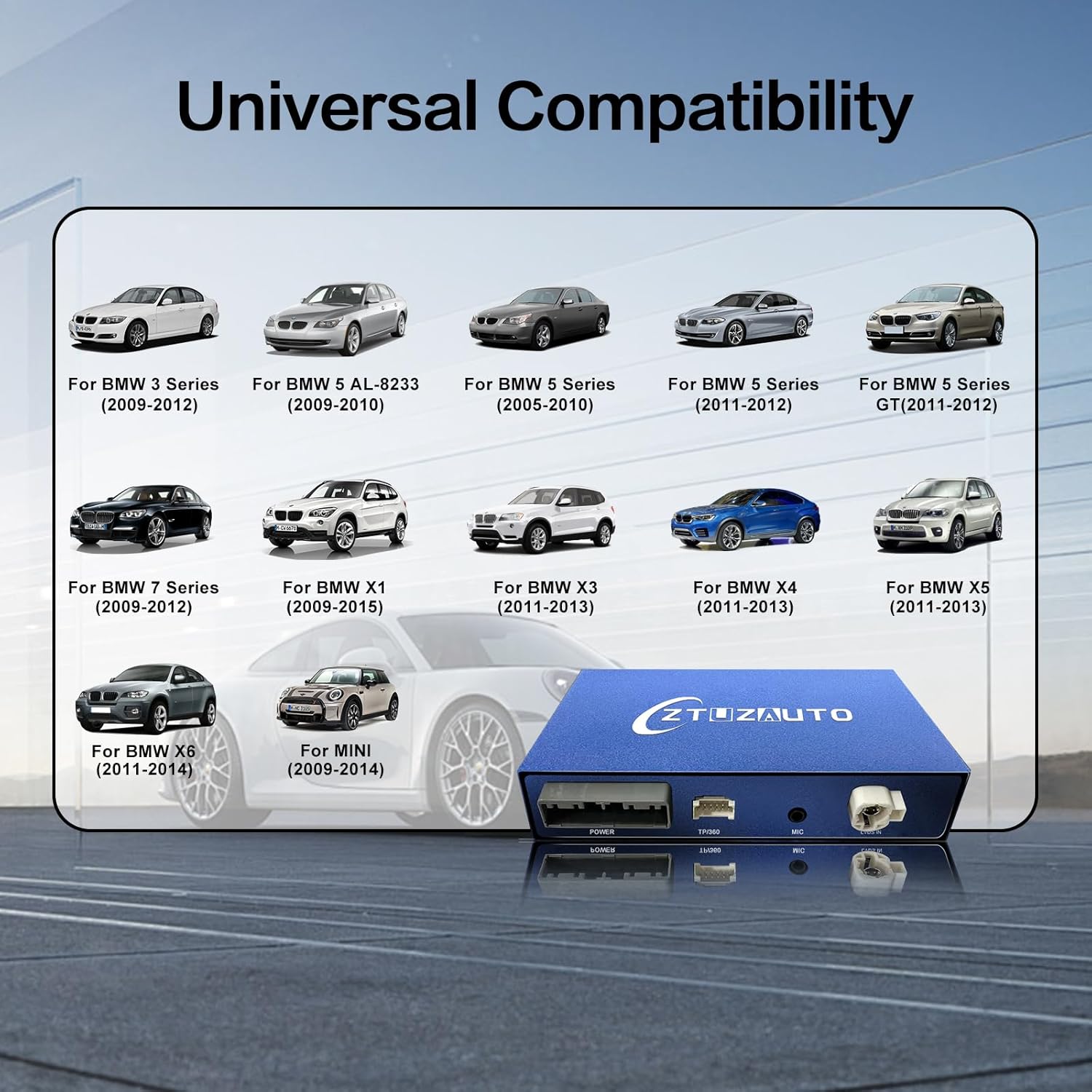
Image: Visual representation of compatible BMW and MINI vehicle models.
4. Package Contents
Please ensure all items are present in the package before proceeding with installation:
- 1x Carplay Smart Box
- 1x Long Power Cable
- 1x RCA/USB Cable
- 1x LVDS Cable
- 1x WI-FI Antenna

Image: The CarPlay smart box and its accompanying cables and antenna.
5. Setup & Installation
The ZTUZAUTO Car Play Wireless Adapter is designed for a 'Plug and Play' installation, meaning no cutting or breaking of original car wires is required. However, professional installation is recommended if you are not confident with automotive electronics.
5.1. Precautions Before Installation
- Before placing an order, ensure your car's model and year are compatible.
- Refer to your car's manual to locate the wiring diagram and dial code that match your vehicle's model.
- After installation, confirm all functions of the module work correctly before restoring the dashboard panels to avoid inconvenience.
5.2. Installation Overview
Installation typically involves removing the car's head unit, connecting the smart box using the provided cables, and then reassembling the dashboard. The process is designed to integrate seamlessly with your original car system.

Image: Overview of the installation process, from disassembling the dashboard to connecting the smart box and testing the display.
5.3. Wireless Connection Steps
For a visual guide on connecting your smartphone wirelessly, please refer to the video below:
Video: Demonstrates the steps for wirelessly connecting your iPhone for Apple CarPlay and Android phone for Android Auto to the ZTUZAUTO adapter.
6. Operating Instructions
6.1. Connecting Wireless CarPlay / Android Auto
- Ensure your phone's Bluetooth is enabled.
- On your phone, search for and pair with the device named "ZTUZAUTO Box_XXXX" (where XXXX is a unique identifier).
- Once Bluetooth is paired, the system will prompt you to enable Wi-Fi for CarPlay/Android Auto. Confirm the connection.
- Your phone's interface should now appear on your car's display.

Image: Steps for connecting your smartphone to the adapter via Bluetooth and Wi-Fi.
6.2. Using Features
Once connected, you can access various applications and functions:
- Navigation: Use your preferred navigation apps (e.g., Apple Maps, Google Maps) for real-time directions.
- Music & Media: Stream music from apps like Spotify, Apple Music, or other media players.
- Communication: Make and receive calls, send and read messages using voice commands or the car's controls.
- Voice Control: Activate Siri or Google Assistant by pressing the voice command button on your steering wheel or the iDrive controller.

Image: Display of core CarPlay functions including music playback, messaging, maps, and phone calls.
6.3. Original Car Functionality
The adapter allows you to retain and utilize your original car controls:
- Steering Wheel Buttons: Control volume, skip tracks, answer/end calls, and activate voice commands.
- iDrive Controller: Navigate through the CarPlay/Android Auto interface, select options, and return to the main menu. Long press the "MENU" button to switch to CarPlay.

Image: Illustration of how to use the original steering wheel controls and iDrive knob with the adapter.
7. Audio Settings
To ensure audio from CarPlay/Android Auto plays through your car's speakers, follow these steps:
7.1. Via AUX Connection
- Access the Settings interface on your car's system.
- Navigate to "Factory Mode" → "Phone Link setting" → Turn off the "Disable phone link audio" option.
- Reboot the system.
- Enter the "Multimedia" interface, click "External devices", then select "AUX front".
7.2. Via Bluetooth Connection
- Access the Settings interface on your car's system.
- Navigate to "Factory Mode" → "Phone Link setting" → Open the option "Disable phone link audio".
- Reboot the system.
- Pair your smartphone with the original vehicle's Bluetooth.
- Select the original car Bluetooth for both phone and music sound sources in the original car media settings.

Image: Detailed steps for configuring audio output through AUX or Bluetooth.
8. Troubleshooting
If you encounter any issues during installation or operation, please consider the following:
- No Sound: Verify your audio settings as described in Section 7. Ensure the correct AUX input or Bluetooth audio source is selected.
- Connection Issues: Ensure Bluetooth is paired and Wi-Fi is enabled on your smartphone. Try restarting both your phone and the car's infotainment system.
- Display Problems: Check all cable connections, especially the LVDS cable, to ensure they are securely seated.
- System Unresponsive: Attempt a system reboot by turning off the car's ignition and restarting after a few minutes.
For persistent issues, please contact ZTUZAUTO customer support for assistance. Do not attempt to repair the device yourself, as this may void your warranty.
9. Specifications
| Feature | Description |
|---|---|
| Brand | ZTUZAUTO |
| Vehicle Service Type | Car |
| Screen Size Compatibility | 6.5 Inches (compatible with original screen) |
| Special Feature | Built-In Bluetooth |
| Connectivity Technology | Bluetooth, Wi-Fi |
| Operating System | Android (for Android Auto functionality) |
| Mounting Type | Dashboard Mount (internal) |
| Product Dimensions (L x W x H) | 5.54" x 3.34" x 0.94" |
| Item Weight | 1160 Grams |
| Human-Interface Input | Buttons, Microphone (retains original car controls) |
| Compatible Devices | Smartphone |
| Control Method | Voice |
10. Warranty & Support
Warranty: A 12-month quality warranty is provided for this product. If you encounter any problems during this period, please contact us. This policy covers all ZTUZAUTO products.
Support: This product is designed not to damage your original car wires or affect your factory car warranty. If you lack confidence in performing the installation, it is advisable to seek assistance from a specialist. For any issues or questions, please contact ZTUZAUTO customer support. We are equipped to provide more specialized assistance than a general auto repair shop. Please ensure all functions of the module are tested before fully restoring the car's panels to prevent unnecessary re-disassembly.