
1. Introduction and Overview
The Autel MaxiSys Ultra is a state-of-the-art intelligent automotive diagnostic scanner, representing the pinnacle of diagnostic technology. It integrates a powerful 5-in-1 Vehicle Communication and Measurement Interface (VCMI) with advanced software functionalities such as Topology Mapping 2.0, extensive service functions, and sophisticated ECU programming and coding. Designed for professional technicians and large auto workshops, the MaxiSys Ultra provides comprehensive vehicle coverage and precise diagnostic capabilities to streamline repair processes and enhance efficiency.
2. What's in the Box
Upon unboxing your Autel MaxiSys Ultra, you will find the following components:
- Main Tablet (Autel MaxiSys Ultra)
- Vehicle Communication and Measurement Interface (VCMI)
- Cables and Adapters (including MV108 digital inspection camera)

Image: The complete Autel MaxiSys Ultra kit, showcasing the main tablet, the 5-in-1 VCMI, the MV108 digital inspection camera, and various cables and adapters, all neatly organized in a durable carrying case.
3. Key Features and Functions
The Autel MaxiSys Ultra is equipped with a suite of advanced features to provide unparalleled diagnostic and repair capabilities:
3.1. Advanced Diagnostic Functions
- 40+ Reset Service Functions: Comprehensive coverage for various vehicle maintenance and reset procedures.
- Active Test (Bi-Directional Control): Perform specific component tests and functions to verify system integrity.
- All System Diagnostics: In-depth scanning and analysis of all available vehicle modules.
- VAG Guided Functions: Step-by-step instructions for complex diagnostic and service procedures on Volkswagen Audi Group vehicles.
- Refresh Hidden Features: Unlock and activate hidden features present in the vehicle's ECU.
- AutoScan 2.0: Faster and more efficient vehicle system scanning.

Image: A visual representation of the Autel MaxiSys Ultra's advanced and ultra-level functions, including 40+ Reset Service, Active Test, All System Diagnostics, VAG Guided, Refresh Hidden Features, AutoScan 2.0, Motor TruSpeed Repair, Topology Mapping 2.0, OE ECU Programming, and Dealer-level Coding.
3.2. 5-in-1 VCMI (Vehicle Communication and Measurement Interface)
The advanced 5-in-1 Autel MaxiFlash VCMI consolidates multiple diagnostic tools into one unit, enhancing efficiency and precision:
- VCI (Vehicle Communication Interface): Facilitates communication between the tablet and the vehicle.
- Oscilloscope: Displays changes of signals in graph form with ultra-precision, crucial for detailed electrical diagnostics.
- Waveform Generator: Simulates signals of various sensors and ECU modules for testing.
- Multimeter: Measures voltage, current, resistance, frequency, diode, and duty cycle.
- OBD CAN Bus Check: Displays connection status between the Ultra and the vehicle visually.

Image: The 5-in-1 VCMI unit with icons representing its capabilities: Oscilloscope, Waveform Generator, OBD CAN Bus Check, Multimeter, and VCMI Manager. It also highlights support for D-PDU, CAN-FD, DoIP, and J2534 protocols.
3.3. OE-Level Topology Mapping 2.0
Topology Mapping 2.0 provides an intuitive and comprehensive view of the vehicle's network structure, allowing for clearer problem identification and diagnosis:
- Auto-Scan All Modules: Quickly identifies all modules in the vehicle.
- Color-Coded for Easy Analysis: Visual cues for quick understanding of system status.
- Visually Check DTCs & Structure: See diagnostic trouble codes and the vehicle's structural layout intuitively.
- Click to Check Fault Code: Easily access detailed information about specific fault codes.
- Support 50+ Main Car Brands: Broad compatibility for various vehicle manufacturers.

Image: The Topology Mapping 2.0 interface on the Autel MaxiSys Ultra tablet, showing a color-coded network diagram of vehicle modules and their communication status, with options for Auto-Scan, DTCs, and fault code checks.
3.4. ECU Programming & Coding
The MaxiSys Ultra offers advanced capabilities for Electronic Control Unit (ECU) management:
- ECU Programming: Update ECU software/firmware, program new modules, and resolve software-driven issues for BMW and Mercedes-Benz vehicles.
- ECU Coding: Unlock hidden features and activate high-end functions to optimize vehicle performance on many regular car models.
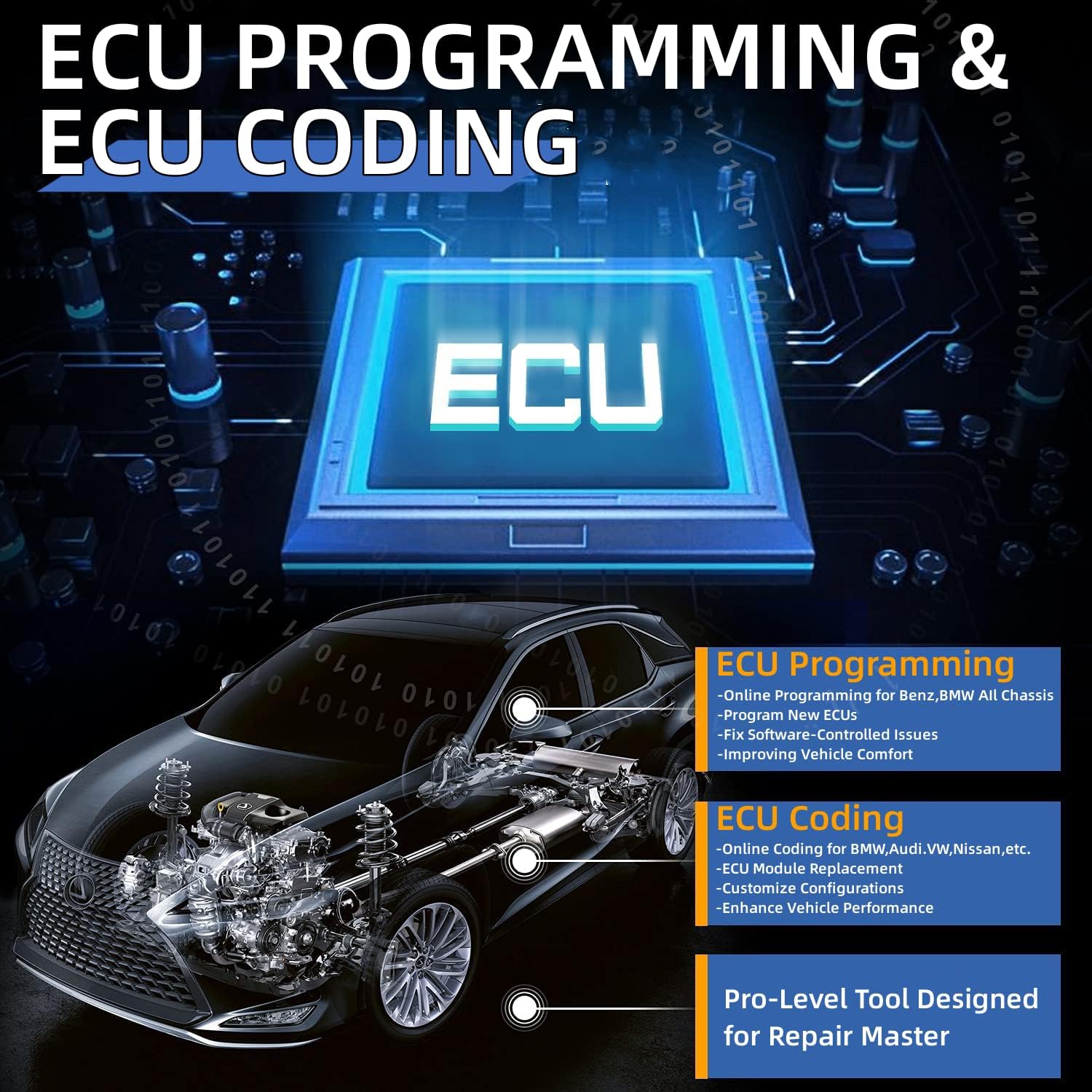
Image: A diagram illustrating ECU Programming and Coding, showing a vehicle's internal systems connected to the Autel MaxiSys Ultra tablet. The image highlights online programming for BMW/Mercedes-Benz and advanced coding for various car brands.
3.5. 40+ Service Functions
The Autel MaxiSys Ultra supports over 40 comprehensive service functions for a wide range of vehicles, including but not limited to:
- EPB Reset (Electronic Parking Brake)
- SAS Calibration (Steering Angle Sensor)
- BMS (Battery Management System)
- Throttle Reset
- ABS Bleed (Anti-lock Braking System)
- Injector Coding
- Power Balance
- Suspension Calibration
- VGT Turbo Calibration
- Transmission Adaptation
- Headlamps Adjustment
- Window Door Roof Initialization

Image: A collage of icons and small images illustrating various service functions available on the Autel MaxiSys Ultra, such as Oil Reset, EPB, BMS, SAS, Throttle Reset, ABS Bleeding, Injector Coding, and more.
4. Setup
Before using your Autel MaxiSys Ultra, ensure proper setup for optimal performance:
- Charge the Tablet: Connect the MaxiSys Ultra tablet to the power adapter and charge it fully before first use.
- Connect VCMI: Plug the VCMI into the vehicle's OBD-II port. Ensure a secure connection.
- Pair VCMI with Tablet: The VCMI connects wirelessly to the tablet via Wi-Fi. Follow the on-screen prompts on the tablet to establish the connection.
- Initial Software Setup: Power on the tablet and follow the guided setup process, including language selection, Wi-Fi connection, and software updates. Ensure your software is up-to-date for the latest vehicle coverage and functions.
5. Operating Instructions: Performing a Relative Compression Test
The Autel MaxiSys Ultra, with its integrated oscilloscope and VCMI, simplifies complex diagnostic procedures like the relative compression test. This test helps assess the mechanical health of an engine by measuring the amperage draw from the starter during cranking.
5.1. Test Preparation
- Identify Battery Location: Locate the vehicle's battery, typically in the engine compartment.
- Connect Oscilloscope Leads: Connect one end of the oscilloscope lead to Channel A on the VCMI and the other end to a large dolphin clip (red). Connect the red clip to the battery's positive (+) terminal.
- Connect Current Clamp: Connect the 650A AC/DC current clamp to Channel B on the VCMI. Clamp the current clamp around the battery positive wire. Ensure the current clamp is switched ON and set to the 1mV/1A range. Press ZERO on the clamp before the test.
- Disable Fuel System: To prevent the engine from starting during the test, disable the vehicle's fuel system (e.g., by pulling the fuel pump fuse or relay).
- Ensure Battery Health: Verify the battery is in good condition using a battery tester (e.g., Autel BT608). If the vehicle has multiple batteries, isolate one for the test to ensure accurate readings.
5.2. Tablet Operation
- On the MaxiSys Ultra tablet, select the 'Measurement' application.
- Choose 'Oscilloscope'.
- Select the car icon at the top of the screen.
- Navigate to 'Engine Starting' > 'Starter' > 'Starting Current/Voltage (TDV)'.
- The tablet will display connection guidance and test kit requirements. Review these to ensure correct setup.
- Press 'Start' on the tablet to begin recording data.
5.3. Performing the Test
- With the fuel system disabled, crank the engine for a few seconds. The tablet will wirelessly capture the voltage and amperage waveforms.
- Observe the waveform on the tablet. The red line represents voltage, and the green line represents amperage.
- Use the buffer controls at the bottom of the screen to review the captured waveform.
- Utilize the measurement tools (e.g., cursors) to analyze the peak-to-peak amperage draw for each cylinder. Consistent peaks indicate good mechanical health. A significant drop in a peak suggests a compression issue in that cylinder.
Video: A detailed demonstration of performing a relative compression test on a vehicle using the Autel MaxiSys Ultra, highlighting the connection of the VCMI and current clamp, and the analysis of the waveform on the tablet screen.
6. Maintenance
Regular maintenance ensures the longevity and optimal performance of your Autel MaxiSys Ultra:
- Software Updates: Regularly check for and install software updates via Wi-Fi to ensure the latest vehicle coverage, bug fixes, and new features.
- Cleaning: Keep the tablet and VCMI clean. Use a soft, damp cloth to wipe surfaces. Avoid abrasive cleaners or solvents.
- Screen Protection: Consider using a screen protector to prevent scratches and damage to the display.
- Storage: Store the device and its accessories in the provided carrying case in a dry, cool environment when not in use.
- Battery Care: Avoid fully discharging the battery frequently. Charge the tablet regularly, even when not in active use, to maintain battery health.
7. Troubleshooting
If you encounter issues with your Autel MaxiSys Ultra, consider the following troubleshooting steps:
- No Power: Ensure the tablet is fully charged. Check the power adapter and charging cable for damage.
- VCMI Connection Issues: Verify the VCMI is securely plugged into the vehicle's OBD-II port. Check the Wi-Fi connection between the VCMI and the tablet. Restart both the tablet and the VCMI.
- Software Freezing/Lagging: Close unnecessary applications running in the background. Perform a system restart. Ensure sufficient storage space on the tablet.
- Vehicle Communication Error: Confirm the vehicle's ignition is on. Check the vehicle's battery voltage. Ensure the correct vehicle make, model, and year are selected in the software. Verify the OBD-II port is functioning correctly.
- Inaccurate Readings: Ensure all test leads and clamps are correctly connected and calibrated (e.g., zeroing the current clamp). Check for any damage to the leads or sensors.
8. Specifications
| Specification | Detail |
|---|---|
| Operating System | Android 7.0 |
| Processor | 2.3GHz Quad + 1.7GHz Quad |
| RAM & ROM | 4GB RAM & 256GB ROM |
| Display | 12.9'' TFT-LCD, 2732x2048 resolution |
| Cameras | Front 5M & Rear 16M |
| Battery | 18000mAh Lithium Ion |
| Connectivity | Wi-Fi & BT Dual Wireless Connection (5G & 2.4 GHz) |
| Vehicle Coverage | 99.99% vehicle coverage, 150+ Makes from 1996-2025 |
| VCMI Functions | VCI, Oscilloscope, Waveform Generator, Multimeter, OBD2 CAN Bus Check |
| Dimensions | 14.3 x 1.34 x 11.6 inches |
| Item Weight | 31.7 pounds |
9. Warranty and Support
The Autel MaxiSys Ultra comes with a manufacturer's warranty. For specific details regarding warranty coverage, duration, and terms, please refer to the warranty card included with your product or visit the official Autel website. Additionally, extended protection plans may be available for purchase.
For technical support, product inquiries, or service assistance, please contact Autel customer support through their official channels. You can often find support contact information on the Autel website or within the device's software interface.


