
Introduction
This manual provides detailed instructions for the Keychron K14 Pro Wireless Custom Mechanical Keyboard. It covers setup, operation, maintenance, troubleshooting, and product specifications to ensure optimal use of your device.

Image: The Keychron K14 Pro keyboard positioned on a desk, alongside a laptop and a smartphone, illustrating a typical workspace setup.

Image: An exploded diagram showcasing the internal components of the Keychron K14 Pro keyboard, including keycaps, switches, sound-absorbing foam, plate, silicone bottom pad, PCB, and bottom case, highlighting its 'Upgraded Typing Experience' design.
Setup
1. Package Contents
- Keychron K14 Pro Keyboard
- USB Type-C to Type-C Cable
- USB Type-A to Type-C Adapter
- Keycap Puller
- Switch Puller
- User Manual
2. Initial Charging
Before first use, connect the keyboard to a power source using the provided USB Type-C cable. The keyboard features a 4000 mAh battery. A full charge is recommended for optimal wireless performance.
3. Connectivity Modes
The K14 Pro supports both wireless (Bluetooth 5.1) and wired (USB Type-C) connections.
- Wired Mode: Connect the USB Type-C cable directly to your computer.
- Bluetooth Mode:
- Toggle the switch on the side of the keyboard to "BT".
- Press and hold Fn1 + 1 (or Fn1 + 2 / Fn1 + 3) for 4 seconds to enter pairing mode. The backlight will flash rapidly.
- On your device (laptop, phone, tablet), search for "Keychron K14 Pro" in Bluetooth settings and connect.
- The keyboard can connect to up to three devices simultaneously. Switch between paired devices by pressing Fn1 + 1, Fn1 + 2, or Fn1 + 3.

Image: Visual representation of the keyboard's Bluetooth 5.1 connectivity supporting three channels and its USB Type-C detachable cable for wired connection.
4. Operating System Compatibility
The K14 Pro is compatible with macOS, Windows, and Linux. Use the OS toggle switch located on the side of the keyboard to select your operating system for correct key mapping.
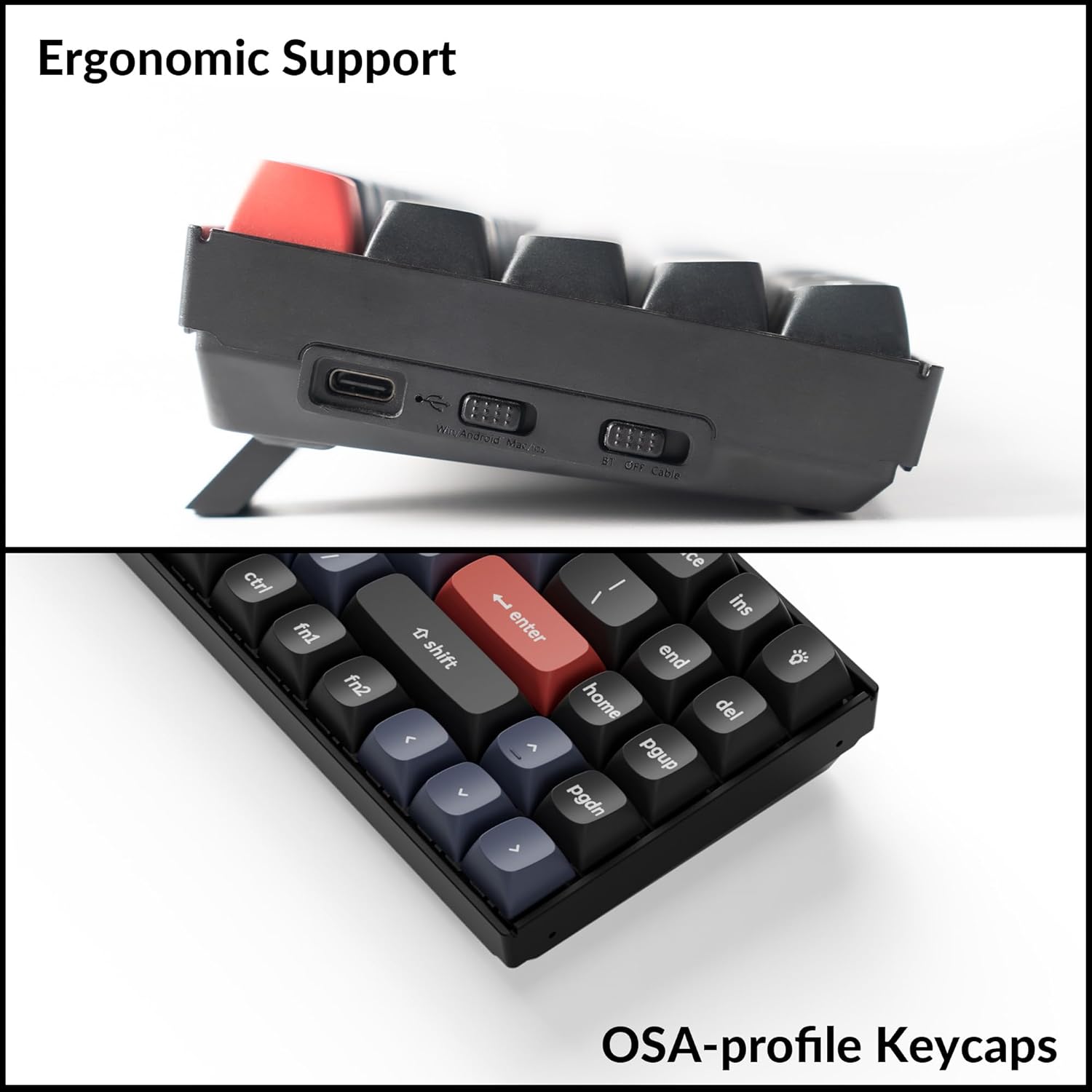
Image: The Keychron K14 Pro keyboard demonstrating its compatibility with macOS, Windows, and Linux, highlighting the physical switch for OS selection and corresponding keycap legends.
5. Physical Features
The keyboard features adjustable feet for three typing angles (3.5°, 8°, and 12°) and a USB-C port for wired connection and charging.

Image: A side view of the Keychron K14 Pro keyboard, illustrating its adjustable feet for ergonomic typing angles and the USB-C port. A separate close-up shows the profile of the OSA keycaps.
Operating Instructions
1. QMK/VIA Programmability
The K14 Pro supports QMK/VIA for advanced customization. This allows you to remap keys, create macros, and configure lighting effects.
- Download the VIA software from the official Keychron website.
- Connect the keyboard to your computer via USB Type-C cable. Key remapping functions are only active in wired mode.
- Use the VIA software to drag and drop desired key functions or macros to any key. The changes will apply to both wired and wireless modes once configured.

Image: A screenshot of the QMK/VIA software interface, displaying the graphical layout for key remapping and macro creation on the Keychron K14 Pro.
2. Key Combinations
The K14 Pro features various key combinations for multimedia control, function keys, and backlight adjustments.
- Multimedia Keys: Press Fn1 + corresponding key for media control (e.g., play/pause, volume).
- Function Keys (F1-F12): Press Fn2 + corresponding number key to access F1-F12 functions.
- Backlight Effects:
- Fn1 + A: Change lighting effect.
- Fn1 + Caps Lock: Turn backlight on/off.
- Fn1 + S: Increase backlight brightness.
- Fn1 + X: Decrease backlight brightness.

Image: A visual guide detailing the various key combinations on the K14 Pro for controlling multimedia, accessing function keys, and adjusting backlight settings.
3. Hot-swappable Switches
The K14 Pro features hot-swappable sockets, allowing you to change mechanical switches without soldering. It supports most 3-pin and 5-pin MX mechanical switches.

Image: A hand demonstrating the process of removing a mechanical switch from the keyboard using a switch puller, highlighting the hot-swappable feature.
To replace a switch:
- Gently remove the keycap using the provided keycap puller.
- Use the switch puller to carefully grip the top and bottom clips of the switch.
- Pull the switch straight up to remove it from the PCB.
- Align the pins of the new switch with the holes on the PCB and press down firmly until it clicks into place. Ensure pins are not bent.
- Replace the keycap.

Image: A close-up view of the keyboard's hot-swappable switches, showcasing the backlighting beneath the keycaps.
Maintenance
1. Cleaning the Keyboard
- Disconnect the keyboard from all power sources.
- Use a soft brush or compressed air to remove dust and debris from between the keycaps.
- For stubborn dirt, gently remove keycaps using the keycap puller and clean the switch housing with a cotton swab lightly dampened with isopropyl alcohol.
- Wipe the keycaps and keyboard surface with a microfiber cloth. Avoid excessive moisture.
2. Keycap Care (Double-shot PBT)
The K14 Pro comes with durable double-shot PBT keycaps, known for their oil resistance and longevity. To clean them, remove them from the keyboard and wash with mild soap and water. Ensure they are completely dry before reattaching.

Image: An illustrative diagram explaining the construction of double-shot keycaps, showing how two separate plastic molds are used to create the keycap and its legend for enhanced durability and legibility.
Troubleshooting
1. Keyboard Not Responding
- Wired Mode: Ensure the USB Type-C cable is securely connected to both the keyboard and the computer. Try a different USB port or cable.
- Bluetooth Mode:
- Check if the keyboard is in "BT" mode using the toggle switch.
- Ensure Bluetooth is enabled on your device.
- Try re-pairing the keyboard (press and hold Fn1 + 1 for 4 seconds).
- Verify the correct Bluetooth channel is selected (Fn1 + 1/2/3).
- Ensure the keyboard battery is charged.
2. Keys Not Registering or Double-Typing
- This could indicate a faulty switch. Utilize the hot-swappable feature to replace the problematic switch.
- Ensure the switch is fully seated in its socket.
3. Backlight Issues
- Ensure the backlight is not turned off (Fn1 + Caps Lock).
- Adjust brightness using Fn1 + S (increase) or Fn1 + X (decrease).
- Check if the keyboard is in a low-power state; charge the battery.
4. VIA Software Not Detecting Keyboard
- Ensure the keyboard is connected via USB Type-C cable. VIA only works in wired mode.
- Verify you have the correct VIA firmware loaded for the K14 Pro.
- Restart the VIA software and reconnect the keyboard.
Specifications
| Model | Keychron K14 Pro |
| Layout | 70% (72-key) |
| Connectivity | Bluetooth 5.1 (3 devices), USB Type-C (wired) |
| Compatible Devices | Laptop, Desktop, Smartphone, Tablet, Mac, Windows, Linux |
| Switch Type | Keychron K Pro Mechanical (Red Switch) |
| Hot-swappable | Yes (supports 3-pin and 5-pin MX mechanical switches) |
| Keycaps | OSA Double-shot PBT |
| Backlight | RGB Backlit (South-facing) |
| Battery | 4000 mAh rechargeable Li-polymer |
| Bluetooth Working Time (Backlight off) | Approx. 260 hours (Lab result, actual use may vary) |
| Polling Rate (Wired) | 1000 Hz |
| MCU | Ultra-low-power ARM Cortex-M4 32-bit STM32L432 (128KB Flash) |
| Typing Angle | 3.5°, 8°, and 12° (adjustable feet) |
| Dimensions | 331.1 x 102.45 mm (13.03 x 4.03 inches) |
| Item Weight | 1.85 pounds |
| Manufacturer | Keychron |

Image: A visual summary of the Keychron K14 Pro's technical specifications, including dimensions, connectivity, battery life, and compatible systems.
Warranty Information
Keychron products typically come with a standard manufacturer's warranty covering defects in materials and workmanship. For specific warranty terms and duration, please refer to the warranty card included with your product or visit the official Keychron website.
Support
For further assistance, technical support, or to download the latest firmware and VIA software, please visit the official Keychron support page:
You may also find helpful resources and community forums on the Keychron website.


