
Sierra Wireless 6001121
Sierra Wireless Airlink Antenna 6-in-1 Dome Instruction Manual
Model: 6001121
Product Overview
The Sierra Wireless Airlink Antenna 6-in-1 Dome is designed for optimal wireless communication. It integrates six high-performance antenna elements within a single, low-profile housing. This includes two ultra-wideband elements (698-2700MHz) for MiMo/diversity LTE frequencies, a high-performance GNSS antenna with an integrated 26dB gain LNA, and three dual-band 2.4/5GHz Wi-Fi elements for 3x3 MiMo Wi-Fi. The antenna is ground plane independent, ensuring consistent performance even when mounted on non-metallic surfaces.
Key features include:
- Designed to operate at 698 MHz to 960 MHz operating frequency range.
- Provides improved signals to your cellular network.
- Can be mounted as a screw mount.
Package Contents
Please verify that all items are present in the package:
- Sierra Wireless Airlink Antenna 6-in-1 Dome (Model: 6001121)
- Mounting hardware (screws, nuts, washers)
- Installation Guide (this document)
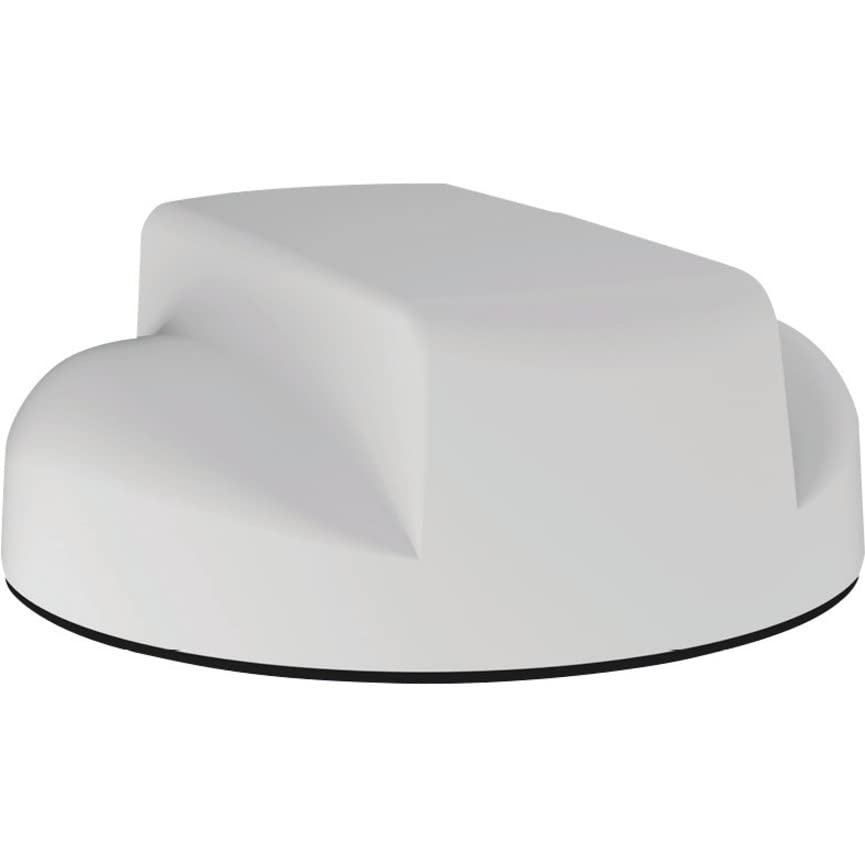
Image: Sierra Wireless Airlink Antenna 6-in-1 Dome. This image shows the compact, low-profile design of the antenna unit.
Setup and Installation
Follow these steps for proper installation of your Sierra Wireless Airlink Antenna:
- Choose a Mounting Location: Select a location that provides optimal signal reception and is free from obstructions. The antenna is designed for screw mounting and can be installed on metallic or non-metallic surfaces.
- Prepare the Mounting Surface: Ensure the surface is clean, dry, and flat. Mark the drilling points according to the antenna's base plate.
- Drill Holes: Carefully drill the necessary holes for the mounting screws and cable routing.
- Secure the Antenna: Place the antenna over the drilled holes. Use the provided screws, washers, and nuts to firmly secure the antenna to the mounting surface. Ensure a tight seal to prevent water ingress if installed outdoors.
- Connect Cables: Route the antenna cables to your AirLink LTE router or gateway. Connect the appropriate cables to the corresponding ports (LTE MiMo, Wi-Fi MiMo, GNSS). Ensure all connections are secure.
- Verify Connections: Double-check all cable connections to ensure they are correctly seated and tightened.
Important: For optimal performance, ensure proper cable management and avoid sharp bends in the cables. Consult your AirLink router/gateway manual for specific port identification.
Operating Instructions
Once the Sierra Wireless Airlink Antenna is physically installed and connected to your AirLink LTE router or gateway, its operation is largely integrated with the connected device.
- Power On the Router/Gateway: Ensure your AirLink LTE router or gateway is powered on.
- Monitor Signal Strength: Refer to the user interface or indicator lights of your AirLink device to monitor the cellular, Wi-Fi, and GNSS signal strength. The antenna is designed to provide improved signals.
- Network Configuration: Any network configuration (e.g., selecting cellular bands, Wi-Fi settings) will be done through the AirLink router/gateway's management interface. The antenna passively enhances these signals.
- GNSS Functionality: If your AirLink device utilizes GNSS, the integrated GNSS antenna will provide positioning data. Ensure the device's GNSS feature is enabled in its settings.
The antenna itself does not require separate power or configuration; it functions as an external signal receiver and transmitter for the connected AirLink device.
Maintenance
The Sierra Wireless Airlink Antenna 6-in-1 Dome is designed for durability and requires minimal maintenance. However, periodic checks can ensure optimal performance.
- Cleaning: Periodically clean the exterior of the antenna dome with a soft, damp cloth to remove dust, dirt, or debris. Avoid using harsh chemicals or abrasive materials.
- Cable Inspection: Annually inspect all connected cables for any signs of wear, damage, or loose connections. Replace damaged cables immediately.
- Mounting Security: Check the mounting screws and hardware periodically to ensure the antenna remains securely fastened, especially after severe weather conditions.
No internal user-serviceable parts are present. Do not attempt to open the antenna housing.
Troubleshooting
If you experience issues with your Sierra Wireless Airlink Antenna, consider the following troubleshooting steps:
- No Signal or Weak Signal:
- Verify all antenna cables are securely connected to the correct ports on your AirLink router/gateway.
- Check the mounting location for new obstructions (e.g., trees, buildings) that might be blocking the signal path.
- Ensure the AirLink router/gateway is powered on and functioning correctly.
- If possible, try repositioning the antenna or the connected device to a location with better line-of-sight to cellular towers or Wi-Fi access points.
- Intermittent Connectivity:
- Inspect cables for damage or loose connections.
- Ensure the antenna is securely mounted and not vibrating or moving.
- Check for potential sources of interference (e.g., other electronic devices, large metal objects) near the antenna.
- GNSS Not Functioning:
- Confirm the GNSS cable is properly connected.
- Ensure the GNSS feature is enabled in your AirLink router/gateway's settings.
- Verify the antenna has a clear view of the sky for satellite reception.
If problems persist after following these steps, please contact Sierra Wireless support or your product vendor.
Specifications
| Attribute | Detail |
|---|---|
| Model Number | 6001121 |
| Brand | Sierra Wireless |
| Antenna Type | 6-in-1 Dome (LTE MiMo, Wi-Fi MiMo, GNSS) |
| Operating Frequency Range (LTE) | 698 MHz to 2700 MHz |
| Operating Frequency Range (Wi-Fi) | 2.4 GHz / 5 GHz (Dualband) |
| Number of Channels | 6 |
| Color | White |
| Item Weight | 4.1 Pounds |
| Manufacturer | Sierra Wireless |
| UPC | 705860673394 |
Warranty and Support
Warranty Information: The provided product information indicates that warranty details are currently not available. Please refer to the official Sierra Wireless website or contact your point of purchase for the most up-to-date warranty policy.
Technical Support: For technical assistance, troubleshooting beyond this manual, or inquiries regarding your Sierra Wireless Airlink Antenna, please contact Sierra Wireless customer support directly. You can typically find contact information on the official Sierra Wireless website or through your product vendor.
Online Resources: Visit the Sierra Wireless website for product documentation, FAQs, and support forums.
Related documents6001121


Ask a question about this manual
Ask about setup, troubleshooting, compatibility, parts, safety, or missing instructions. Manuals+ will review the question and use this page’s manual context to help answer it.