
1. Introduction
This manual provides essential information for setting up, operating, maintaining, and troubleshooting your GEEKOM Fun9 Mini PC. Please read this manual thoroughly before using the device to ensure proper functionality and longevity.
The GEEKOM Fun9 is a high-performance Mini PC designed for gaming, workstation tasks, and multimedia consumption. It features an Intel Core i9-9980HK processor, ample memory, and versatile connectivity options.

Image 1: GEEKOM Fun9 Mini PC, showcasing its compact design with a transparent side panel and RGB lighting.
2. Package Contents
Verify that all items are present in the package before proceeding with the setup.
- GEEKOM Fun9 Mini PC
- Power Adapter and Cable
- User Manual
- HDMI Cable (optional, may vary by region)
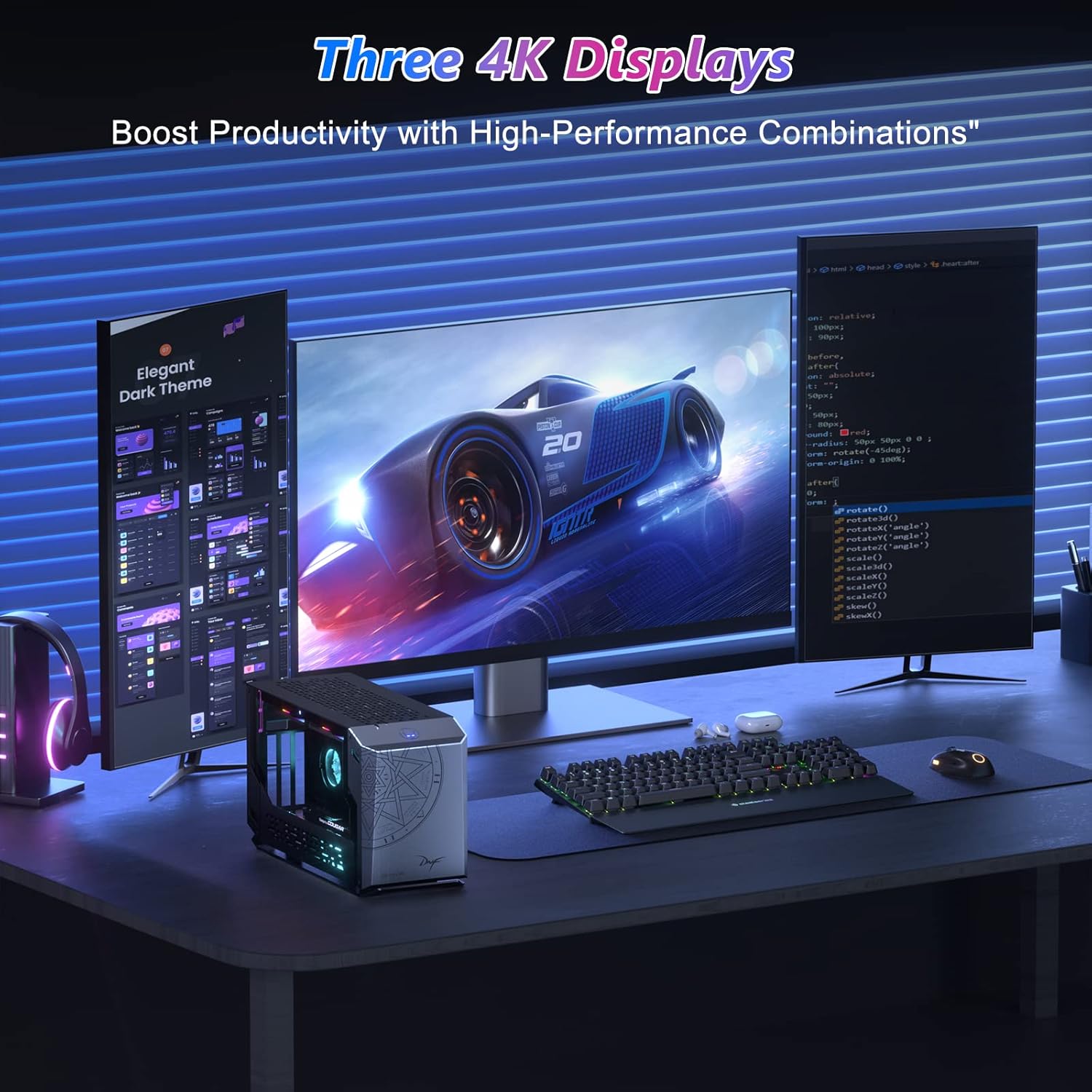
Image 2: The GEEKOM Fun9 Mini PC, power cable, and user manual as typically found in the product packaging.
3. Physical Overview
Familiarize yourself with the ports and buttons on your GEEKOM Fun9 Mini PC.
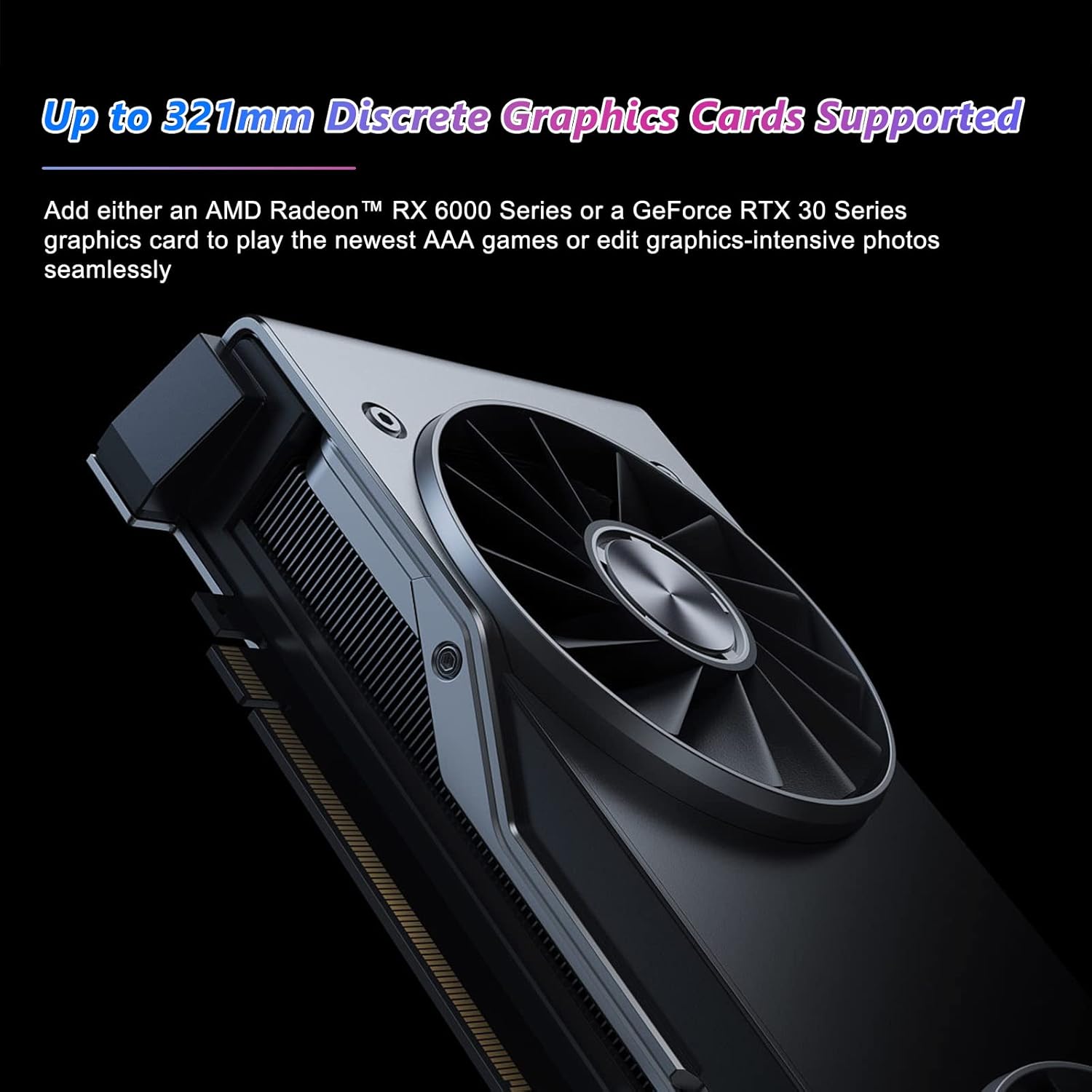
Image 3: Detailed diagram of the GEEKOM Fun9 Mini PC's rear and top panel, highlighting various ports and buttons.
Front/Top Panel:
- RGB Light Change Button: Press to cycle through RGB lighting effects.
- USB-C Port (Data Only): For connecting USB-C devices for data transfer.
Rear Panel:
- Power Button: To turn the Mini PC on or off.
- 4 x USB 3.2 Gen2 Ports: For connecting USB peripherals such as keyboards, mice, and external storage.
- 2 x Intel Gigabit Ethernet Ports: For wired network connectivity.
- 1 x HDMI 2.0a Port: For connecting to a display.
- 2 x Thunderbolt 3 Ports: High-speed ports for data, display, and power delivery, supporting external GPUs.
- 1 x 3.5 mm Headphone Jack: For audio output.
4. Setup Instructions
Follow these steps to set up your GEEKOM Fun9 Mini PC:
- Connect to a Display: Connect your monitor or TV to the Mini PC using an HDMI cable or a Thunderbolt cable.
- Connect Peripherals: Plug in your USB keyboard and mouse into the available USB 3.2 Gen2 ports.
- Connect to Network: For wired internet, connect an Ethernet cable to one of the LAN ports. For wireless internet, ensure your Wi-Fi network is available during initial setup.
- Connect Power: Plug the power adapter into the DC-in port on the Mini PC, then connect the power cable to an electrical outlet.
- Power On: Press the Power Button on the rear panel to turn on the Mini PC.
- Initial Operating System Setup: Follow the on-screen instructions to complete the Windows operating system setup, including language, region, network connection, and user account creation.
5. Operating Instructions
Power On/Off
- To Power On: Press the Power Button.
- To Power Off: Click the Start menu in Windows, then select Power > Shut down. Alternatively, press and hold the Power Button for 4 seconds to force a shutdown (use only when necessary).
Network Connectivity
- Wired Connection: Connect an Ethernet cable to one of the two Gigabit LAN ports.
- Wireless Connection: The Mini PC supports Wi-Fi 6. Access network settings in Windows to connect to your preferred wireless network.
External Graphics Card Support
The GEEKOM Fun9 Mini PC supports external graphics cards via its Thunderbolt 3 ports. This allows for enhanced graphics performance for demanding applications and gaming.

Image 4: An external graphics card connected to a Mini PC, illustrating the capability to boost graphical performance.
Multi-Display Setup
The Mini PC supports up to three 4K displays simultaneously, enhancing productivity and immersive experiences.

Image 5: A GEEKOM Fun9 Mini PC connected to three 4K displays, demonstrating its multi-monitor capability for enhanced productivity.
6. Specifications
Detailed technical specifications for the GEEKOM Fun9 Mini PC:
| Feature | Specification |
|---|---|
| Brand | GEEKOM |
| Model Number | Fun9 |
| Series | Fun9 |
| Operating System | Windows |
| Hardware Platform | Tigerlake UP3 |
| Processor Brand | Intel |
| Processor Type | Intel Core i9-9980HK |
| Processor Speed | 5 GHz |
| Number of Cores | 8 |
| Installed RAM Size | 32 GB DDR4 |
| Maximum Memory | 64 GB |
| Hard Drive Size | 1 TB |
| Hard Drive Technology | SSD |
| Hard Drive Interface | PCIE x 4 |
| Graphics Chipset Brand | Intel |
| Graphics Card Description | Integrated (Intel UHD Graphics 630) |
| Graphics Coprocessor | Integrated Graphics Card |
| Screen Resolution | 3840 x 2160 (4K) |
| Connectivity Type | Bluetooth, Wi-Fi 6 |
| Hardware Interface | Ethernet, HDMI, Thunderbolt, USB |
| Number of HDMI Ports | 3 |
| Number of USB 3.0 Ports | 4 (USB 3.2 Gen2) |
| Connector Type | HDMI, LAN, Thunderbolt 3, USB |
| Special Features | RGB Lighting |
| Specific Uses for Product | Business, Gaming, Multimedia |
| PC Type | Mini PC |

Image 6: Visual representation of the Intel Core i9 high-performance CPU, highlighting its 5 GHz max turbo frequency, 8 cores, 16MB L3 cache, and 45W TDP.

Image 7: Abstract representation of integrated graphics, indicating Intel UHD Graphics 630 with a frequency range of 350 MHz to 1.25 GHz.
7. Maintenance
Proper maintenance ensures the longevity and optimal performance of your Mini PC.
- Cleaning: Use a soft, dry cloth to clean the exterior of the Mini PC. For dust accumulation in vents, use compressed air. Ensure the device is powered off and unplugged before cleaning.
- Ventilation: Ensure the Mini PC is placed in a well-ventilated area. Do not block the ventilation openings.
- Software Updates: Regularly update your operating system and drivers to maintain security and performance.
8. Troubleshooting
This section addresses common issues you might encounter with your GEEKOM Fun9 Mini PC.
No Power
- Ensure the power adapter is securely connected to both the Mini PC and a working electrical outlet.
- Verify the power outlet is functional by plugging in another device.
- Try a different power cable if available.
No Display Output
- Check that the HDMI or Thunderbolt cable is securely connected to both the Mini PC and the monitor.
- Ensure the monitor is powered on and set to the correct input source.
- Test with a different display cable or monitor if possible.
Network Connectivity Issues
- Wired: Ensure the Ethernet cable is properly connected and the router/modem is working. Check network adapter settings in Windows.
- Wireless: Verify Wi-Fi is enabled in Windows settings. Restart your router/modem. Ensure you are within range of your Wi-Fi network.
Peripherals Not Recognized
- Try connecting the peripheral to a different USB port.
- Ensure the peripheral's drivers are installed and up to date.
- Test the peripheral on another computer to rule out device malfunction.
9. Warranty and Support
Your GEEKOM Fun9 Mini PC comes with a standard manufacturer's warranty. Please refer to the warranty card included in your package for specific terms and conditions, including warranty duration and coverage.
For technical support, service, or warranty claims, please contact GEEKOM customer service through their official website or the contact information provided in your product documentation. When contacting support, please have your product model (Fun9) and serial number ready.