
1. Product Overview
The WAVLINK 13-in-1 USB C Triple Display Docking Station is designed to expand the connectivity of your USB-C enabled laptop or device. It provides multiple ports for video output, data transfer, network connectivity, and power delivery, enhancing your productivity and workstation setup.

Image 1.1: The WAVLINK docking station connected to a laptop with various peripherals, including HDMI cables, USB devices, and an Ethernet cable.

Image 1.2: A detailed view of the WAVLINK docking station, highlighting its 13 ports including HDMI, DisplayPort, USB 3.0, USB 2.0, SD/TF card slots, RJ45 Ethernet, 3.5mm audio, and PD charging port.
2. Package Contents
- WAVLINK 13-in-1 USB C Triple Display Docking Station
- User Manual
3. Setup Instructions
3.1 Connecting to Your Host Device
- Connect the integrated USB-C cable from the docking station to the USB-C port on your laptop or compatible device.
- For power delivery, connect a USB-C Power Delivery (PD) charger (up to 100W input) to the PD 3.0 charging port on the docking station. This will provide up to 89W of power to your laptop and 11W to other peripherals.
3.2 Display Connections
The docking station supports triple display output. Ensure your host device's USB-C port supports DisplayPort Alternate Mode (Alt Mode).
- HDMI 1 Port: Connect an HDMI cable from your monitor to the HDMI 1 port. Supports up to 4K@60Hz with DP1.4 source.
- HDMI 2 Port: Connect an HDMI cable from your monitor to the HDMI 2 port. Supports up to 4K@30Hz with DP1.4 source.
- DisplayPort (DP): Connect a DisplayPort cable from your monitor to the DP port. Supports up to 4K@60Hz with DP1.4 source.
Note on Resolution:
- Under DP1.4 source: Single HDMI 1 or DP supports 4K@60Hz. HDMI 2 supports 4K@30Hz.
- Dual display resolution: One 4K@30Hz and one 1080P@60Hz, or dual 2560x1440@60Hz.
- Triple display resolution: 1080P@60Hz.
- The resolution may be reduced under DP1.2 source. Please check the DP version of the Type-C port on your host device.
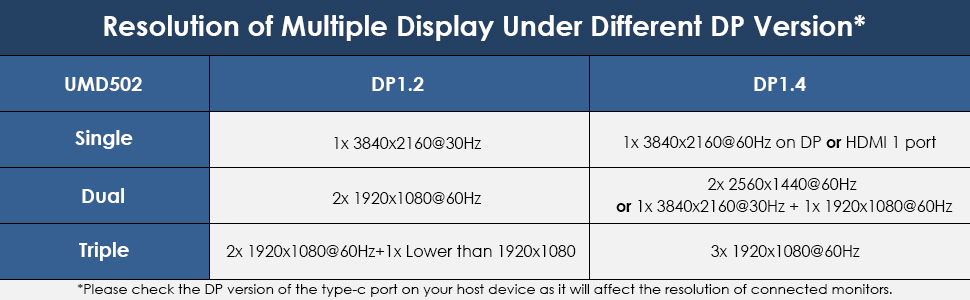
Image 3.1: Resolution capabilities for single, dual, and triple displays under different DisplayPort versions (DP1.2 and DP1.4).
3.3 Peripheral Connections
- USB 3.0 Ports (3x): Connect USB 3.0 compatible devices such as external hard drives, flash drives, or other high-speed peripherals for data transfer up to 5Gbps.
- USB 2.0 Ports (2x): Connect devices like keyboards, mice, or other low-bandwidth peripherals.
- RJ45 Ethernet Port: Connect an Ethernet cable for a stable wired network connection (10/100/1000Mbps).
- SD/TF Card Reader: Insert SD or Micro SD cards for data access. Supports simultaneous reading of two cards.
- 3.5mm Audio Jack: Connect headphones, speakers, or a microphone.
4. Operating Instructions
4.1 Display Modes
The docking station supports various display configurations depending on your operating system.
Windows Operating System:
Windows supports Multi-Stream Transport (MST), allowing for extended desktop across multiple displays.

Image 4.1: Illustration of Mirror Mode (all displays show the same content) and Extend Mode (each display shows different content) for Windows users with triple monitors.
- Mirror Mode: All connected displays show the same content as your laptop screen.
- Extend Mode: Each connected display can show different content, expanding your desktop workspace. Ensure your computer's graphics card supports the number of monitors you intend to use.
Mac OS Operating System:
Mac OS does not support MST. Therefore, external monitors will display mirrored content or an extended desktop where all external monitors show the same content.

Image 4.2: Illustration of Mirror Mode (all displays show the same content) and Extend Mode (all external displays show the same extended content) for Mac OS users with triple monitors.
- Mirror Mode: All connected displays show the same content as your MacBook screen.
- Extend Mode: Your MacBook screen can be extended, but all external monitors will display the same content.
4.2 Data Transfer
Utilize the USB 3.0 ports for high-speed data transfer with compatible devices. The SD and TF card readers allow for quick access to media files.

Image 4.3: The docking station facilitating connections for multiple USB devices, demonstrating its role in productive data transfer and peripheral connectivity.
5. Maintenance
To ensure optimal performance and longevity of your WAVLINK docking station, follow these maintenance guidelines:
- Keep the device in a clean, dry environment, away from direct sunlight and extreme temperatures.
- Avoid exposing the device to water or other liquids.
- Clean the exterior with a soft, dry cloth. Do not use harsh chemicals or abrasive cleaners.
- Ensure proper ventilation around the device to prevent overheating.
- Handle the integrated USB-C cable with care to prevent damage.
6. Troubleshooting
If you encounter issues with your docking station, refer to the following common problems and solutions:
6.1 No Display Output
- Check Connections: Ensure all display cables (HDMI, DisplayPort) are securely connected to both the docking station and the monitors.
- Host Device Compatibility: Verify that your laptop's USB-C port supports DisplayPort Alt Mode. Not all USB-C ports have this capability.
- Display Settings: Adjust your computer's display settings to detect and configure the external monitors (e.g., extend, mirror).
- Driver Updates: Ensure your graphics drivers and USB-C drivers are up to date.
- Power Supply: Confirm the docking station is receiving adequate power, especially if using multiple high-resolution displays.
- DP Version: If experiencing lower than expected resolution, check if your host device's USB-C port is DP1.2. DP1.2 sources may reduce maximum display resolution.
- Mac OS Limitations: Remember that Mac OS does not support MST, meaning external displays will either mirror the main display or all external displays will show the same extended content.
6.2 Power Delivery Issues
- Charger Compatibility: Ensure your USB-C PD charger is capable of providing sufficient power (up to 100W recommended for full functionality).
- Cable Quality: Use a high-quality USB-C to USB-C cable that supports Power Delivery.
- Power Cycling: Disconnect and reconnect the power adapter and the docking station from your laptop.
- Laptop Power Requirements: Some high-performance laptops (e.g., Dell XPS 15 with dedicated GPU) may require more than 89W and might charge slower or not at all when under heavy load.
6.3 Data Transfer Problems
- USB Port Functionality: Test different USB ports on the docking station.
- Device Compatibility: Ensure your USB devices are functioning correctly when connected directly to your laptop.
- Card Reader Issues: Verify SD/TF cards are inserted correctly and are not corrupted.
6.4 Network Connectivity Issues
- Ethernet Cable: Check the Ethernet cable connection to both the docking station and your router/modem.
- Network Settings: Verify your computer's network settings.
- Router Functionality: Ensure your router is working correctly.
6.5 Compatibility with AMD Systems
Some users have reported video output issues with AMD-based laptops. While the docking station is designed for universal compatibility, performance may vary with specific AMD configurations. Ensure your AMD system's USB-C port supports video output and that all drivers are updated.
7. Specifications
| Feature | Description |
|---|---|
| Product Dimensions | 5.12 x 1.97 x 0.39 inches |
| Item Weight | 5.3 ounces |
| Hardware Interface | 3.5mm Audio, DisplayPort, Ethernet (RJ45), HDMI (2x), USB 2.0 (2x), USB 3.0 (3x), SD/TF Card Reader, USB-C PD 3.0 |
| Video Output | 2x 4K HDMI, 1x 4K DisplayPort |
| Max Resolution (Single Display) | 4K@60Hz (DP or HDMI 1 with DP1.4 source) |
| Max Resolution (Dual Display) | 1x 4K@30Hz + 1x 1080P@60Hz or 2x 2560x1440@60Hz (with DP1.4 source) |
| Max Resolution (Triple Display) | 3x 1080P@60Hz (with DP1.4 source) |
| Power Delivery | Up to 89W to host laptop (100W input required) |
| Ethernet Speed | 10/100/1000Mbps |
| Data Transfer Speed | USB 3.0: Up to 5Gbps; USB 2.0: Up to 480Mbps |
| Special Feature | Foldable integrated USB-C cable |
| Compatible Devices | Dell XPS 9380/ XPS 13 9365/ XPS 15 2018/ XPS 13 9300/ New XPS 15; Latitude 7280/ 5310 2-in-1; Precision 7730/ 7750; Laptop 5590; HP Spectre Laptop 13-af001TU/ Spectre x360 13t/ Spectre folio; Elitebook 840 G5/ X2/ x360 1030 G3/ 745 G6/ 830 G6; Z book 15u G3/ 17 G4; Lenovo Yoga 720-13IKB/ 730/ 900-13ISK/ 910/ 920/ 930/ 940-14IIL; Thinkpad Yoga; Thinkpad E590/ P72/ T470/ X1 Carbon; Flex 14 IML/ 5; Legion Y530; Lenovo C930/ T480s/ X390; Microsoft Surface Book 2/ Go/ Laptop 3/ Pro 7; Huawei Matebook Mate10/ Mate10 pro/ Mate20/ Mate20 pro / Mate30/ Mate30Pro; Google Slate (2019); Chromebook C340-15; Razer Blade 2017; Pixel book go 2019/2020. |
8. Warranty and Support
WAVLINK provides comprehensive support for its products:
- Warranty: 1-Year Worry-free warranty. An extra 6 months warranty is available for registered members.
- Customer Service: Life-long friendly customer service and technical support.
Contact Information:
- Phone: +1 8889730883 (UTC-5, Monday - Friday, 9 AM - 6 PM)
- Email: Contact@wavlink.com