Introduction
The Hoover HG510D is an advanced robot vacuum cleaner designed to provide efficient and autonomous cleaning for your home. Featuring laser navigation, smart mapping capabilities, and app control, it offers a convenient solution for maintaining clean floors. This manual will guide you through the setup, operation, and maintenance of your HG510D robot vacuum cleaner.
Front view of the Hoover HG510D Robot Vacuum Cleaner.
1. Setup
1.1 Unpacking and Placement
Carefully remove all components from the packaging. Ensure all protective films and packing materials are removed from the robot and charging base. Place the charging base against a wall in an open area, ensuring there are no obstacles within 1 meter (3 feet) to the sides and 1.5 meters (5 feet) in front of the base. Connect the power adapter to the charging base and plug it into a wall outlet.

The robot vacuum cleaner positioned near its charging base.
1.2 Initial Charge
Place the robot vacuum cleaner onto the charging base. Ensure the charging contacts on the robot align with those on the base. The robot will emit a sound and indicator lights will illuminate, confirming it is charging. Allow the robot to fully charge before its first use. A full charge typically takes several hours.
1.3 App Download and Connection
- Download the "HG5" application from your smartphone's app store (available for Android and iOS).
- Open the app and follow the on-screen instructions to create an account and add your HG510D robot.
- Ensure your smartphone is connected to a 2.4 GHz Wi-Fi network during the pairing process. The robot does not support 5 GHz Wi-Fi networks.
- Once connected, the app will guide you through the initial setup, including firmware updates if available.

Smartphone displaying the HG5 application interface for controlling the robot vacuum.
1.4 First Mapping Run
For optimal performance, allow the robot to complete a full cleaning cycle to create a map of your home. During this initial run, ensure all doors are open to areas you wish to be cleaned and mapped. The robot uses LiDAR navigation to accurately map your environment.

The robot vacuum cleaner actively mapping a room using its laser navigation system.
2. Operating Instructions
2.1 Basic Operation
- Start Cleaning: Press the power button on the robot or use the "Start" function in the HG5 app. The robot will begin cleaning in an efficient pattern.
- Pause/Resume: Press the power button again to pause cleaning. Press it once more to resume.
- Return to Base: Press the "Home" button on the robot or select the "Return to Base" option in the app. The robot will automatically navigate back to its charging station.

Top view of the robot vacuum cleaner, highlighting the power and home buttons for manual control.
2.2 Advanced App Control
The HG5 app provides extensive control and customization options:
- Scheduling: Set specific times and days for cleaning sessions.
- Custom Cleaning Plans: Name individual rooms on the generated map and define different cleaning settings (e.g., suction power, number of passes) for each room.
- Zone Cleaning: Select specific areas on the map for targeted cleaning.
- Virtual Walls & No-Go Zones: Draw virtual boundaries or define areas where the robot should not enter or clean.
- Suction Power: Adjust the vacuum's suction power through multiple levels (up to 4 speeds).
- Cleaning History: Review past cleaning maps and statistics.

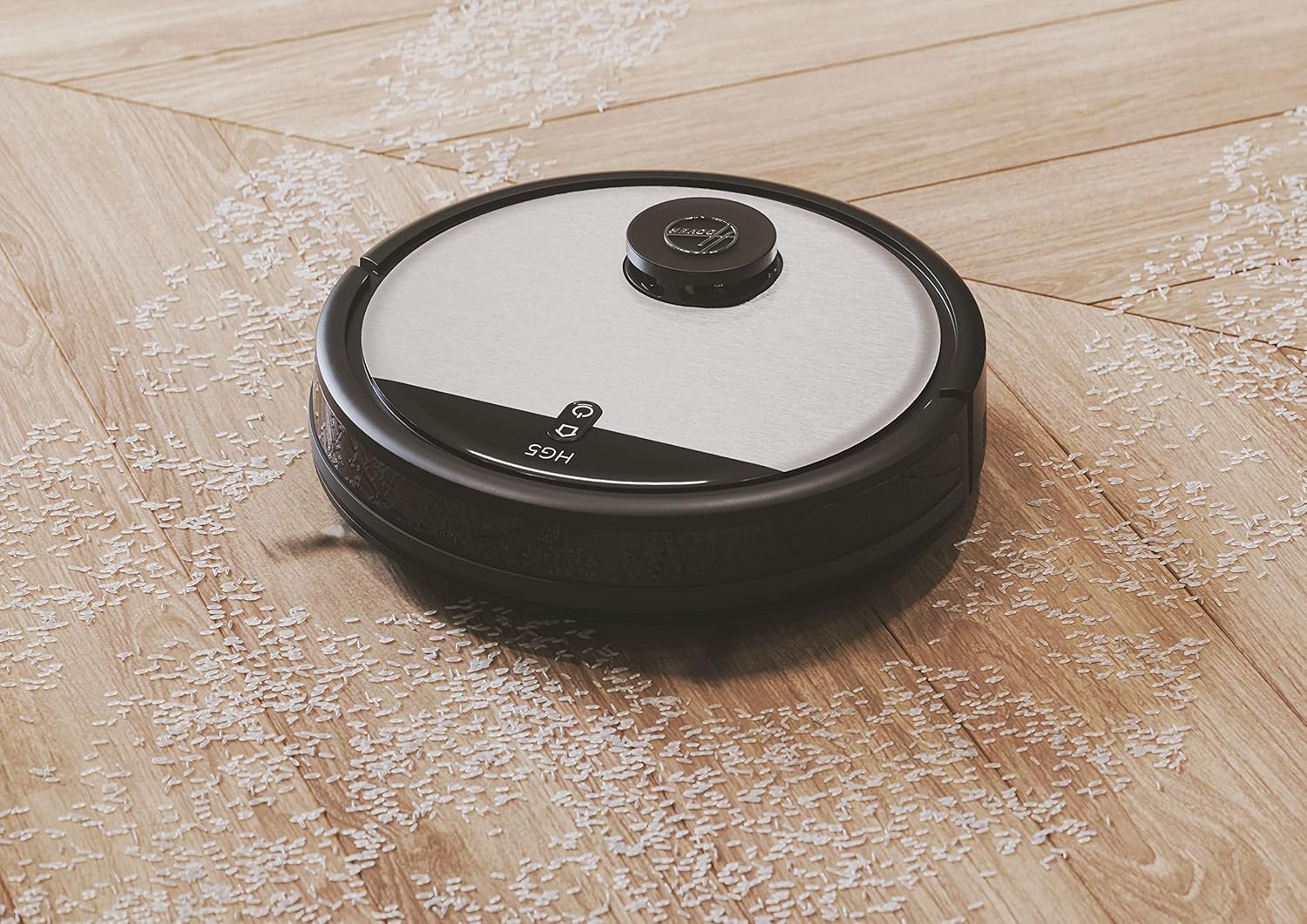
The robot vacuum cleaner actively cleaning debris from a wooden floor.
3. Maintenance
Regular maintenance ensures optimal performance and extends the lifespan of your robot vacuum cleaner.
3.1 Emptying the Dustbin
The dustbin should be emptied after each cleaning cycle or when full. The HG510D has a 0.50L capacity dustbin, easily removable from the rear of the unit.
- Press the dustbin release button and pull out the dustbin.
- Open the dustbin lid and discard the collected debris.
- Close the lid and reinsert the dustbin until it clicks into place.
3.2 Cleaning the Filter
The HEPA10 filter should be cleaned regularly (e.g., weekly) and replaced every 3-6 months, depending on usage.
- Remove the dustbin as described above.
- Take out the filter assembly from the dustbin.
- Tap the filter gently over a trash can to remove dust. Do not wash the HEPA filter with water unless specified in the full manual.
- Reassemble the filter and dustbin.
3.3 Cleaning Brushes and Sensors
Periodically inspect and clean the main brush, side brushes, and sensors.
- Main Brush: Remove the main brush cover and lift out the brush. Use the cleaning tool (if provided) to remove hair and debris.
- Side Brushes: Unscrew and remove the side brushes. Clean any tangled hair or debris. Replace if worn.
- Sensors: Wipe the cliff sensors (located on the underside), wall sensors, and charging contacts with a clean, dry cloth.

The underside of the robot vacuum cleaner, illustrating the main brush, side brushes, and sensors.
4. Troubleshooting
If you encounter issues with your Hoover HG510D, refer to the following common problems and solutions:
| Problem | Possible Cause | Solution |
|---|---|---|
| Robot does not start or respond. | Low battery; power switch off; robot stuck. | Ensure robot is fully charged. Check if the main power switch is on. Clear any obstructions. |
| Robot cannot connect to Wi-Fi. | Incorrect Wi-Fi password; 5 GHz network; router too far. | Verify password. Ensure you are connecting to a 2.4 GHz network. Move robot closer to router. |
| Poor cleaning performance. | Full dustbin; clogged filter; tangled brushes. | Empty dustbin. Clean or replace filter. Clean main and side brushes. |
| Robot gets stuck frequently. | Obstacles; dark surfaces (cliff sensors). | Clear cables, rugs, and small objects. Use virtual walls in the app for problematic areas. |
| Robot does not return to charging base. | Charging base obstructed; robot too far from base. | Ensure charging base area is clear. Manually place robot near base to initiate return. |
For more detailed troubleshooting, consult the HG5 app for specific error messages or refer to the full product manual available on the Hoover website.
5. Specifications
| Brand | Hoover |
| Model Name | HG510D |
| Model Number | 38383005 |
| Color | Black |
| Dimensions (L x W x H) | 34 x 34 x 10.3 cm (13.4 x 13.4 x 4.1 inches) |
| Weight | 2.6 Kilograms (5.7 lbs) |
| Dustbin Capacity | 0.50 Liters |
| Voltage | 14.6 Volts |
| Battery Life | Up to 110 minutes |
| Number of Speeds | 4 |
| Noise Level | 68 Decibels |
| Filter Type | EPA (HEPA10) |
| Navigation Type | LiDAR Laser Navigation |
| Special Features | Anti-fall, Anti-collision, Smart Mapping, Programmable, Automatic Return to Charge Base |
| Control Type | App Control (HG5 App) |
| Surface Recommendation | All floors |
| Included Components | Robot Vacuum, Charging Base, Power Adapter, Side Brushes (2 pairs), HEPA Filter (1 spare), Cleaning Tool, Instruction Guide |
6. Warranty Information
Hoover provides a warranty for its products. The availability of spare parts for this model is stated to be 3 years. For specific warranty terms and conditions, including coverage duration and claim procedures, please refer to the warranty card included with your product packaging or visit the official Hoover website. Keep your proof of purchase for warranty claims.
7. Customer Support
If you require further assistance, have questions not covered in this manual, or need technical support, please contact Hoover customer service. Contact details can typically be found on the Hoover official website or in the documentation included with your product.
For app-related issues, ensure your app is updated to the latest version and your robot's firmware is current.