
HORLAT HORLAT Projector
HORLAT Projector User Manual
Model: HORLAT Projector
Brand: HORLAT
1. Introduction
This manual provides comprehensive instructions for the setup, operation, and maintenance of your HORLAT Projector. Designed for both home cinema and gaming, this projector offers a Full HD 1080P native resolution, 550 ANSI lumens brightness, and 15000:1 contrast ratio for a superior viewing experience. It features advanced connectivity options including 5G WiFi and Bluetooth 5.2, along with versatile image correction capabilities like auto/4P/4D keystone and 50% zoom.

Figure 1.1: HORLAT Projector Overview. This image displays the main projector unit alongside a colorful, high-resolution projected image, highlighting its visual capabilities.
2. Product Components
2.1 What's in the Box
- HORLAT Projector Unit
- Power Cable
- HDMI Cable
- AV Cable
- Remote Control (batteries not included)
- User Manual
2.2 Projector Features Overview
The HORLAT Projector integrates several key features for enhanced performance and user convenience:
- Native 1080P Full HD: Delivers crisp and vivid images with a resolution of 1920x1080.
- 550 ANSI Lumens & 15000:1 Contrast: Ensures bright and clear projections with deep blacks and vibrant colors.
- 5G+2.4G Dual-Band WiFi: Provides stable and fast wireless screen mirroring.
- Bluetooth 5.2: Bidirectional connectivity for audio input and output.
- Auto/4P/4D Keystone Correction: Automatically or manually corrects distorted images.
- 50% Digital Zoom: Adjusts screen size without moving the projector.
- Dust-Sealed Optical Engine: Protects against dust accumulation, reducing black spots.
- Built-in 5W Dual Stereo HIFI Speakers: Offers clear audio output.
- Multimedia Support: Connects via HDMI, USB, and supports direct file viewing from USB.

Figure 2.1: Key Features of the HORLAT Projector. This visual highlights the projector's core functionalities and specifications.
3. Setup Guide
3.1 Placement Considerations
Choose a stable, flat surface for the projector. Ensure adequate ventilation around the unit. The projection distance will determine the screen size. For optimal viewing, position the projector directly in front of the screen or wall.
3.2 Power Connection
- Connect the power cable to the projector's power input port.
- Plug the other end of the power cable into a power outlet.
- Press the power button on the projector or remote control to turn on the device.
3.3 Image Adjustment
Adjust the projected image for clarity and shape using the following functions:
- Focus: Rotate the focus ring on the projector lens until the image appears sharp and clear.
- Keystone Correction: The projector supports digital ±50° 4D/4P and auto keystone correction. Use the remote control to access the keystone settings in the menu. 4P correction allows individual adjustment of each corner, ensuring a rectangular image even if the projector is angled.
- Digital Zoom: Use the zoom function via the remote control to adjust the screen size from 100% down to 50% without physically moving the projector.

Figure 3.1: Keystone Correction. This image illustrates how the projector's keystone correction feature can adjust the image shape for a perfect rectangle.

Figure 3.2: Digital Zoom and Installation Options. This visual shows the digital zoom capability and various ways the projector can be installed, such as ceiling mount.
4. Operating Instructions
4.1 Connecting Devices
The HORLAT Projector supports various input sources:
- HDMI: Connect laptops, TV sticks, gaming consoles (e.g., PS5), or other HDMI-enabled devices using the provided HDMI cable.
- USB: Insert a USB flash drive to directly view Excel, Word, or PDF files, as well as multimedia content.
- AV: Use the provided AV cable to connect older devices with AV output.
4.2 WiFi Screen Mirroring
The projector features 2.4G+5G dual-band WiFi for seamless screen mirroring from your smartphone or tablet. Ensure both your device and the projector are connected to the same WiFi network.
- For iOS Devices: Select "iOS Cast" from the projector's main menu. Follow the on-screen instructions to connect your iPhone/iPad via screen mirroring.
- For Android Devices: Select "Miracast" from the projector's main menu. Scan the QR code displayed on the projector screen with your Android device to initiate mirroring.
Note: Copyrighted content from streaming services like Netflix may require connection via a TV stick or HDMI cable due to digital rights management.
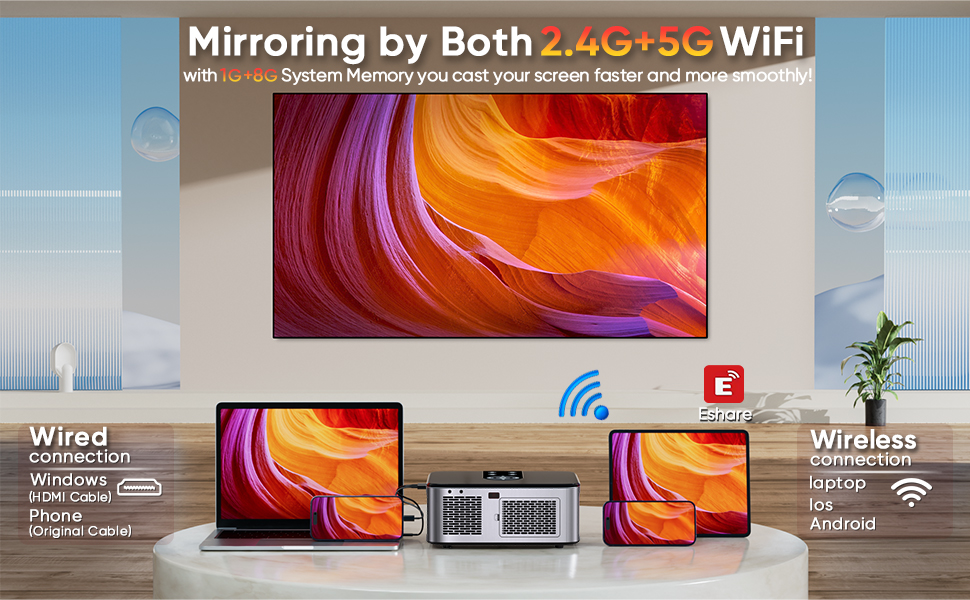
Figure 4.1: Wireless Screen Mirroring. This image demonstrates how to connect various devices wirelessly to the projector for screen sharing.
4.3 Bluetooth Connectivity
The bidirectional Bluetooth 5.2 allows for flexible audio options:
- Connect to External Audio: Pair the projector with Bluetooth headphones or external Bluetooth speakers for enhanced audio.
- Use as a Bluetooth Speaker: Connect your phone to the projector via Bluetooth to use its built-in 5W dual stereo HIFI speakers as a standalone audio system.
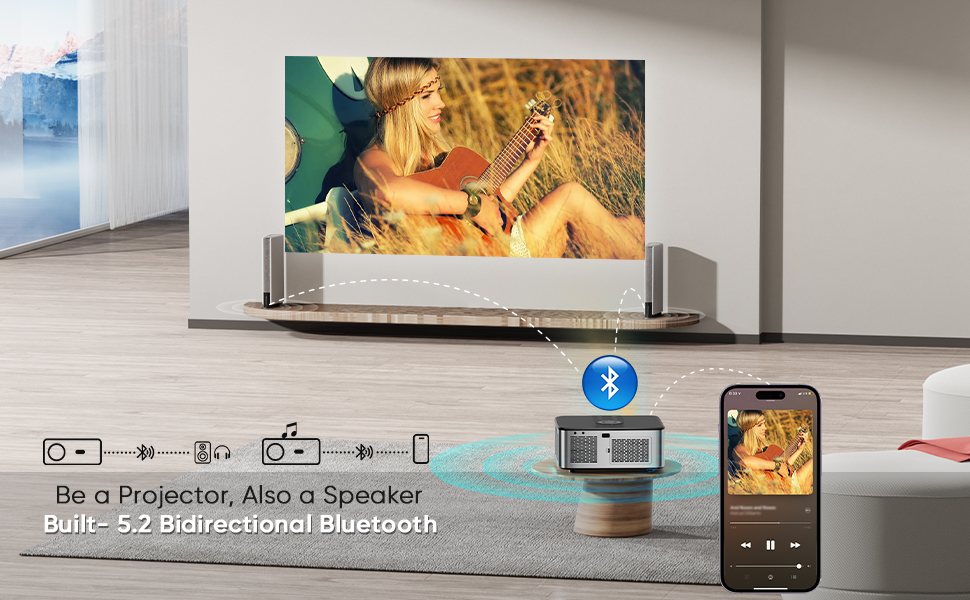
Figure 4.2: Bidirectional Bluetooth Functionality. This visual explains how the projector can both receive and transmit audio via Bluetooth.
4.4 Using with TV Stick
For access to a wider range of streaming content, including copyrighted videos, connect a TV stick (e.g., Fire Stick) to the projector's HDMI port. This allows you to bypass potential mirroring restrictions and enjoy your favorite apps.

Figure 4.3: TV Stick Connection. This image illustrates connecting a TV stick for expanded content options.
4.5 Official Product Video
Video 4.1: 4K Projector with WiFi and Bluetooth. This official video from HORLAT demonstrates the projector's features, including its 4K support, WiFi, and Bluetooth capabilities, providing a visual guide to its operation and performance.
5. Maintenance
Proper maintenance ensures the longevity and optimal performance of your projector.
5.1 Dust Sealing and Cleaning
The projector is equipped with a customized, fully sealed optical engine to effectively block dust. However, regular cleaning of the exterior and lens is recommended.
- Use a soft, lint-free cloth to wipe the projector's exterior.
- For the lens, use a lens cleaning cloth and specialized lens cleaning solution. Avoid abrasive materials.
- Do not spray cleaning solution directly onto the projector.
5.2 Cooling System
The projector features an efficient cooling system to prevent overheating. Ensure that the ventilation vents are not blocked during operation. Allow the projector to cool down after use before storing it.
Figure 5.1: Cooling System. This diagram shows the internal airflow designed to keep the projector cool during operation.
6. Troubleshooting
If you encounter issues with your HORLAT Projector, please refer to the following common problems and solutions:
| Problem | Possible Cause | Solution |
|---|---|---|
| No image projected | Power cable disconnected, incorrect input source, lens cap on. | Check power connection, select correct input source (HDMI, USB, AV), remove lens cap. |
| Image is blurry | Out of focus, incorrect projection distance. | Adjust the focus ring, ensure projector is within optimal projection distance. |
| Image is distorted (trapezoid shape) | Projector not perpendicular to screen. | Use keystone correction (auto/4P/4D) to adjust the image shape. |
| No sound | Volume too low, incorrect audio output settings on source device, external speaker not connected. | Increase projector volume, check audio settings on connected device (e.g., set Fire Stick audio to PCM), ensure Bluetooth speaker is paired correctly. |
| WiFi mirroring lag/disconnection | Weak WiFi signal, network congestion. | Ensure projector and device are close to the WiFi router, try connecting to 5G WiFi if available, reduce network traffic. |
If the problem persists, please contact HORLAT customer support for assistance.
7. Specifications
| Feature | Detail |
|---|---|
| Brand | HORLAT |
| Model Number | HORLAT Projector |
| Native Resolution | 1920 x 1080 (Full HD) |
| Brightness | 550 ANSI Lumens |
| Contrast Ratio | 15000:1 |
| Connectivity Technology | Wi-Fi (2.4G+5G), USB, HDMI, AV, Bluetooth 5.2 |
| Keystone Correction | Auto/4P/4D Digital ±50° |
| Zoom Function | 50% Digital Zoom |
| Built-in Speakers | 5W Dual Stereo HIFI Speakers |
| Item Weight | 6.38 pounds |
| Product Dimensions | 8.74 x 10 x 4.52 inches |
| Lamp Lifespan | Up to 70,000 hours |
8. Warranty and Support
HORLAT is committed to providing excellent customer service. If you encounter any problems during the installation or use of your projector, please do not hesitate to contact our dedicated after-sales team.
- Customer Support: Our after-sales team offers 24/7 online service.
- Spare Parts: Free spare parts are available if needed.
Please refer to your purchase documentation for specific warranty terms and contact information.
Related documentsHORLAT Projector


Ask a question about this manual
Ask about setup, troubleshooting, compatibility, parts, safety, or missing instructions. Manuals+ will review the question and use this page’s manual context to help answer it.