
Introduction
The zealsound K66 USB Gaming Microphone is a versatile condenser microphone designed for high-quality audio capture across various platforms. This manual provides detailed instructions for setting up, operating, and maintaining your K66 microphone to ensure optimal performance.
Key features include wide compatibility, natural audio clarity with noise suppression, versatile controls, and real-time monitoring capabilities.
What's in the Box
Please check the package contents to ensure all items are present:
- 1 x zealsound K66 USB Microphone (Pink) with 360° adjustable professional streaming stand base
- 1 x USB-A Audio Cable (180cm / 70.86 inches)
- 1 x Adapter for iPhone 6+/iPad 4+
- 1 x USB-C Adapter for Type-C devices
- 1 x Pink Foam Windscreen for Microphone
- 1 x User Manual

Image: All components included in the K66 microphone package.
Setup Instructions
The zealsound K66 microphone is designed for plug-and-play functionality, requiring no additional drivers for most devices.
Connecting to Your Device
- Connect the USB Cable: Insert the USB-C end of the provided USB-A cable into the Type-C port at the bottom of the microphone.
- Connect to Your Computer: Insert the USB-A end of the cable into an available USB port on your PC, laptop, or desktop computer.
- Connect to Mobile Devices (Phone/Tablet):
- For devices with a USB-C port (e.g., Android phones, newer iPads/MacBooks), use the provided USB-C adapter. Connect the USB-A cable to the USB-C adapter, then plug the adapter into your device. Ensure your Android device supports OTG functionality.
- For iPhone 6+ and iPad 4+ models, use the provided iPhone/iPad adapter. Connect the USB-A cable to this adapter, then plug the adapter into your Apple device.
- Power On: The microphone will automatically power on and be recognized by your device. The LED indicator will light up.
Video: Demonstrates the plug-and-play setup of the K66 microphone with various devices, including connecting adapters for phones and tablets.
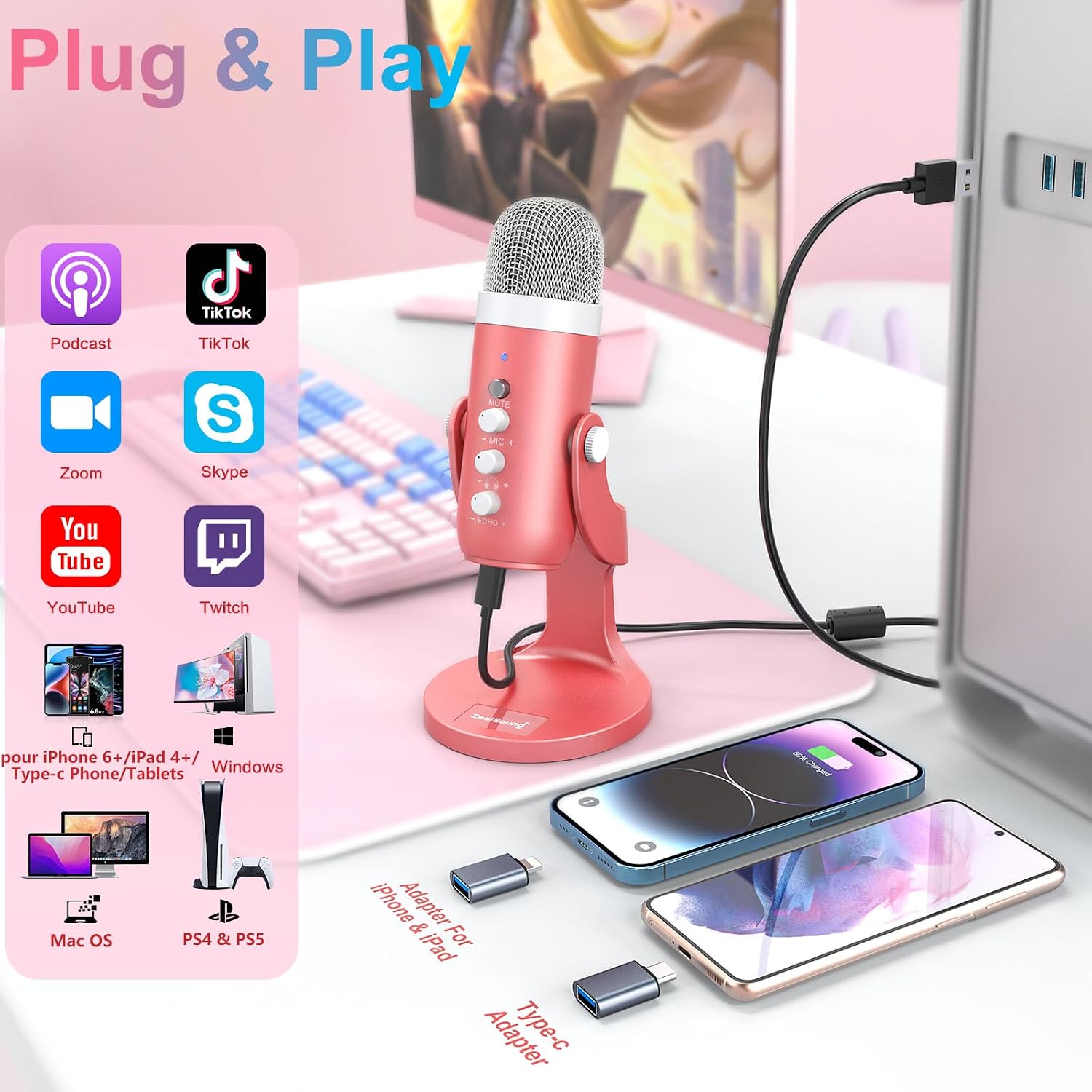
Image: The K66 microphone connected via USB, showing compatibility with PC and mobile devices using adapters.

Image: The microphone stand allows for flexible 360-degree rotation for optimal positioning.
Operating Instructions
Familiarize yourself with the controls and features of your K66 microphone for the best audio experience.
Microphone Controls
- Mute Button: Located on the front of the microphone. Press briefly to mute/unmute. A red LED indicates mute, while a blue LED indicates active recording.
- Microphone Volume Knob (MIC +/-): Adjusts the input sensitivity (gain) of the microphone. Turn clockwise to increase volume, counter-clockwise to decrease.
- Monitor Volume Knob (Headphone +/-): Controls the volume of the connected headphones for real-time monitoring.
- Echo Knob (ECHO +/-): Adjusts the echo effect applied to your voice.
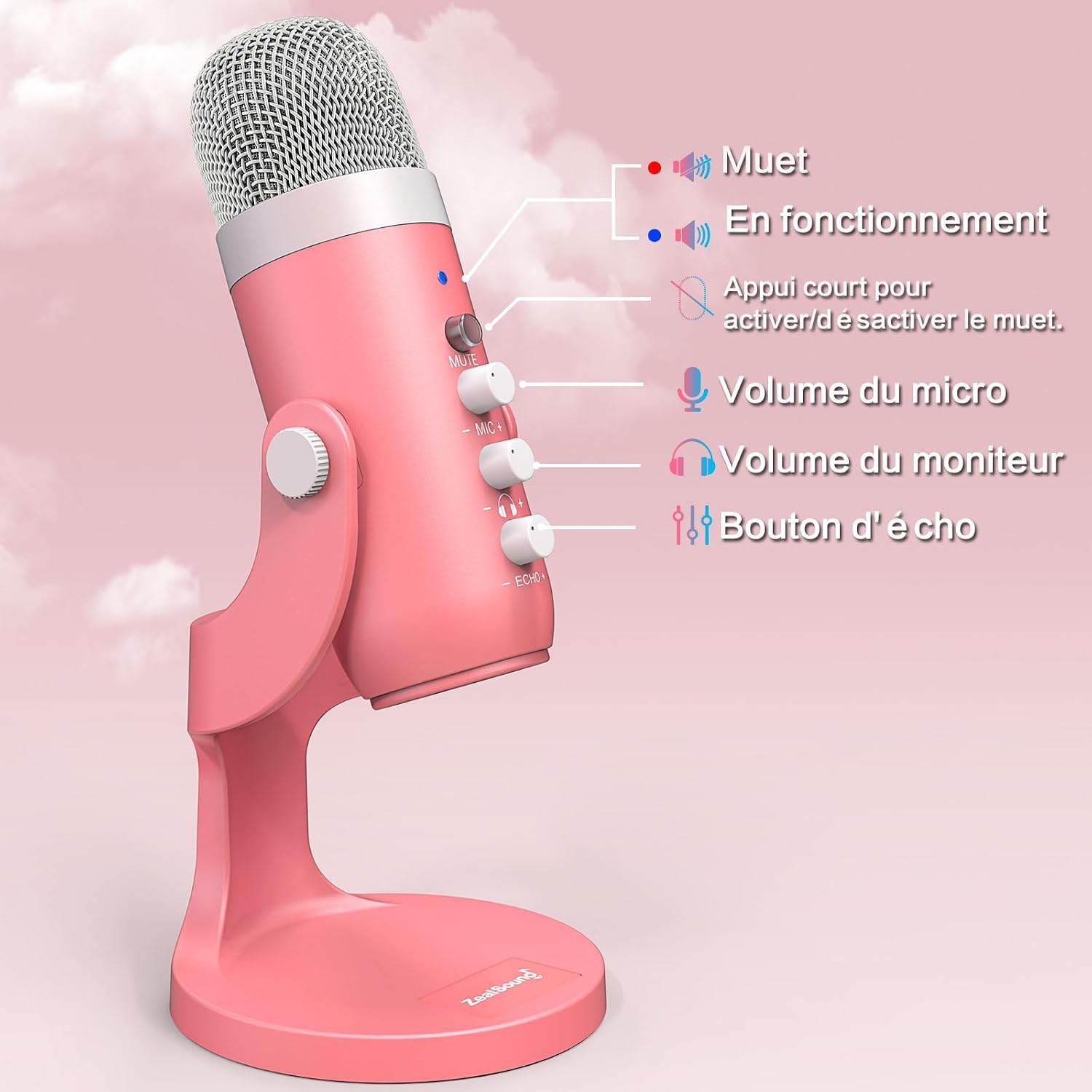
Image: Detailed view of the microphone's control panel, highlighting the mute button, microphone volume, monitor volume, and echo controls.

Image: The mute button and its LED indicator, showing red for muted and blue for active.
Real-time Monitoring
The K66 microphone features a 3.5mm audio jack for real-time monitoring. Connect your headphones to this port to hear your voice directly from the microphone without latency. Adjust the monitor volume knob to your preferred listening level.

Image: Headphones connected to the 3.5mm jack for direct, zero-latency audio monitoring.

Image: The 3.5mm stereo output for direct and latency-free monitoring.
Cardioid Polar Pattern and Noise Reduction
The K66 microphone features a cardioid polar pattern, which means it primarily picks up sound from the front, minimizing background noise from the sides and rear. This design is ideal for capturing clear vocals for gaming, streaming, podcasting, and ASMR.
Equipped with an 88 dB dynamic range and a noise suppression chip, the microphone effectively reduces ambient sounds like keyboard clicks, mouse movements, and general background noise, ensuring a focused and clear audio recording.

Image: The cardioid pickup pattern, highlighting the microphone's sensitivity to sounds directly in front of it, making it suitable for gaming and streaming.

Image: Visual representation of the K66's sound diffusion effects and noise reduction capabilities, including DSP noise suppression.

Image: The K66 microphone features a DSP noise suppression chip for clear, directional audio capture.
Compatibility
The zealsound K66 USB microphone offers broad compatibility with various operating systems and devices, making it suitable for a wide range of applications.
- Operating Systems: Windows, macOS, iOS, Android (OTG required), Linux, Chrome OS.
- Devices: PC (desktop, laptop), Mac, iPhone 6+, iPad 4+, iPad mini, iPad Air, iPad Pro, Android phones/tablets (OTG required), PS4, PS5.
- Recommended Uses: ASMR, online chat (Skype, Zoom, Discord), online courses, recording (vocal, audio, video, instruments), home studio, content creation, gaming, streaming (YouTube, TikTok, Twitch, Facebook), video conferencing, podcasting, broadcasting.

Image: The K66 microphone's broad compatibility with various operating systems and devices.
Specifications
| Feature | Specification |
|---|---|
| Model Name | K66 |
| Connectivity Technology | USB |
| Connector Type | USB Type-A, USB Type-C, iPhone 6+ Adapter |
| Polar Pattern | Unidirectional (Cardioid) |
| Sensitivity | 88 Decibels |
| Impedance | 2.21 Kilo-ohms (kΩ) |
| Signal-to-Noise Ratio | 85 dB |
| Frequency Response | 20 Hz - 20 kHz |
| Sampling Rate | 48 KHz |
| Equivalent Noise Level | 66 Decibels |
| Power Source | Corded Electric (5V external power) |
| Material | Aluminum, Metal |
| Item Weight | 498 Grams |
| Item Dimensions (L x W x H) | 10 x 4 x 22 centimeters |

Image: The K66 cardioid condenser microphone design.
Troubleshooting
If you encounter issues with your zealsound K66 microphone, please refer to the following common solutions:
- No Sound Output:
- Ensure the microphone is properly connected to your device's USB port.
- Check if the microphone is muted (red LED indicator). Press the mute button to unmute.
- Verify that the microphone volume knob (MIC +/-) is not set to minimum.
- On your computer's sound settings, ensure the K66 microphone is selected as the input device.
- For mobile devices, confirm that OTG functionality is enabled if required, and the correct adapter is securely connected.
- Poor Audio Quality / Background Noise:
- Ensure you are speaking directly into the front of the microphone, utilizing its cardioid pickup pattern.
- Adjust the microphone volume (gain) to an appropriate level. Too high can cause distortion, too low can result in faint audio.
- Minimize ambient noise in your recording environment.
- Ensure the foam windscreen is properly installed to reduce plosives and breath sounds.
- Monitoring Issues:
- Check if your headphones are securely plugged into the 3.5mm jack on the microphone.
- Adjust the monitor volume knob (Headphone +/-) to increase listening volume.
Warranty and Support
The zealsound K66 USB Gaming Microphone comes with a 2-year manufacturer's warranty.
For further assistance, technical support, or warranty claims, please contact zealsound customer service through their official website or the retailer where you purchased the product. Please have your purchase receipt and product model number (K66) ready when contacting support.


