
ECHTPower TE01
ECHTPower Wireless Vertical Mouse User Manual
Model: TE01
Introduction
Thank you for choosing the ECHTPower Wireless Vertical Mouse. This ergonomic mouse is designed to provide comfort and efficiency, reducing wrist strain during prolonged use. It features versatile connectivity options, adjustable sensitivity, and customizable buttons to enhance your computing experience.

Image: The ECHTPower Wireless Vertical Mouse, showcasing its ergonomic design and sleek black finish.
Safety Information
Please read the following safety guidelines carefully before using the product to ensure safe and proper operation.
- Contains small parts. Keep out of reach of children under 3 years of age.
- Do not use the product near an ignition source.
- Do not disassemble or modify the product.
- Do not place the product in a humid or dusty environment.
- Do not strike or drop the product.
- Do not directly touch the USB port, as this may cause malfunction.
- Do not use chemical products such as gasoline or solvent for cleaning.
- Do not use the product for purposes other than those for which it was originally designed.
- Dispose of the product and its parts in accordance with local regulations, and do not dispose of it as household waste.
- Contact ECHTPower for any questions or suggestions regarding product quality.

Image: Original safety information provided in Spanish.

Image: Original safety information provided in German.
Product Features
Three-Mode Connectivity
The ECHTPower mouse supports three connection modes: Bluetooth 5.0, Bluetooth 3.0, and 2.4G wireless. This allows you to connect and switch between up to three different devices seamlessly, offering great convenience for multi-device users.

Image: Diagram illustrating the three connectivity modes: 2.4G wireless via USB receiver, Bluetooth 5.0, and Bluetooth 3.0, connecting to a laptop, desktop, and tablet.
Adjustable DPI Sensitivity
Easily switch between 5 DPI settings: 800, 1200, 1600, 2000, and 2400 DPI. This high-sensitivity optical system allows you to adjust cursor speed for precision tasks like graphic design or faster navigation.
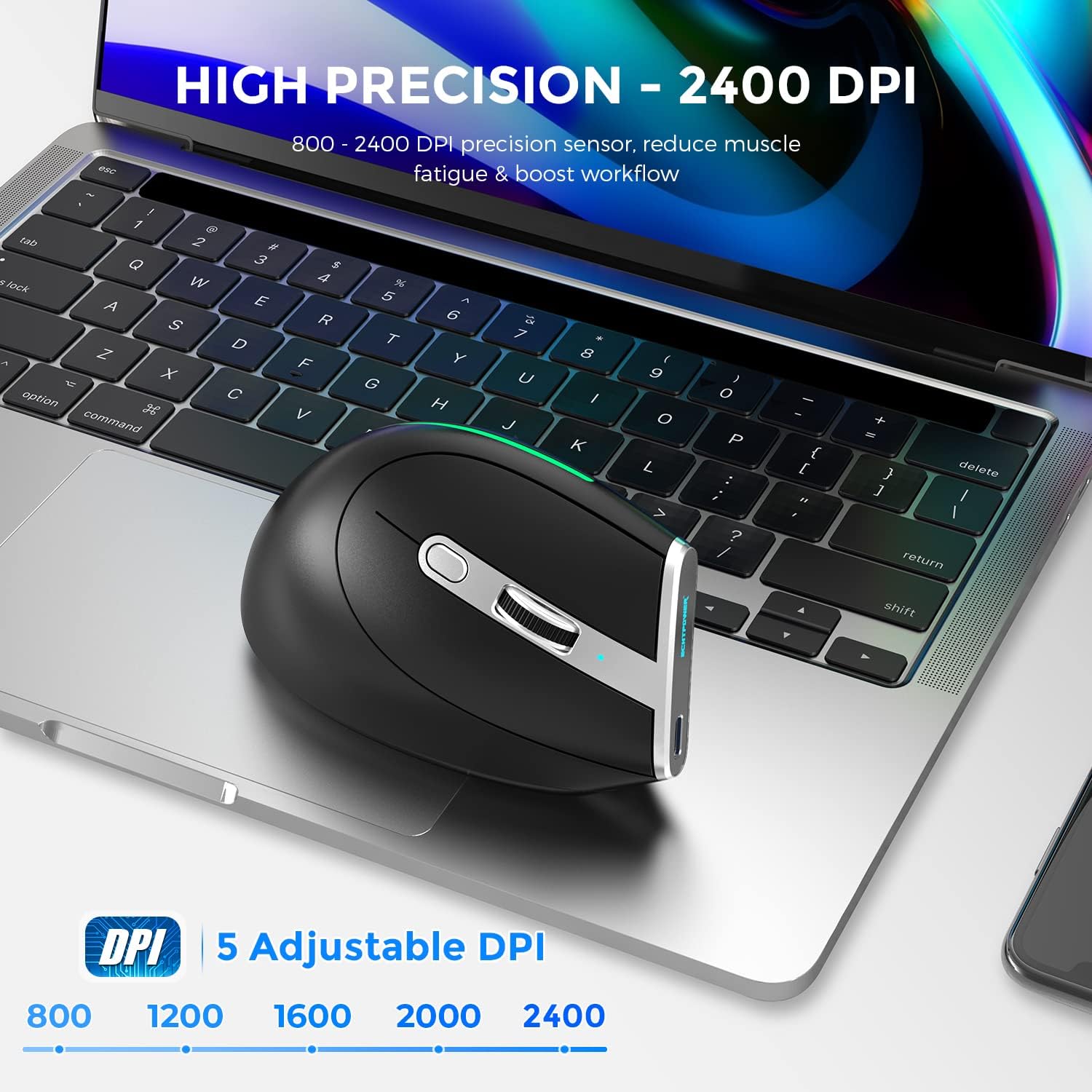
Image: The mouse positioned on a laptop, highlighting its high precision with 800-2400 DPI adjustable settings.
Programmable Buttons
This mouse features 7 programmable buttons. You can customize all button functions through dedicated programming software to suit your specific workflow and habits.

Image: A computer screen displaying the mouse customization software interface, showing options for button programming and lighting.
Ergonomic Vertical Design
The unique vertical shape and contour are designed to reduce muscle strain in the arm and wrist, promoting a more natural handshake posture. This design fits various hand shapes and sizes, providing enhanced comfort during extended use.

Image: A hand gripping the vertical mouse, illustrating the comfortable handshake posture compared to traditional mouse use.

Image: Comparison showing the wrist position with a traditional mouse (prone to strain) versus the natural alignment with a vertical mouse.
RGB LED Lighting
The built-in interchangeable LED lights offer 5 lighting modes: Neon, Constant light, Dazzling light, Breathe light, and Off. Customize your lighting effects to match your preference and add a dynamic visual element to your workspace.

Image: The mouse displaying its RGB LED strip, with illustrations of different lighting modes and color options.
Button Layout
Familiarize yourself with the mouse's 8-button layout for optimal use:

Image: A detailed diagram of the vertical mouse, labeling its various buttons including Left/Right, Scroll Wheel, DPI Switch, Forward/Back, Light Switch, Bluetooth button, and Charging Indicator.
Setup Instructions
Charging the Mouse
The mouse is equipped with a rechargeable battery. Connect the included USB-C charging cable to the mouse's charging port and to a USB power source (e.g., computer USB port, USB wall adapter). The charging indicator will show the charging status.

Image: The mouse connected to a USB-C charging cable, indicating its 730mAh battery capacity.
Connecting the Mouse
The ECHTPower mouse offers three connection methods:
- 2.4G Wireless Mode:
- Locate the USB receiver, usually stored in a compartment on the mouse's underside.
- Plug the USB receiver into an available USB port on your computer.
- Switch the mouse to 2.4G mode (refer to the mode switch on the mouse, often indicated by a 2.4G icon).
- The mouse should connect automatically.
- Bluetooth 5.0 / Bluetooth 3.0 Mode:
- Switch the mouse to Bluetooth mode (indicated by a Bluetooth icon).
- On your device (laptop, tablet, etc.), go to Bluetooth settings.
- Search for new devices. The mouse should appear as "ECHTPower Mouse" or similar.
- Select the mouse to pair. You may need to press the Bluetooth pairing button on the mouse (refer to the button layout diagram).
- Repeat for up to two Bluetooth devices (BT1 and BT2 if available).
Operating Instructions
Switching Between Devices/Modes
Use the mode switch button (often located on the underside or side of the mouse) to toggle between 2.4G, Bluetooth 5.0, and Bluetooth 3.0 connections. This allows for quick switching between connected devices.
Adjusting DPI
Press the DPI switch button (refer to the button layout diagram) to cycle through the available DPI settings (800/1200/1600/2000/2400). Select the sensitivity that best suits your task.
Customizing Buttons and Lighting
To customize the 7 programmable buttons and RGB lighting effects, download and install the official ECHTPower mouse software from the manufacturer's website. Follow the software's instructions to set macros, reassign buttons, and choose your preferred lighting modes.
Use the dedicated Light switch button on the mouse to cycle through the 5 built-in lighting modes (Neon, Constant light, Dazzling light, Breathe light, Off) without software.
Maintenance
- Cleaning: Use a soft, dry cloth to clean the mouse. For stubborn dirt, a slightly damp cloth with mild soap can be used, but ensure no liquid enters the mouse. Do not use harsh chemicals or abrasive cleaners.
- Storage: When not in use for extended periods, store the mouse in a cool, dry place.
- Battery Care: To prolong battery life, avoid fully discharging the mouse frequently. Charge it when the low voltage indicator appears.
Troubleshooting
| Problem | Possible Cause / Solution |
|---|---|
| Mouse not responding. |
|
| Cursor movement is erratic or slow. |
|
| Buttons are not working. |
|
| RGB lighting is not working. |
|
If you encounter issues not listed here or if the problem persists, please contact ECHTPower customer support for assistance.
Specifications
| Feature | Detail |
|---|---|
| Brand | ECHTPower |
| Model | TE01 |
| Connectivity Technology | Bluetooth 5.0, Bluetooth 3.0, 2.4G Wireless |
| Movement Detection Technology | Optical |
| DPI Settings | 800 / 1200 / 1600 / 2000 / 2400 DPI (Adjustable) |
| Programmable Buttons | 7 Buttons |
| Special Features | Wireless, Ergonomic Design, Soundless Clicks, RGB LED |
| Product Dimensions | 12 x 6.5 x 7 cm |
| Weight | 180 g |
| Battery | Rechargeable (730mAh capacity, based on product imagery) |
| Compatibility | Windows 7/8/10, Windows XP, Vista, ME, 2000, Mac OS or newer systems |
Warranty and Support
ECHTPower products come with a standard manufacturer's warranty. For detailed warranty information, product support, or any inquiries, please contact ECHTPower customer service.
Customer Support Email: service@echtpower.com
Please have your product model (TE01) and purchase details ready when contacting support.
Related documentsTE01

Ask a question about this manual
Ask about setup, troubleshooting, compatibility, parts, safety, or missing instructions. Manuals+ will review the question and use this page’s manual context to help answer it.