
Introduction
Thank you for purchasing the ACTTO Retro Bluetooth Wireless Keyboard. This manual provides detailed instructions for setting up, operating, and maintaining your keyboard. Please read this manual thoroughly before use to ensure optimal performance and longevity of your device.
This keyboard combines a vintage typewriter aesthetic with modern wireless technology, offering seamless connectivity across multiple devices and operating systems.
What's in the Box
Upon opening the package, please verify that all the following items are included:
- 1x B305 Wireless Bluetooth Keyboard
- 1x Red ESC Keycap (extra)
- 2x AAA Batteries
- 1x User Manual (this document)

Image: Top-down view of the ACTTO Retro Bluetooth Wireless Keyboard, showcasing its 84-key layout and integrated tablet/phone stand.
Setup
1. Battery Installation
The keyboard requires two AAA batteries for operation. These are included in the package.
- Locate the battery compartment on the underside of the keyboard.
- Open the battery compartment cover.
- Insert the two AAA batteries, ensuring correct polarity (+ and -).
- Close the battery compartment cover securely.

Image: Illustration of the keyboard's underside, highlighting the battery compartment for AAA batteries.
2. Bluetooth Pairing
The keyboard can connect to up to three devices simultaneously via Bluetooth 5.0. Follow these steps to pair your device:
- Activate Pairing Mode: Press Fn + 1, Fn + 2, or Fn + 3 to select a Bluetooth channel. The corresponding indicator light will blink, indicating it's ready for pairing.
- Enable Bluetooth on Your Device: Go to your device's (smartphone, tablet, PC) Bluetooth settings and turn Bluetooth on.
- Search for Devices: Your device will scan for available Bluetooth devices. Look for "Actto Keyboard" in the list.
- Connect: Select "Actto Keyboard". A 5-digit pairing code will appear on your device's screen. Type this code on the ACTTO keyboard and press Enter.
- System Conversion: After successful pairing, press the appropriate function key combination to set the keyboard to your device's operating system mode:
- Fn + Q for Android devices
- Fn + W for Windows devices
- Fn + E for iOS devices (iPad, iPhone)
Note: If using a PC or Mac, it is recommended to pair them as the first device.

Image: Visual guide illustrating the Bluetooth pairing process and operating system mode selection using function keys.
Operating Instructions
Multi-Device Switching
To switch between paired devices, simply press Fn + 1, Fn + 2, or Fn + 3 corresponding to the channel your device is paired to. The keyboard will automatically connect to the selected device.
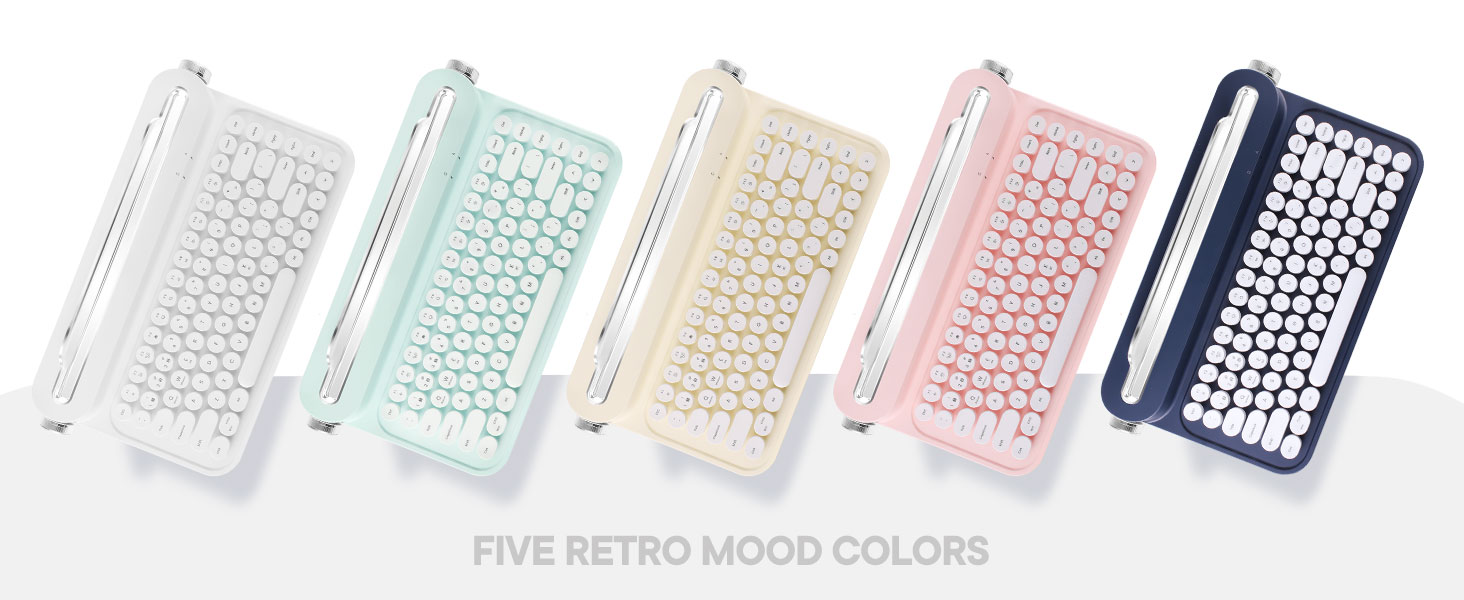
Image: The keyboard seamlessly connected to a laptop, smartphone, and tablet, illustrating its multi-device functionality.
Multimedia Hotkeys
The keyboard features 12 multimedia hotkeys for quick access to common functions. These keys are typically accessed by pressing the Fn key in combination with the F1-F12 keys.
| Key Combination | Function |
|---|---|
| Fn + F1 | Brightness Down |
| Fn + F2 | Brightness Up |
| Fn + F3 | Search |
| Fn + F4 | Home |
| Fn + F5 | Lock Screen |
| Fn + F6 | Previous Track |
| Fn + F7 | Play/Pause |
| Fn + F8 | Next Track |
| Fn + F9 | Mute |
| Fn + F10 | Volume Down |
| Fn + F11 | Volume Up |
| Fn + F12 | Screenshot |

Image: Detailed view of the keyboard's function row, highlighting the 12 multimedia hotkeys and the included extra red ESC keycap.
Integrated Stand and Adjustable Feet
The keyboard features a built-in 11.8-inch (30cm) slot designed to hold your smartphone or tablet, providing a comfortable viewing angle while typing. Additionally, the keyboard has adjustable feet, controlled by the "roller knobs" on the sides, allowing you to set the typing angle for maximum comfort.

Image: The keyboard with its dimensions labeled, illustrating the 11.8-inch integrated stand for tablets and phones.

Image: A close-up of the keyboard's side, showing the dial button used for 2-step height adjustment to enhance typing comfort.
Maintenance
Cleaning
To clean your keyboard, use a soft, dry, lint-free cloth. For stubborn dirt or grime, slightly dampen the cloth with water or a mild, non-abrasive cleaning solution. Avoid spraying liquids directly onto the keyboard or submerging it in water.
Battery Replacement
When the keyboard's performance degrades or it stops responding, it may be time to replace the AAA batteries. Follow the battery installation steps outlined in the "Setup" section.
The keyboard features an energy-saving mode. If you stop typing, the keyboard automatically enters sleep mode to conserve battery life. Press any key to wake it up.
Troubleshooting
| Problem | Possible Cause | Solution |
|---|---|---|
| Keyboard does not turn on. | Dead batteries or incorrect battery installation. | Check battery polarity. Replace with fresh AAA batteries. |
| Cannot pair the keyboard. | Bluetooth not enabled on device, keyboard not in pairing mode, or incorrect pairing code. | Ensure Bluetooth is on. Press Fn + 1/2/3 to enter pairing mode. Re-enter the pairing code carefully. Try resetting Bluetooth on your device. |
| Keyboard disconnects frequently. | Low battery, interference, or too far from device. | Replace batteries. Move closer to the device (within 10 meters). Reduce interference from other wireless devices. |
| Certain keys or functions do not work. | Incorrect operating system mode selected. | Ensure you have selected the correct OS mode (Fn + Q/W/E) for your device. |
| Keyboard is unresponsive after a period of inactivity. | Energy-saving sleep mode. | Press any key to wake the keyboard from sleep mode. |
If you continue to experience issues, please refer to the support information provided in the Warranty and Support section.
Specifications
| Feature | Detail |
|---|---|
| Model Number | B305 |
| Brand | PolaTab (Actto PolaTab) |
| Connectivity Technology | Bluetooth 5.0 |
| Number of Keys | 84 |
| Keyboard Description | Membrane |
| Compatible Devices | PC, Tablet, iPad, iPhone, Smartphone (Android, iOS, Windows, Mac OS) |
| Special Feature | Integrated Stand (11.8 inches / 30 cm), Adjustable Feet |
| Power Source | 2x AAA Batteries |
| Product Dimensions | 14.4 x 7.9 x 2.6 inches |
| Item Weight | 1.8 pounds |
| Color | Snow White |
| Material | Plastic |
Warranty and Support
This ACTTO Retro Bluetooth Wireless Keyboard comes with a 1-year warranty from the date of purchase. This warranty covers manufacturing defects and workmanship under normal use.
For lifetime support, free returns, or warranty claims, please contact PolaTab customer service through the retailer where you purchased the product or visit the official PolaTab store on Amazon: PolaTab Amazon Store.
Please retain your proof of purchase for warranty purposes.


