
Introduction
Thank you for choosing the PolaTab ACTTO Retro Bluetooth Wireless Keyboard. This keyboard combines a classic typewriter aesthetic with modern wireless technology, offering multi-device connectivity and a comfortable typing experience. This manual provides detailed instructions to help you set up, operate, and maintain your new keyboard.

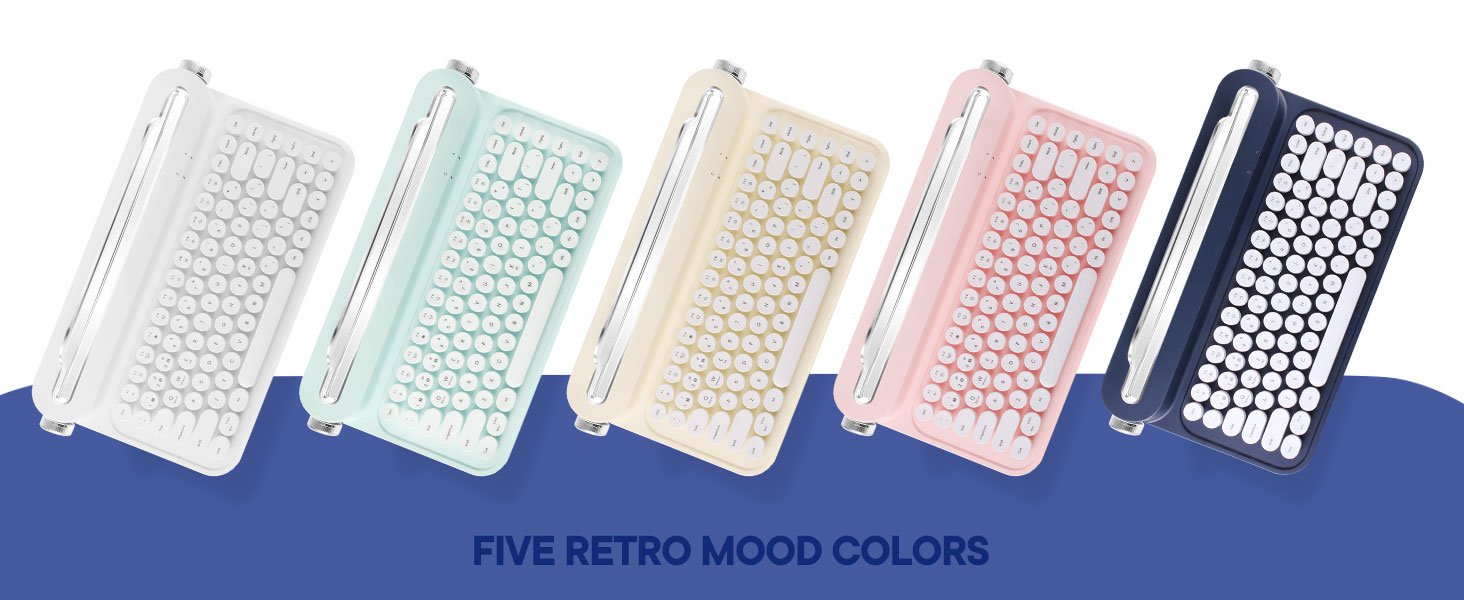
The PolaTab ACTTO Retro Bluetooth Wireless Keyboard, featuring 84 round keys and a built-in stand.
What's in the Box
Please check the contents of your package to ensure all items are present:
- 1x B305 Wireless Bluetooth Keyboard
- 1x Red ESC Keycap (extra)
- 2x AAA Batteries
- 1x User Manual (this document)
Key Features
- Multi-Device Connectivity: Seamlessly switch between up to 3 devices (tablet, smartphone, PC, etc.) simultaneously.
- Wide OS Compatibility: Compatible with Android, iOS, Windows, and Mac operating systems.
- Bluetooth 5.0: Provides a stable, cable-free connection up to 33 feet (10 meters).
- Retro Typewriter Style: Features 84 round keys and a vintage design.
- Built-in Stand: An 11.8-inch (30cm) slot allows you to dock your phone or tablet directly on the keyboard.
- Adjustable Feet: Use the side dials to set the keyboard angle for maximum comfort.
- 12 Multimedia Hotkeys: Easily control media functions.
- Energy-Saving Mode: Automatically enters sleep mode after inactivity to conserve battery life.

Overview of the keyboard's main features, including multi-device support and Bluetooth 5.0.

The keyboard supports various operating systems for broad compatibility.
Setup
1. Battery Installation
The keyboard requires 2 AAA batteries (included). To install:
- Locate the battery compartment on the underside of the keyboard.
- Open the compartment cover.
- Insert the 2 AAA batteries, ensuring correct polarity (+/-).
- Close the battery compartment cover securely.
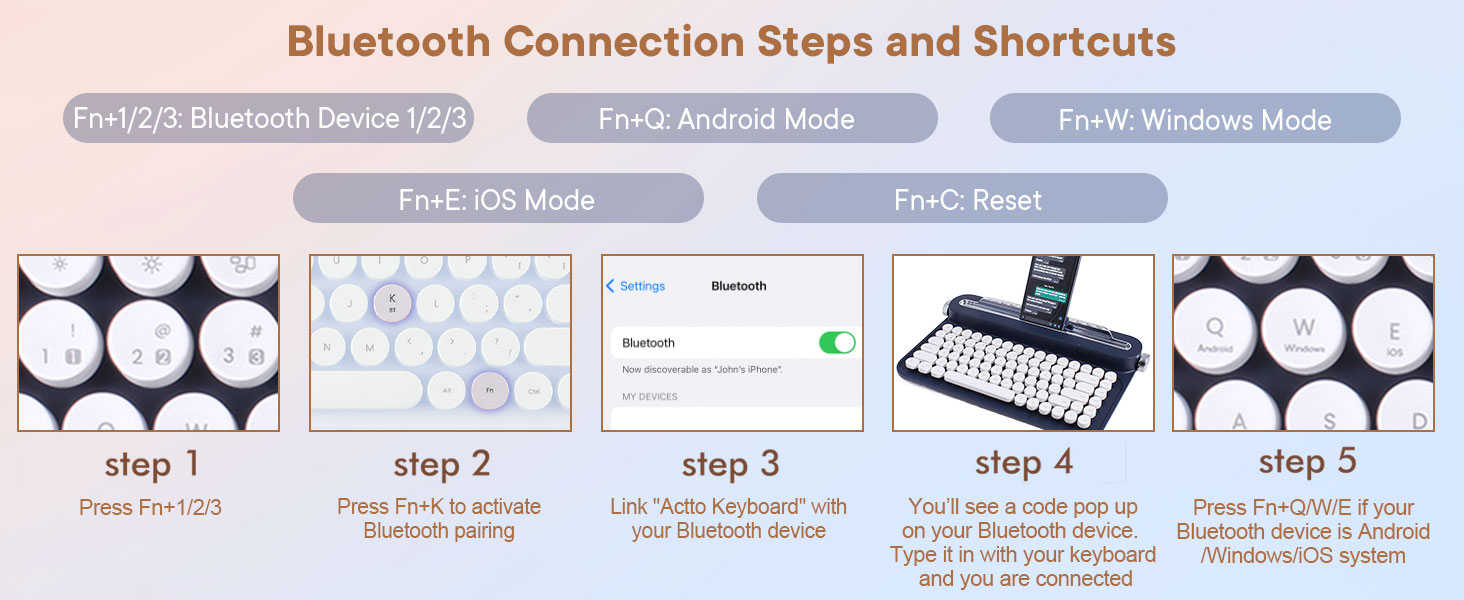
Illustration of battery installation for the energy-saving mode.
2. Bluetooth Pairing
The keyboard can connect to up to three Bluetooth devices. Follow these steps to pair your device:
- Select a Device Slot: Press Fn + 1, Fn + 2, or Fn + 3 to select one of the three Bluetooth device slots. The corresponding indicator light will blink.
- Activate Pairing Mode: Press Fn + K to put the keyboard into Bluetooth pairing mode. The indicator light will blink rapidly.
- Enable Bluetooth on Your Device: On your smartphone, tablet, or computer, go to your Bluetooth settings and turn Bluetooth on.
- Connect to "Actto Keyboard": Search for available devices and select "Actto Keyboard" from the list.
- Enter Pairing Code: A 5-digit pairing code will appear on your device's screen. Type this code on your PolaTab keyboard and press Enter.
- Confirmation: Once paired, the indicator light on the keyboard will stop blinking and remain solid for a few seconds, then turn off. Your device is now connected.
To switch between paired devices, simply press Fn + 1, Fn + 2, or Fn + 3.
Visual guide for Bluetooth connection steps and shortcuts.
The keyboard allows effortless switching between multiple Bluetooth devices.
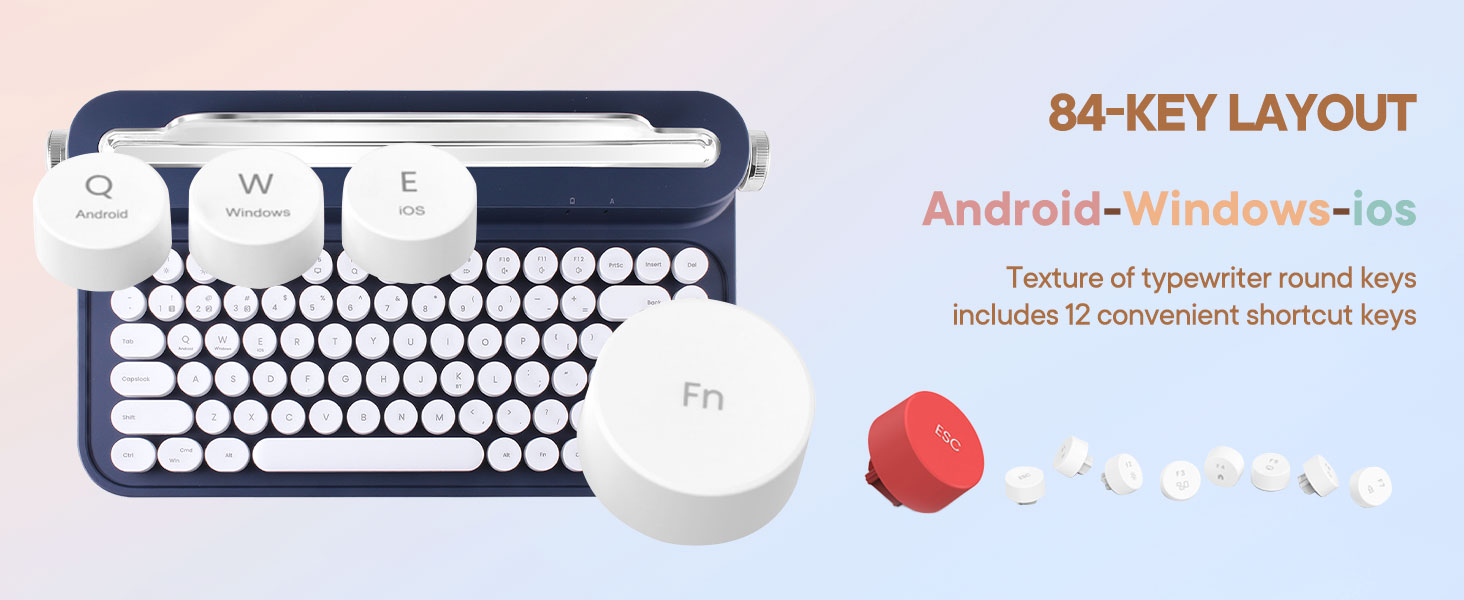
3. System Mode Switching
To optimize keyboard functionality for your specific operating system, switch to the appropriate mode:
- For Android devices: Press Fn + Q
- For Windows devices: Press Fn + W
- For iOS (iPad/iPhone) devices: Press Fn + E
If you are using a PC or Mac, it is recommended to pair it as the first device.

The 84-key layout includes specific keys for switching between Android, Windows, and iOS modes.
Operating Instructions
1. Using Multimedia Hotkeys
The keyboard features 12 multimedia hotkeys (F1-F12) that provide quick access to various functions. To use them, press the Fn key simultaneously with the desired function key.
- Fn + F1: Home
- Fn + F2: Search
- Fn + F3: Brightness Down
- Fn + F4: Brightness Up
- Fn + F5: Previous Track
- Fn + F6: Play/Pause
- Fn + F7: Next Track
- Fn + F8: Mute
- Fn + F9: Volume Down
- Fn + F10: Volume Up
- Fn + F11: Lock Screen
- Fn + F12: Screenshot

The keyboard features 12 multimedia hotkeys for effortless control.
2. Adjusting Keyboard Angle
The keyboard features adjustable feet controlled by the


