
Introduction
This manual provides essential information for the safe and efficient use of your Sony 4TB 3-Tuner 4K Blu-ray Recorder, model BDZ-FBT4200. Please read these instructions thoroughly before operating the unit and retain them for future reference.

Figure 1: Front-top view of the Sony BDZ-FBT4200 Blu-ray Recorder.

Figure 2: Front view of the recorder displaying time.
Setup
1. Unpacking and Placement
Carefully remove the unit from its packaging. Place the recorder on a stable, level surface with adequate ventilation. Avoid placing it near heat sources or in direct sunlight.
2. Connecting to Your TV
- Connect an HDMI cable (sold separately) from the HDMI OUT port on the recorder to an HDMI input port on your TV.
- For optimal 4K viewing, connect to a 4K compatible BRAVIA TV.

Figure 3: Connecting the recorder to a 4K BRAVIA TV for enhanced image quality.
3. Antenna Connection
Connect your terrestrial, BS, and CS antenna cables to the corresponding input jacks on the rear of the recorder.
4. Power Connection
Connect the supplied power cord to the AC IN terminal on the rear of the recorder, then plug the other end into a wall outlet.

Figure 4: Rear panel connections of the recorder.
5. Initial Setup
Upon first power-on, follow the on-screen instructions to complete the initial setup, including network configuration (Wi-Fi connectivity is supported) and channel scanning.

Figure 5: The recorder features instant startup in approximately 0.5 seconds when powered on.
Operating Instructions
1. Recording Programs
Your recorder is equipped with two BS4K/110-degree CS4K tuners and three terrestrial/BS/CS digital tuners, allowing for simultaneous recording of up to three programs, including two 4K broadcasts.
- Program Guide Recording: Use the remote control to navigate the program guide. Select a program and press the 'Record' button to set a reservation.
- Smart Recording Functions:
- New Drama/Anime Guide (Pre-record): Pre-reserve new dramas and anime up to one month in advance. Note: This service is scheduled to end on February 2, 2027.
- Omakase/Maru-roku (Automatic Recording): Register talent names or genres, and the recorder will automatically record related programs.
- Program Name Reservation: Set recordings based on program titles.

Figure 6: Simultaneous recording of up to three programs, including two 4K broadcasts.

Figure 7: Automatic recording based on registered keywords or selected genres.

Figure 8: Pre-reserving new dramas and anime up to one month in advance.
2. Playback
- Accessing Recorded Programs: Navigate to the 'Recorded Programs List' to view your recordings. The 'Genre-specific Recording List' automatically categorizes programs for easy searching.
- Continuous Playback: Play multiple titles with the same program name consecutively with a single operation.
- Quick Playback: Use the remote control to play recorded programs at 1.3x speed with audio.
- Viewing Status: Easily see the viewing status of recorded programs with new 'NEW' marks, 'Watching' icons, and a playback bar indicating progress.

Figure 9: 1.3x speed playback with audio for recorded programs.

Figure 10: Visual indicators for viewing status and playback progress.
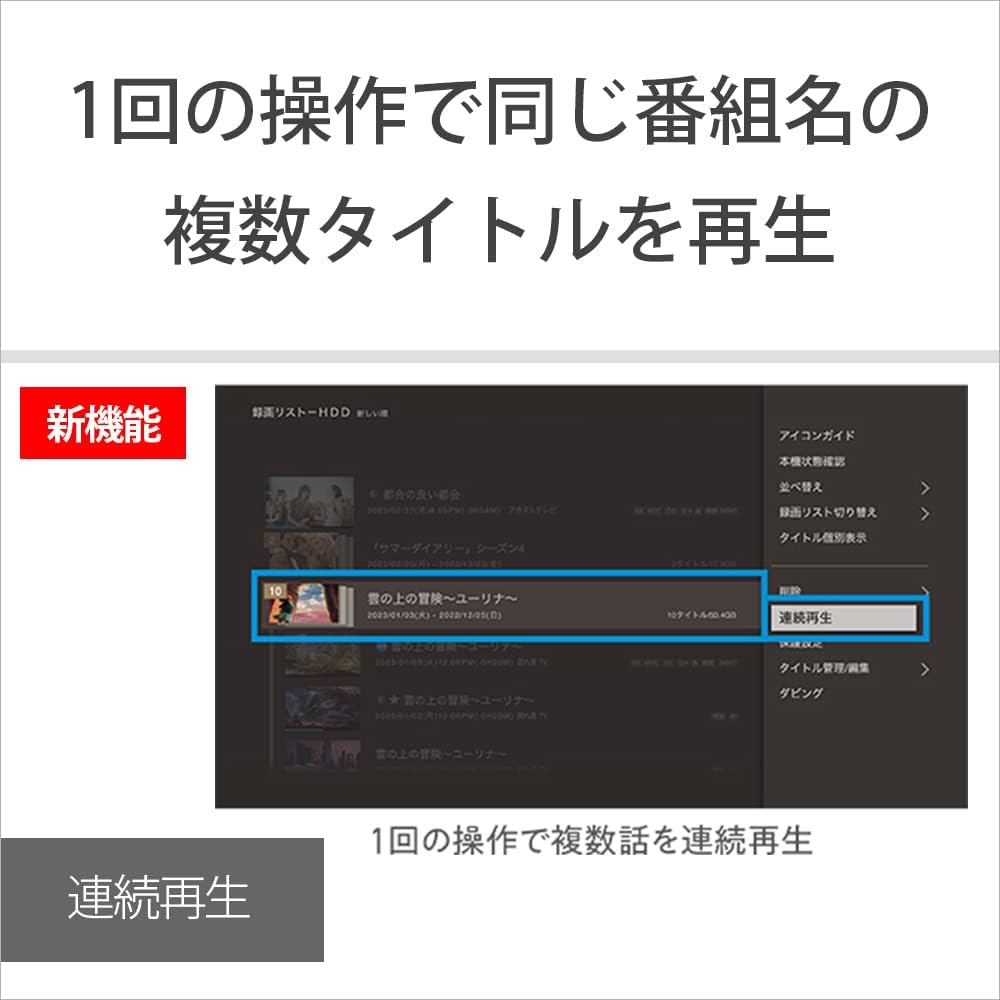
Figure 11: Continuous playback of multiple titles with the same program name.

Figure 12: Easily find frequently watched programs using the 'My Time' feature.
3. Smart Features
- 4K Intelligent Encoder: Ensures clean recordings even in long-play mode for 4K broadcasts.
- Smartphone Integration: Record and watch content anywhere using your smartphone. Note: The "Video & TV SideView" app service is scheduled to end on March 30, 2027.

Figure 13: Improved 4K recording quality in long-play mode with the 4K Intelligent Encoder.

Figure 14: Remote recording and viewing via smartphone using the 'Video & TV SideView' app.
Maintenance
1. Cleaning the Unit
Wipe the exterior of the unit with a soft, dry cloth. Do not use abrasive cleaners or solvents.
2. Managing Recording Capacity
To efficiently manage your 4TB hard disk drive (HDD) capacity and save effort in deletion, utilize the overwrite recording settings. You can choose to keep only the latest 1, 4, or 7 recordings of a series.
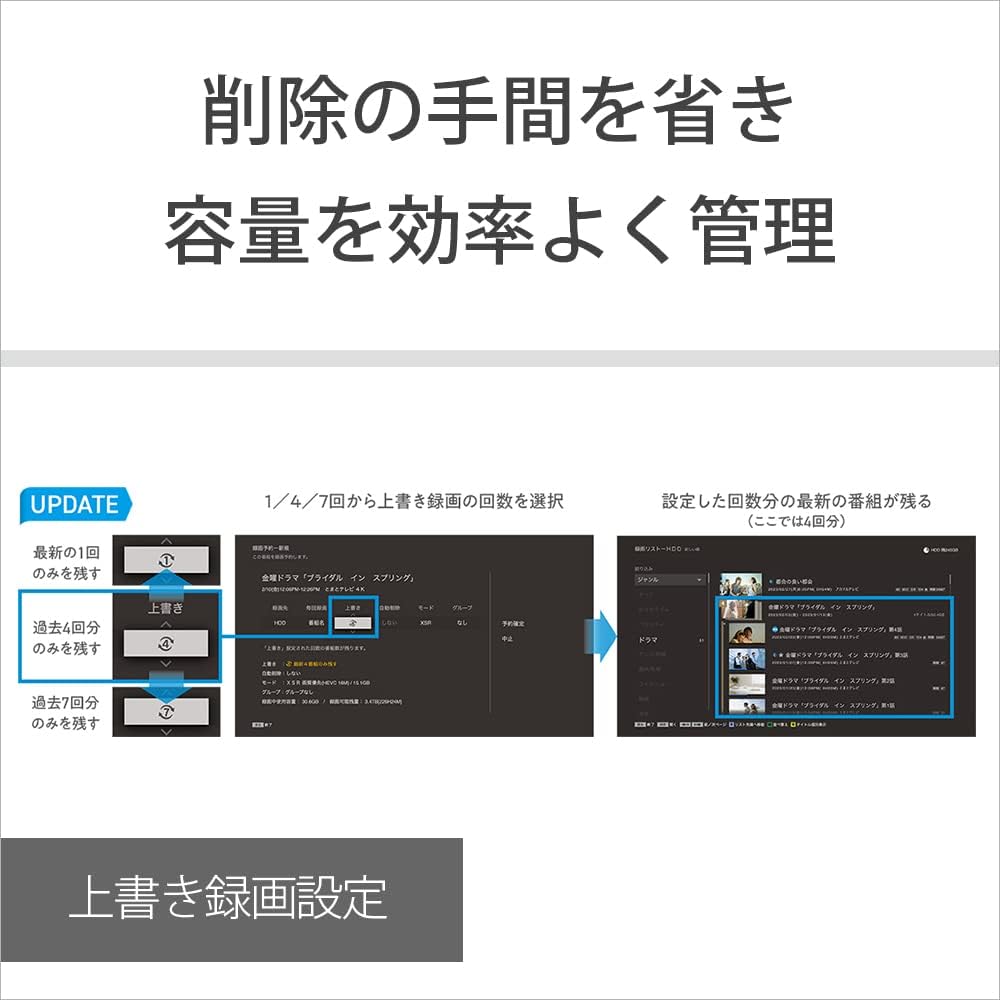
Figure 15: Overwrite recording settings for efficient capacity management.
3. Firmware Updates
Periodically check for firmware updates to ensure optimal performance and access to the latest features. Updates can typically be performed via network connection.
Troubleshooting
If you encounter issues with your recorder, refer to the following common problems and solutions:
| Problem | Possible Cause / Solution |
|---|---|
| No power | Ensure the power cord is securely connected to both the unit and the wall outlet. |
| No picture/sound | Check HDMI cable connections. Ensure the correct input is selected on your TV. |
| Cannot record | Verify antenna connections. Check if the HDD is full; manage recordings using overwrite settings. Ensure no conflicting recording timers are set. |
| Remote control not working | Check batteries and replace if necessary. Ensure there are no obstructions between the remote and the unit. |
| Slow operation or disc reading | This can sometimes occur. Ensure the unit has adequate ventilation. If issues persist, a factory reset might be considered (consult the full manual for instructions). |
For more detailed troubleshooting, please refer to the comprehensive online support resources provided by Sony.
Specifications
| Feature | Specification |
|---|---|
| Model Number | BDZ-FBT4200 |
| Hard Disk Drive (HDD) Capacity | 4TB |
| 4K Tuners (BS4K/110-degree CS4K) | 2 |
| Terrestrial/BS/CS Digital Tuners | 3 |
| Resolution | 3840 x 2160 (4K) |
| Connectivity | Wi-Fi, HDMI, USB 2.0 (2 ports) |
| Media Type | Blu-ray Disc |
| Other Features | Upscaling, 4K Intelligent Encoder |
| Product Dimensions (W x H x D) | 43 x 5.6 x 22.4 cm |
| Item Weight | 3.7 kg |
| Included Accessories | Antenna cable, Remote control, AAA batteries for remote control, Instruction manual, Power cord |
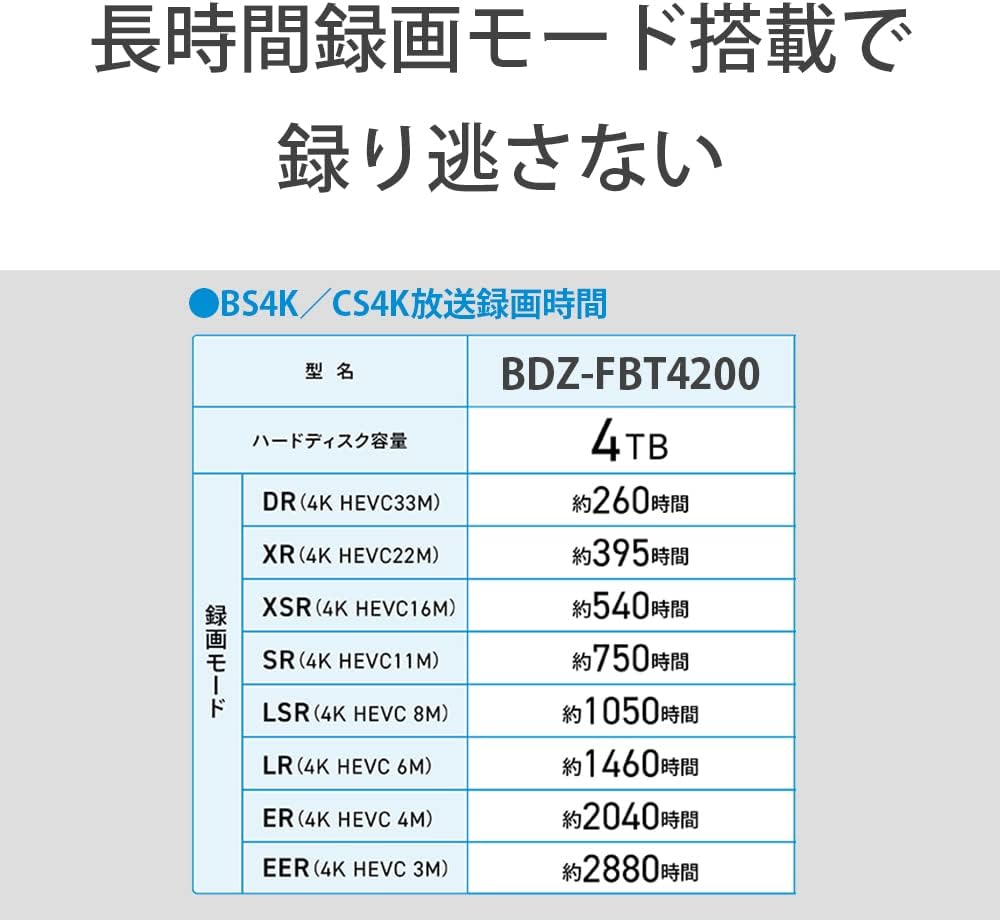
Figure 16: Approximate recording times for various 4K recording modes on the 4TB HDD.
Warranty and Support
Your Sony BDZ-FBT4200 Blu-ray Recorder comes with a manufacturer's warranty. Please refer to the warranty card included in your package for specific terms and conditions.
For technical support, product registration, or to download the full detailed manual, please visit the official Sony support website for your region. You can also contact Sony customer service for assistance.


