
Introduction
Thank you for choosing the Aigostar Smart LED Bulb. This manual provides detailed instructions for setting up, operating, and maintaining your smart bulbs. These E27 SL2 LED bulbs offer multi-color RGB and CCT (2700K-6500K) lighting, equivalent to a 98W incandescent bulb with 15W power and 1500 lumens. They are compatible with Alexa and Google Home, requiring no additional hub for smart control.
Key Features
- Music Synchronization: The smart bulb can collect sound via microphone/device and adjust its lighting mode to change with your favorite music, enhancing gatherings, entertainment, and movie watching.
- Creative Customization: The Aigosmart app's DIY mode allows you to personalize lighting effects, choosing from 16 million colors, color temperatures from 2700K to 6500K, and various styles to create your ideal color. The color recognition function further enhances ambiance customization.
- App and Voice Control: No adapter or smart plug is required. Simply download the free "Aigosmart" app, connect the smart bulb to your 2.4 GHz WiFi, and control it from anywhere. This smart bulb is compatible with Alexa and Google Assistant for voice control. The SL2 series is an improved 2022 model, offering fast networking and a good user experience.
- Timer + Grouping Function: Easily set schedules via the Aigosmart app (iOS and Android) to turn Alexa-compatible bulbs on and off at desired times. You can also use group control to manage lights from anywhere, across multiple rooms simultaneously, automating your entire smart home lighting.
- Multi-scenes: The WiFi smart bulb features 26 predefined scenes in 4 categories: nature, holidays, life, and emotions. You can change the lighting according to different scenes and moods to provide a rich and fantastic lighting experience.
Setup Guide
Initial Setup
- Download the Aigosmart App: Search for "Aigosmart" in your mobile device's app store (iOS or Android) and download the free application.
- Install the Bulb: Screw the Aigostar Smart LED Bulb into a standard E27 light socket.
- Power On: Turn on the light switch to power the bulb. The bulb should start blinking, indicating it's in pairing mode. If not, turn it off and on three times rapidly.
- Connect to 2.4 GHz WiFi: Open the Aigosmart app, register or log in. Ensure your phone is connected to a 2.4 GHz WiFi network. The bulb does not support 5 GHz WiFi.
- Add Device: In the Aigosmart app, follow the on-screen instructions to add a new device. The app will guide you through connecting the bulb to your WiFi network.

Image: The Aigosmart app displaying the device addition process, highlighting the 2.4 GHz WiFi requirement for fast networking and a high success rate in connecting the smart bulb.
Operating Instructions
App Control
The Aigosmart app provides extensive customization and easy control over your smart bulbs. You can manage individual bulbs or groups of bulbs from anywhere with an internet connection.
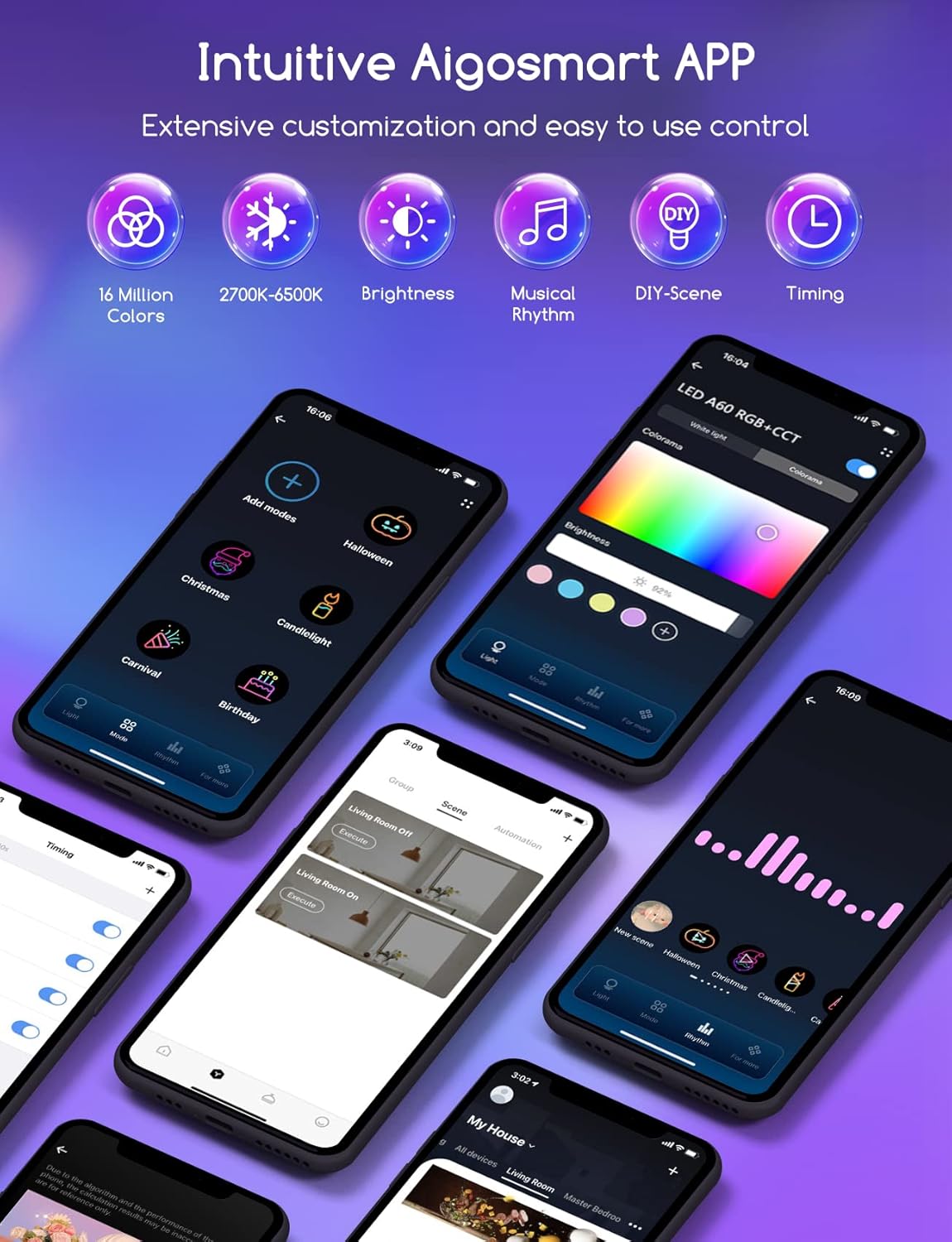
Image: Multiple smartphone screens showcasing the intuitive Aigosmart app interface, demonstrating various control options such as color selection, brightness adjustment, musical rhythm settings, DIY scene creation, and timing functions.
Color and Brightness Adjustment
Adjust the brightness from 1% to 100% to suit your needs. Choose from 16 million colors and color temperatures ranging from warm white (2700K) to cool daylight (6500K) to create the perfect ambiance for any occasion.
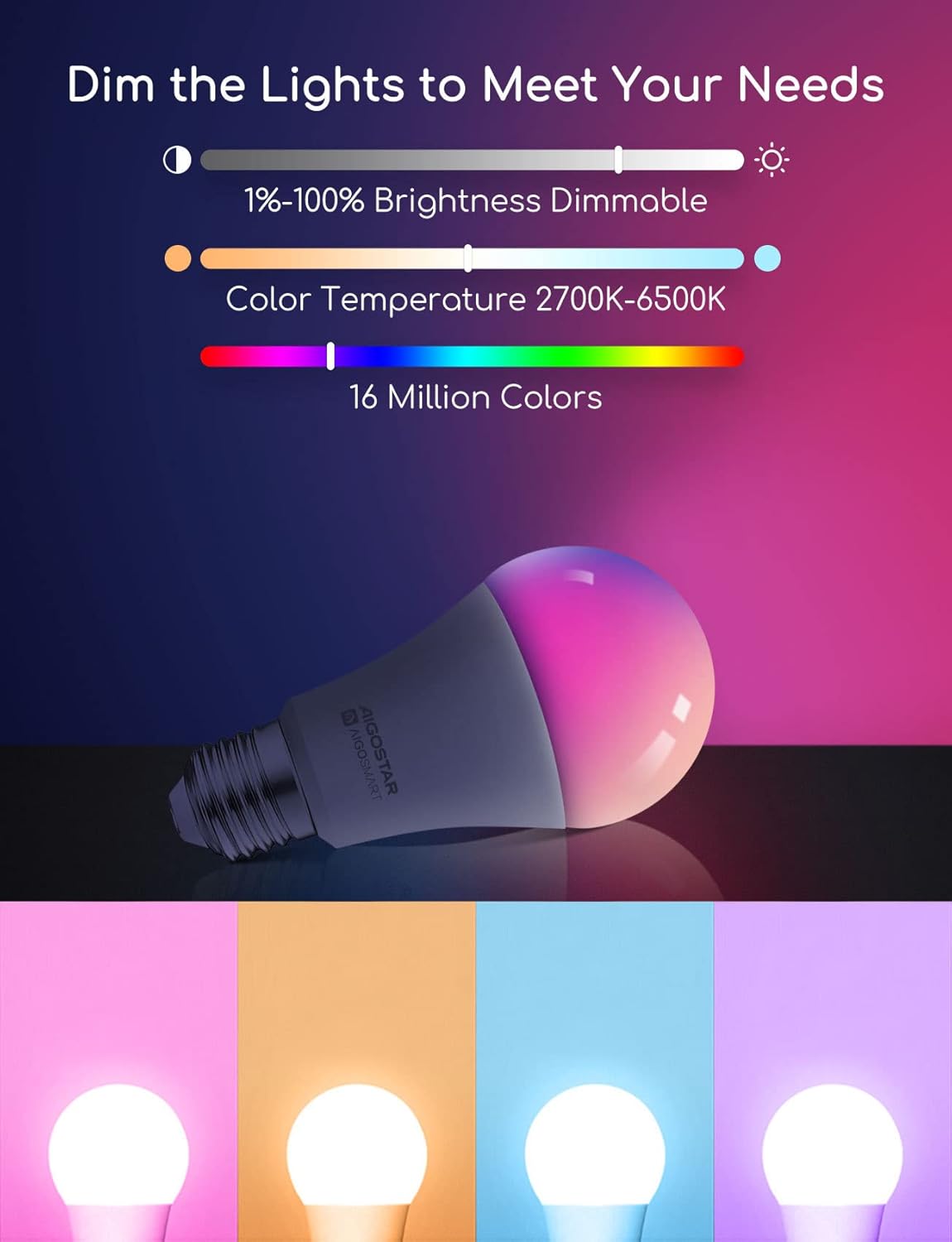
Image: A visual representation of the Aigostar smart bulb's dimming capabilities (1%-100% brightness) and adjustable color temperature range (2700K-6500K), along with a spectrum indicating 16 million available colors.
Music Synchronization
Activate the music synchronization feature in the Aigosmart app. The bulb will respond to sounds picked up by your device's microphone, changing colors and brightness in rhythm with your music, perfect for parties or immersive entertainment.
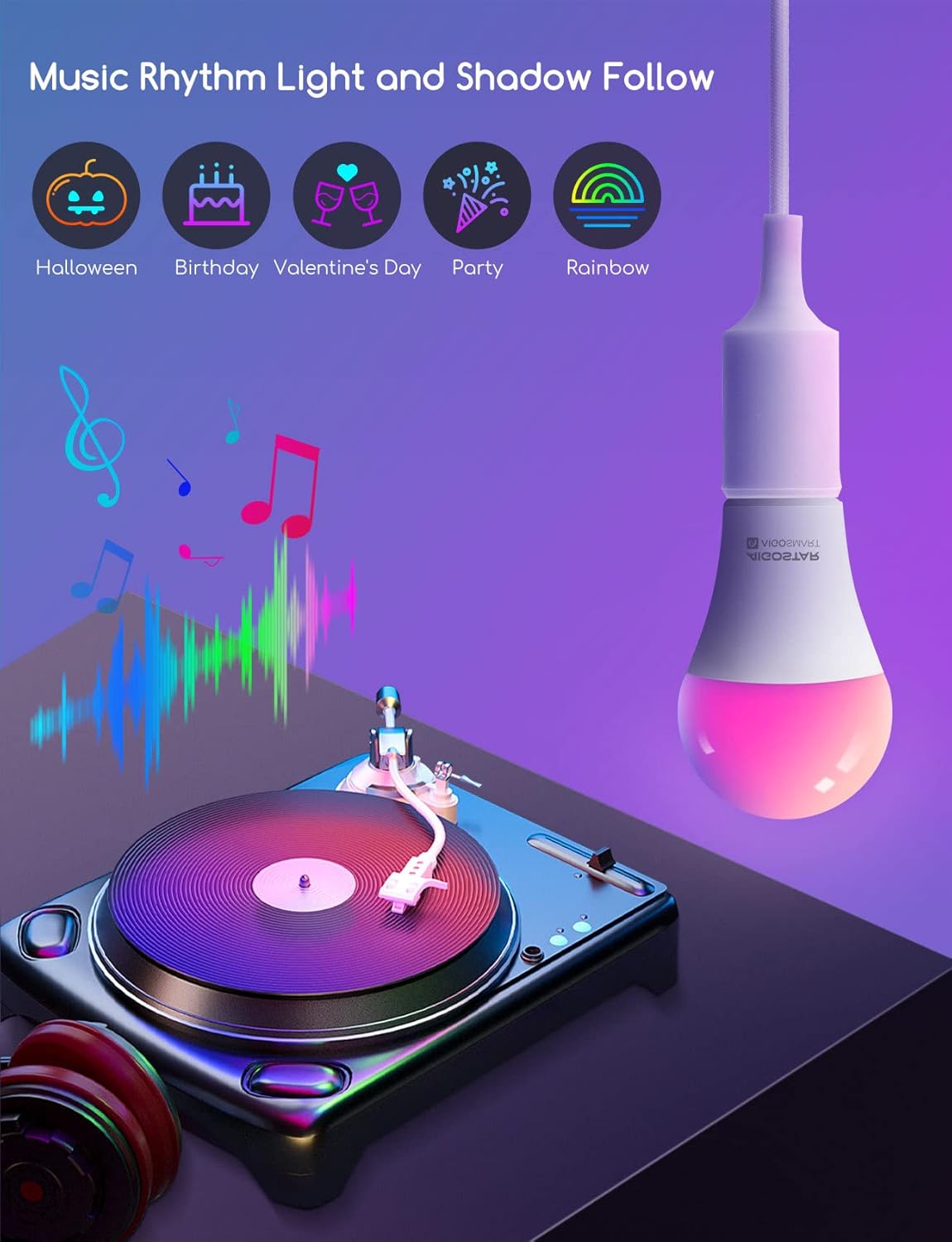
Image: An illustration depicting the music rhythm light and shadow follow feature, showing a smart bulb changing colors in sync with music notes emanating from a turntable, with icons for various themed events like Halloween, Birthday, Valentine's Day, Party, and Rainbow.
Scene Customization
Utilize the DIY mode to create unique lighting effects. The app also offers 26 predefined scenes categorized into nature, holidays, life, and emotions, allowing you to instantly set the mood for any occasion.
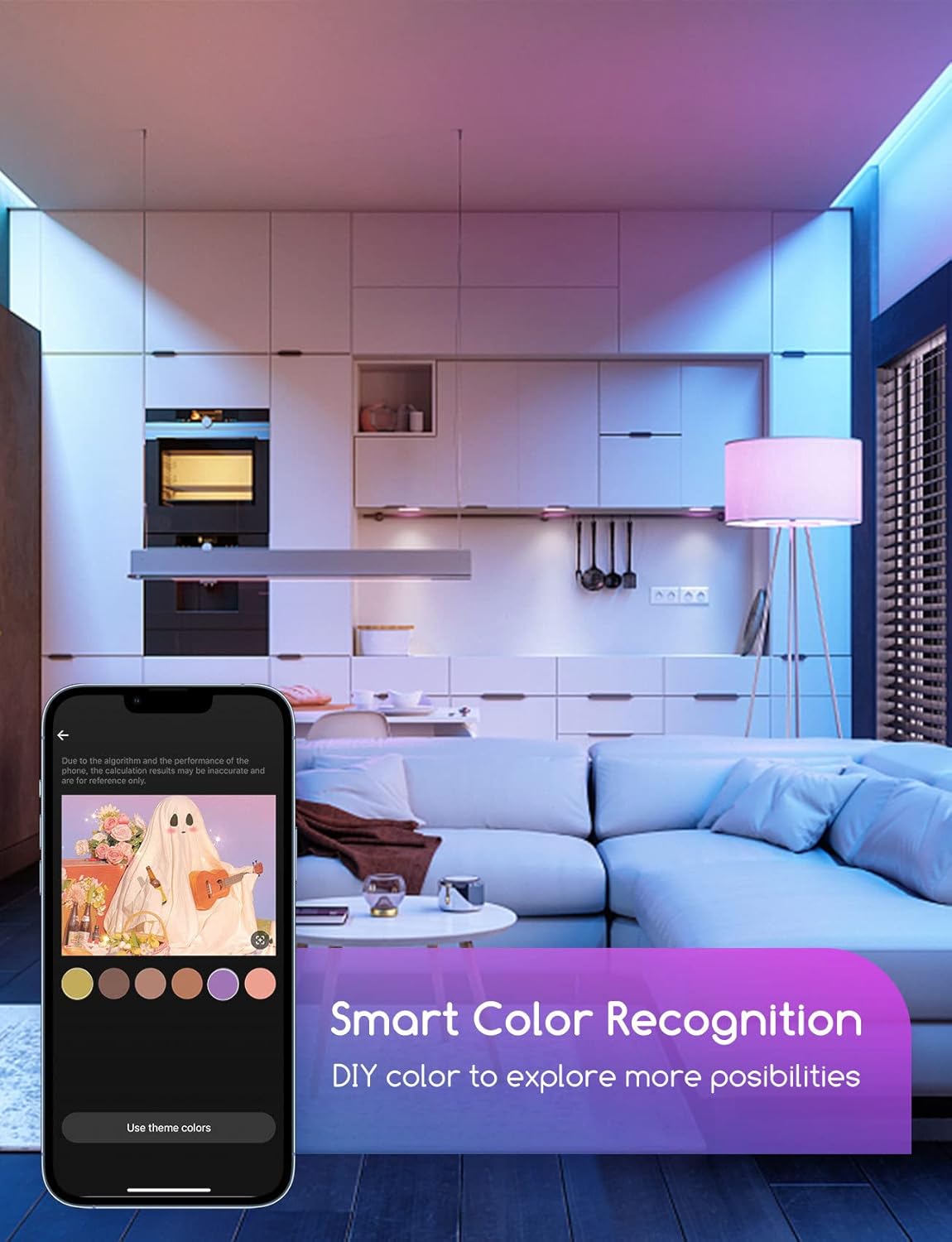
Image: A smart bulb illuminating a modern living space, with a smartphone displaying the Aigosmart app's smart color recognition feature, allowing users to pick colors from an image to customize the ambiance.
Timer and Grouping
Set schedules for your bulbs to turn on or off automatically at specific times. The grouping function allows you to control multiple bulbs simultaneously, making it easy to manage lighting across different rooms or your entire smart home with a single tap.

Image: A hand holding a smartphone displaying the Aigosmart app's timing settings, with a modern house in the background illustrating how users can set schedules for their smart bulbs to turn on and off at specific times, such as 7 PM, 8 PM, and 10 PM.
Voice Control
Integrate your Aigostar Smart LED Bulbs with Amazon Alexa or Google Assistant for convenient hands-free control. Simply use voice commands to adjust brightness, change colors, or turn lights on/off.
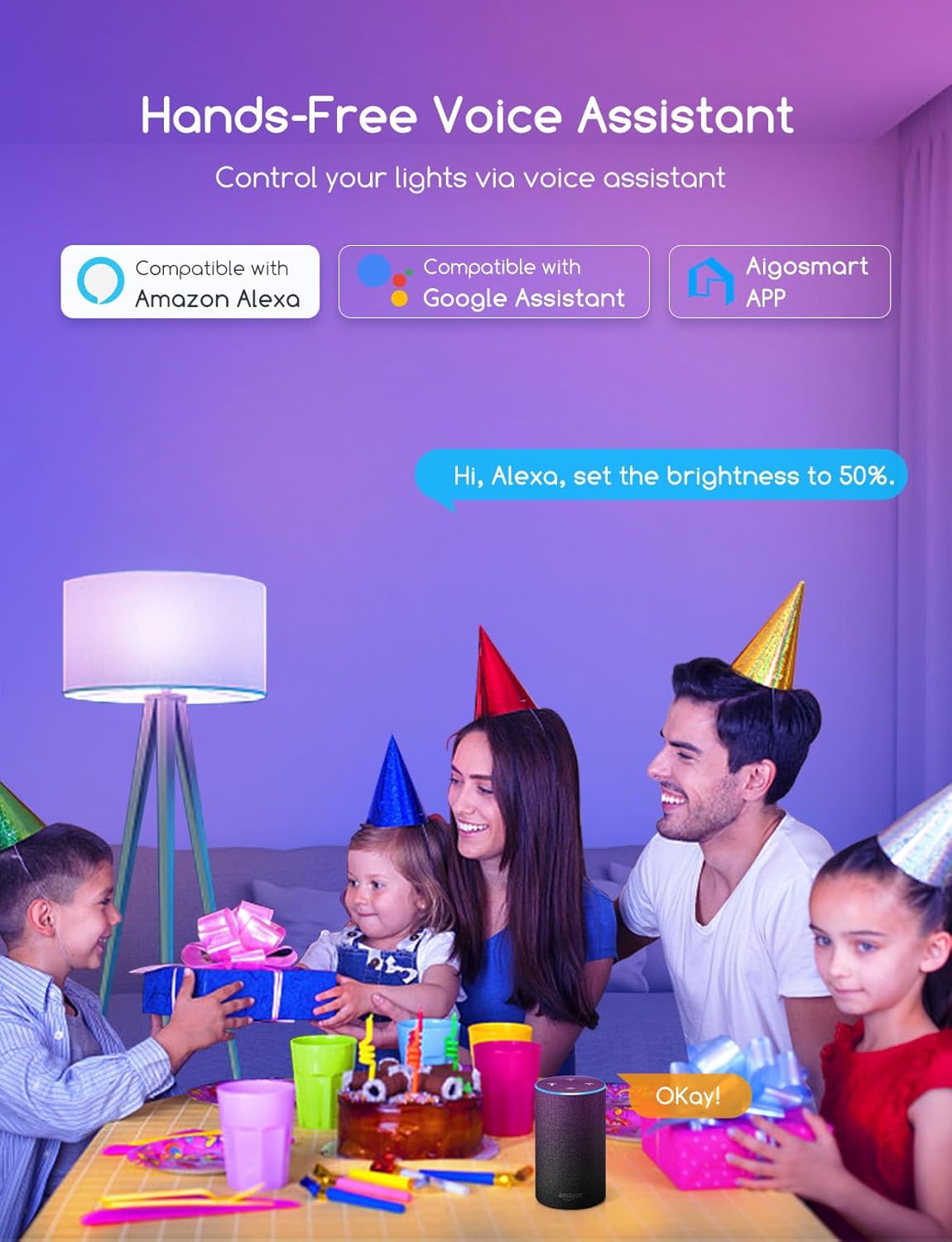
Image: A family enjoying a party, with a smart speaker in the foreground, illustrating the hands-free voice assistant capability of the Aigostar smart bulbs, compatible with Amazon Alexa and Google Assistant, as well as the Aigosmart app.
Product Specifications
| Specification | Detail |
|---|---|
| Brand | Aigostar |
| Manufacturer | Aigostar |
| Item Model Number | SL2 |
| Reference | S10201M2G-206781 |
| Product Dimensions (L x W x H) | 12.8 x 12.8 x 12.8 cm |
| Item Weight | 300 g |
| Number of Items | 4 |
| Voltage | 220 Volts |
| Power | 15.00 Watts |
| Incandescent Equivalent | 98 Watts |
| Bulb Base | E27 |
| Country of Origin | China |

Image: A diagram illustrating the physical dimensions of the Aigostar smart bulb, showing a diameter of 60mm and a height of 118mm.
Energy Efficiency
The Aigostar Smart LED Bulb has an energy efficiency rating of F.

Image: The EU energy label for Aigostar AL-BBI015FC22-WB, indicating an energy efficiency class of F and energy consumption of 15 kWh/1000h.
For more details on the energy label, please visit: EPREL Database
Maintenance
To ensure optimal performance and longevity of your Aigostar Smart LED Bulbs, follow these simple maintenance guidelines:
- Cleaning: Before cleaning, ensure the bulb is powered off and cool. Wipe the bulb with a soft, dry cloth. Do not use liquid cleaners or abrasive materials, as they may damage the bulb's surface or internal components.
- Storage: If storing the bulbs for an extended period, keep them in a cool, dry place away from direct sunlight and extreme temperatures.
- Handling: Handle the bulbs with care. Avoid dropping them or subjecting them to strong impacts.
Troubleshooting
If you encounter issues with your Aigostar Smart LED Bulbs, please refer to the following common solutions:
- Bulb Not Connecting to WiFi:
- Ensure your WiFi network is 2.4 GHz. The bulbs do not support 5 GHz networks.
- Check your WiFi password for accuracy.
- Make sure the bulb is within range of your WiFi router.
- Try resetting the bulb by turning it off and on three times rapidly until it blinks.
- Restart your WiFi router.
- Voice Control Not Working:
- Ensure your Aigostar account is correctly linked to your Alexa or Google Home app.
- Check your internet connection.
- Verify the device names in the Aigosmart app match those used in your voice assistant app.
- Try rediscovering devices in your Alexa or Google Home app.
- Bulb Not Responding to App:
- Check if the bulb is powered on.
- Ensure your phone has an active internet connection.
- Close and reopen the Aigosmart app.
- If the issue persists, try resetting the bulb and re-pairing it with the app.
Warranty and Support
Aigostar products are designed and manufactured to the highest quality standards. For information regarding warranty coverage, technical support, or service inquiries, please refer to the warranty card included with your product or visit the official Aigostar website. Please retain your proof of purchase for warranty claims.


