
1. Introduction
The Aputure Infinibar PB6 is a versatile and lightweight 2-foot 14W RGBWW full-color LED pixel bar designed for professional lighting applications. It features 48 individual pixels, allowing for precise control and creative lighting effects. Its robust aluminum housing ensures durability across various shooting environments.
Key features include:
- Ability to link multiple Infinibars using 10 differently-shaped connectors for unique designs.
- Advanced wireless connectivity via Sidus Link, LumenRadio CRMX, or wired DMX (with adapter).
- Proprietary RGBWW chipset for stunning color quality, with a CCT range of 2,000K to 10,000K and full green-magenta adjustment.
- Accurate skin tone reproduction with high CRI (96+), TLCI (98+), SSI (D56): 74, and SSI (Tungsten): 85 scores.
- Built-in 29.6Wh Lithium battery providing up to 100 minutes of operation at 14W max output.

Image 1.1: The Aputure Infinibar PB6 showcasing its full-color capabilities.
2. Package Contents
Please verify that all the following components are included in your package:
- Aputure Infinibar PB6 LED Pixel Bar
- Power Cable
- Carrying Case
- Shoulder Strap
- Mounting Bracket / Stand Adapter
- Various Connectors (10 differently shaped for linking multiple units)

Image 2.1: Included carrying case for the Infinibar PB6.

Image 2.2: Detachable shoulder strap for the carrying case.

Image 2.3: Power cable for charging and continuous power.
3. Setup Guide
3.1 Initial Charging
Before first use, fully charge the Infinibar PB6 using the provided power cable. The built-in 29.6Wh Lithium battery allows for portable operation.
3.2 Mounting the Infinibar
The Infinibar PB6 can be mounted using the included mounting bracket/stand adapter. This adapter provides versatile attachment options for various stands and rigging setups.

Image 3.1: Mounting bracket for attaching the Infinibar to stands or other fixtures.
3.3 Linking Multiple Infinibars
To create larger or more complex lighting setups, multiple Infinibar PB6 units can be linked together using the various connectors. These connectors allow for both physical connection and power sharing between units.

Image 3.2: Example of two Infinibar units being connected.

Image 3.3: Top view of the connection interface on the Infinibar.
3.4 Connectivity Options
The Infinibar PB6 offers several control methods:
- Sidus Link App: Download the Sidus Link app on your smartphone or tablet for comprehensive wireless control.
- LumenRadio CRMX: For professional wireless DMX control, the Infinibar supports LumenRadio CRMX.
- Wired DMX: Use Aputure's USB-C to DMX Adapter (sold separately) for wired DMX control.
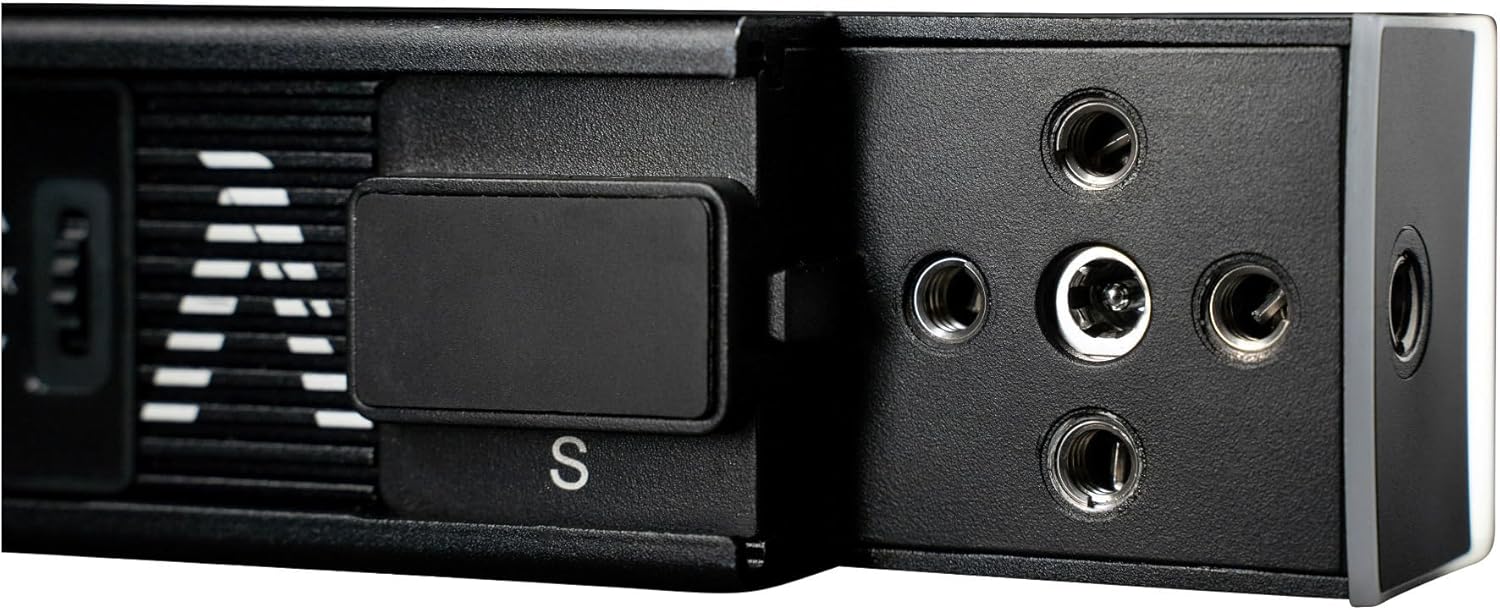
Image 3.4: Input/output ports on the Infinibar PB6.
4. Operating Instructions
4.1 Powering On/Off
Locate the power button on the Infinibar PB6. Press and hold to power on or off the device.
4.2 Adjusting Color and Brightness
The Infinibar PB6 features a wide CCT range from 2,000K to 10,000K and full green-magenta adjustment. Brightness can be controlled from 0% to 100%. These adjustments are typically made via the Sidus Link app or DMX controller.
4.3 Pixel Control
With 48 individual pixels, the Infinibar PB6 allows for advanced pixel mapping and effects. Refer to the Sidus Link app manual or your DMX controller's guide for detailed instructions on controlling individual pixels or groups of pixels.
4.4 Using Wireless Control (Sidus Link)
- Ensure Bluetooth is enabled on your mobile device.
- Open the Sidus Link app.
- The app will scan for available Aputure devices. Select your Infinibar PB6 from the list.
- Once connected, you can access various lighting modes, effects, and settings.
5. Maintenance
5.1 Cleaning
To clean the Infinibar PB6, use a soft, dry cloth. For stubborn dirt, a slightly damp cloth with mild soap can be used, ensuring no liquid enters the device's openings. Avoid abrasive cleaners or solvents.
5.2 Battery Care
- Store the device in a cool, dry place when not in use.
- For long-term storage, charge the battery to approximately 50-60% to preserve battery health.
- Avoid fully discharging the battery frequently.
5.3 Storage
When transporting or storing the Infinibar PB6, utilize the provided carrying case to protect it from dust, moisture, and physical damage.
6. Troubleshooting
| Problem | Possible Cause | Solution |
|---|---|---|
| Device does not power on. | Battery is depleted or power cable is not connected properly. | Connect the power cable and charge the device. Ensure the power button is pressed and held sufficiently. |
| Cannot connect via Sidus Link. | Bluetooth is off, device is out of range, or app needs reset. | Ensure Bluetooth is on. Move closer to the device. Restart the Sidus Link app or your mobile device. |
| Colors appear inaccurate. | Incorrect color mode selected or calibration issue. | Verify the color mode and settings in the Sidus Link app or DMX controller. Perform a factory reset if necessary (refer to Aputure support). |
| Linked Infinibars not synchronizing. | Improper connection or power sharing issue. | Ensure connectors are securely fastened and power sharing is enabled if applicable. Check individual unit power status. |
7. Technical Specifications
| Feature | Detail |
|---|---|
| Model Number | INFINIBAR |
| Dimensions (L x W x H) | 26.6 x 5.2 x 5 inches |
| Item Weight | 7.19 pounds |
| Material | Aluminum |
| Light Source Type | LED (RGBWW) |
| Number of Light Sources | 48 Individual Pixels |
| Power Source | Battery Powered (Built-in 29.6Wh Lithium) / AC Power |
| Maximum Output Wattage | 14 Watts |
| Brightness | 1400 lumen |
| Color Temperature Range | 2,000K to 10,000K |
| Color Accuracy | CRI: 96+, TLCI: 98+, SSI (D56): 74, SSI (Tungsten): 85 |
| Connectivity | Sidus Link, LumenRadio CRMX, Wired DMX (via USB-C adapter) |
| Mounting Type | Wall Mount (via bracket) |
8. Warranty and Support
For detailed warranty information and technical support, please refer to the official Aputure website or contact their customer service directly. Warranty terms may vary by region and retailer.
You can visit the Aputure store on Amazon for more information: Aputure Official Store