
1. Getting Started
This section guides you through the initial setup of your DJI Mini 2 SE drone, ensuring a smooth first flight experience.
1.1 Unboxing and Components
Carefully unpack all items from the box. Verify that all components are present.
- DJI Mini 2 SE Aircraft
- Remote Controller
- Intelligent Flight Battery
- Spare Propellers (Pair)
- Type-C Cable
- Gimbal Protector
- RC Cable (USB-C Connector)
- RC Cable (Lightning Connector)
- RC Cable (Standard Micro-USB Connector)
- Screwdriver
- Spare Screws
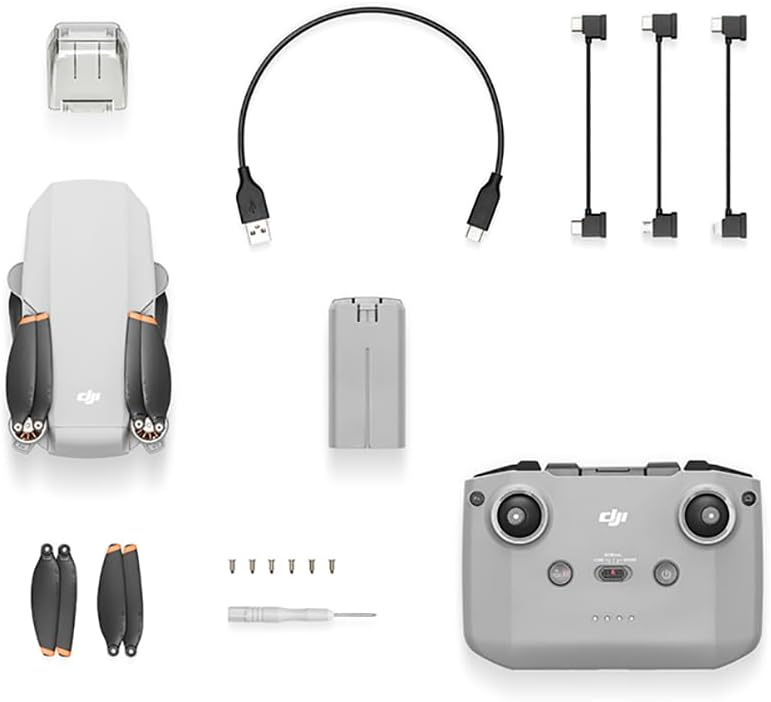
Image: All components of the DJI Mini 2 SE drone package, including the aircraft, remote controller, battery, cables, and tools.
1.2 Charging the Battery
Before first use, fully charge the Intelligent Flight Battery and the remote controller. Connect the Type-C cable to a USB power adapter (not included) and then to the battery or remote controller.
- The battery indicator lights will show charging status.
- Charging is complete when all indicator lights are solid.
1.3 Preparing the Drone
Unfold the drone arms and propellers. Ensure propellers are securely attached and free from damage.
- Unfold the front arms first, then the rear arms.
- Remove the gimbal protector.
- Insert the fully charged Intelligent Flight Battery into the aircraft until it clicks into place.

Image: The DJI Mini 2 SE drone with its arms unfolded, ready for flight.
1.4 Remote Controller Setup
Prepare the remote controller for use by attaching your mobile device and connecting the appropriate RC cable.
- Unfold the mobile device clamp on the remote controller.
- Attach your smartphone to the clamp.
- Connect the appropriate RC cable from your smartphone to the remote controller.
- Download and install the DJI Fly app on your mobile device.

Image: The DJI Mini 2 SE drone positioned next to its remote controller, which has a smartphone mounted in its clamp.
2. Operation Guide
This section provides essential information for operating your DJI Mini 2 SE drone safely and effectively.
2.1 Pre-Flight Checklist
Always perform these checks before each flight:
- Ensure aircraft, remote controller, and mobile device batteries are fully charged.
- Check propellers for damage and ensure they are securely attached.
- Verify the gimbal protector is removed.
- Ensure the DJI Fly app is updated to the latest version.
- Check for sufficient GPS signal (if flying outdoors).
- Confirm local regulations and flight restrictions.
2.2 Taking Off and Landing
Use the DJI Fly app for automated take-off and landing, or manual controls for experienced pilots.
- Automatic Take-off: In the DJI Fly app, tap the auto take-off icon and confirm.
- Manual Take-off: Push both control sticks to the bottom inner or outer corners to start motors, then push the left stick up to ascend.
- Automatic Landing: In the DJI Fly app, tap the auto landing icon and confirm.
- Manual Landing: Gently pull the left stick down to descend. Once landed, hold the left stick down for a few seconds to stop the motors.
2.3 Flight Controls
The remote controller uses a standard mode 2 configuration:
- Left Stick: Controls altitude (up/down) and yaw (rotate left/right).
- Right Stick: Controls forward/backward movement (pitch) and left/right movement (roll).
- Refer to the DJI Fly app for detailed control diagrams and customization options.
2.4 Camera Operation
The DJI Mini 2 SE is equipped with a camera capable of 2.7K video recording and JPEG image capture.
- Photo/Video Switch: Use the dedicated button on the remote controller or the DJI Fly app interface.
- Shutter/Record Button: Press once to take a photo, press again to start/stop video recording.
- Gimbal Tilt Dial: Use the dial on the remote controller to adjust the camera's vertical angle.
2.5 Flight Modes
The DJI Mini 2 SE offers various flight modes to suit different piloting needs:
- Normal Mode (N): Standard flight mode, offering balanced speed and control.
- Sport Mode (S): Increases aircraft responsiveness and speed for dynamic flight.
- Cine Mode (C): Reduces flight speed and control sensitivity for smoother, cinematic footage.

Image: The DJI Mini 2 SE drone in flight against a clear sky, demonstrating its operational state.
3. Maintenance and Care
Proper maintenance ensures the longevity and optimal performance of your DJI Mini 2 SE drone.
3.1 Cleaning
- Wipe the aircraft and remote controller with a clean, soft cloth after each use.
- Do not use alcohol or other solvents.
- Ensure no dust or debris enters the motors or camera lens.
3.2 Propeller Inspection and Replacement
- Inspect propellers for cracks, bends, or other damage before each flight.
- Replace damaged propellers immediately using the provided screwdriver and spare screws.
- Ensure propellers are installed correctly according to their markings (e.g., 'A' and 'B').
3.3 Battery Care
- Store batteries in a cool, dry place.
- Do not overcharge or over-discharge batteries.
- If storing for extended periods, discharge batteries to 40-60% capacity.
3.4 Storage
- Fold the drone arms before storing.
- Reattach the gimbal protector to prevent damage during transport or storage.
- Store the drone and accessories in a protective case.
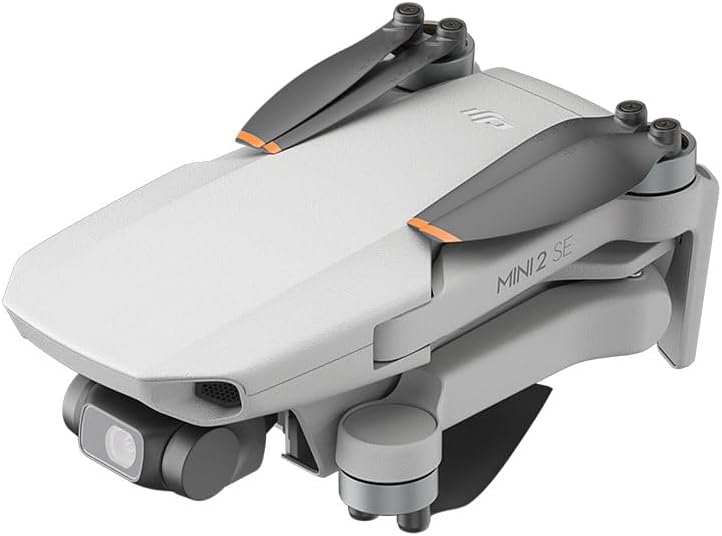
Image: The DJI Mini 2 SE drone with its arms folded, ready for compact storage or transport.
4. Troubleshooting
This section addresses common issues you might encounter with your DJI Mini 2 SE drone and provides solutions.
4.1 Common Issues and Solutions
| Issue | Possible Cause | Solution |
|---|---|---|
| Drone does not power on | Low battery, incorrect battery insertion | Ensure battery is fully charged and correctly inserted. Press power button once, then press and hold. |
| No video feed in DJI Fly app | RC cable disconnected, app not running, interference | Check RC cable connection. Restart DJI Fly app. Move to an area with less interference. |
| Poor GPS signal | Flying indoors, obstructed view of sky | Fly outdoors in an open area with a clear view of the sky. Avoid flying near tall buildings or dense foliage. |
| Drone drifts during flight | Compass interference, IMU calibration needed | Perform compass calibration in the DJI Fly app. If issue persists, perform IMU calibration. Avoid flying near strong magnetic fields. |
5. Technical Specifications
Detailed specifications for the DJI Mini 2 SE drone.
| Specification | Detail |
|---|---|
| Brand | DJI |
| Model Name | Mini 2 SE |
| Item Weight | 245 Grams (8.6 ounces) |
| Product Dimensions | 7.87 x 7.87 x 3.94 inches |
| Video Capture Resolution | 2.7K |
| Video Capture Format | MP4 |
| Supported Image Format | JPEG |
| Connectivity Technology | OcuSync 2.0, OcuSync 3.0, Bluetooth |
| Batteries | 1 Lithium Ion battery required (included) |
| Skill Level | Intermediate |
| Material | Plastic |
| Manufacturer Part Number | CP.MA.00000573.01 |

Image: The DJI Mini 2 SE drone in flight, highlighting its approximate 31-minute flight duration.
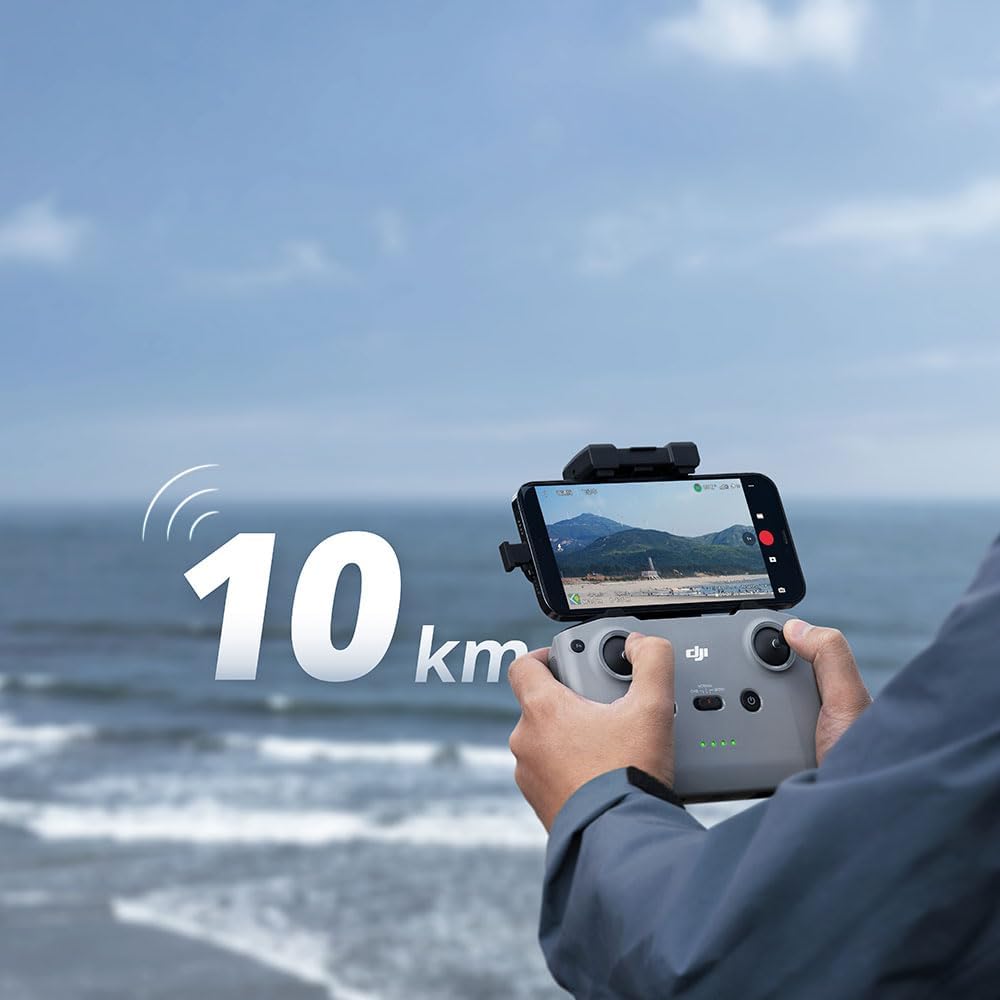
Image: A person holding the DJI remote controller with a smartphone displaying a drone's view, emphasizing the 10 km transmission range.
6. Warranty and Support
Information regarding product warranty and how to obtain customer support.
6.1 Warranty Information
The DJI Mini 2 SE drone is covered by a manufacturer's warranty. Please refer to the official DJI website or the warranty card included in your product packaging for specific terms, conditions, and duration of the warranty.
- Warranty typically covers manufacturing defects.
- Damage caused by improper use, accidents, or unauthorized modifications may not be covered.
6.2 Customer Support
For technical assistance, troubleshooting beyond this manual, or warranty claims, please contact DJI customer support.
- Visit the official DJI Support website for FAQs, tutorials, and contact information.
- Ensure you have your product's serial number ready when contacting support.
- You can find more information and resources on the DJI Store.


