
Introduction
This manual provides essential information for the setup, operation, maintenance, and troubleshooting of your ATOZEE Tablet 2-in-1 Android 14. This device is designed to offer a versatile computing experience, functioning as both a tablet and a laptop when paired with its included accessories.
The ATOZEE Tablet features a 10-inch display, runs on Android 14, and comes with a Bluetooth keyboard, wireless mouse, and a foldable protective case, enabling flexible use for various tasks from entertainment to productivity.
Package Contents
Upon unboxing, please verify that all items listed below are present and in good condition:
- ATOZEE Tablet (ZB10S2IN1)
- Bluetooth Keyboard
- Wireless Mouse
- Foldable Protective Case
- Charging Cable
- Stylus Pen

Setup Guide
1. Initial Charging
Before first use, fully charge your tablet using the provided charging cable. Connect the cable to the tablet's charging port and the other end to a compatible USB power adapter (not included) or a computer's USB port. The battery indicator on the screen will show charging status.
2. Powering On/Off
- To Power On: Press and hold the Power button located on the side of the tablet until the screen lights up.
- To Power Off: Press and hold the Power button, then select "Power off" from the options that appear on the screen.
- To Restart: Press and hold the Power button, then select "Restart" from the options.
3. Connecting Accessories
Bluetooth Keyboard and Mouse
To use your tablet in laptop mode, connect the Bluetooth keyboard and wireless mouse:
- Ensure both the keyboard and mouse are charged or have fresh batteries (if applicable) and are powered on.
- On your tablet, go to Settings > Connected devices > Bluetooth.
- Turn on Bluetooth. The tablet will scan for available devices.
- Select the keyboard and mouse from the list of available devices to pair them. Follow any on-screen prompts for pairing codes.

Foldable Protective Case
The foldable case protects your tablet and can be used as a stand for comfortable viewing or typing. Insert the tablet into the case, ensuring all ports and buttons are accessible. The case can be folded into various positions to support the tablet upright or at an angle.

Operating Instructions
1. Android 14 Operating System
Your ATOZEE Tablet runs on the Android 14 operating system, providing a user-friendly interface and access to a vast ecosystem of applications. The tablet is GMS (Google Mobile Services) certified, meaning it comes with Google Play Store pre-installed, allowing you to download and use popular apps like Facebook, Twitter, YouTube, TikTok, Line, Instagram, and Microsoft Office software.
2. Display and Visuals
The tablet features a 10.1-inch IPS HD touch screen with a resolution of 1280x800 pixels. This display offers a wide visual area and clear, immersive visuals for various activities, including gaming, watching movies, reading, and note-taking.
3. Performance and Storage
Equipped with a 1.5 GHz multi-core CPU, the tablet ensures a smooth user experience. It comes with 6GB RAM (2GB physical + 4GB expandable internal storage) and 32GB of internal ROM. The storage can be expanded significantly up to 1TB using a compatible microSD card (not included), providing ample space for applications, media, and documents.


4. Camera Functionality
The tablet is equipped with an 8MP rear camera with autofocus and flash, capable of capturing clear images day or night. A 2MP front camera is also included, ideal for video calls and selfies, ensuring excellent clarity during online communications.
5. Connectivity
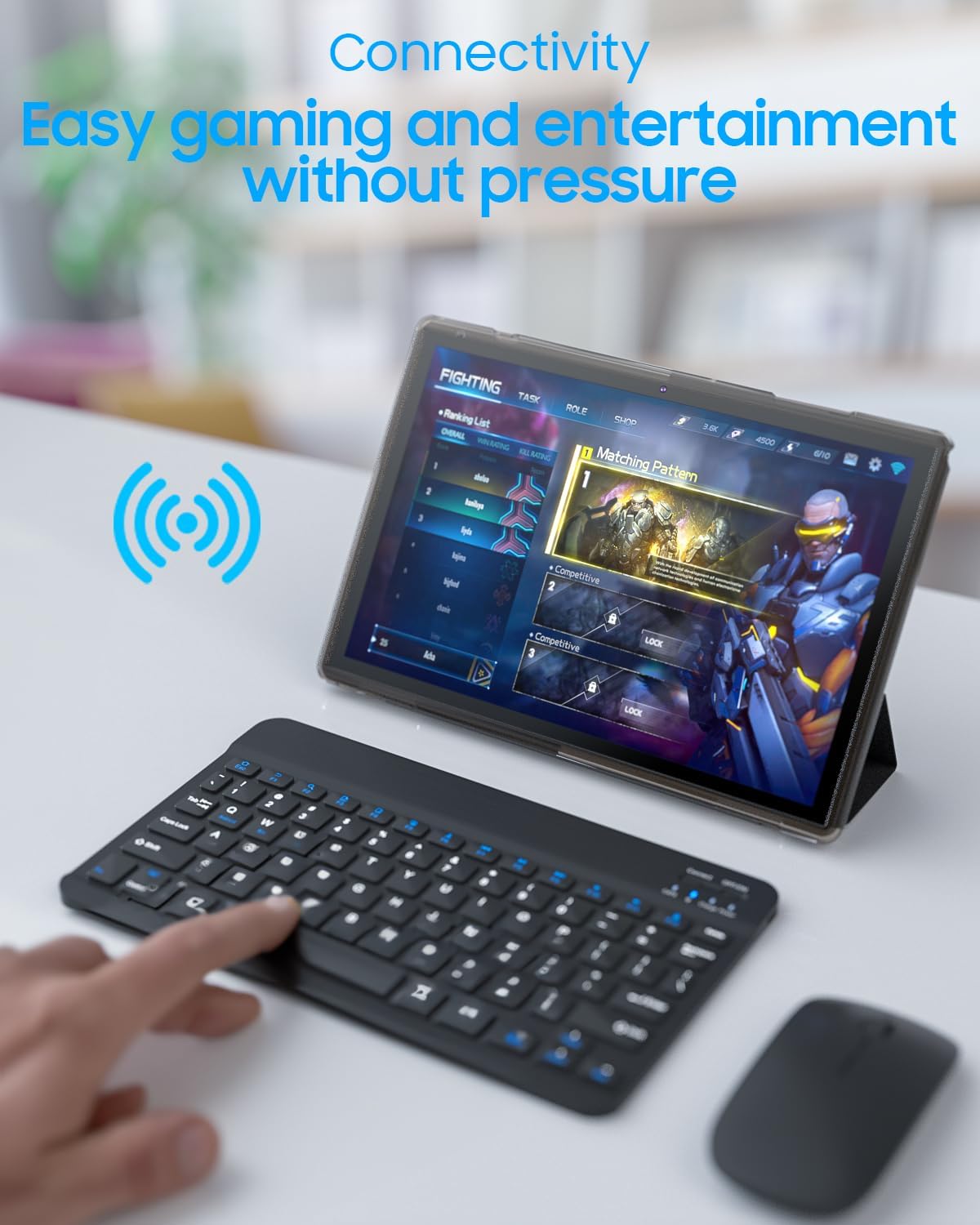
The ATOZEE Tablet supports WiFi-6 (802.11ac) for fast and stable internet connections and Bluetooth for connecting peripherals like the included keyboard and mouse, as well as other Bluetooth-enabled devices.
6. Battery Life and Audio
A 6000mAh battery powers the tablet, providing approximately 8 hours of regular operation on a full charge. The tablet features large amplitude dual speakers with a 3D stereo surround effect, delivering clear, full, and detailed audio for an immersive entertainment experience across music, movies, and games.
Maintenance
1. Cleaning Your Tablet
To clean the screen, use a soft, lint-free cloth specifically designed for electronics. For the body of the tablet and accessories, a slightly damp cloth can be used. Avoid using harsh chemicals, abrasive cleaners, or excessive moisture, as these can damage the device.
2. Battery Care
To prolong battery life, avoid exposing the tablet to extreme temperatures (hot or cold). It is recommended to keep the battery charge between 20% and 80% for optimal longevity. If the tablet will not be used for an extended period, charge it to about 50% before storing.
3. Software Updates
Periodically check for system updates in the tablet's settings. Keeping your operating system updated ensures you have the latest features, security patches, and performance improvements.
4. Storage Management
Regularly manage your tablet's storage by deleting unnecessary files, uninstalling unused apps, and moving large media files to external storage (microSD card) if you have expanded the memory. This helps maintain optimal performance.
Troubleshooting
This section addresses common issues you might encounter with your ATOZEE Tablet. If you experience problems not covered here, please refer to the support information.
Tablet Not Powering On
- Ensure the tablet is sufficiently charged. Connect it to the charger and wait a few minutes before attempting to power on again.
- Try holding the Power button for a longer duration (10-15 seconds) to force a restart.
Slow Performance or Lagging
- Close unnecessary background applications.
- Clear cache and data for frequently used apps.
- Ensure sufficient free storage space. Consider moving large files to an external SD card.
- Restart the tablet.
- If issues persist, a factory reset may be necessary (back up your data first).
Connectivity Issues (Wi-Fi/Bluetooth)
- Wi-Fi: Ensure Wi-Fi is enabled. Restart your router/modem. Forget the network and reconnect.
- Bluetooth: Ensure Bluetooth is enabled on both the tablet and the accessory. Unpair and re-pair the device. Ensure the accessory is charged and within range.
Charging Problems
- Ensure the charging cable is securely connected to both the tablet and the power source.
- Use only the charging cable provided with your tablet or a certified compatible replacement. Warning: Using incompatible or damaged chargers/cables can lead to overheating or damage to the charging port.
- Try a different power outlet or USB port.
Specifications
| Feature | Specification |
|---|---|
| Brand | ATOZEE |
| Model Name | ZB10S2IN1 |
| Operating System | Android 14 |
| Screen Size | 10.1 Inches |
| Screen Resolution | 1280 x 800 Pixels (IPS HD) |
| Processor | 1.5 GHz Multi-core |
| RAM | 6GB (2GB + 4GB Expandable Internal Storage) |
| Internal Storage (ROM) | 32GB |
| Expandable Storage | Up to 1TB (via microSD card) |
| Rear Camera | 8MP (with autofocus and flash) |
| Front Camera | 2MP |
| Wireless Connectivity | WiFi-6 (802.11ac) |
| Bluetooth | Yes |
| Battery Capacity | 6000mAh |
| Average Battery Life | 8 Hours |
| Audio | Dual Speakers (3D stereo surround) |
| Item Weight | 1 pound |
| Product Dimensions (LxWxH) | 10 x 6 x 0.3 inches |
| Color | Gray |

Warranty and Support
For information regarding product warranty, returns, or technical support, please refer to the documentation provided at the time of purchase or contact the seller/manufacturer directly. Specific warranty terms and support channels may vary based on your region and purchase point.